
CRM Phone is an integrated calling feature in the CRMTiger Mobile App that enables users to make and manage business calls directly from within the application. It eliminates the need to switch between the CRM and the device’s native phone app, allowing users to communicate with customers while keeping their workflow within the CRM.
Administrators can control the availability of the CRM Phone feature through Feature Access Management, assign access to specific modules, and configure the preferred transport method for secure and reliable call connectivity.
Benefits
- Make business calls directly from the CRMTiger Mobile App.
- Control feature availability through Feature Access Management.
- Grant CRM Phone access only to selected modules.
- Configure the preferred transport method, such as WSS, TLS, or TCP (if supported).
- Provide a centralized calling experience without leaving the mobile application.
- Simplify communication with customers while working within the CRM.
CRM Phone Configuration
The CRM Phone Configuration feature allows administrators to enable the CRM Phone module for mobile users, control module-level access, and configure the preferred transport for making calls through the mobile application.
Enable CRM Phone
Navigate to CRMTiger App Dashboard → Feature Access Management and open CRM Phone Configuration. Enable the CRM Phone feature and select the modules where users should have access to the CRM Phone functionality. Save the configuration to apply the changes.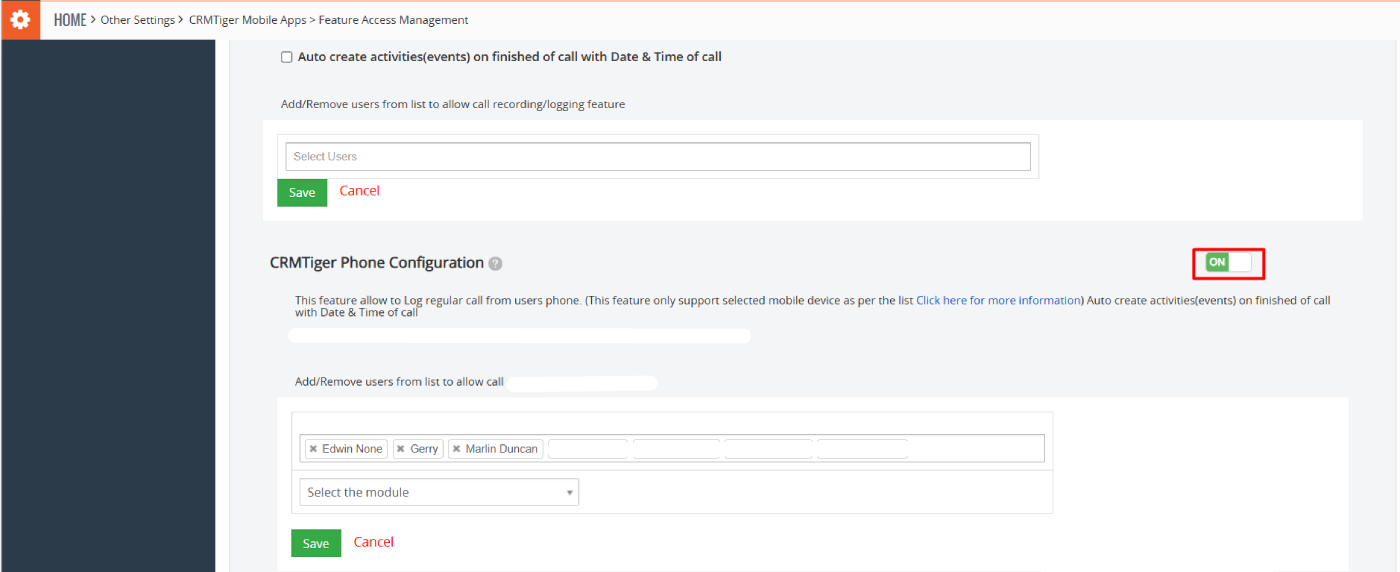 Select the modules where users should have access to the CRM Phone functionality and add/remove users from lists to allow calls. Save the configuration to apply the changes.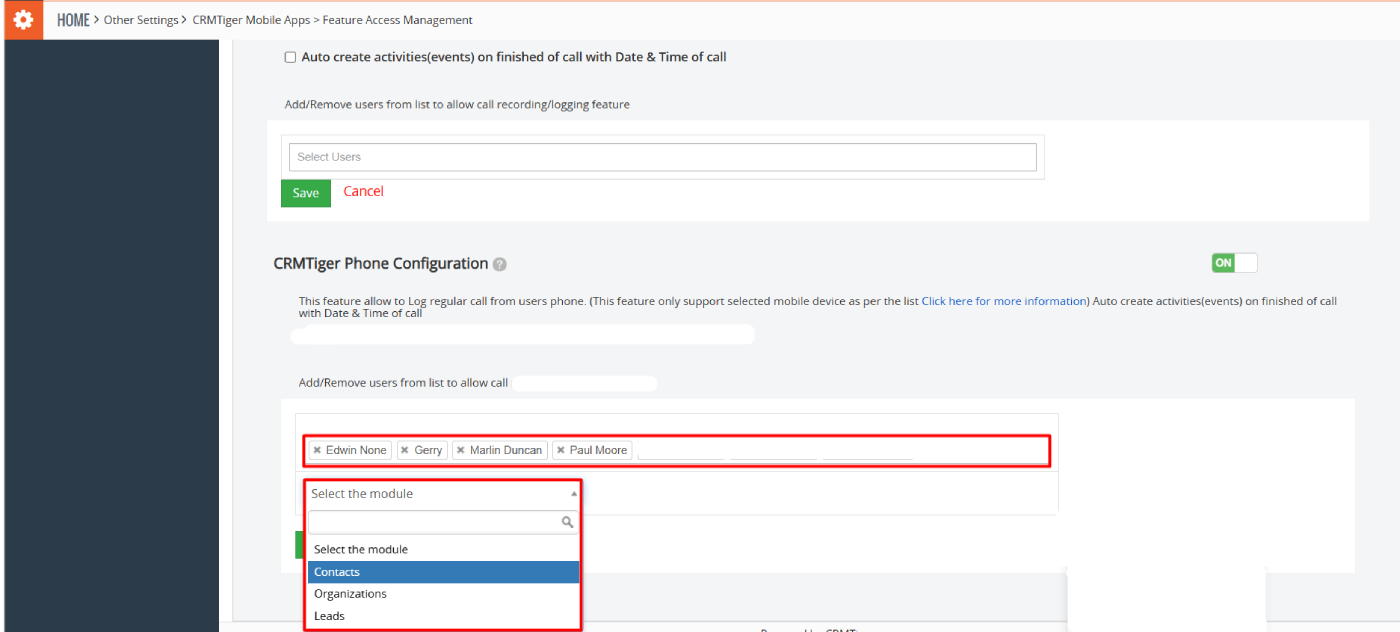
Access CRM Phone in the Mobile App
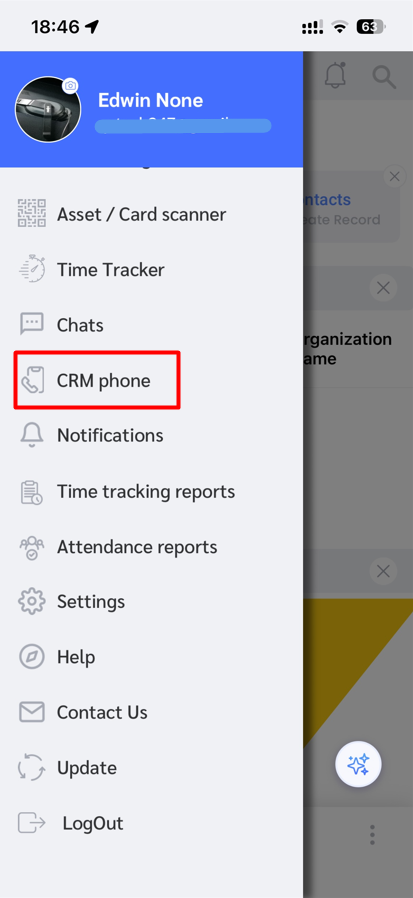
After the configuration is saved, log in to the CRMTiger Mobile App. The CRM Phone module will appear in the side menu based on the configured feature access. Open the module to proceed with the phone configuration.
Configure the Phone Transport
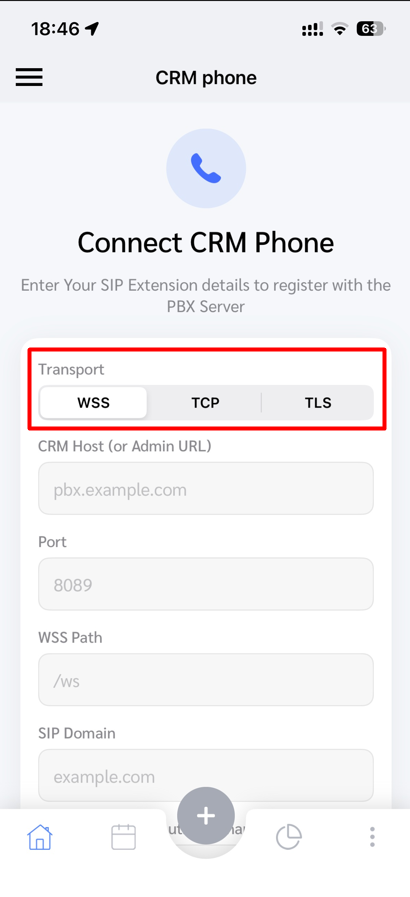
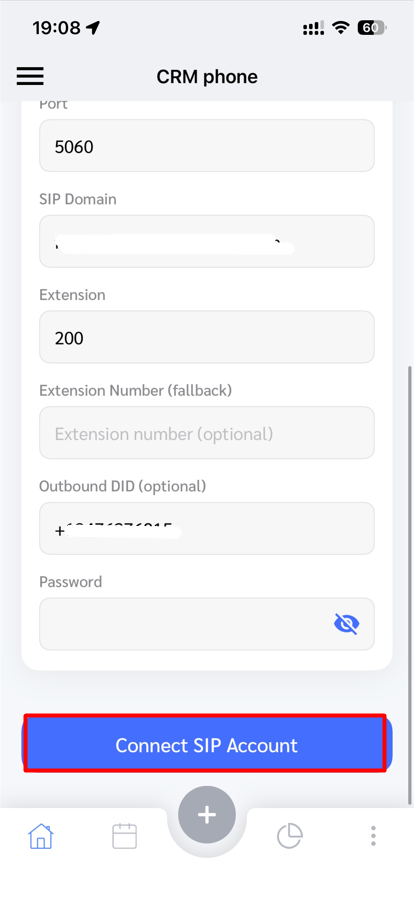
On the CRM Phone configuration screen, select the preferred transport option, such as WSS, TLS, or TCP (if available).
After selecting the transport and entering the required configuration details, tap Connect SIP Account to save the settings.
Transport Types
The Transport option defines how the CRMTiger Mobile App connects to your organization’s phone server. Select the transport configured by your system administrator.
- WSS (WebSocket Secure): Establishes a secure connection over the internet, allowing you to register your extension and make or receive business calls from anywhere with an internet connection.
- TCP (Transmission Control Protocol): Establishes a direct and reliable connection, typically used within an organization’s local network. It allows users to register their extension and place or receive business calls while connected to the office network.
- TLS (Transport Layer Security): Creates an encrypted connection between the mobile app and the phone server, protecting call signaling and registration information. It is recommended when secure communication is required.
Note: The transport type available to you depends on your organization’s PBX configuration. If you are unsure which transport to use, contact your system administrator.
Use the CRM Phone Dialer
Once the transport is configured successfully, the application redirects you to the CRM Phone Dialer.
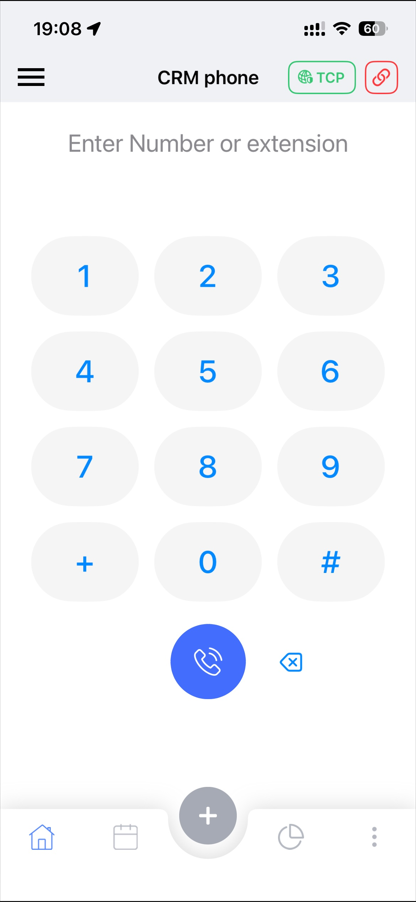
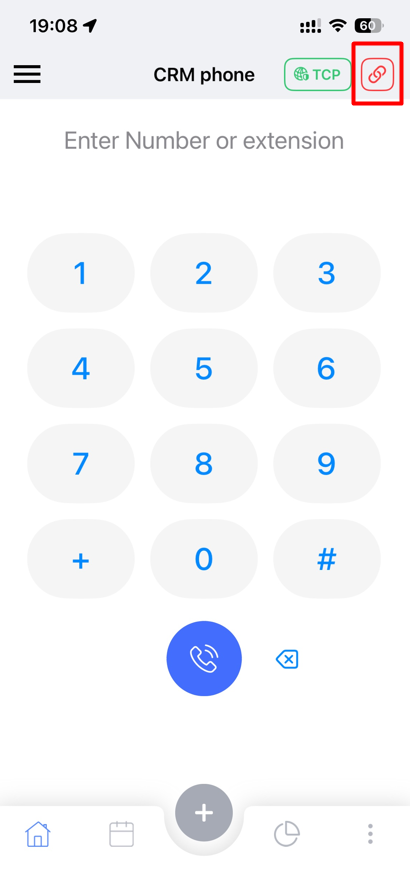
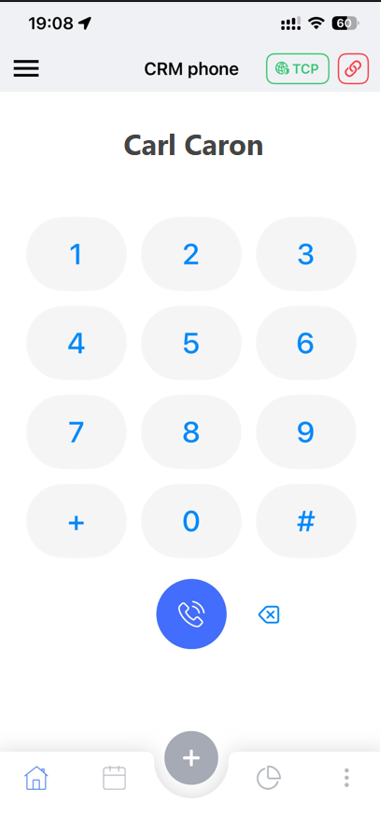
The dialer displays the currently connected transport (such as WSS, TLS, or TCP), allowing you to verify the active connection before placing a call.
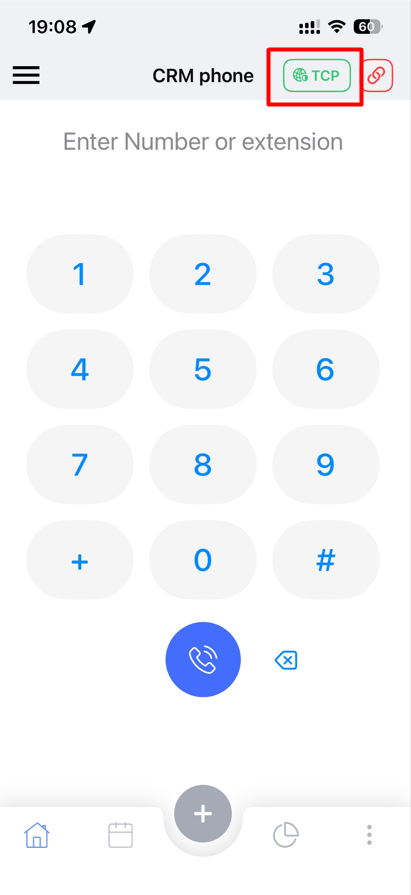
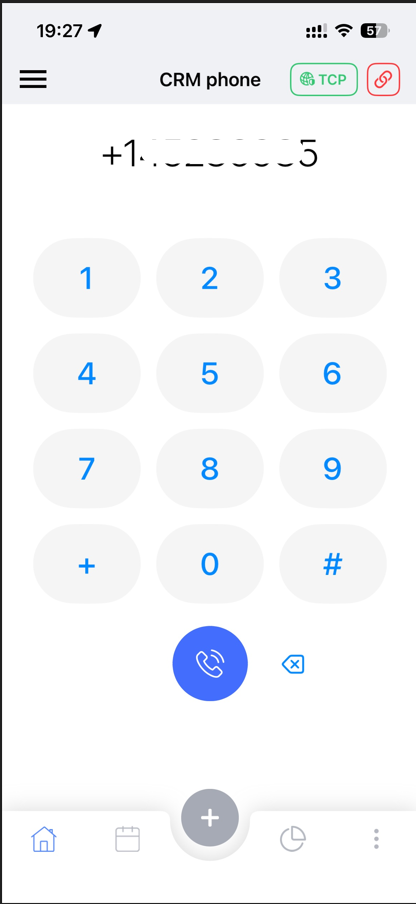
To make a call, simply enter the phone number or extension number using the dialer keypad and tap the Call button.
During an active call, you can use the available call controls to mute the microphone, place the call on hold, enable speaker mode, or switch to another connected audio device, depending on your device capabilities.
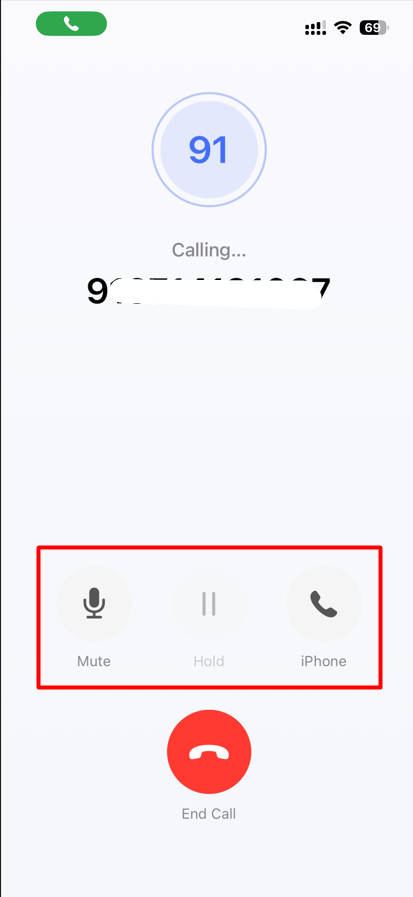
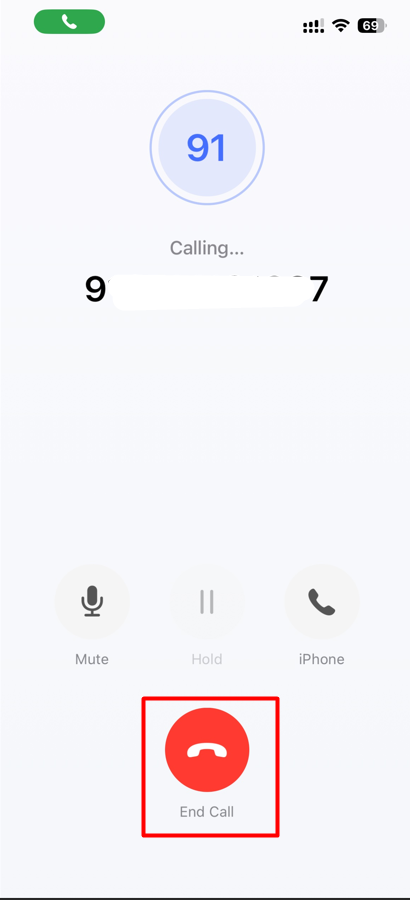
When you have finished the conversation, tap the End call icon to disconnect the call.
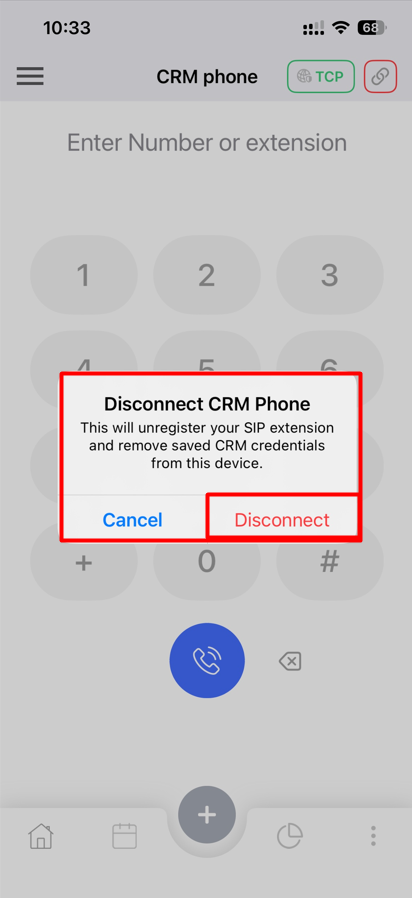
If you want to use a different transport, tap the Disconnect button to disconnect the currently active transport. Once the connection is terminated, return to the CRM Phone Configuration screen, select the desired transport (such as WSS, TLS, or TCP), and tap Submit to establish a new connection. After the new transport is connected successfully, the application redirects you to the CRM Phone dialer, where you can continue making calls using the newly configured transport.
How to Make a CRM Phone Call from a Record
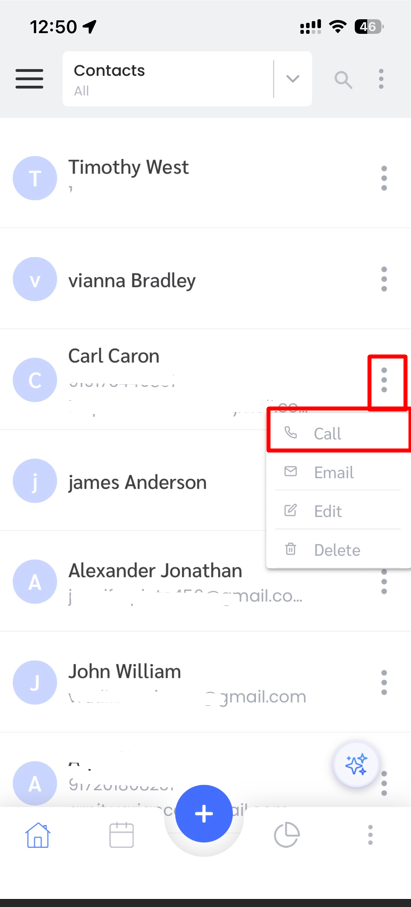
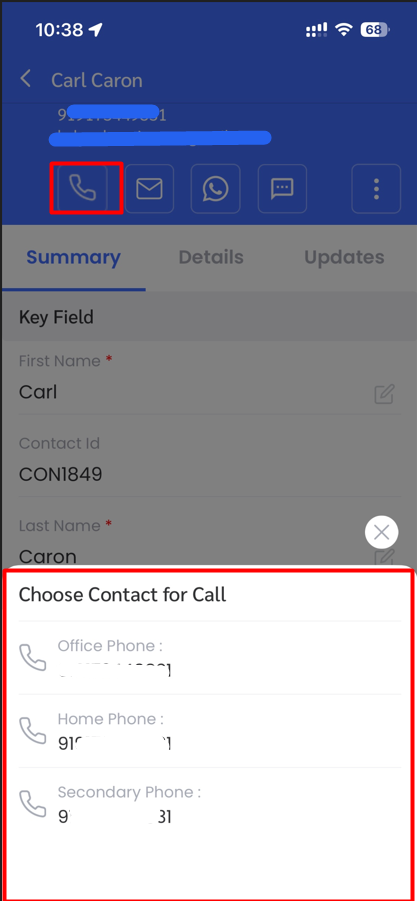
You can place a CRM Phone call directly from a saved record without manually entering the phone number. Open the desired record and tap the Call icon or any available phone number. If the record contains multiple phone numbers, a pop-up appears allowing you to select the number you want to call.
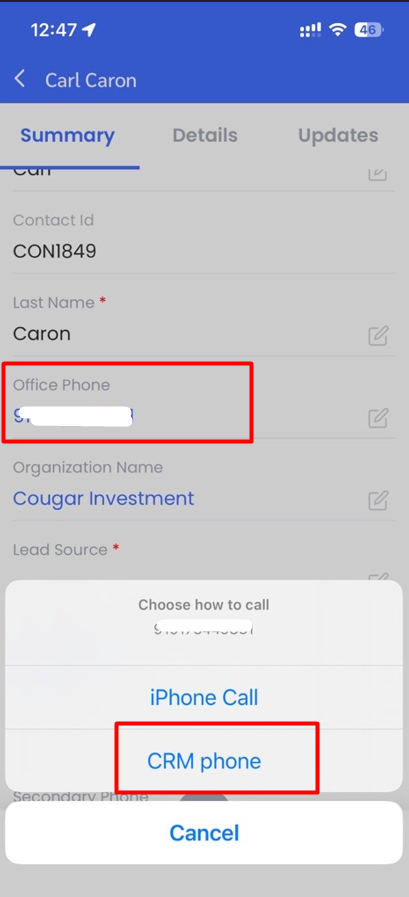
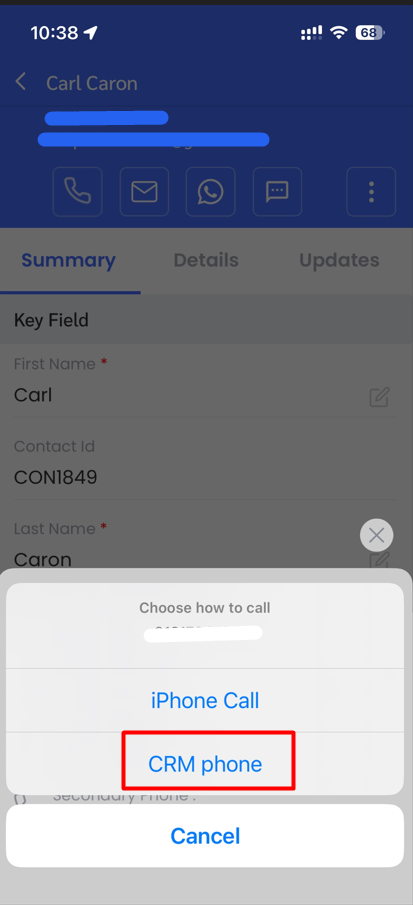
After selecting the number, another pop-up prompts you to choose the calling method. Select CRM Phone to place the call using the integrated CRM Phone feature
The application redirects you to the CRM Phone Dialer, where the selected contact’s name is displayed. From there, tap the Call button to initiate the call.
Note: Ensure that the CRM Phone feature is configured and connected before placing calls from a record.