
Get an OpenAI API Key
To use OpenAI as the AI Provider in AI Chatter, you need to create an OpenAI API key and enter it in the API Key field of the AI Chatter Configuration.
1. Go to the official OpenAI API Platform website, OpenAI API Platform
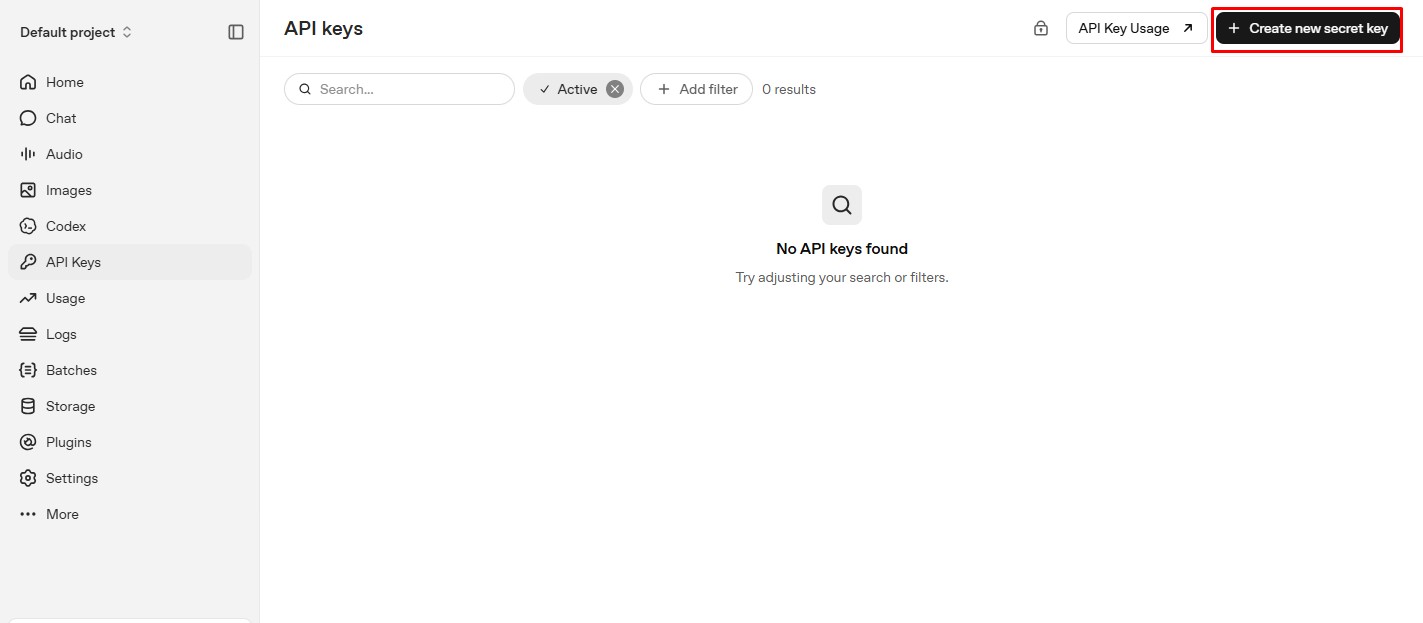
2. Sign in to your OpenAI account and open the API Keys section.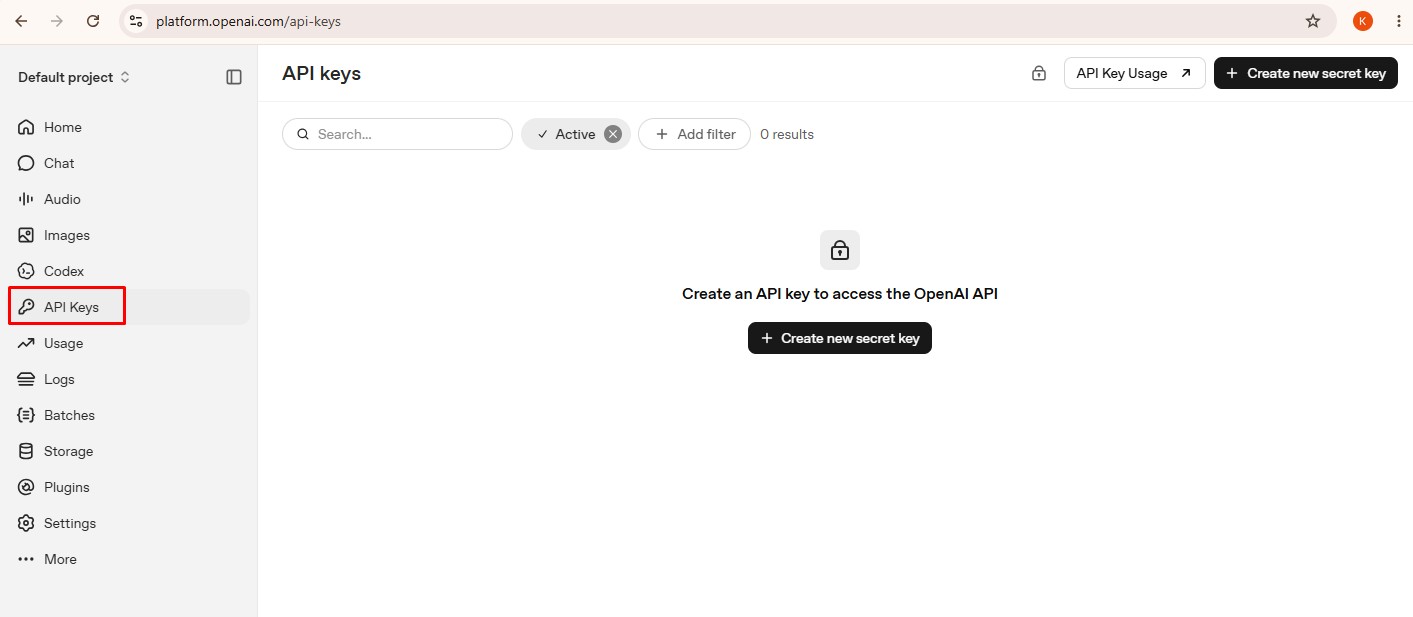 3. Click Create new secret key.
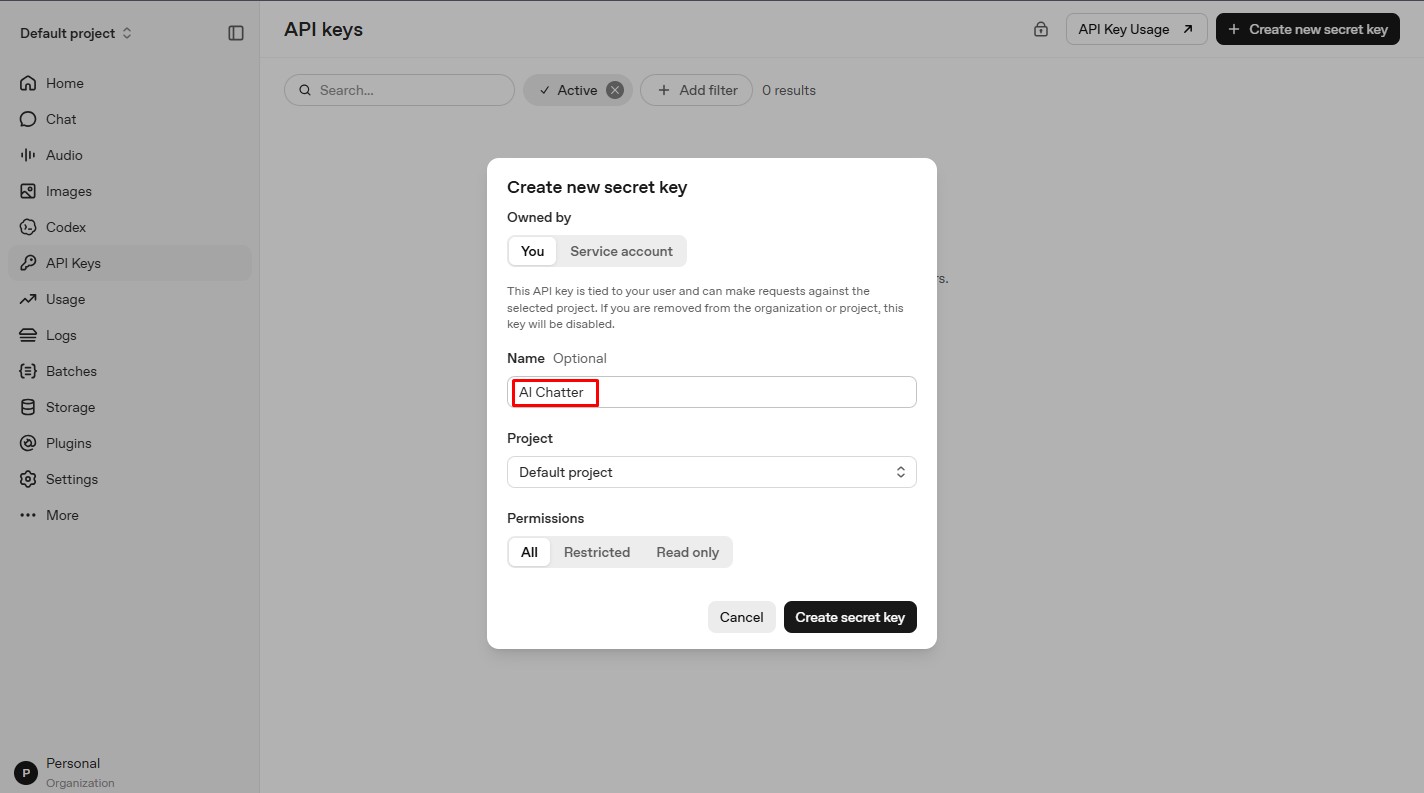
  4. Enter a name for the API key, for example AI Chatter, and create the key.
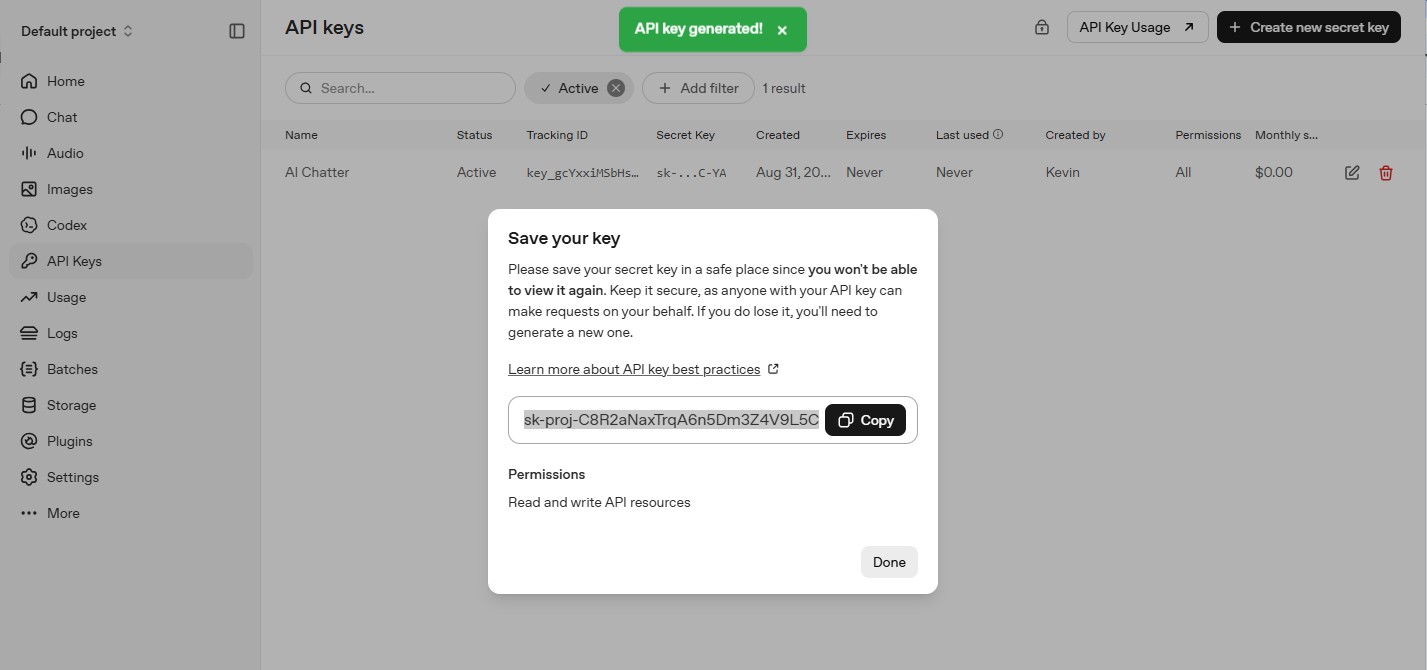
 5. Copy the generated API key and paste it into the API Key field in CRM.
 6. Click Save to complete the AI Chatter configuration.
Configure of fields:
| Setting | Value |
|---|---|
| Enable AI | Yes |
| AI Provider | OpenAI |
| API URL | https://api.openai.com/v1/chat/completions |
| API Key | Your OpenAI API key |
| Model | Supported OpenAI model |
Click Save.
Note: Copy and securely store the API key when it is created. Do not share the complete API key with others.Get Gemini API KeyGemini Free Plan – Request Limits (Usage Caps)
| Limit Type | Free Plan Limitation |
|---|---|
| Number of Questions per Day | Allowed, but with a daily cap (exact number not disclosed; estimated 30–50 prompts per day). |
| Speed Limit | Slower responses during busy hours or if limit is close. |
| File Uploads | Not supported at all in the free plan. |
| Characters per Request | May limit long questions or messages (usually around 4,000–8,000 characters max). |
| Chat Length | Only remembers limited part of the conversation (no long memory). |
| Image Uploads | Limited support (sometimes allowed on mobile, not fully functional). |
1. Go to the official Google AI Studio website, Google AI Studio
2. Click Create API Key, select a project, and confirm.
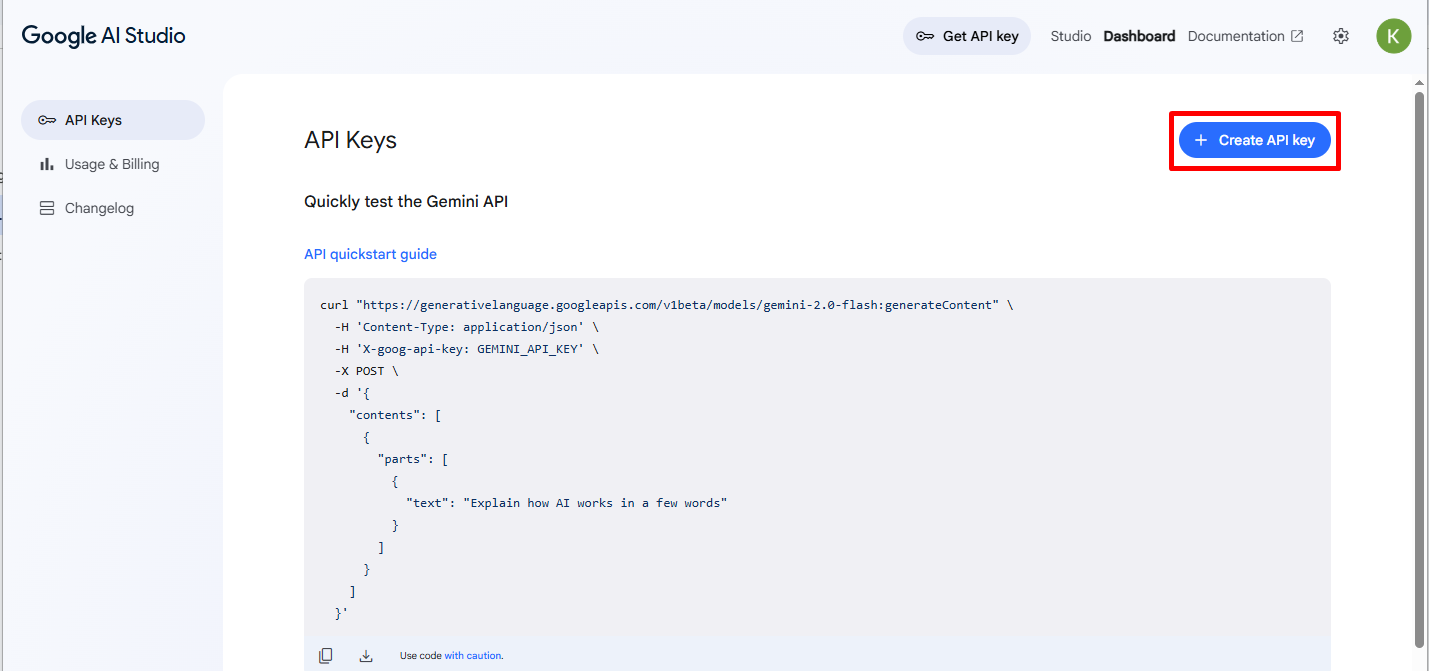
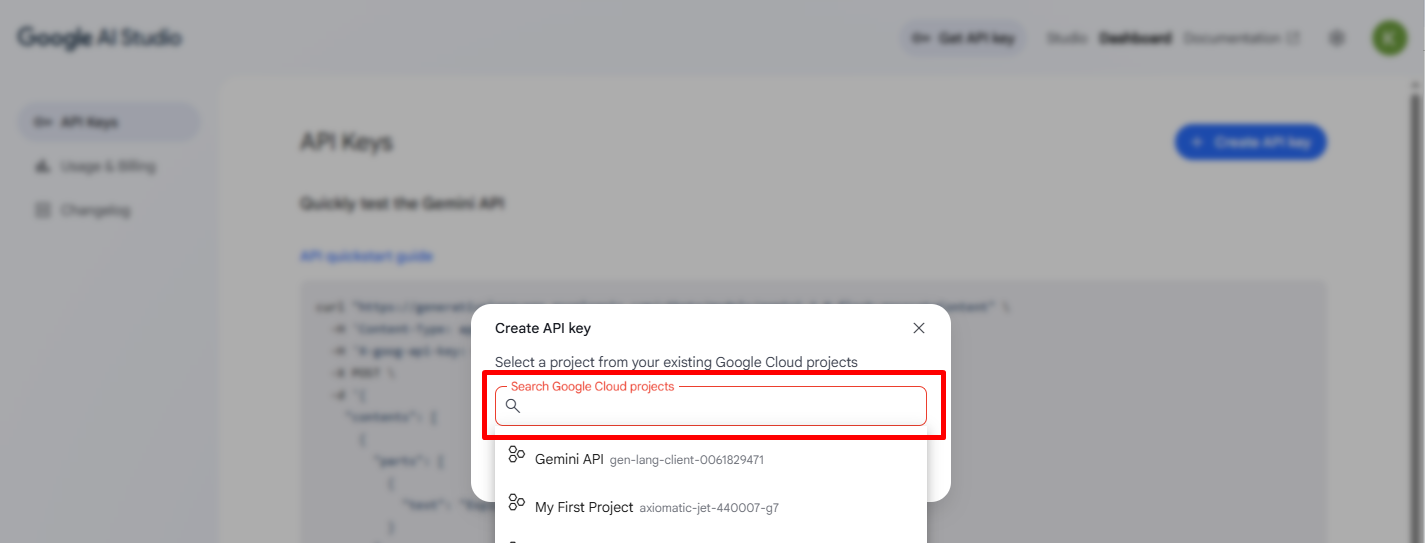
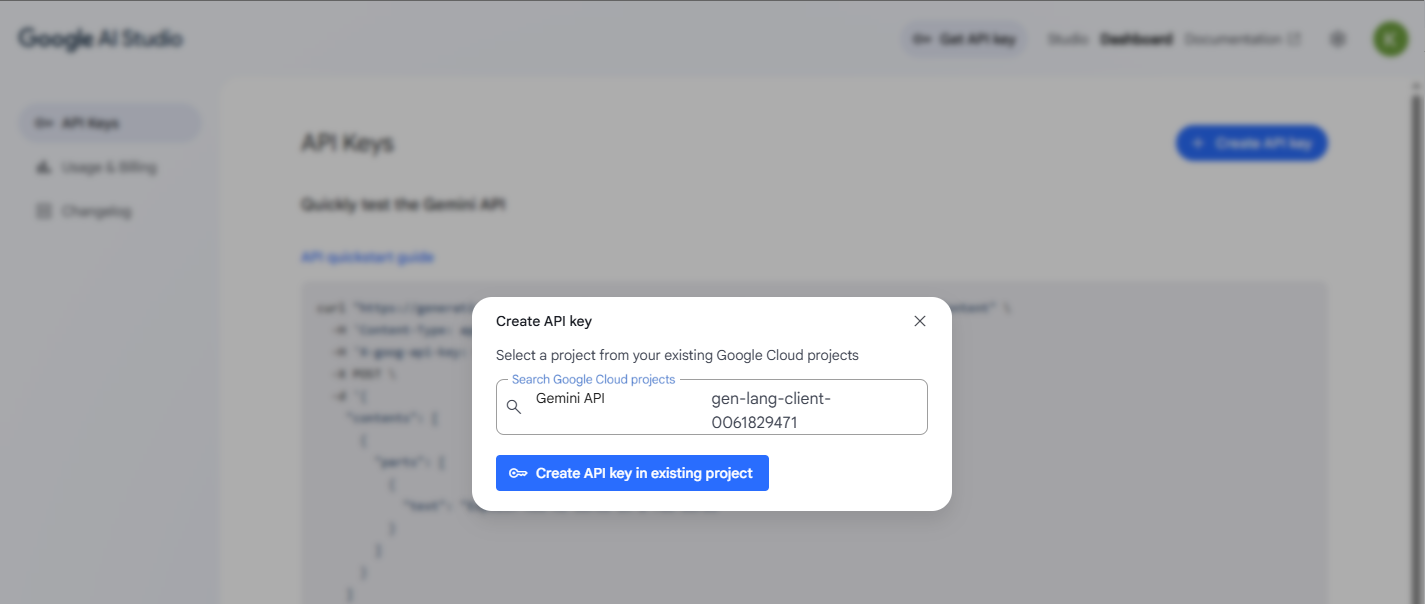
3. Click on “Create API Key for existing Project”.
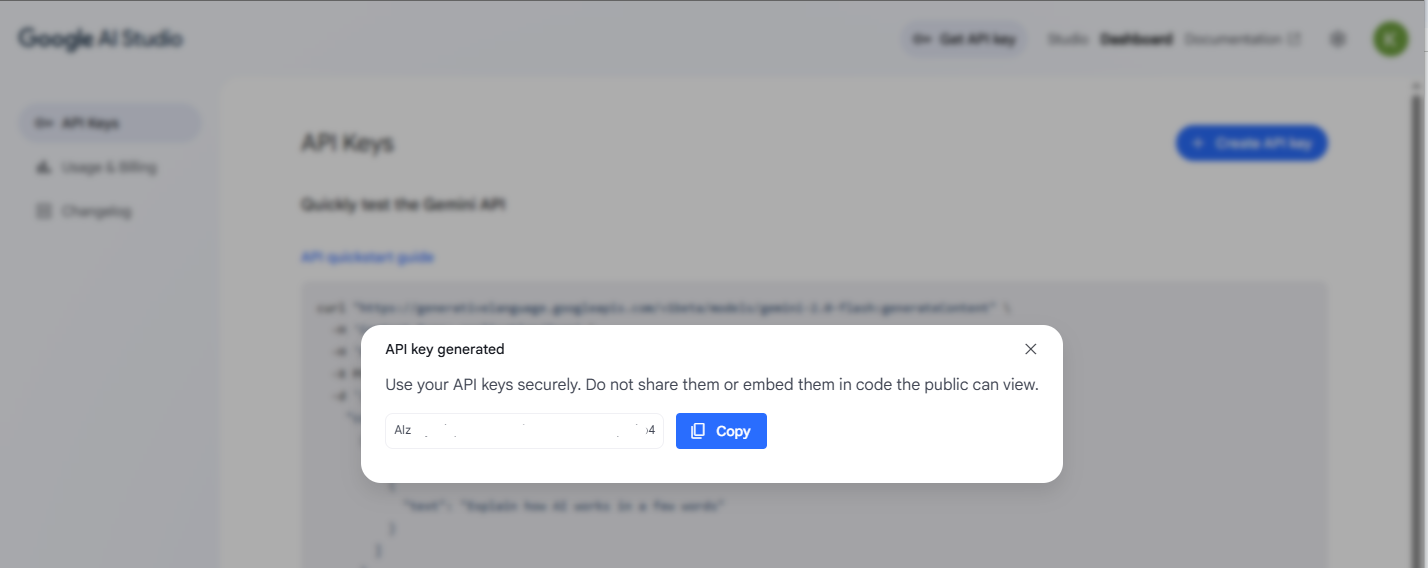
4. Copy the API key and paste it into CRM.
5. Review all configuration settings and click Save.Get an Grok (xAI) API KeyTo use Grok (xAI) as the AI Provider in Website AI Agent, create an API key from the xAI Console and enter it in the API Key field in CRM.
1. Go to the official xAI Console website, xAI Console.
2. Sign in or create an xAI account. The same xAI account can be used for Grok and xAI API access, although API billing is managed separately.
3. Make sure you are working with the correct Team in the xAI Console. API keys are associated with a specific team.
4. Open the API Keys section from the xAI Console.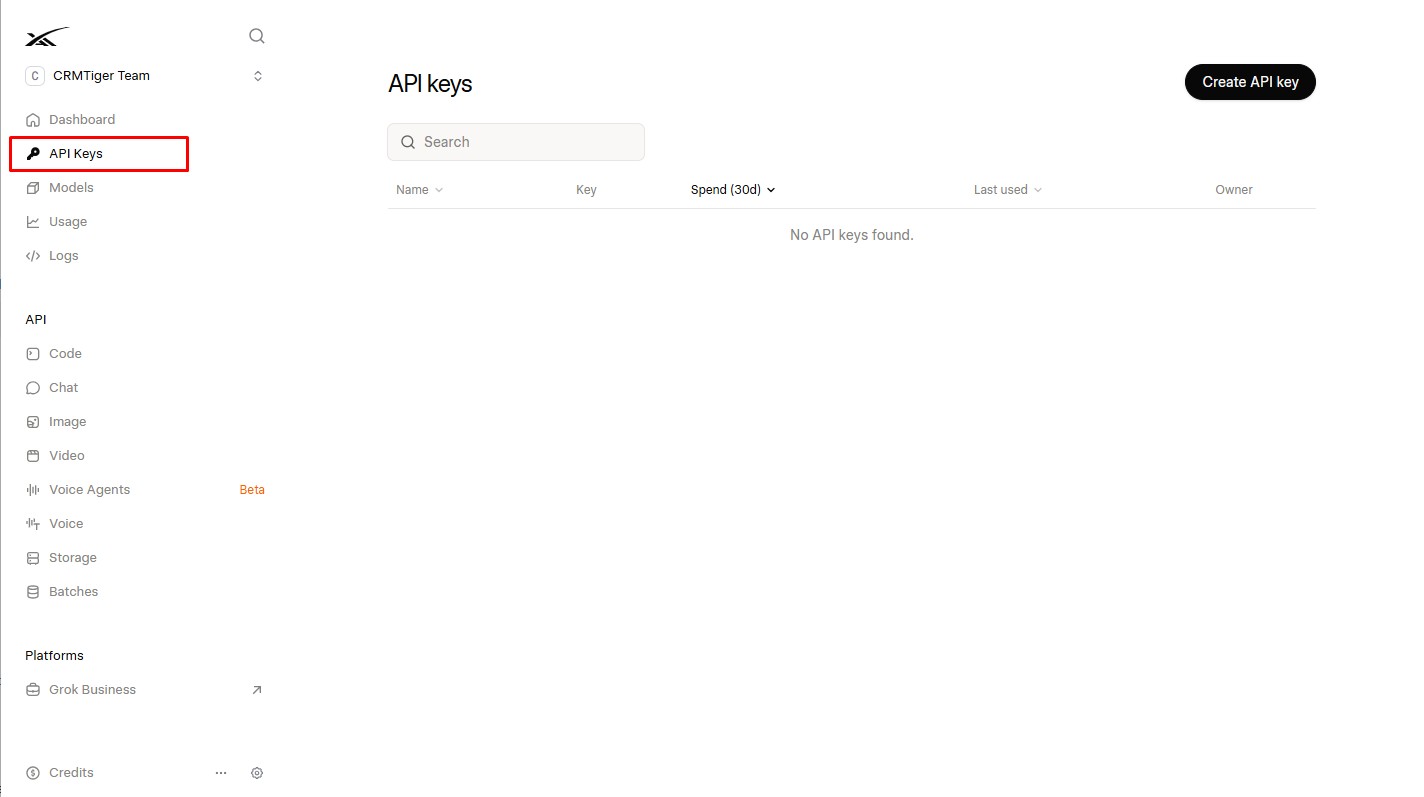 5. Click Create API Key.
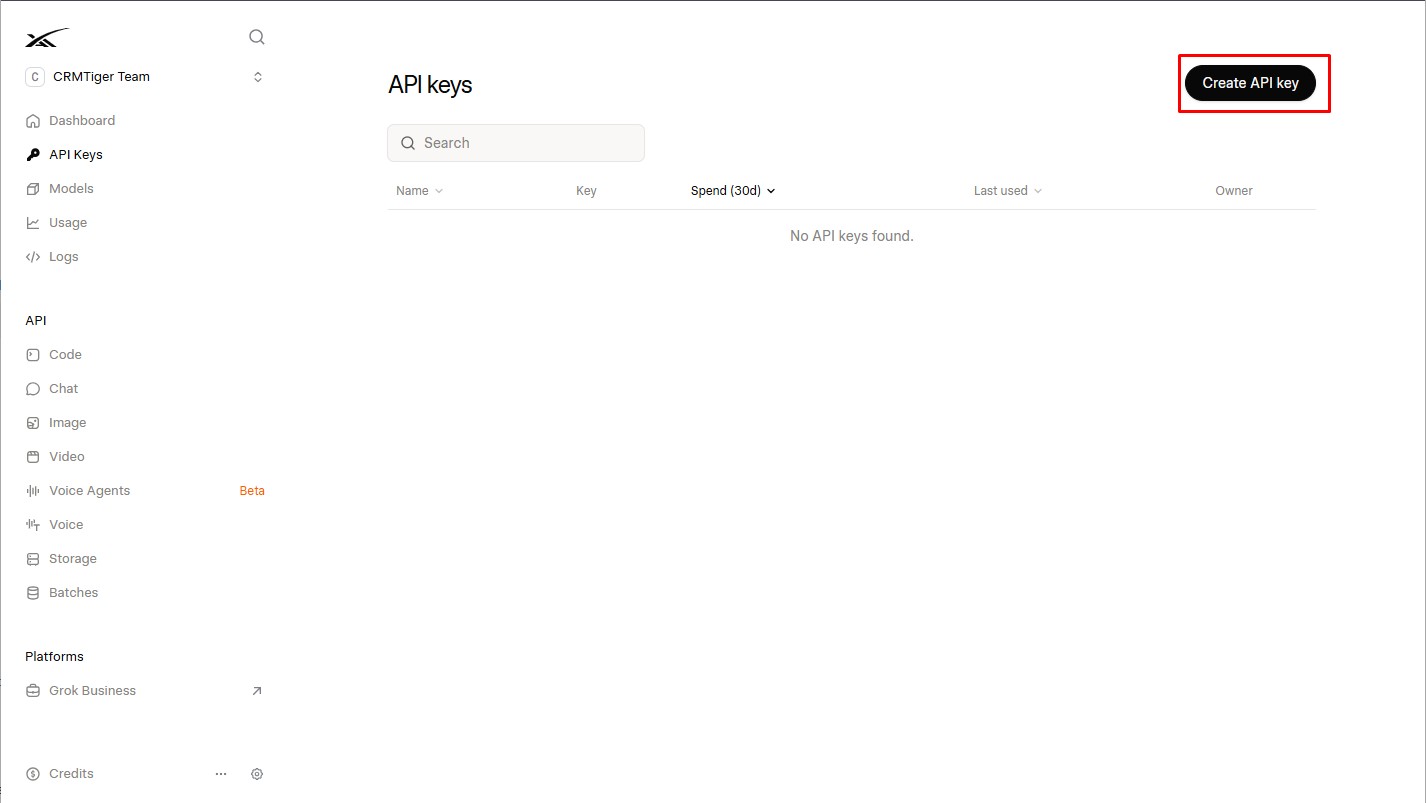 6. Enter a name for the API key, for example: Website AI Agent
7. Configure the required permissions/access for the API key. xAI API keys can have permissions for specific endpoints and models, or access can be granted to all available endpoints and models.
8. Click Create API Key.
9. Copy the API key immediately and paste it into the API Key field in CRM. xAI does not expose the complete key after it has been created.
10. Configure the Grok (xAI) connection in General Configuration.
11. Review all configuration settings and click Save.