
The AI feature in the CRM Mobile App allows users to perform smart search, record creation, and contextual suggestions using natural language commands.
With this feature, users can quickly search globally or within modules, create records, generate chained records, and even get intelligent auto-suggestions in comment sections — enhancing overall productivity.
Gemini API Key Configuration (Gemini API Key)
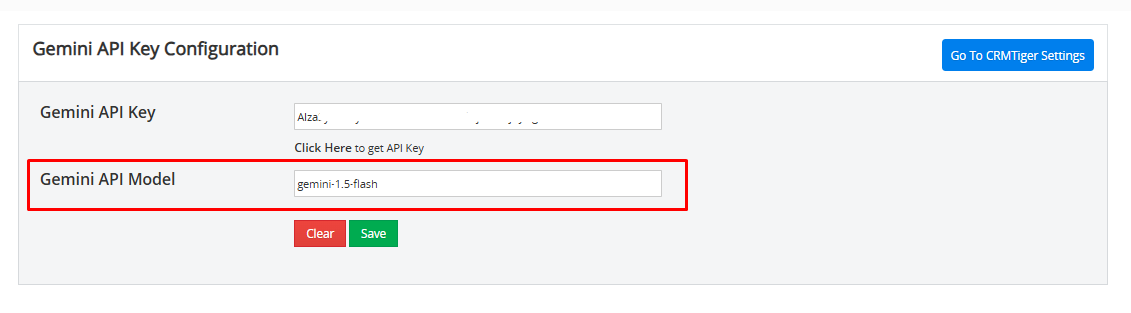
To activate and use the AI feature in the CRM Mobile App, users must first configure the Gemini API Key and Model in the app settings.
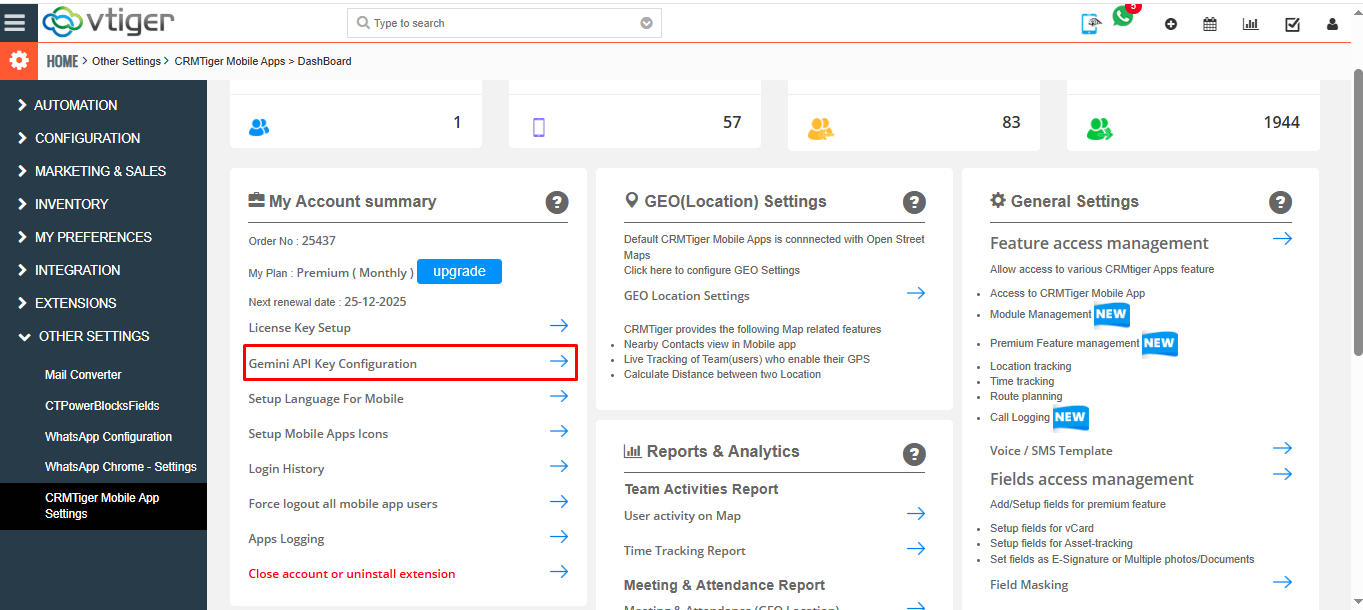
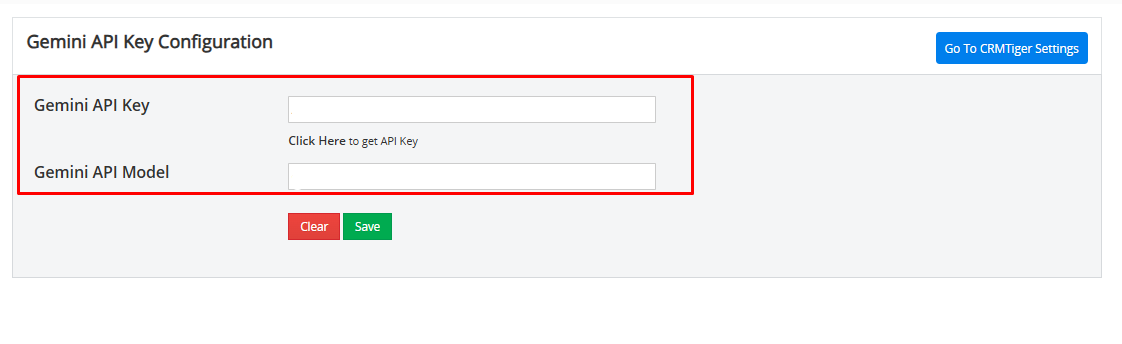
How to Get a Gemini API Key?
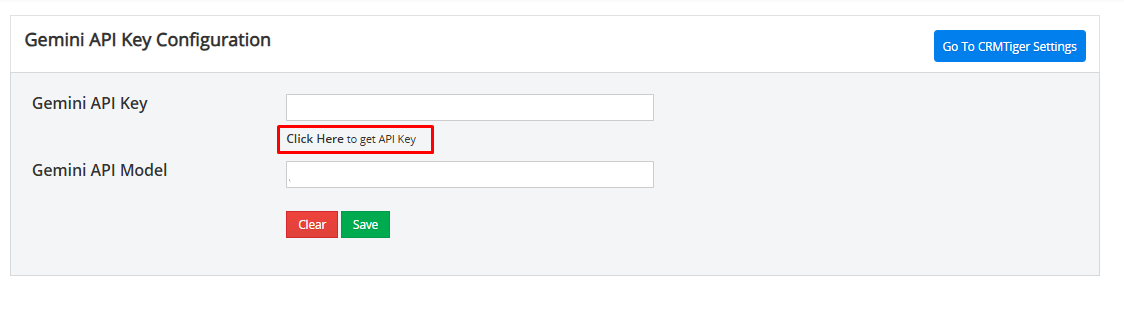
Click on ‘Click Here.’ Get API key as shown in the below Screenshot
 Gemini Free Plan – Request Limits (Usage Caps)
| Limit Type | Free Plan Limitation |
|---|---|
| Number of Questions per Day | Allowed, but with a daily cap (exact number not disclosed; estimated 30–50 prompts per day). |
| Speed Limit | Slower responses during busy hours or if limit is close. |
| File Uploads | Not supported at all in the free plan. |
| Characters per Request | May limit long questions or messages (usually around 4,000–8,000 characters max). |
| Chat Length | Only remembers limited part of the conversation (no long memory). |
| Image Uploads | Limited support (sometimes allowed on mobile, not fully functional). |
Click Create API Key, select a project, and confirm.
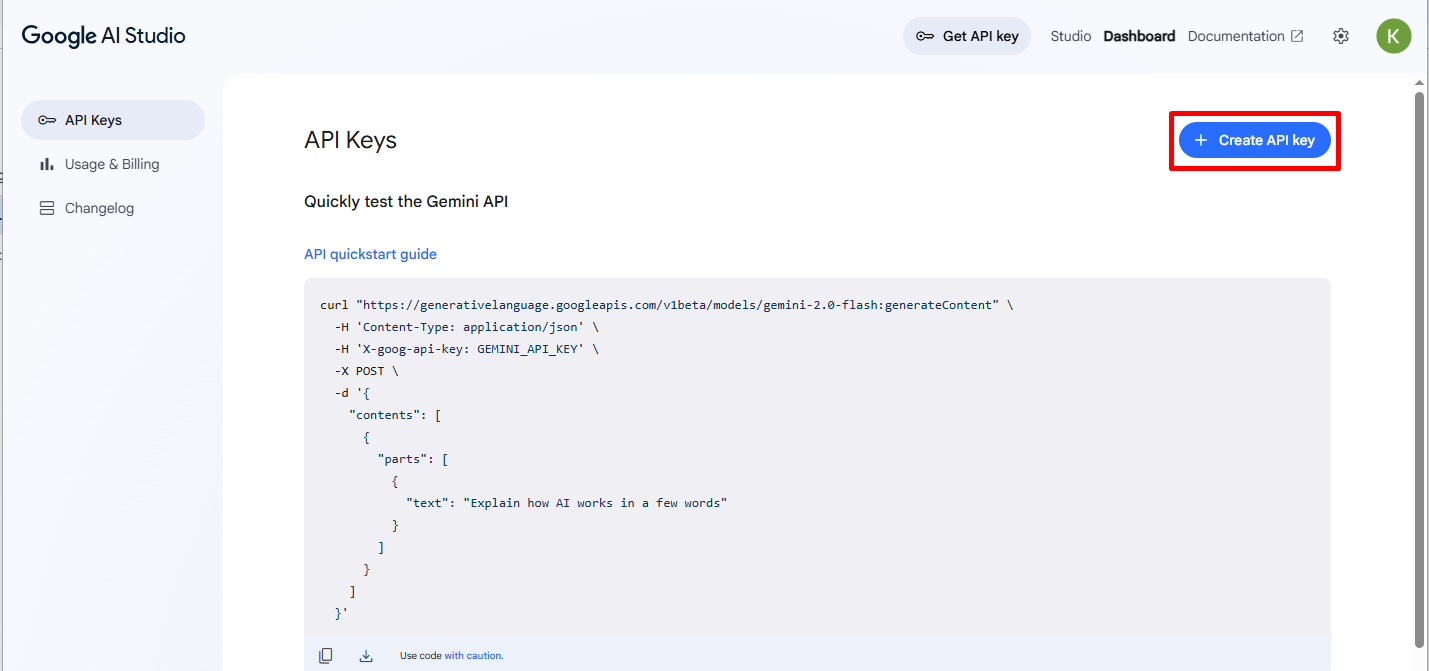
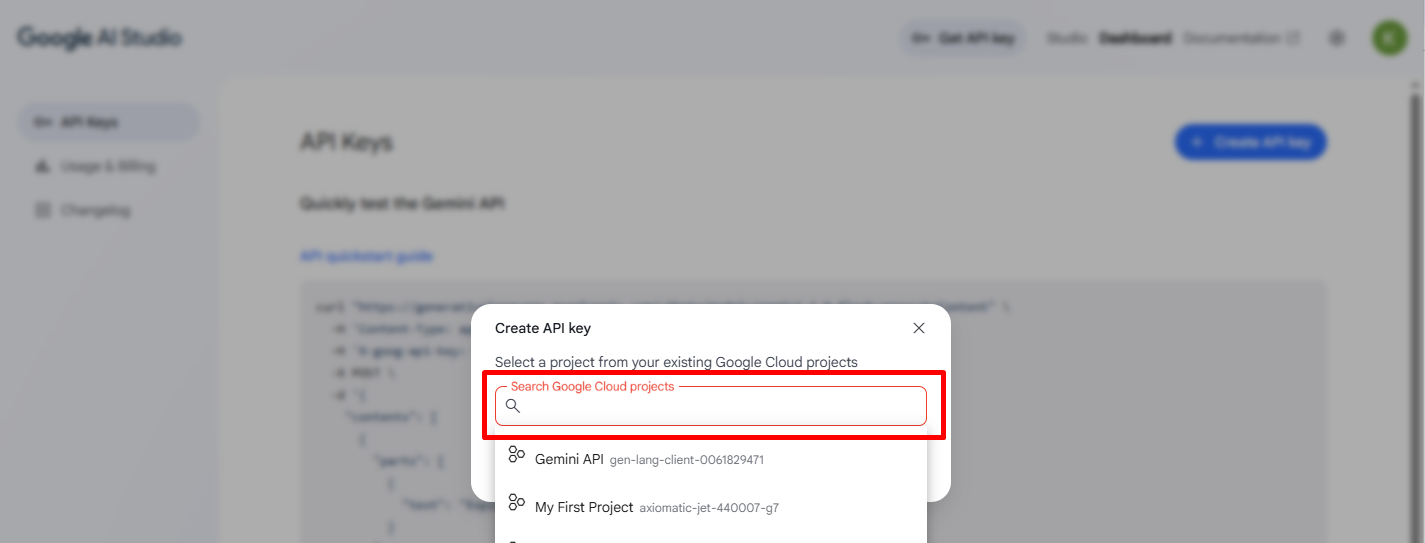 Click on “Create API Key for existing Project”
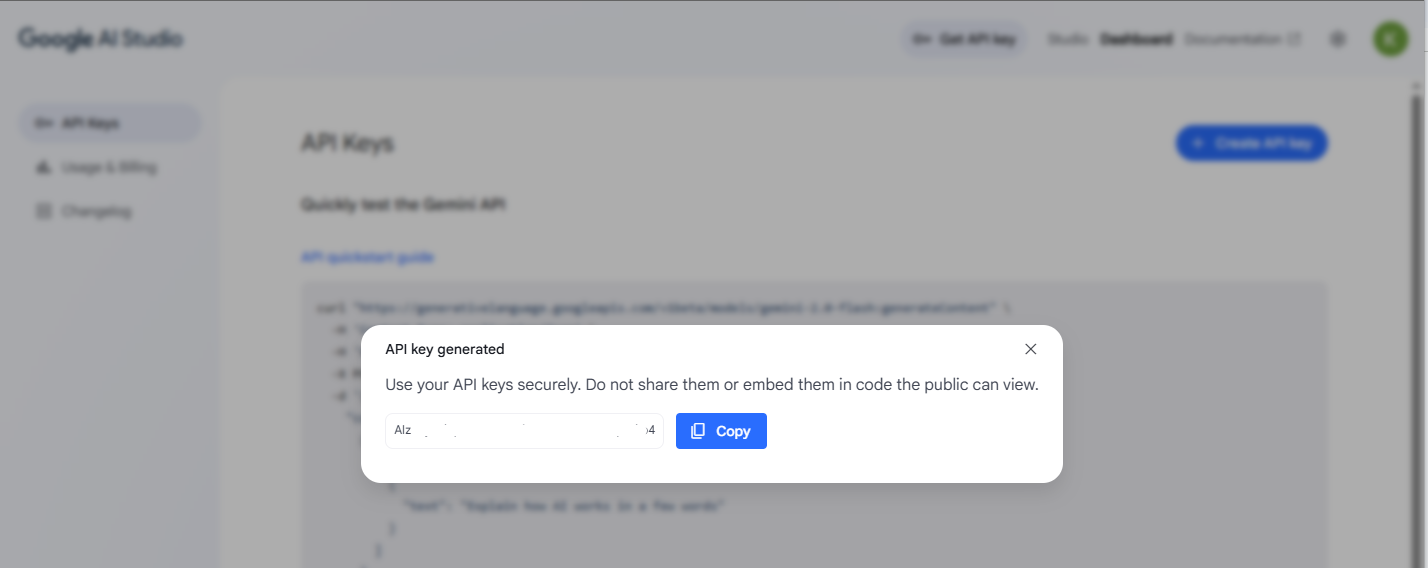
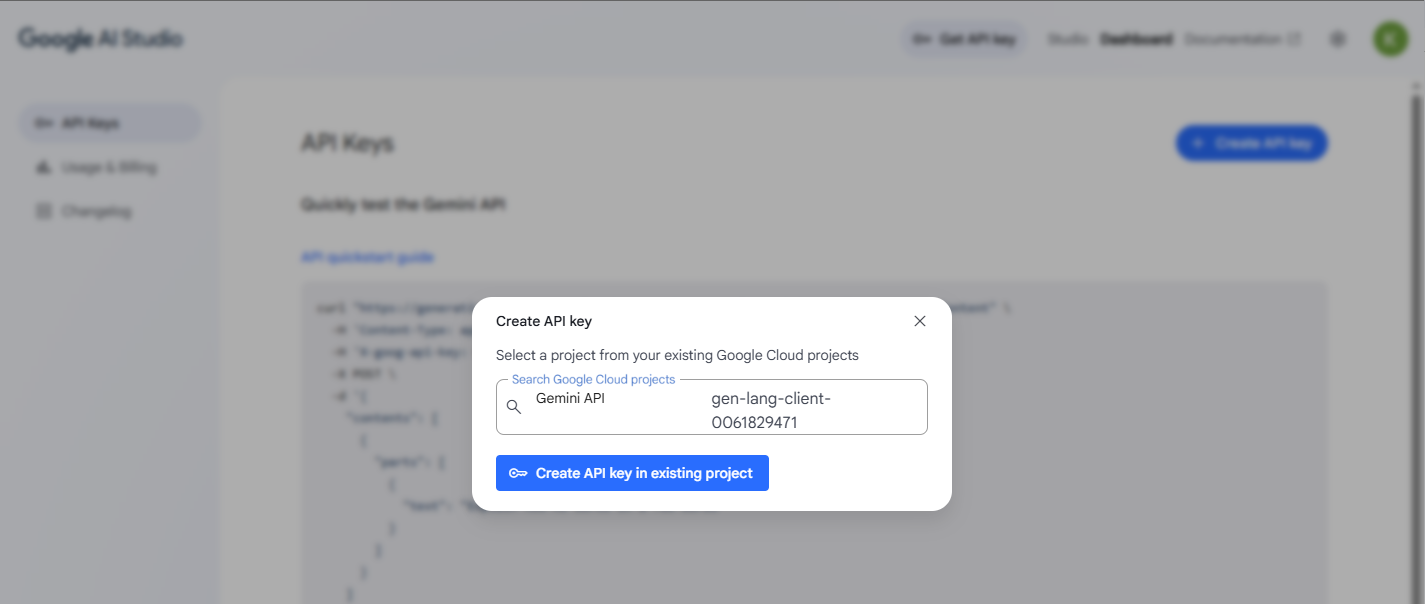 Copy the API key and paste it into CRM.
Find the Model Name
How to Find the API Model Name in Google AI Studio
- Go to Google AI Studio and sign in.
- On the left menu, click “Chat” or “Playground.”
- At the top of the page, click on the Gemini tab (as you did in your screenshot).
- Select a model — for example, click on Gemini Flash Latest.
- Once you click it, look at the right-hand side panel under “Run settings.”
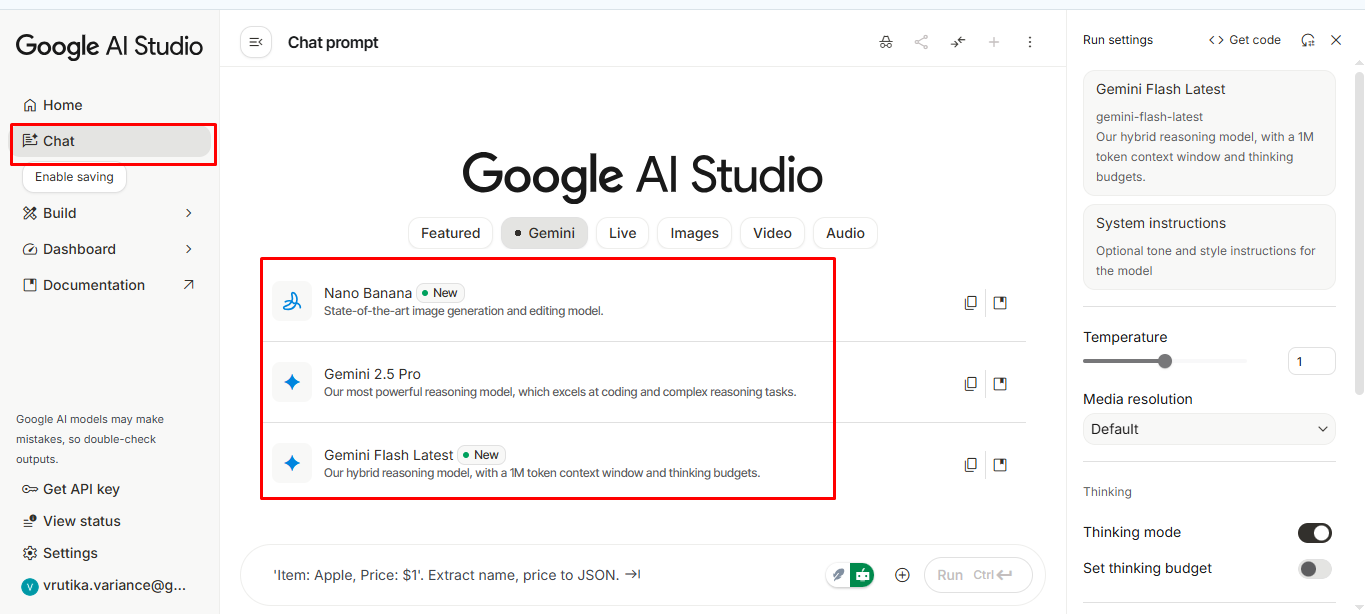 For example:
Gemini-1.5-flash
Gemini-1.5-pro
gemini-1.0-pro
Choose a model (we recommend gemini-1.5-flash for faster mobile responses).
Copy the Model Name exactly as shown and paste in the CRM Gemini API Model and save
Accessing the AI Feature
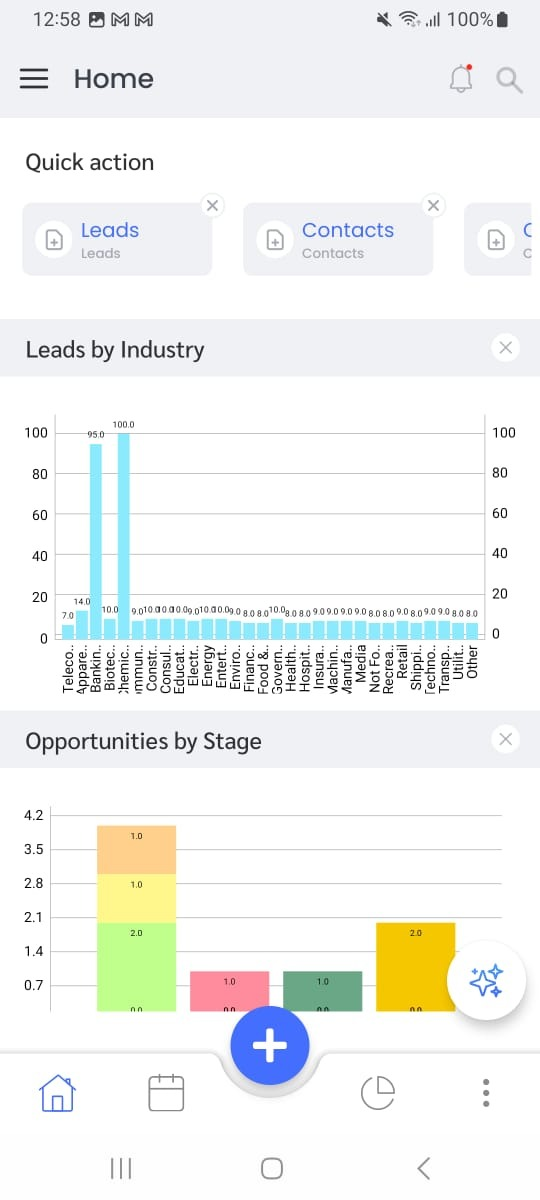
- On the Dashboard, you will find an AI icon
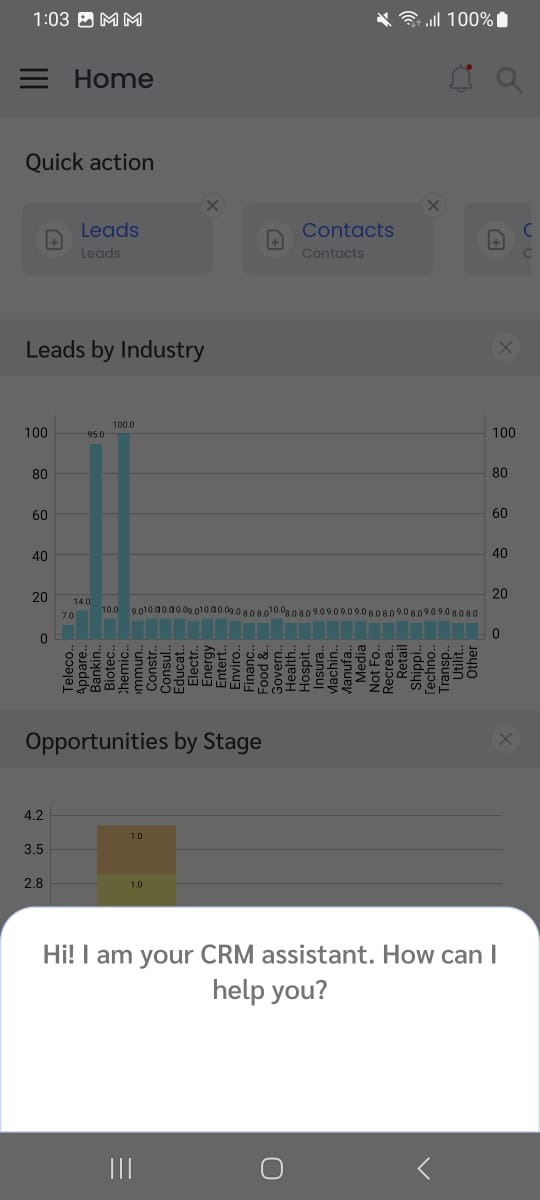
- Tap the AI icon to open the AI assistant interface.
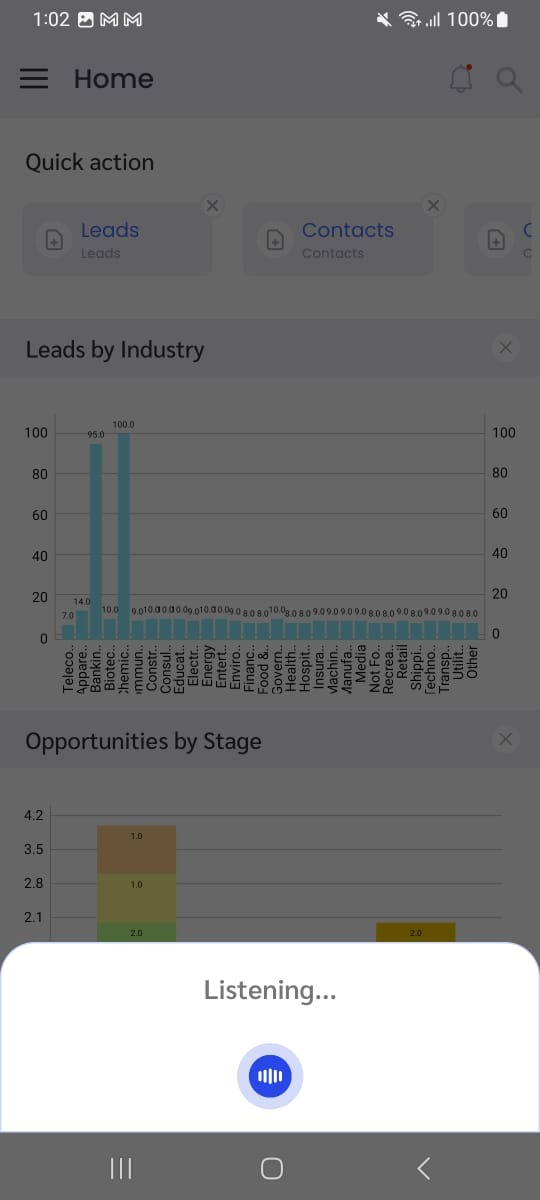
- You can speak and give the command.
Example Commands:
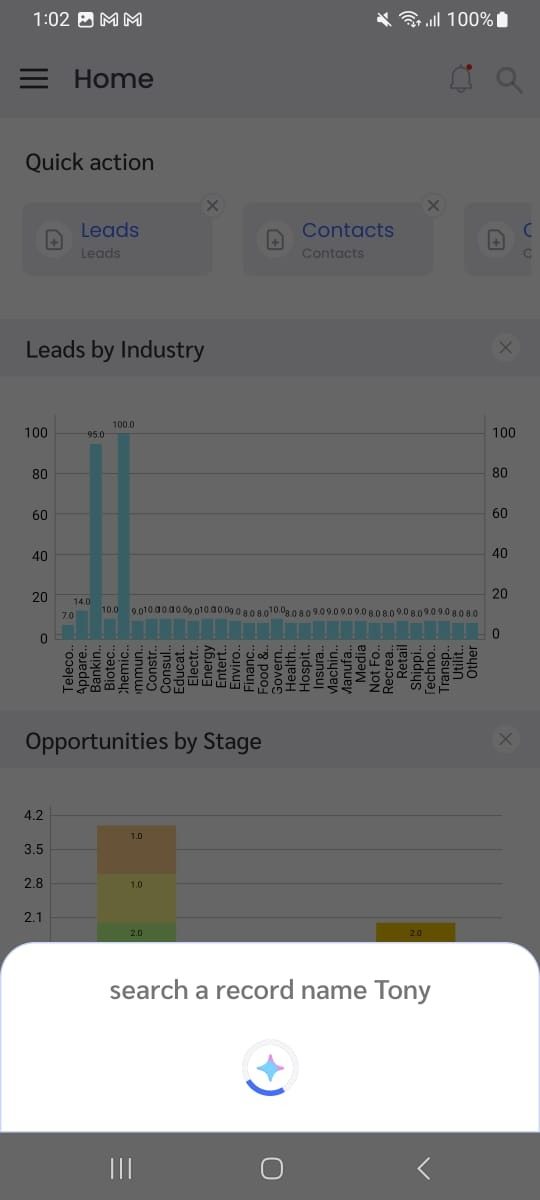
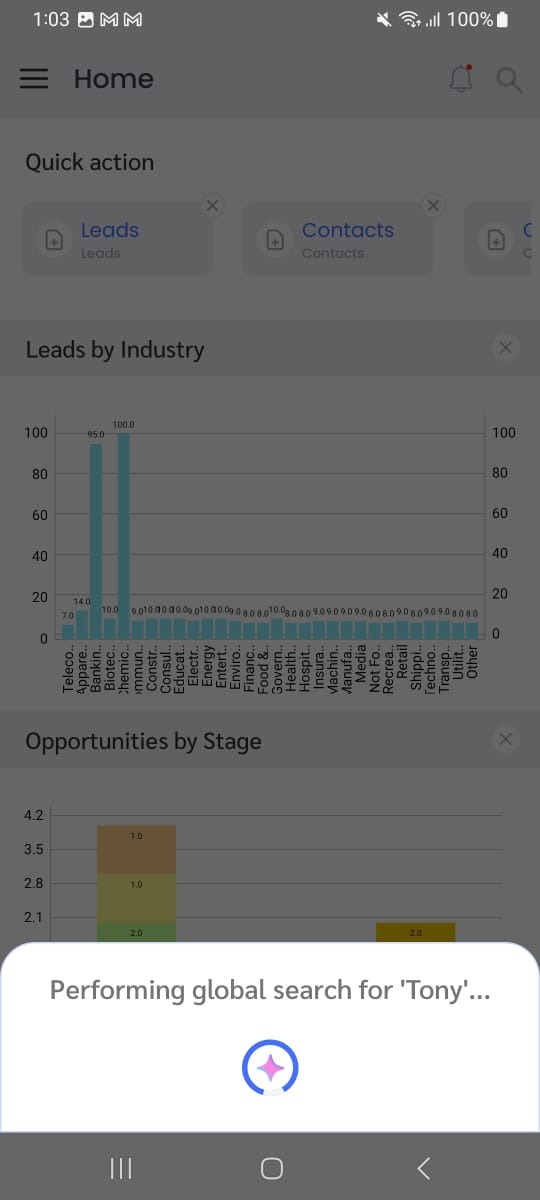
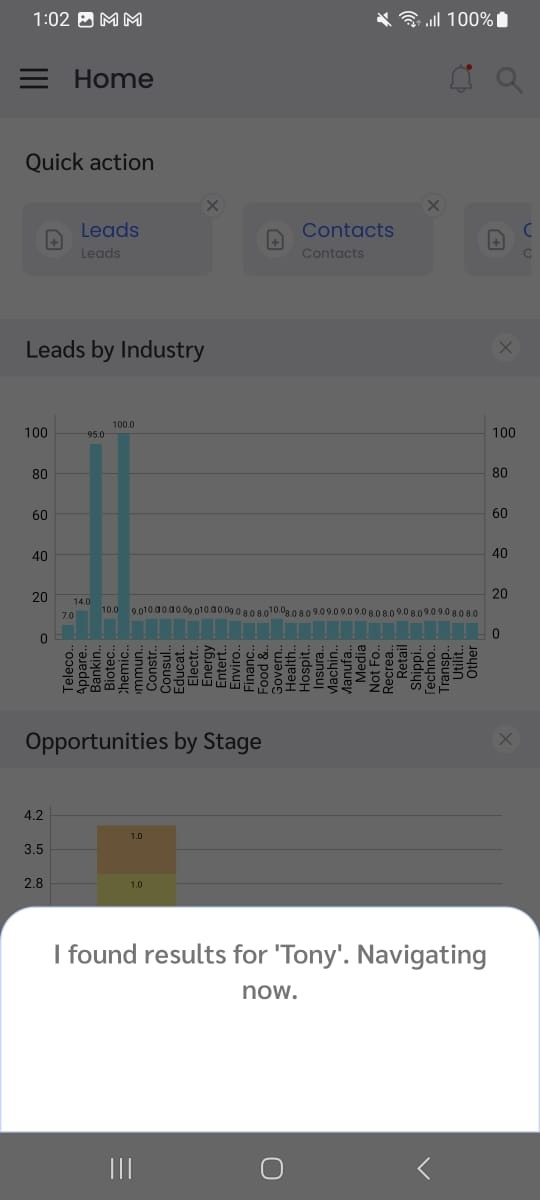
- Search the record with the name ‘Tony.’
Global Search Using AI
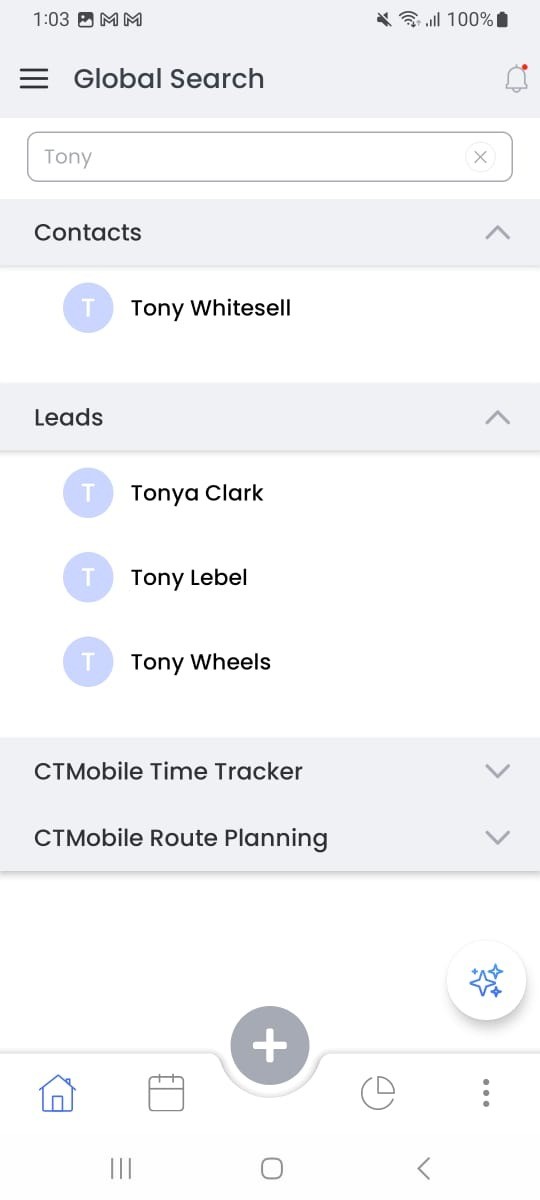
When accessed from the Dashboard, the AI performs a global search across all CRM modules such as Contacts, Leads, and Activities.
You can search records using Name, Email, or Phone Number.
Example Commands:
- “Search record name: Tony.”
- “Search email: Tony@gmail.com.”
- Search record number: 98******10.”
Module-Specific Search
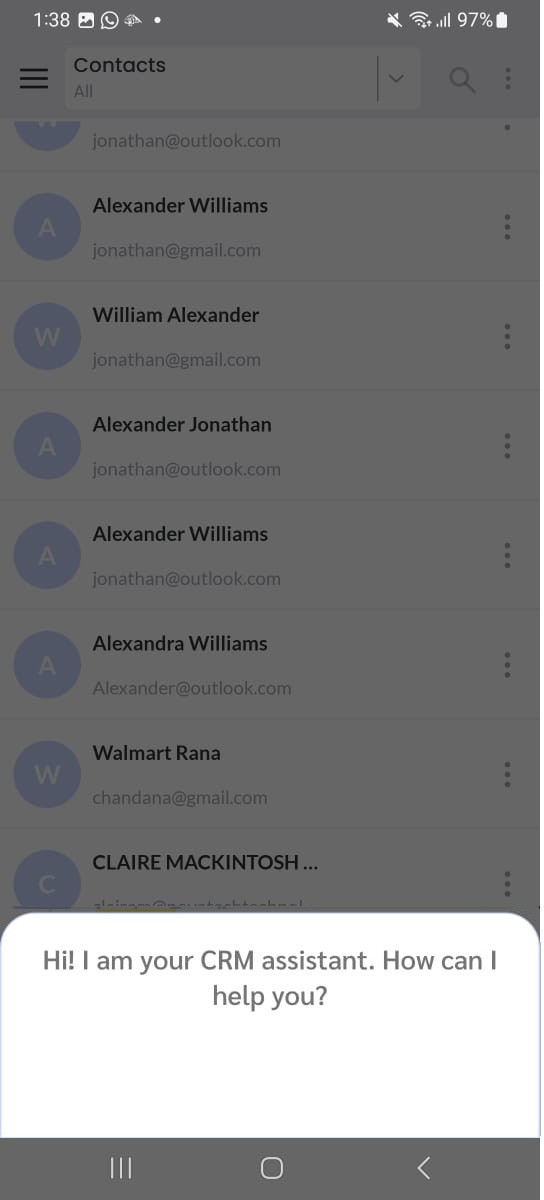
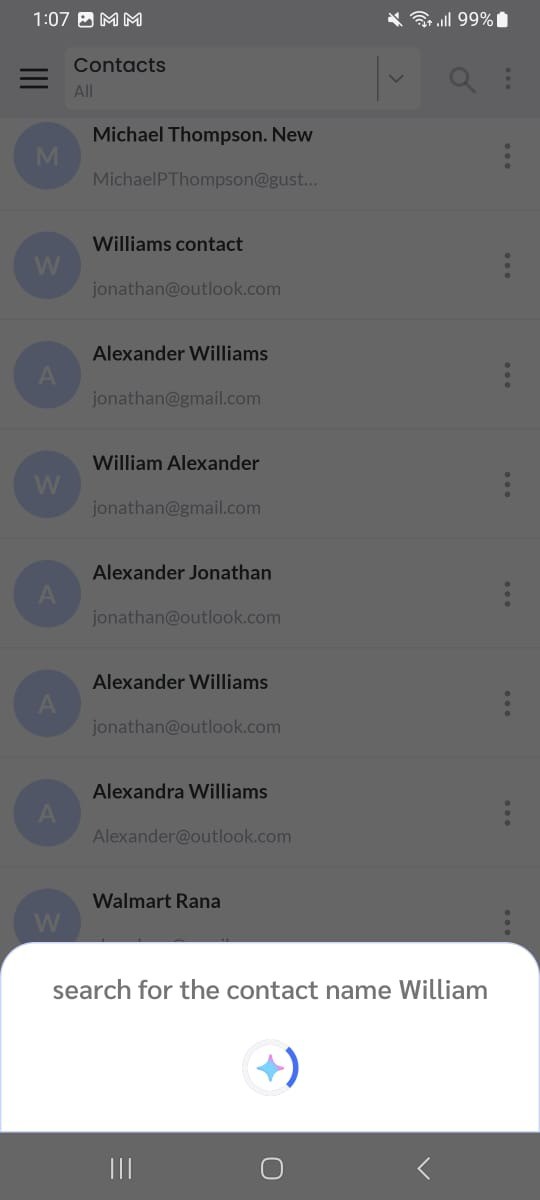
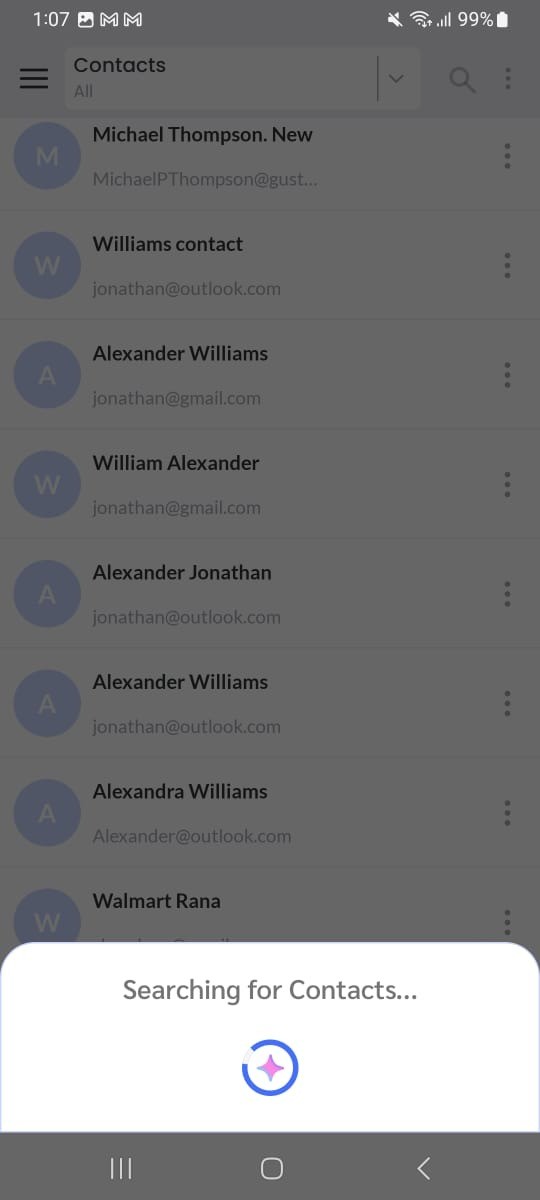
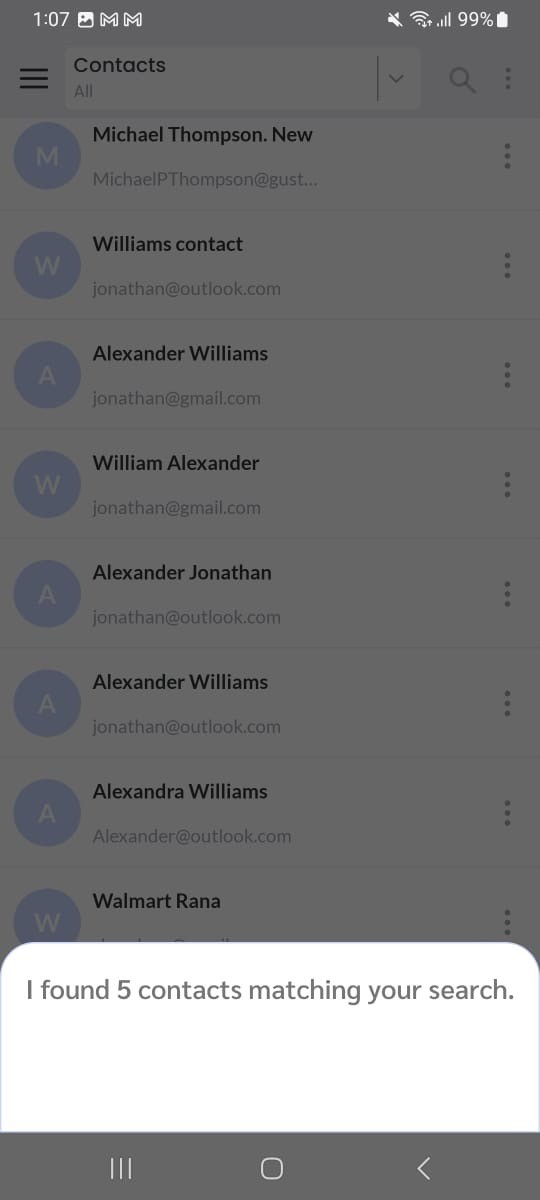
If you are already inside a particular module (e.g., Contacts, Leads, or Activities) and click the AI icon, the search will be limited only to that module’s records.
This makes searches faster and more accurate.
Example Commands:
- While in Contacts: “Search record name: William”
- While in Leads: “Search number: 99*******5.”
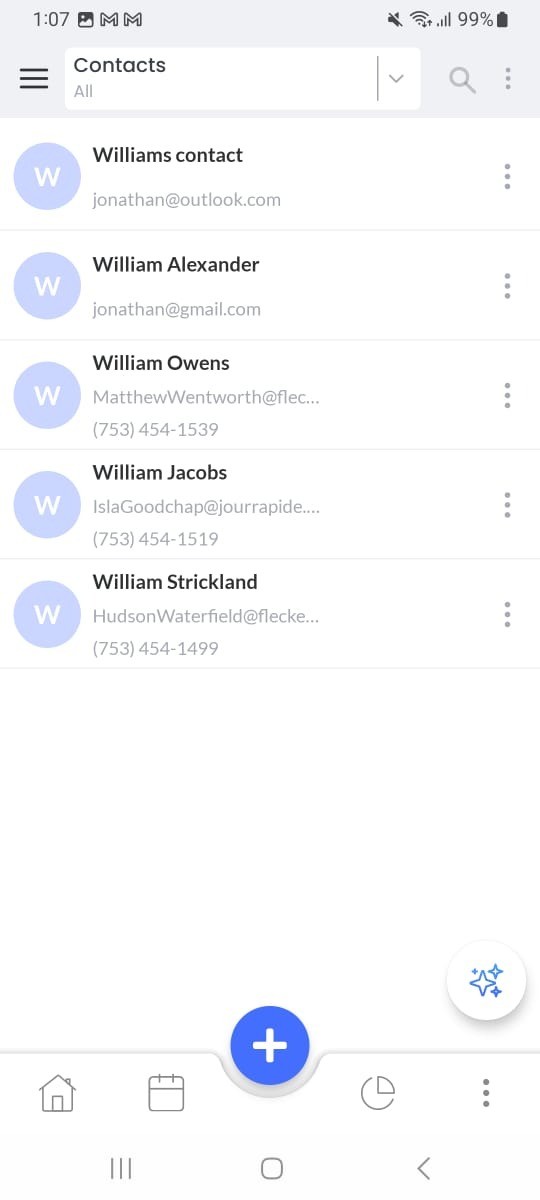
Creating Records Using AI
The AI can create new records such as Contacts, Leads, or Activities (Tasks and Events) based on user commands.
When you initiate a record creation, the AI will prompt for mandatory fields and then automatically create the record.
After creation, you will be redirected to the record’s detail page.
Example Commands:
- Create a contact for me.
- Create a lead for me.
- Create a task
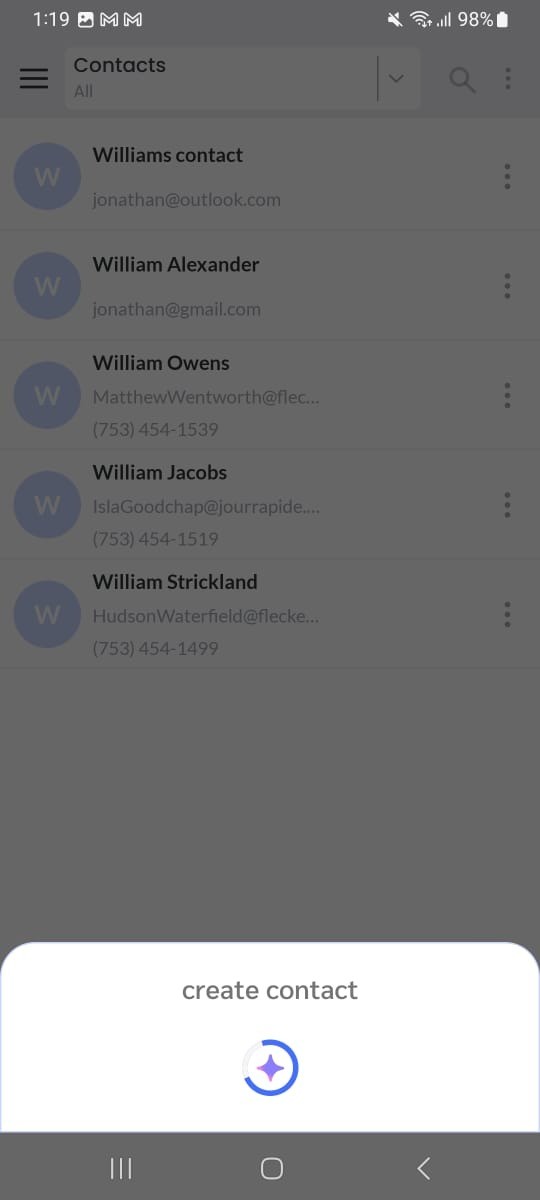
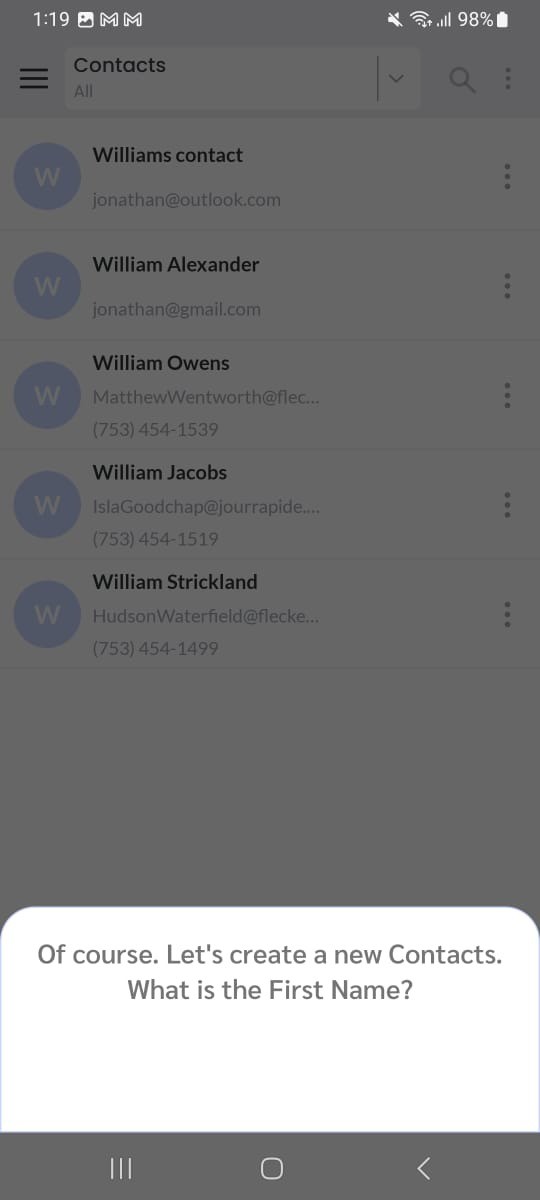
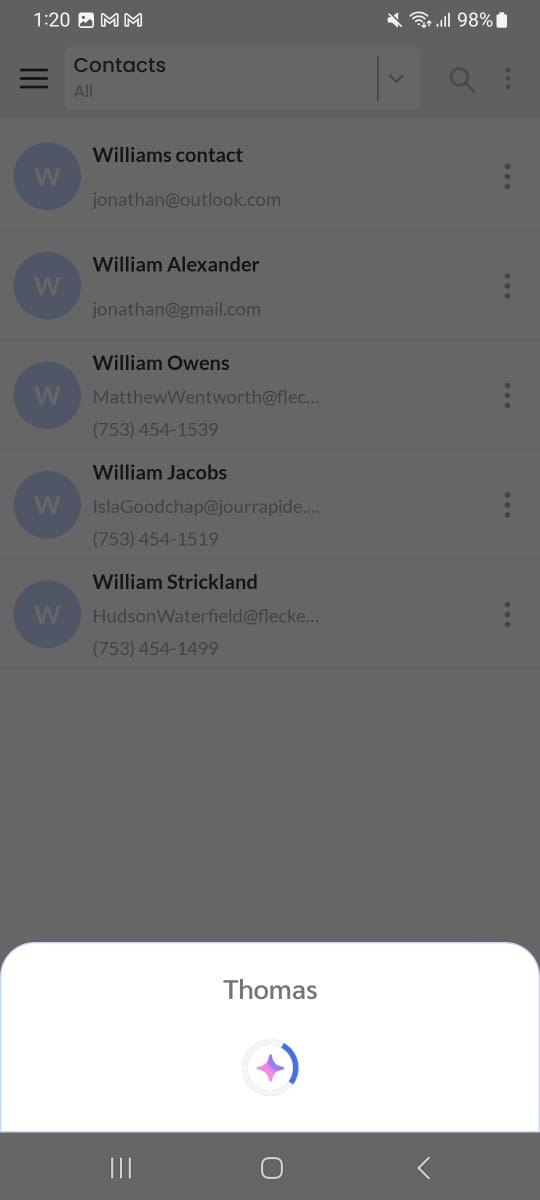
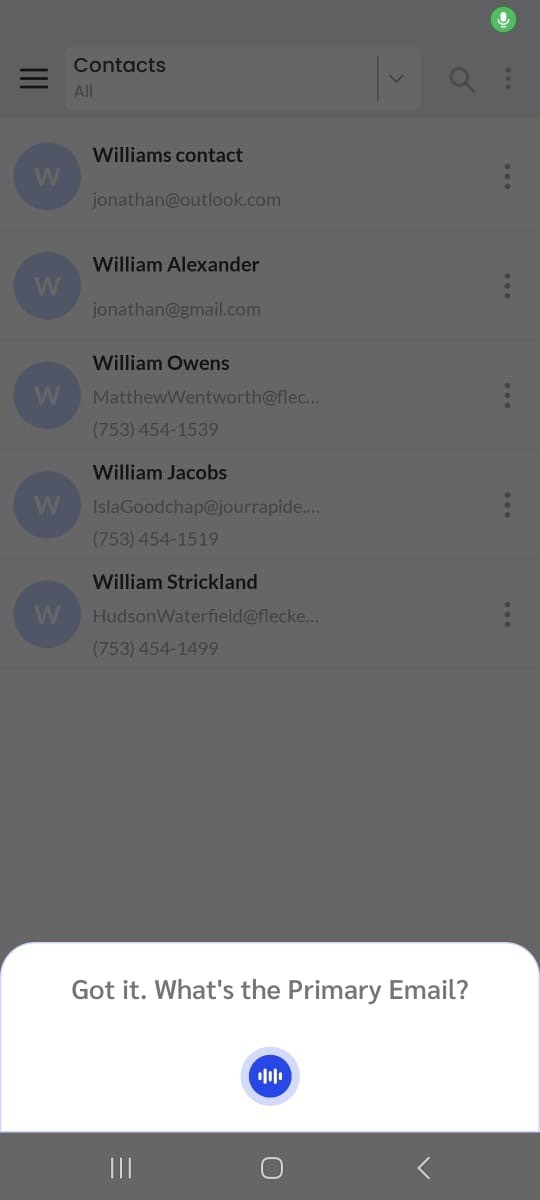
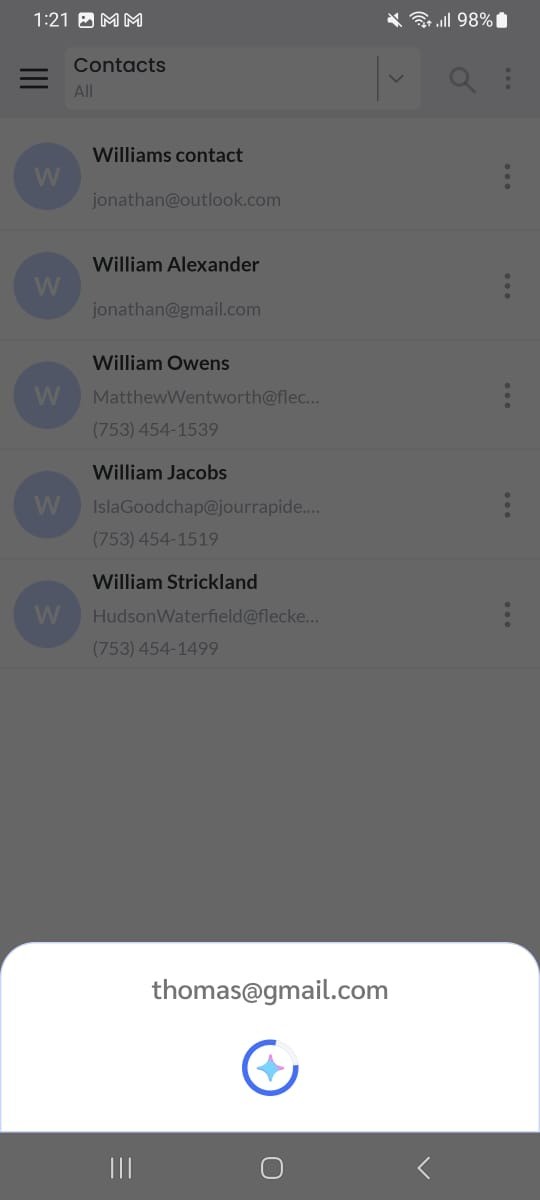
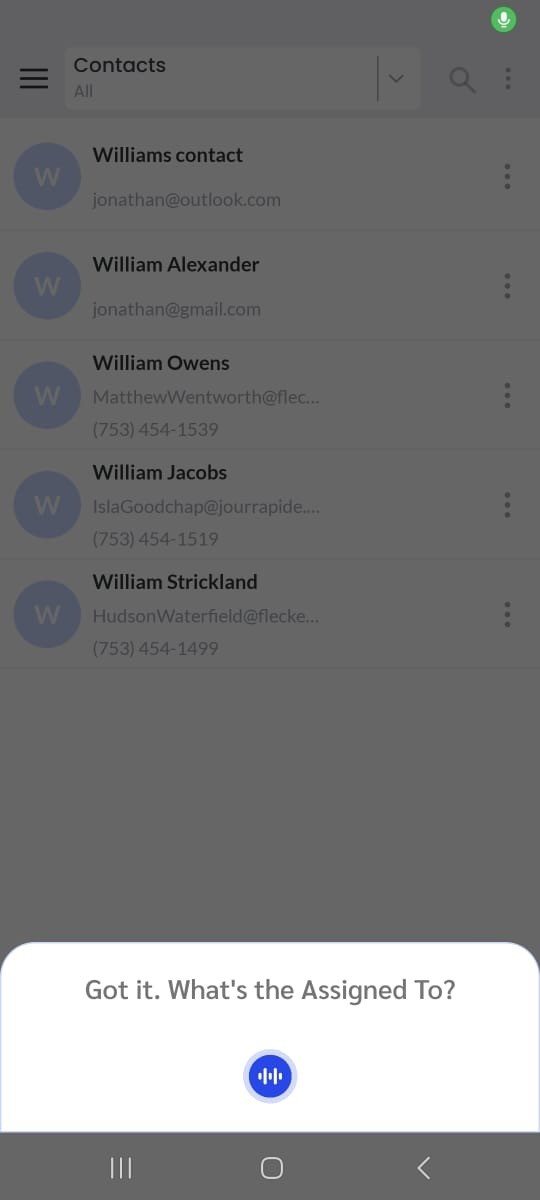
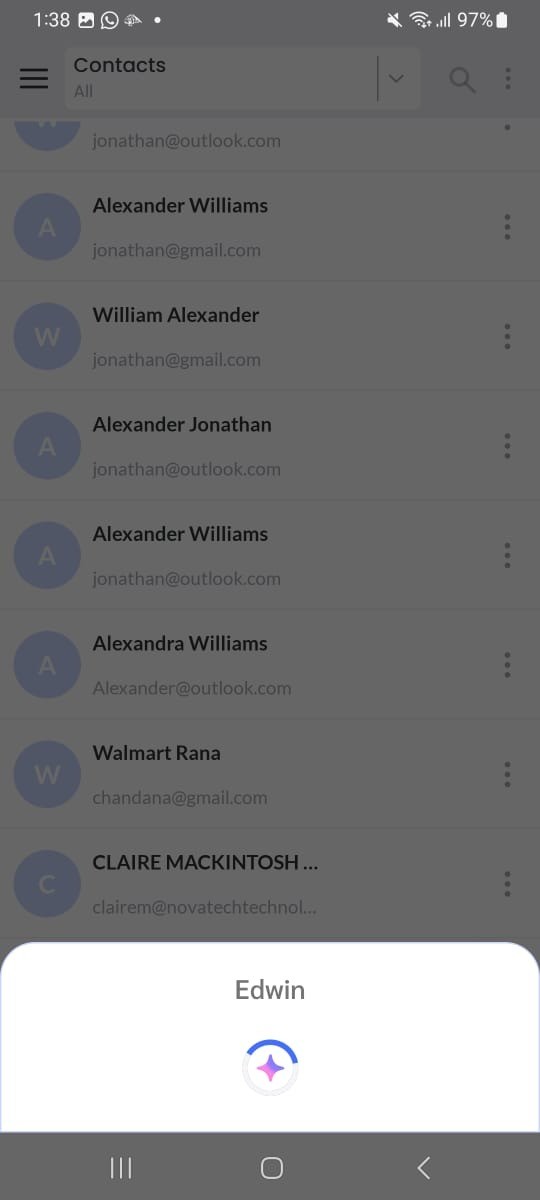
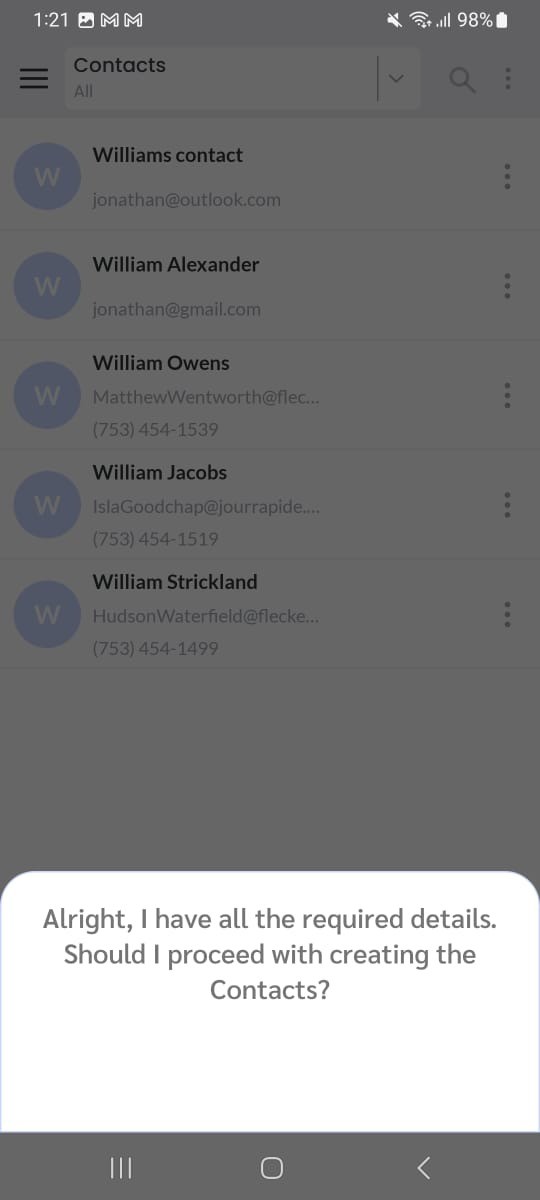
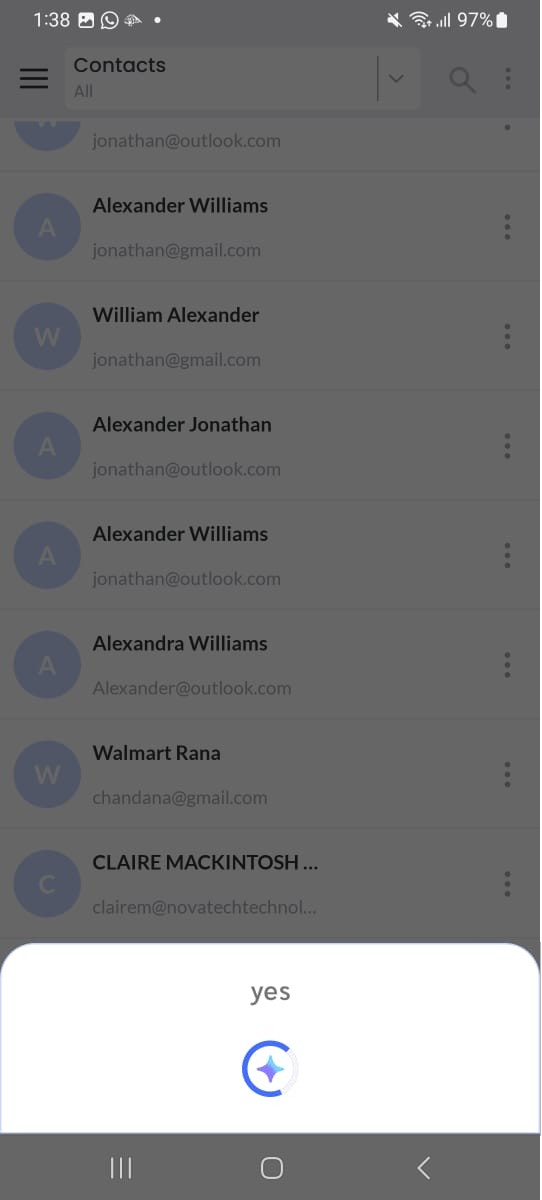
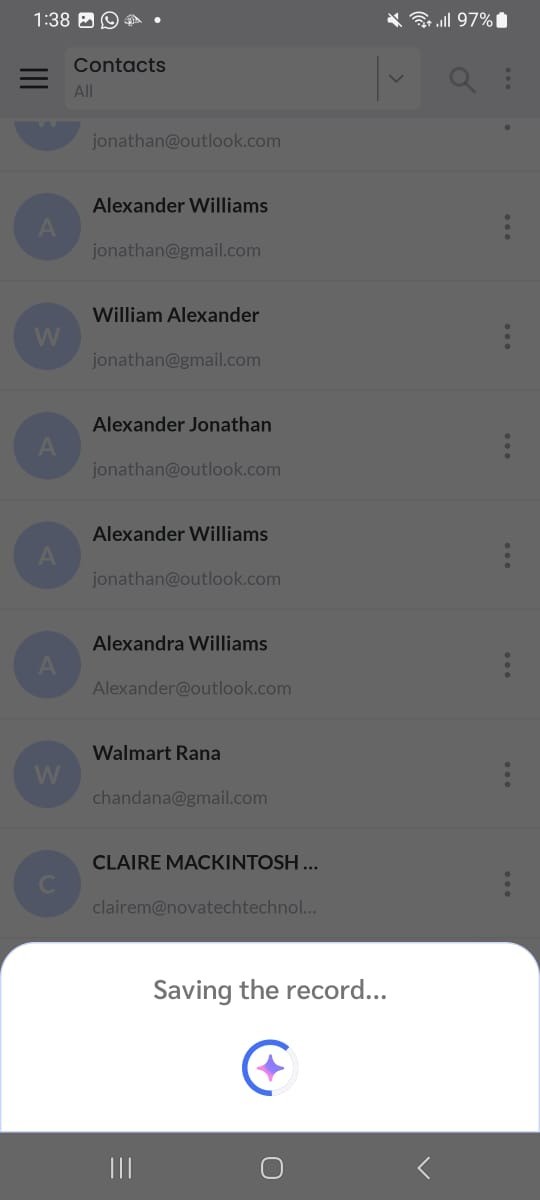
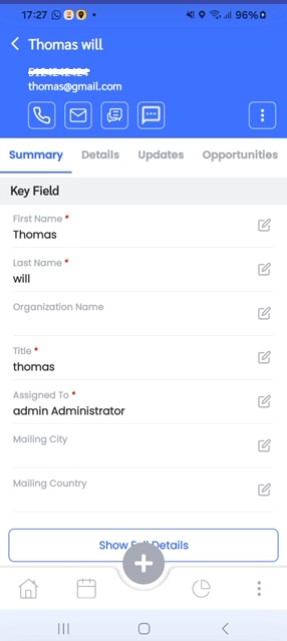
Note: All mandatory fields will be prompted by the CRM AI Assistant during record creation.
Create Chained Record from User Input
This feature allows users to create two linked records across modules in a single interaction.
For example, once a Lead is created, the AI can automatically ask to create an Event or Task related to that lead.
This ensures smooth workflow continuity (e.g., immediate follow-up scheduling).
Example Interaction Flow:
- AI: Hi! I am your CRM assistant. How can I help you?
- User: Create contact with the following event.
- AI: Of course, Let’s create a new contact. What is the First name?
- User: john
- AI: Got it, What’s the primary Email?
- User: smith@gmail.com
- AI: Got it, What’s Assign to?
- User: Edwin
- AI: Alright, I have all the required details. Should I proceed with creating the contact?
- User: Yes, sure.
- AI: Great, the previous record was saved. Now, let’s create the Event.
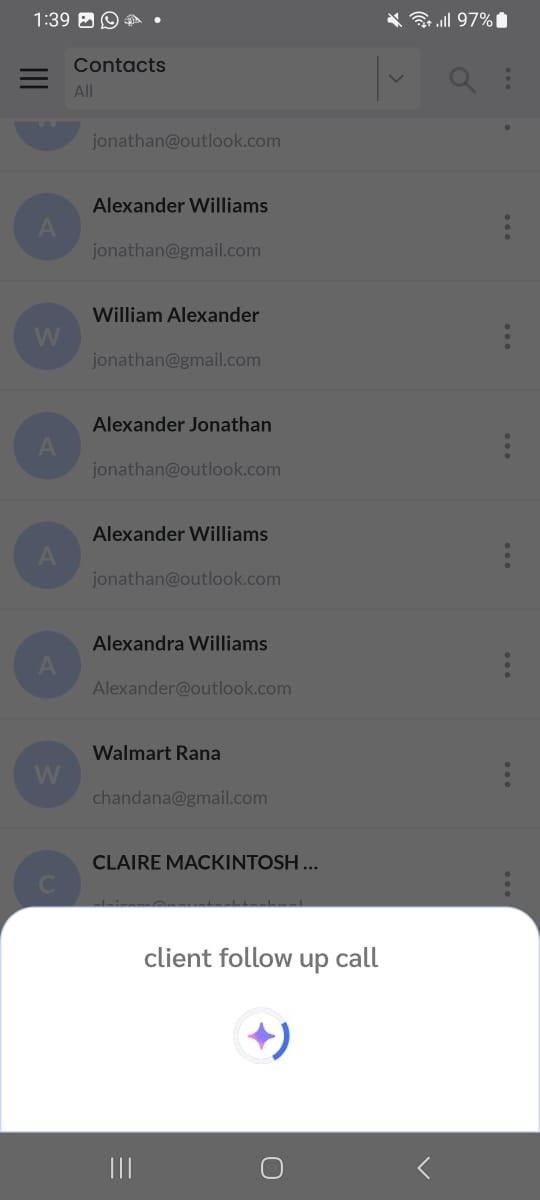
- AI: Of course. Let’s create a new Event. What is the Subject?
- User: client follow up call
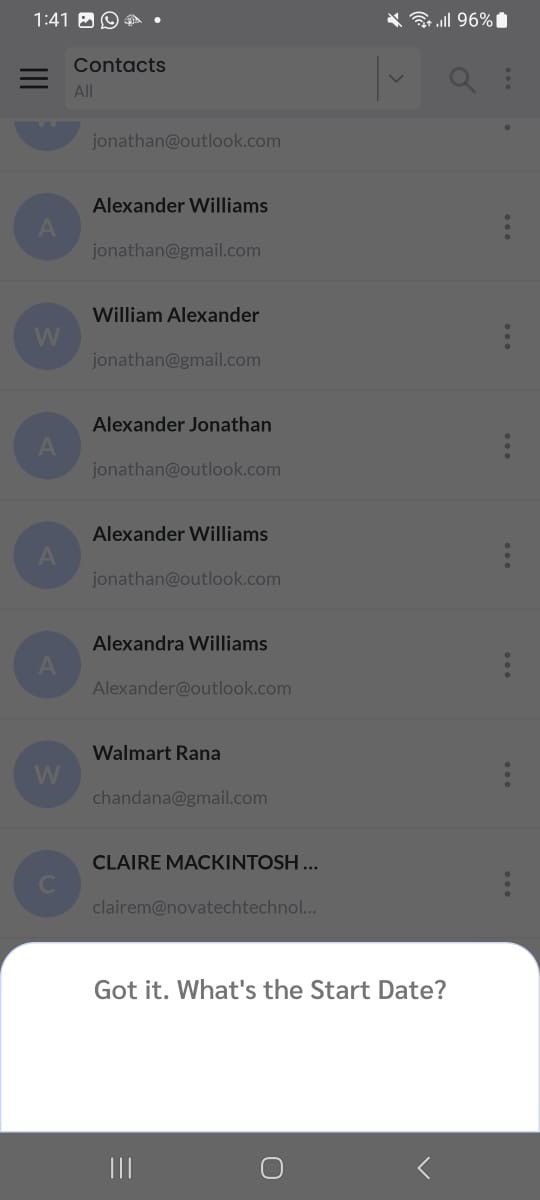
- AI: Got it. What’s the Start Date?
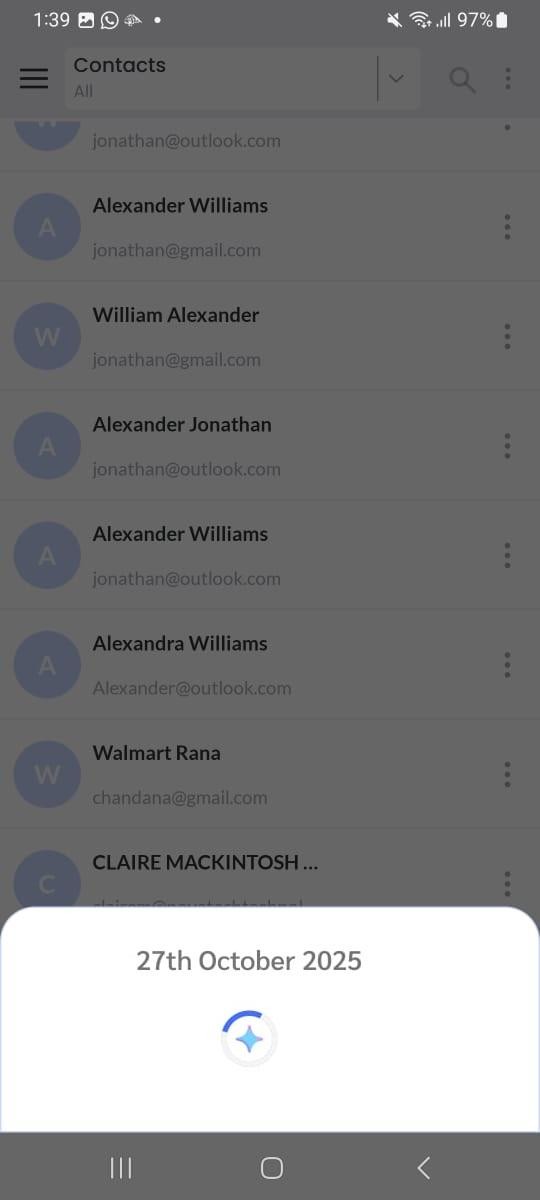
- User: 27th October 2025
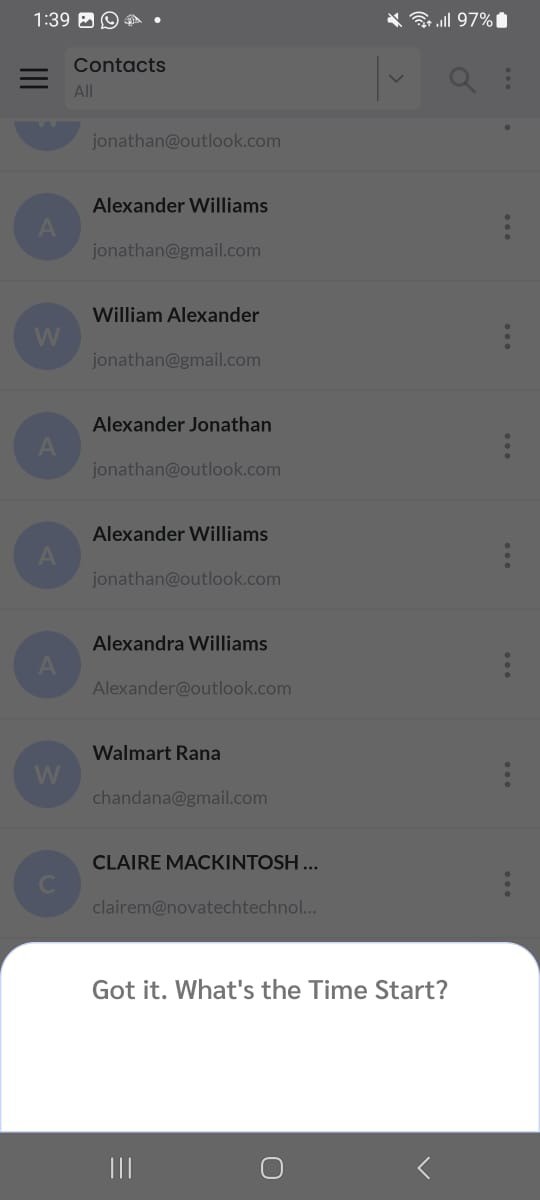
- AI: Got it. What’s the Time Start?
- User: 12:30 P.M
- AI: Got it. What’s the End Date?
- User: 27th October 2025
- AI: Got it. What’s the Time End?
- User: 01:30 P.M
- AI: Got it. What’s the Activity Type?
- User: call
- AI: Alright, I have all the required details. Should I proceed with creating the Event?
- User: Yes
- AI: Saving the record.
- AI: All done! I’ve created the records for you
- Navigate to the first record that was created.
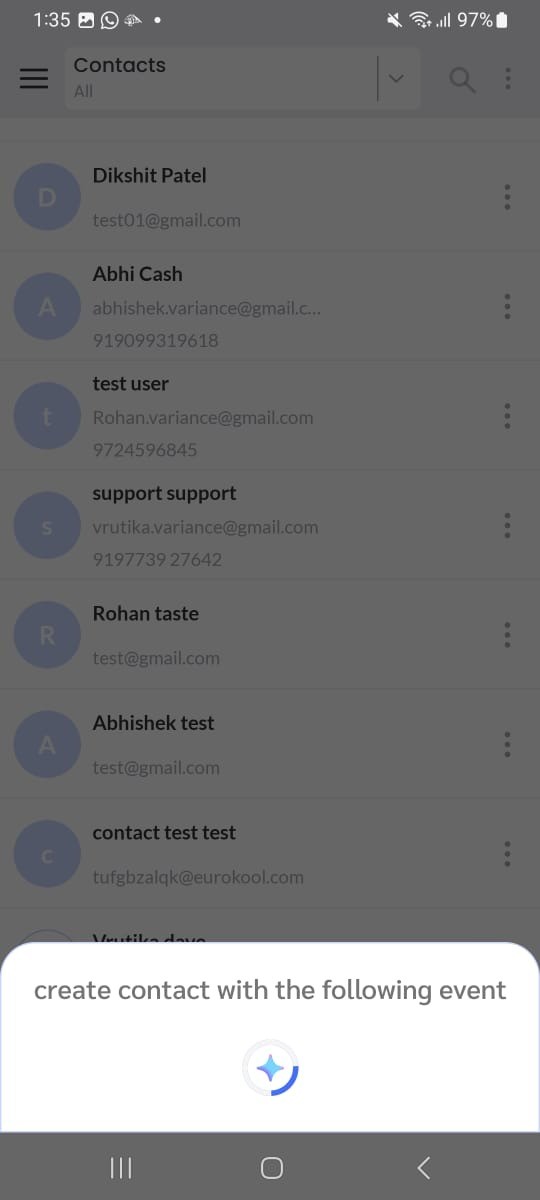
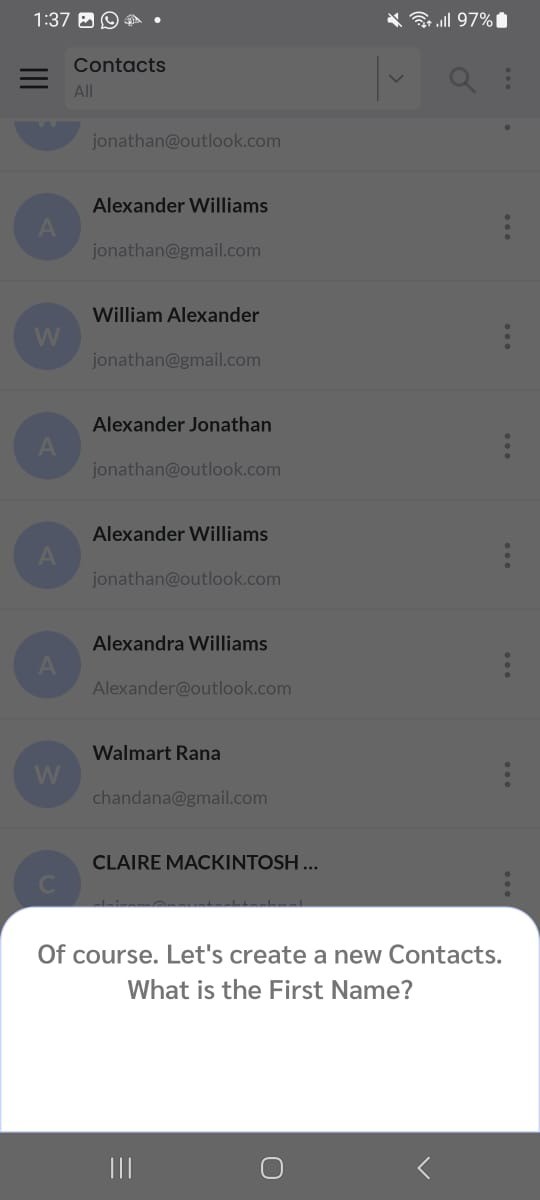
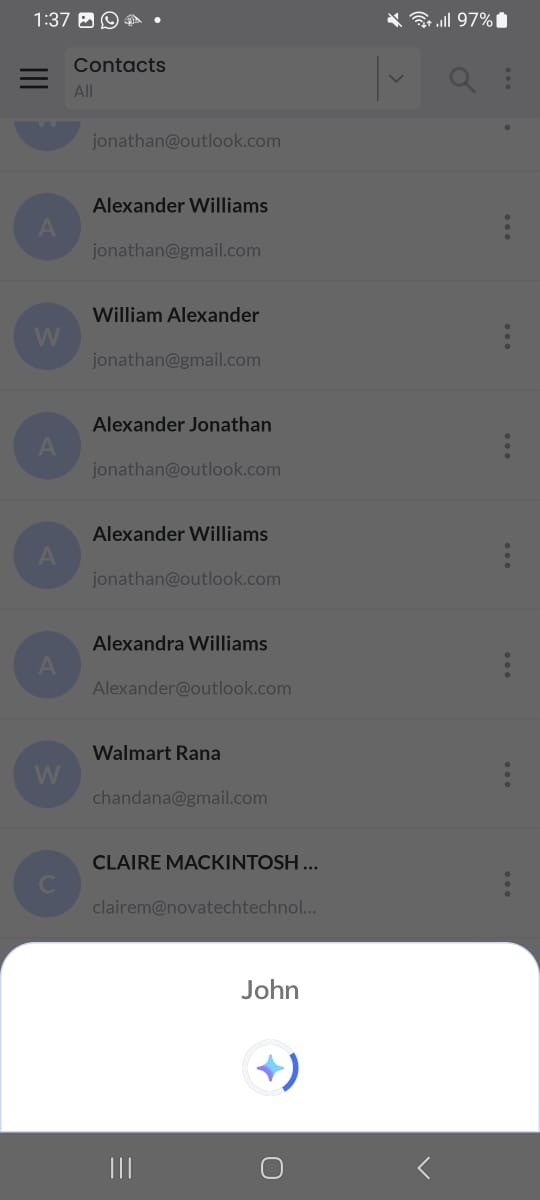
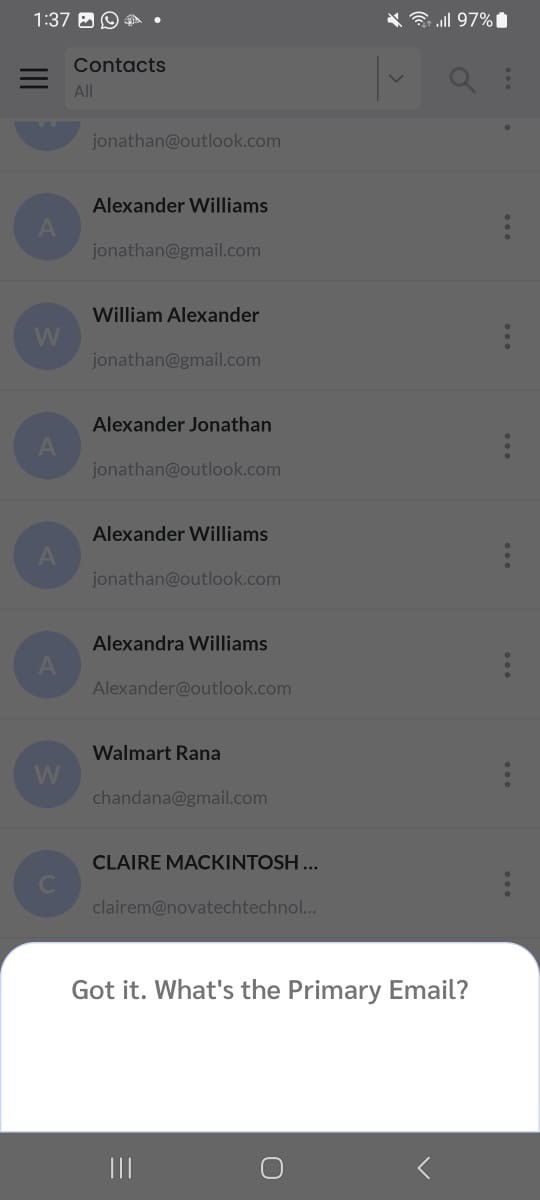
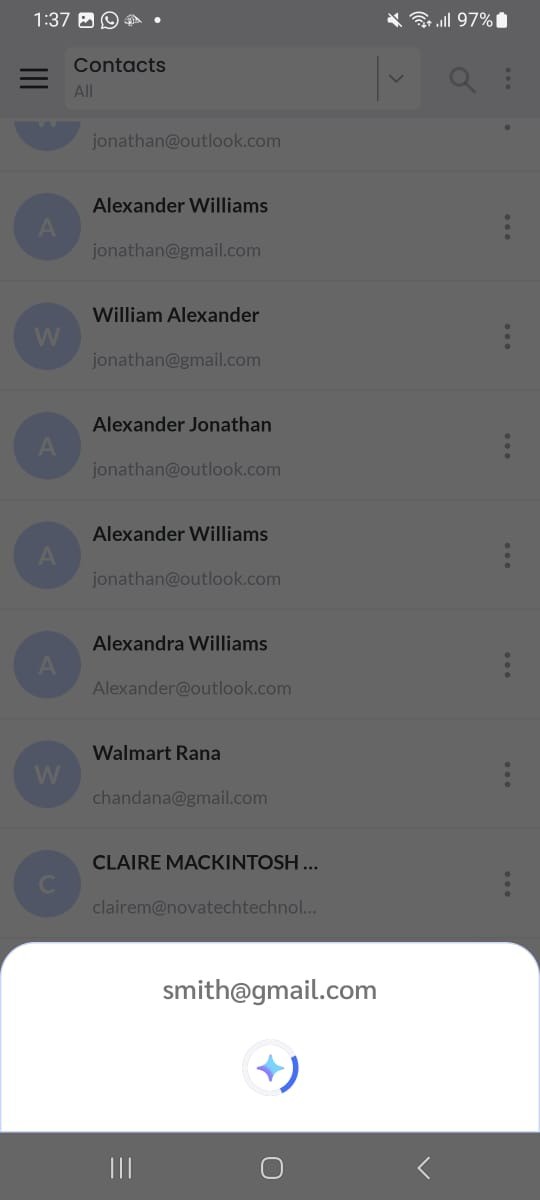
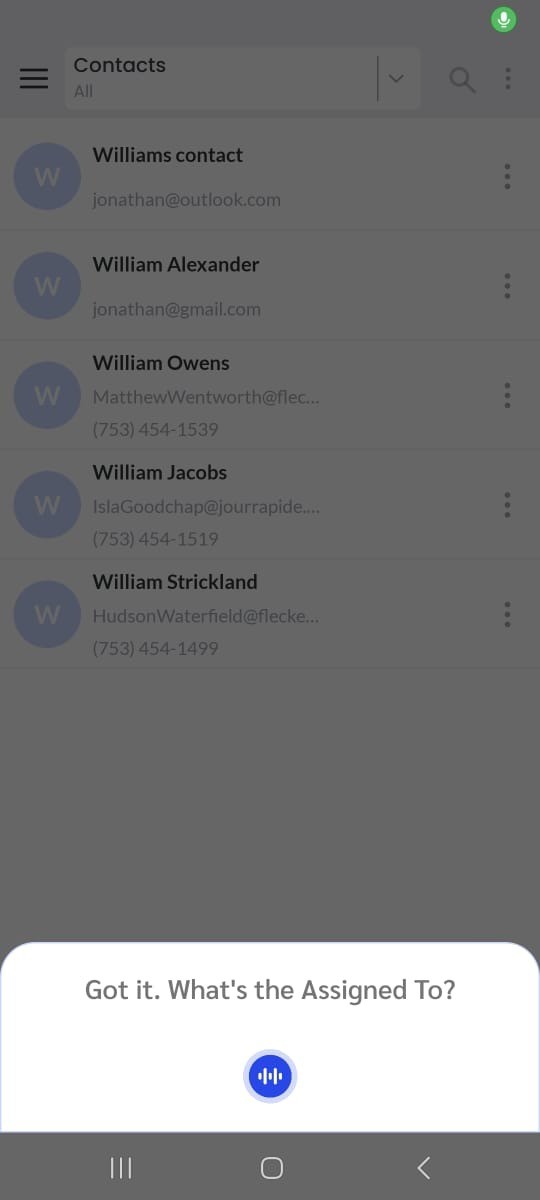
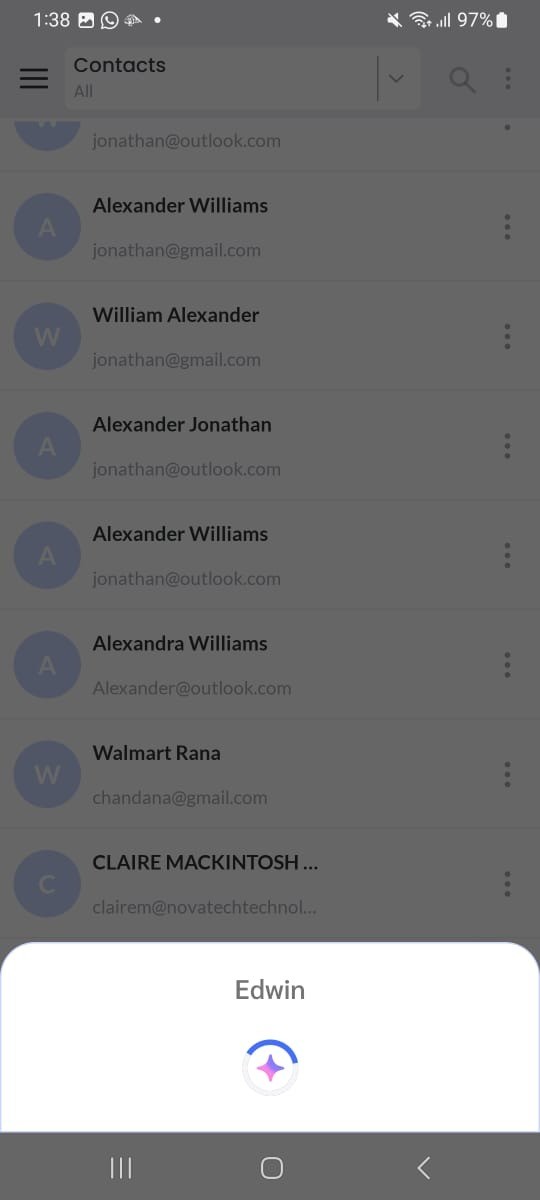
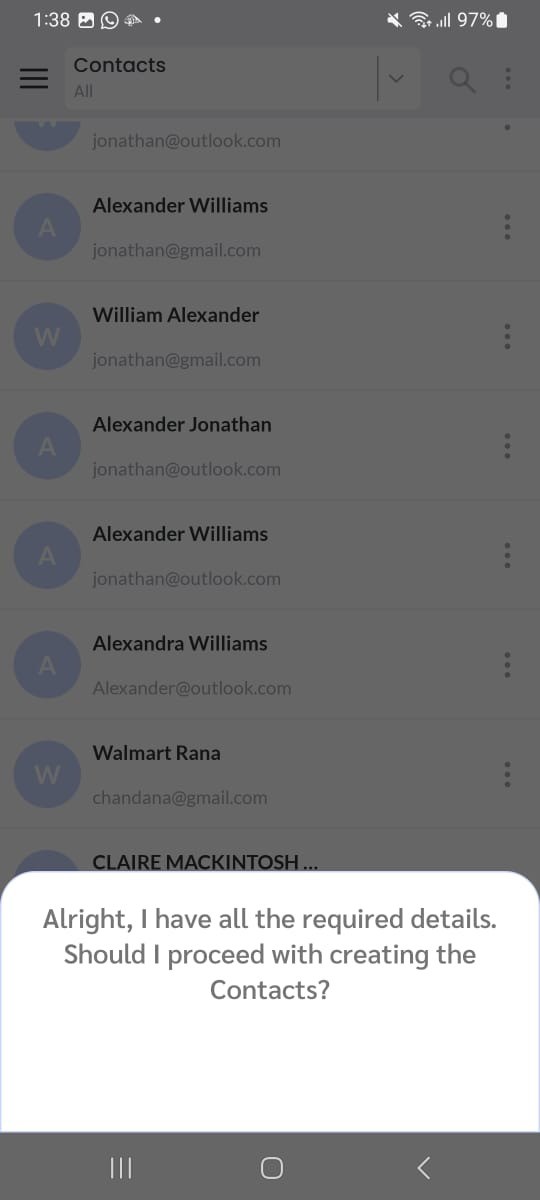
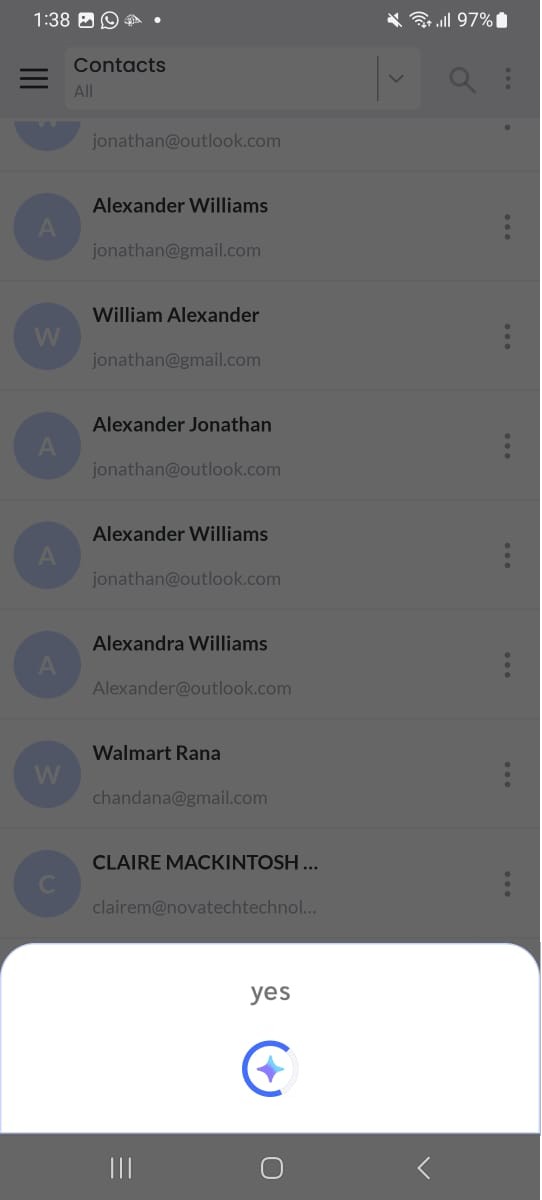
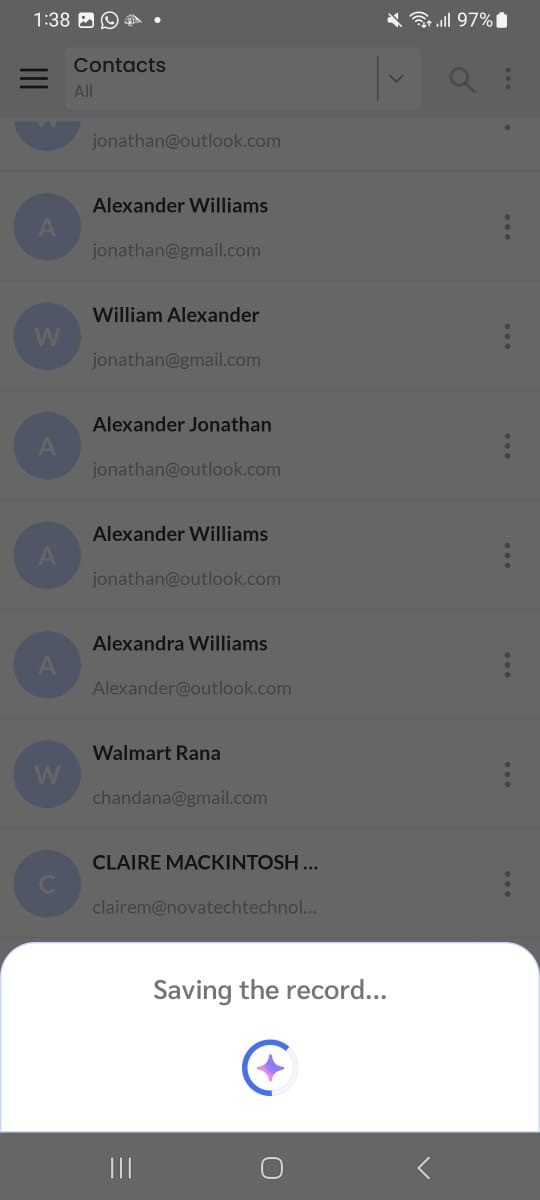
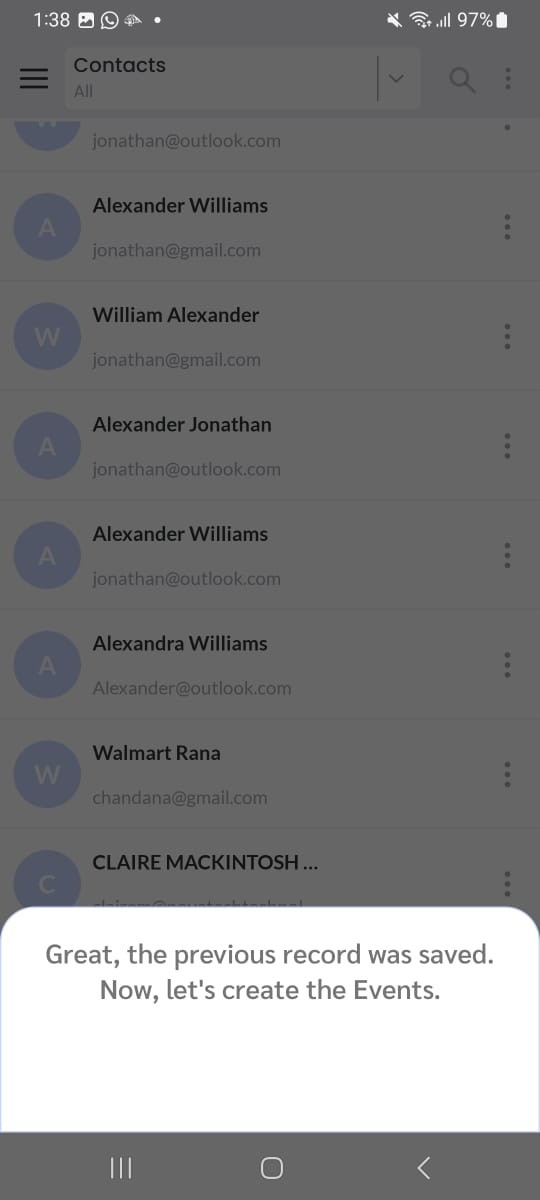
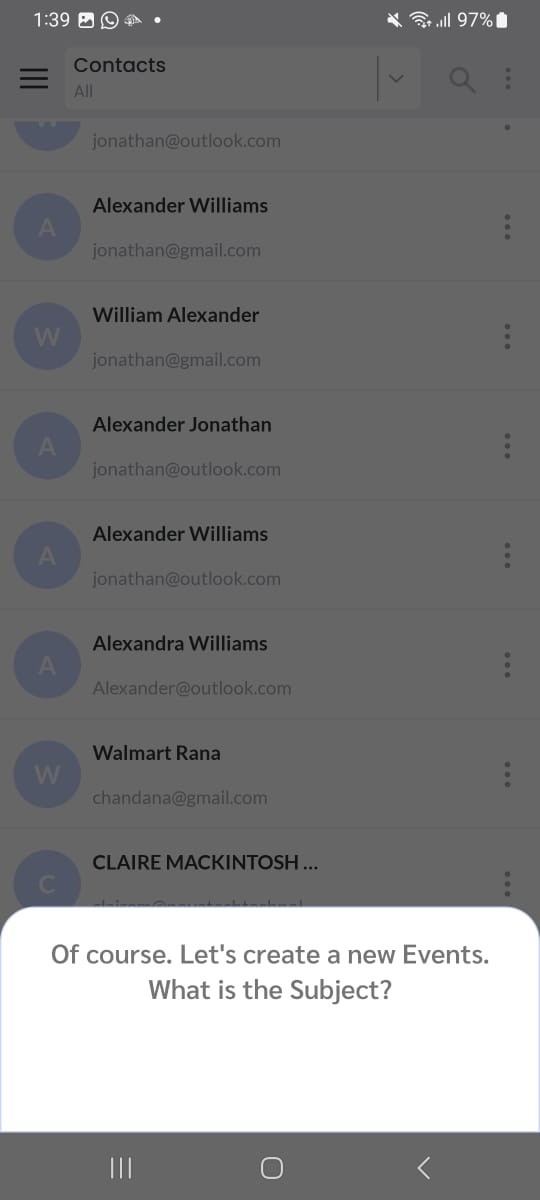
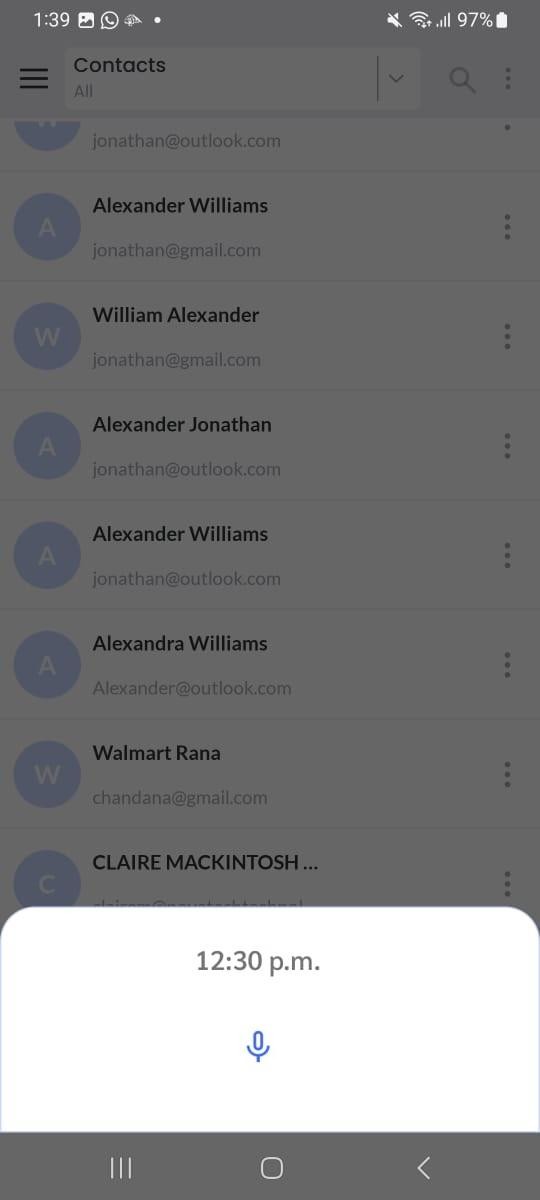
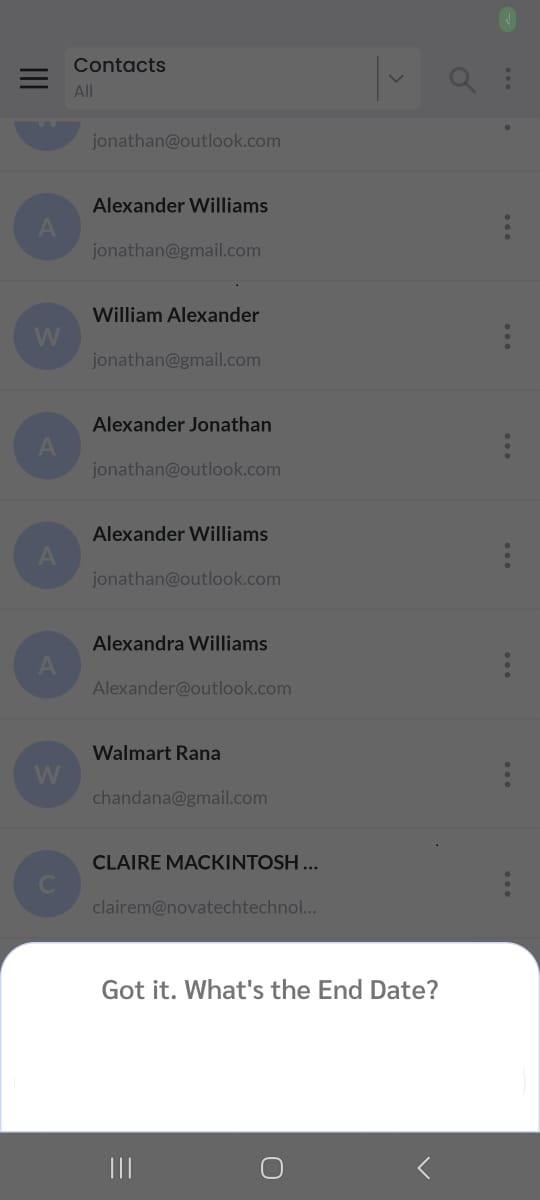
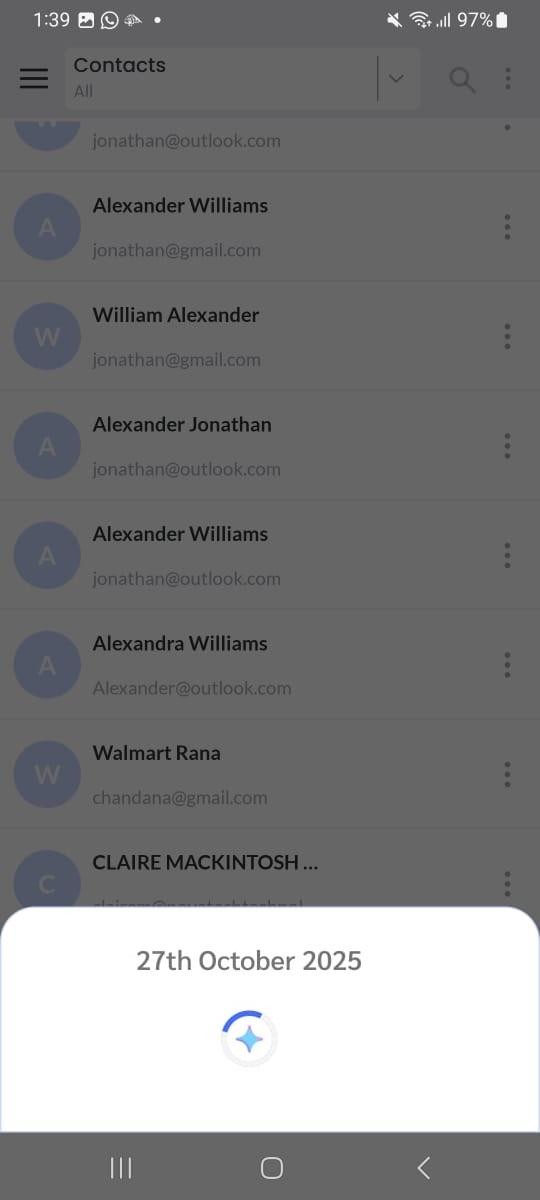
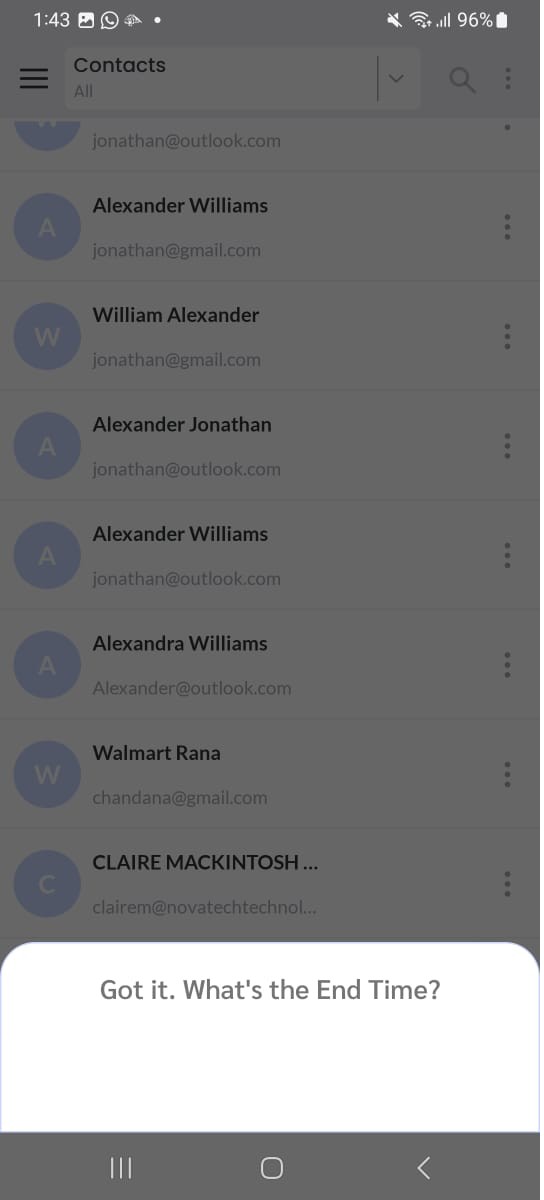
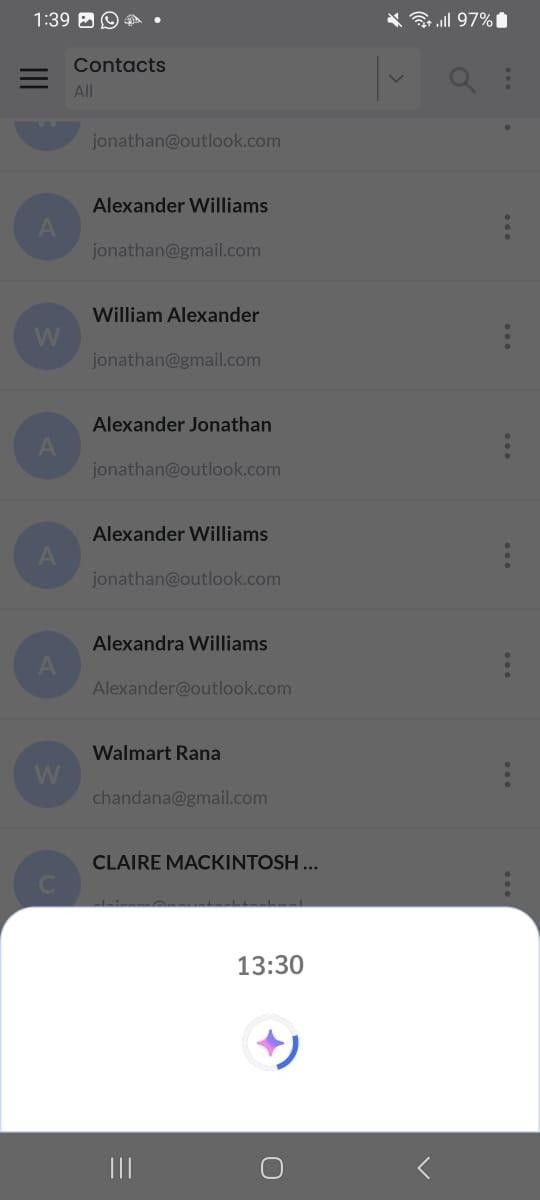
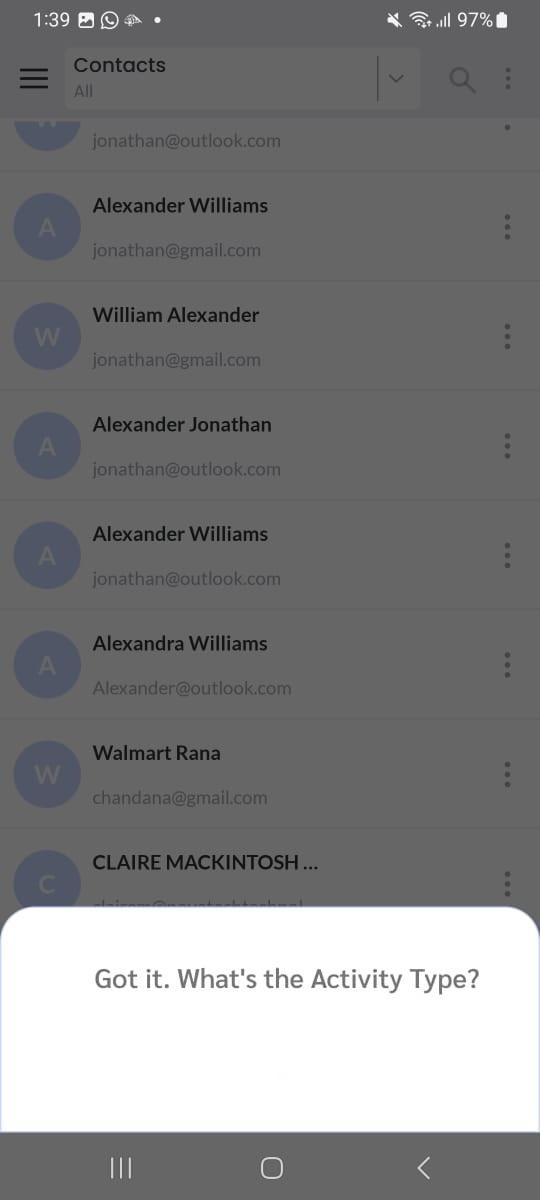
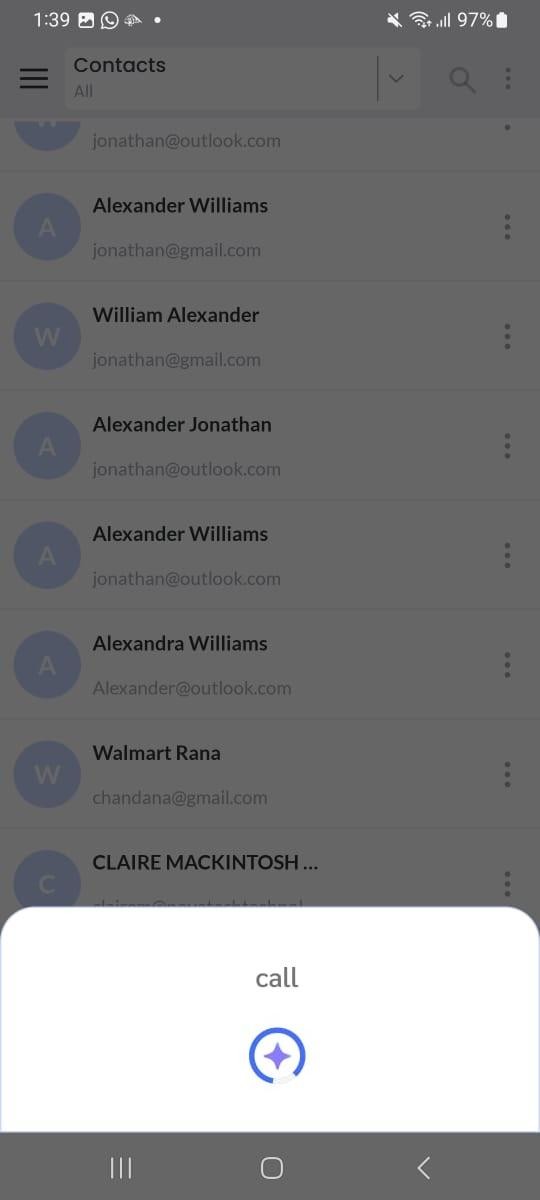
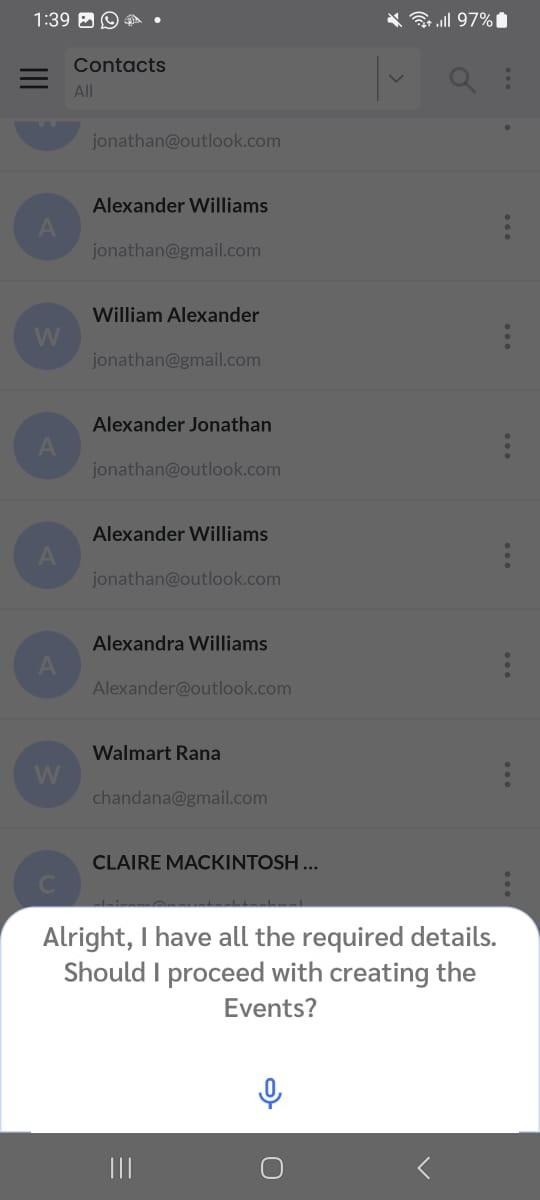
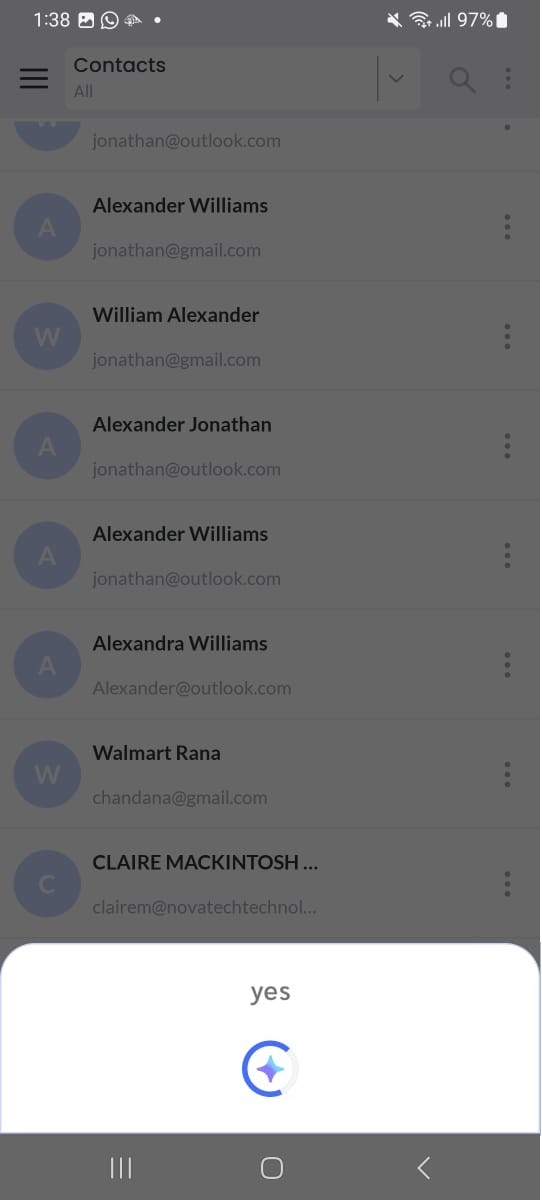
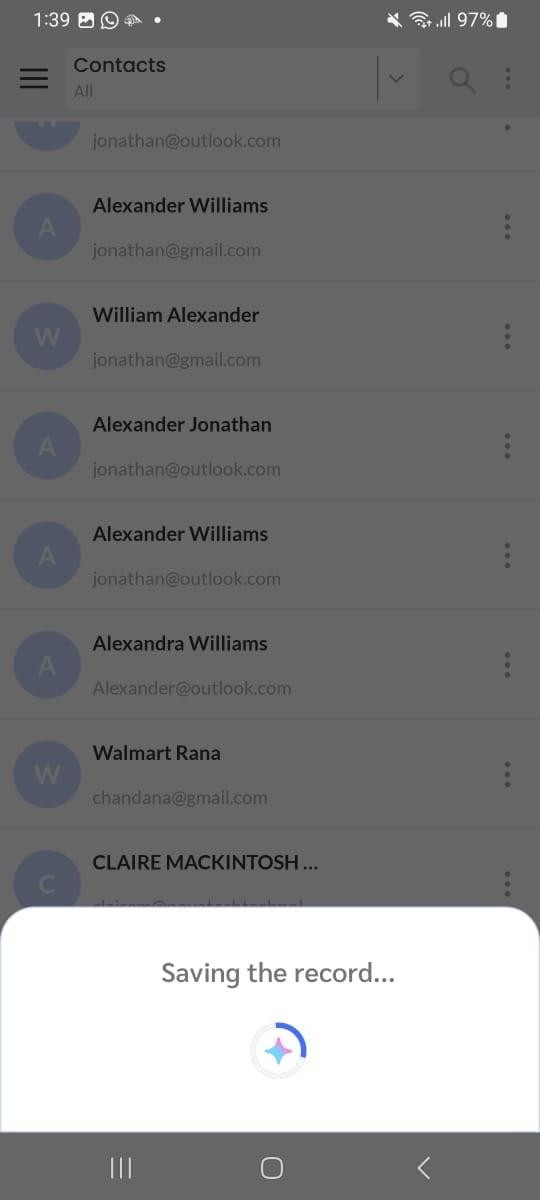
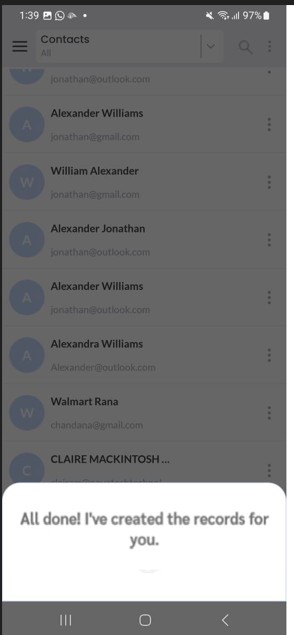
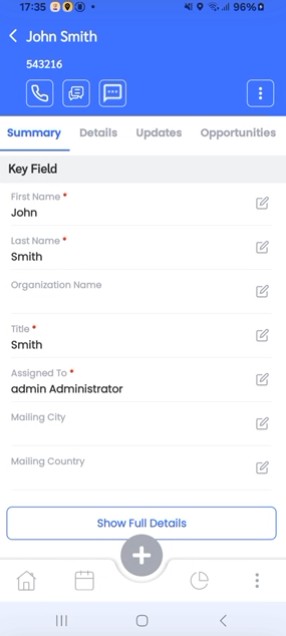
Note: After both records are successfully saved, the AI Assistant will automatically navigate to the first record created.
AI Auto-Suggestion in Record Comments
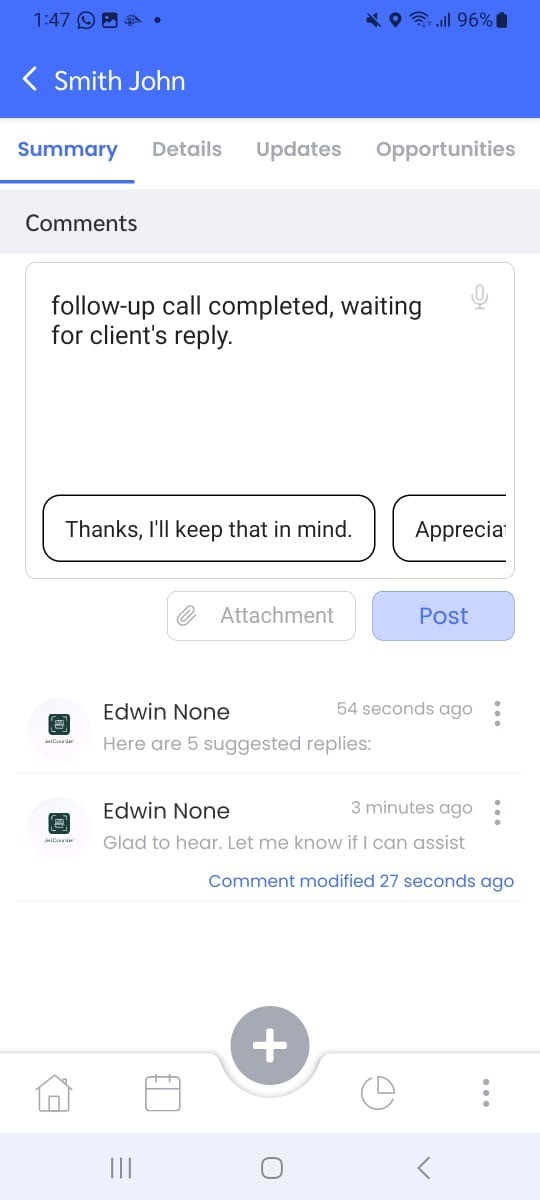
The AI is also integrated into the record detail comment section to help users add better contextual updates.
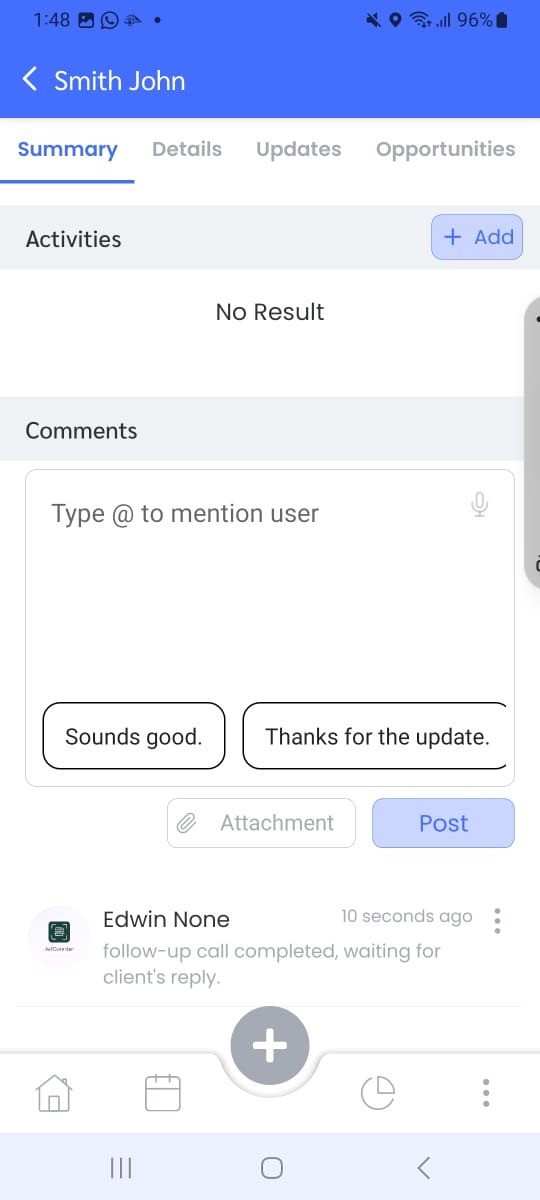
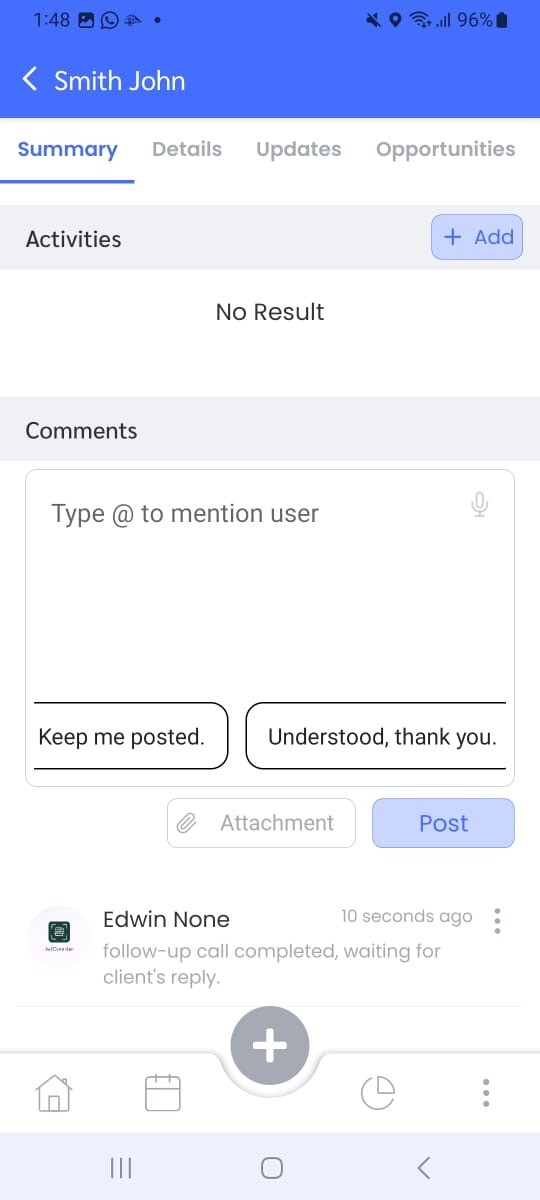
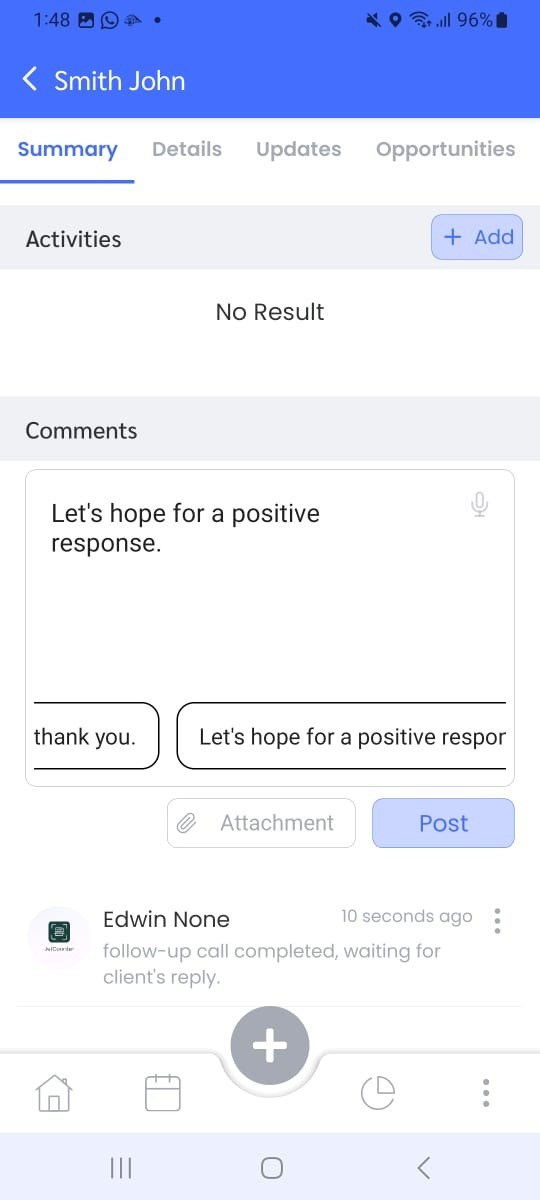
After you add a comment, the AI will automatically generate suggestions or possible follow-up comments based on the last comment added.
This helps users maintain consistent communication and ensures meaningful follow-ups on records.
How It Works:
- Open any record detail page.
- Scroll to the Comments section.
- Add your comment as usual.
- After submission, AI will show auto-suggestions based on your comment content.
- You can tap any suggested comment to add it quickly.
Example:
- User adds comment: “Follow-up call completed; waiting for client’s reply.
- AI suggests:
- Thanks, I’ll keep that in mind.
- Sounds good.
- Thanks for the update.
- Keep me posted.
- Understood, thank you.
- Let’s hope for the positive response.
Supported Modules
The AI features currently support the following modules:
- Contacts
- Leads
- Activities (Tasks & Events)
- Linked Record Creation (Contact/Lead → Event/Task)
- Comments Section (AI Suggestions)
Best Way to Use the AI Feature
- Use clear voice or typed commands.
- Always fill mandatory fields when prompted.
- Use module-specific searches for focused results.
- Confirm chained record creation only when required.
- Review AI-suggested comments before submitting.
- If AI doesn’t understand, rephrase your command.
The AI feature in the CRM Mobile App helps users complete their tasks faster with smart search, guided record creation, linked record flow, and context-based comment suggestions.
This ensures you can manage leads, contacts, and follow-ups efficiently — with minimal manual effort.