
The WhatsApp Integration feature in the CRMtiger mobile application allows users to manage direct WhatsApp conversations using connected WhatsApp accounts. Users can access chats, send messages, and continue customer communication directly from the mobile app.
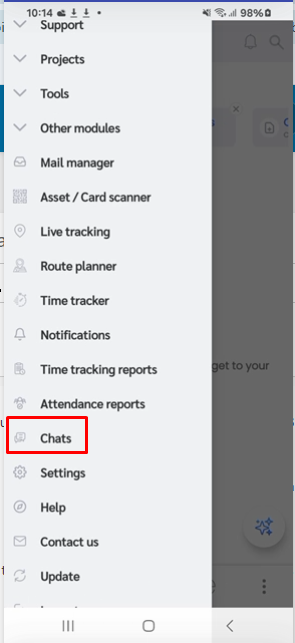
To access WhatsApp Integration chats, open the CRMtiger mobile application and navigate to the Chats section from the side panel menu.
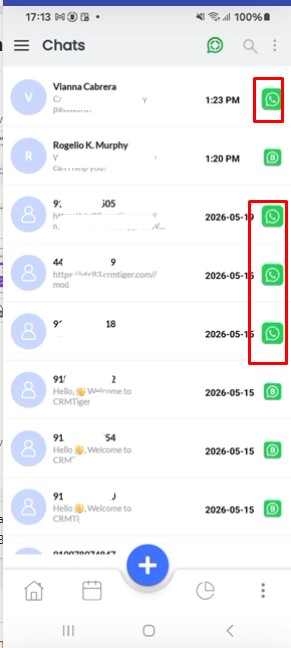
 Inside the Chats section, WhatsApp Integration conversations can be identified using the standard WhatsApp Icon displayed beside the chat.
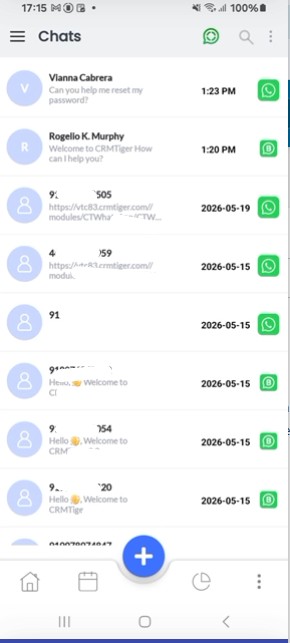
 If both WhatsApp Business and WhatsApp Integration numbers are connected in the CRM, all chats will appear together in the same chat listing screen. Users can identify the chat source using the corresponding icons displayed beside each conversation.
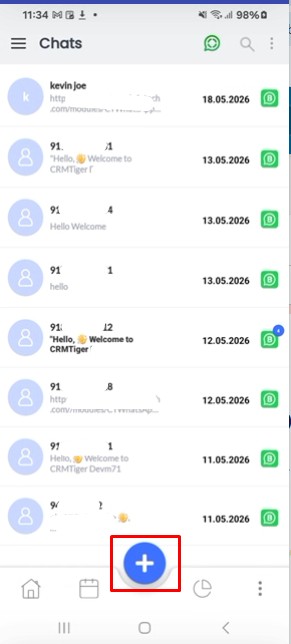
 To initiate a new WhatsApp Integration conversation, click on the Plus (+) Icon available in the Chats section.
 After clicking on the plus icon, the system displays all connected WhatsApp Business and WhatsApp Integration numbers available in the CRM.
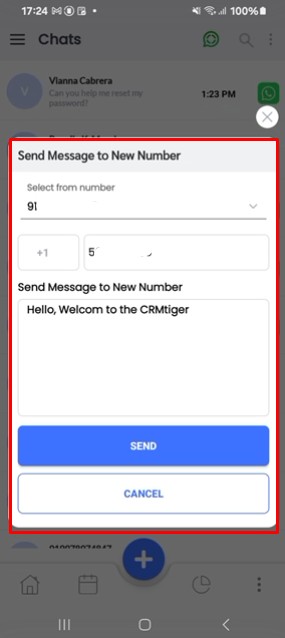
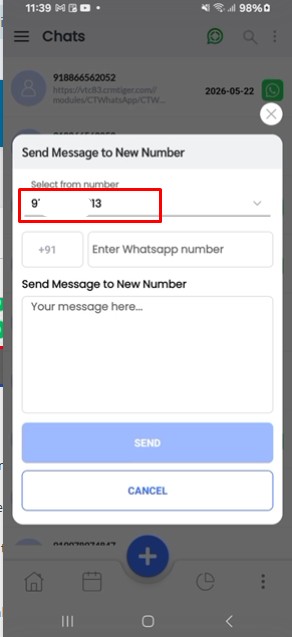
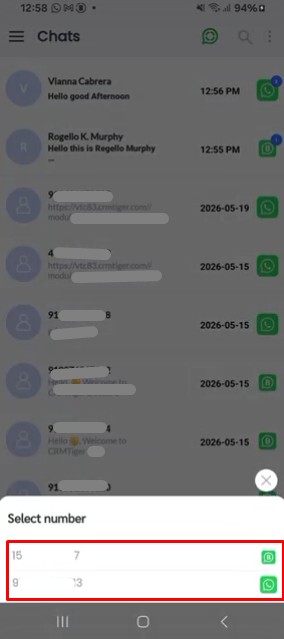 When the user selects a WhatsApp Integration number, the application opens the WhatsApp chat initiation screen directly for sending messages.
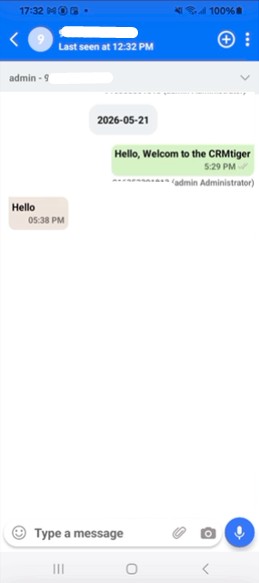
The user can enter the recipient number, send messages, and continue communication directly from the chat window.
How Multiple WhatsApp Number Access Works
The CRMtiger mobile application allows administrators to provide access to multiple WhatsApp numbers for a single user. This functionality helps users manage conversations from different WhatsApp Business and WhatsApp Integration numbers within the same mobile application.
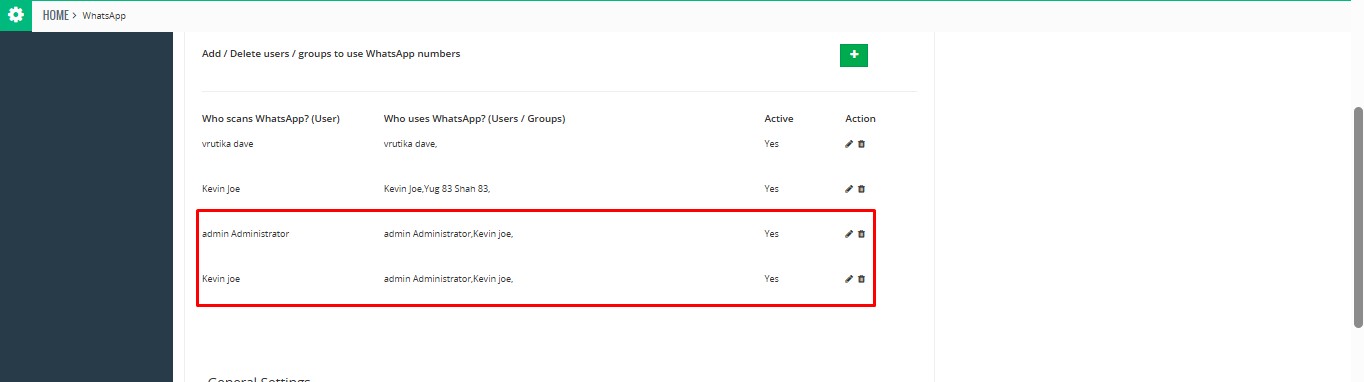 After multiple number access is assigned successfully, the user can navigate to the Chats section in the CRMtiger mobile application
To initiate a new conversation, the user needs to click on the Plus (+) Icon available in the Chats section.
Once clicked, the system displays all WhatsApp numbers that are accessible to the logged-in user. The list includes all assigned WhatsApp Business and WhatsApp Integration numbers.
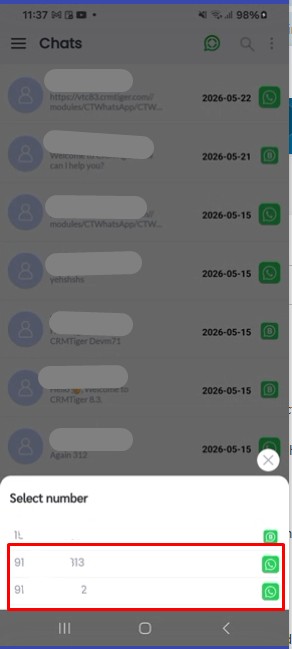 The user can select any available number from the list and send messages using the selected WhatsApp account.
 Inside the chat window, the user can also switch between multiple accessible WhatsApp numbers using the number selection option available in the conversation screen.
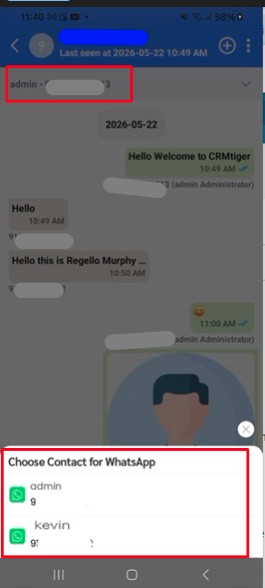 This functionality allows users to manage customer communication efficiently using multiple WhatsApp accounts from a single CRMtiger mobile application.