
Overview of “AI Chatter”AI Chatter is an AI-powered assistant integrated into vTiger CRM that allows users to interact with CRM data using natural-language questions and commands.
Instead of manually navigating through CRM modules, users can type a question such as:
- “Open tickets”
- “Show me open tickets”
- “Invoice by status in bar chart”
AI Chatter processes the request using the configured AI provider and presents the result directly inside the CRM assistant window.
Key capabilities demonstrated in AI ChatterBased on the provided screenshots, AI Chatter can:
- Query CRM records using natural language.
- Display CRM data in a structured table/list.
- Generate visual charts from CRM data.
- Provide downloadable results such as CSV for tabular data.
- Provide downloadable PNG for generated charts.
- Use different AI providers such as OpenAI, Gemini, and OpenRouter.
- Allow administrators to configure the AI provider, API URL, API key, and model.
How to Install and Configure the AI Chatter in vTiger?
- Purchase the AI Chatter Integration from CRMTiger’s extension store.
- You will get a zip file in the email.
- Login to vTiger CRM and install the zip file as you would install any plugin or extension
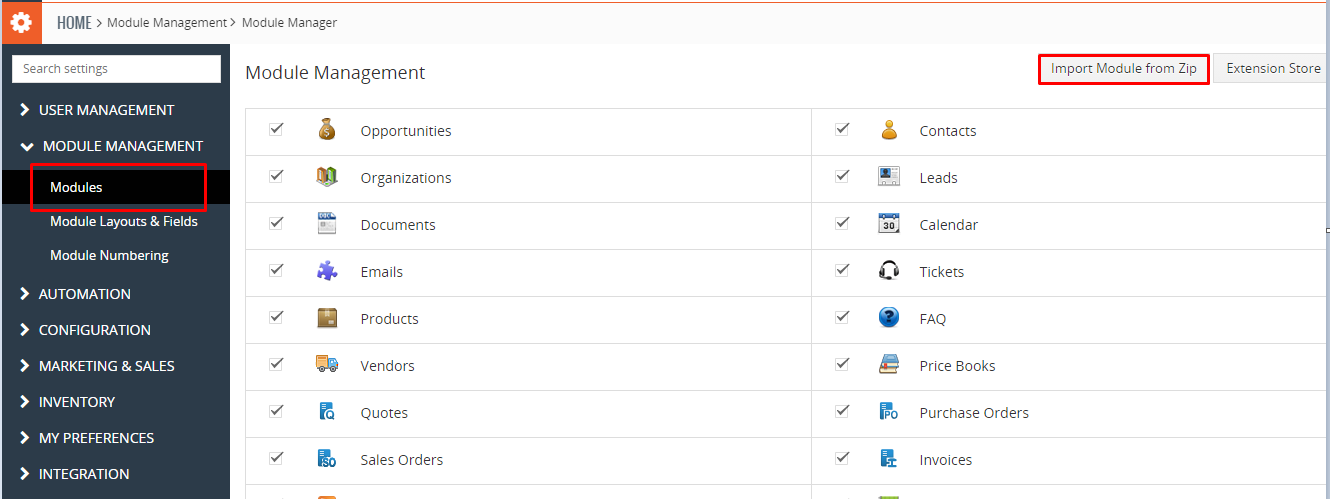
- Install the .zip (package) file of the extension by navigating to CRM Settings → Module Management → Modules, then click the “Module from ZIP” button as shown in the screenshot above.
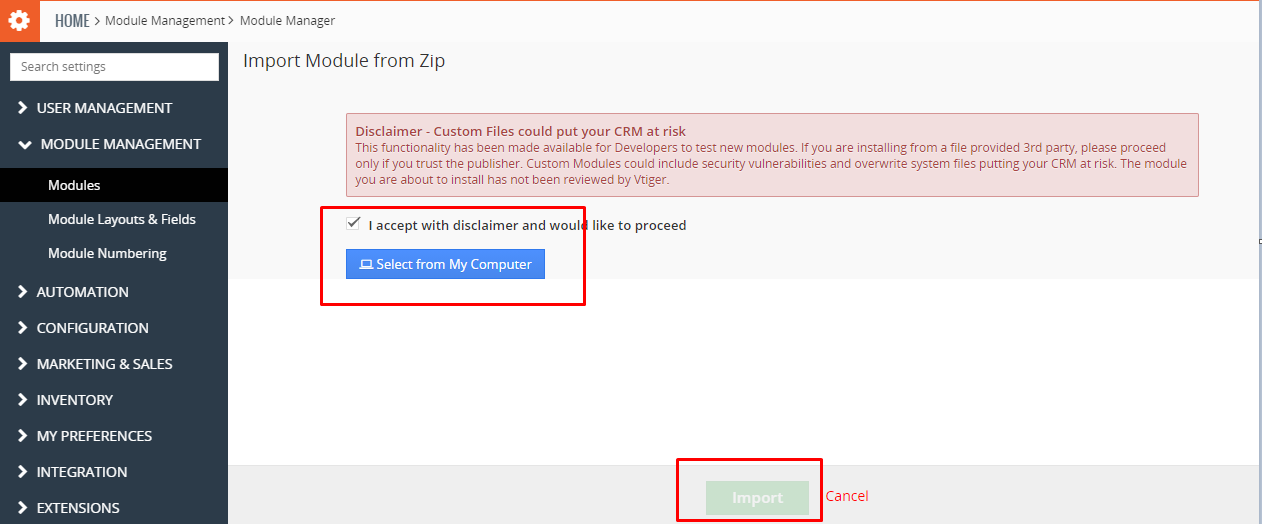
- Accept the disclaimer checkbox as shown in the screenshot below, then select the ZIP file from your Downloads folder (assuming you have received and saved it from CRMTiger). Click the Import button to complete the installation.
- Once the installation is complete, the extension will appear under CRM Settings → Other Settings, as shown in the screenshot below.
License ConfigurationBefore using AI Chatter, the CRM license must be activated.
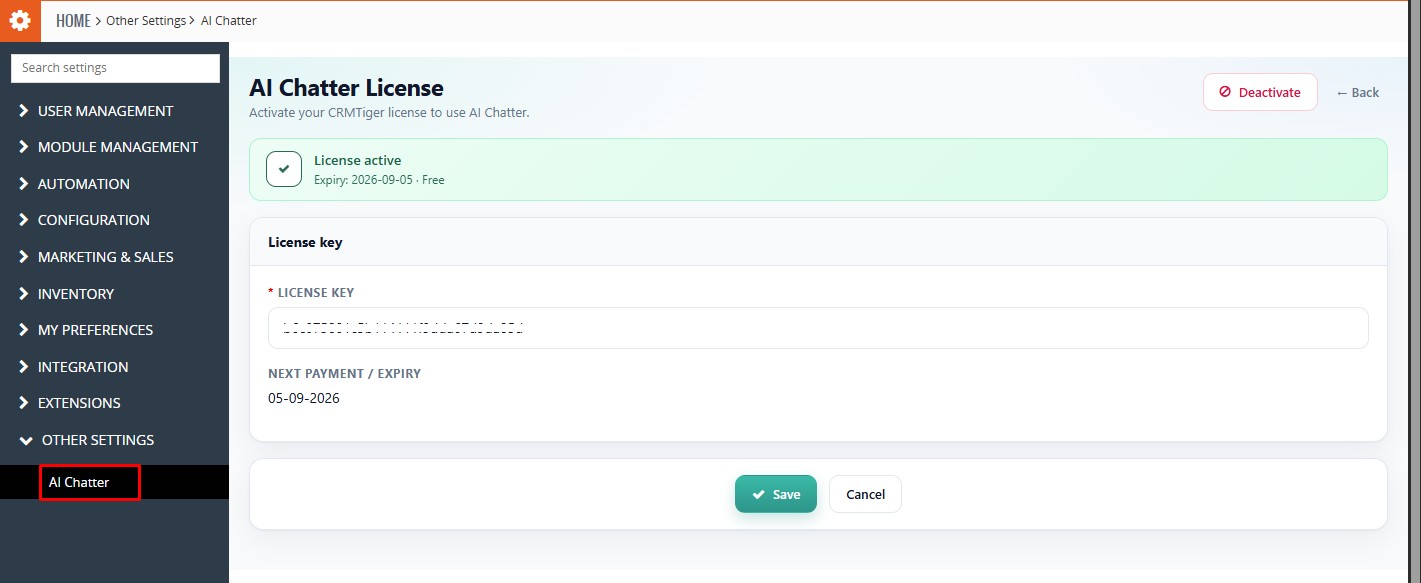 Navigate to License Setup:
Settings → CRM Settings → Other Settings → AI Chatter
Enter the license key provided with the CRMTiger AI Chatter license.
- Save the Licence
- Click Save.
- After successful activation, the page displays a green license status section.
AI Chatter ConfigurationAfter activating the AI Chatter license, configure the AI Provider and its connection details.
Navigate to:
Settings → Other Settings → AI Chatter → Edit
The AI Chatter Configuration page provides the following AI providers:
AI ProviderSelect the AI provider that will be used by AI Chatter to process user requests.
Available providers:
- OpenAI
- Gemini
- OpenRouter
AI Provider API ConfigurationAfter selecting an AI provider, configure the corresponding API URL, API Key, and Model.
| AI Provider | API URL | API Key | Model |
|---|---|---|---|
| OpenAI | https://api.openai.com/v1/chat/completions | Enter OpenAI API Key | Enter the supported OpenAI model |
| Gemini | https://generativelanguage.googleapis.com/v1beta/{model}:generateContent | Enter Gemini API Key | Enter the supported Gemini model |
| OpenRouter | https://openrouter.ai/api/v1/chat/completions | Enter OpenRouter API Key | openrouter/free |
Get an OpenAI API Key
To use OpenAI as the AI Provider in AI Chatter, you need to create an OpenAI API key and enter it in the API Key field of the AI Chatter Configuration.
1. Go to the official OpenAI API Platform website, OpenAI API Platform
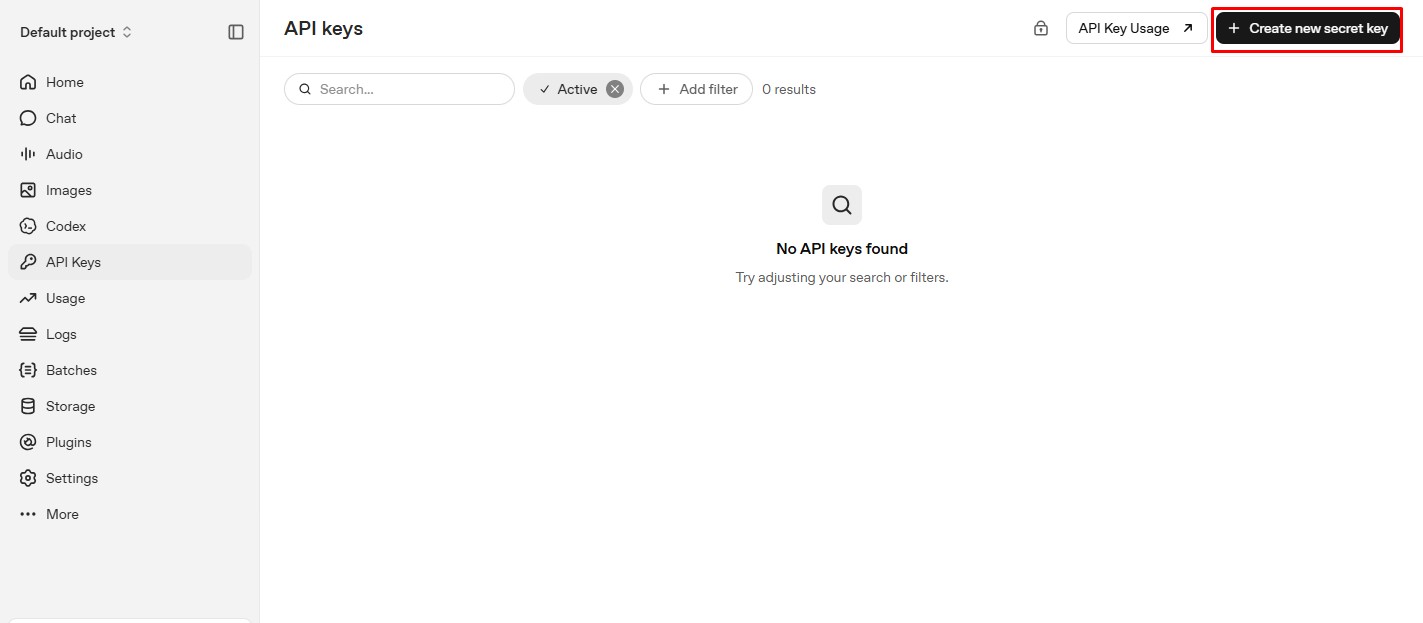
2. Sign in to your OpenAI account and open the API Keys section.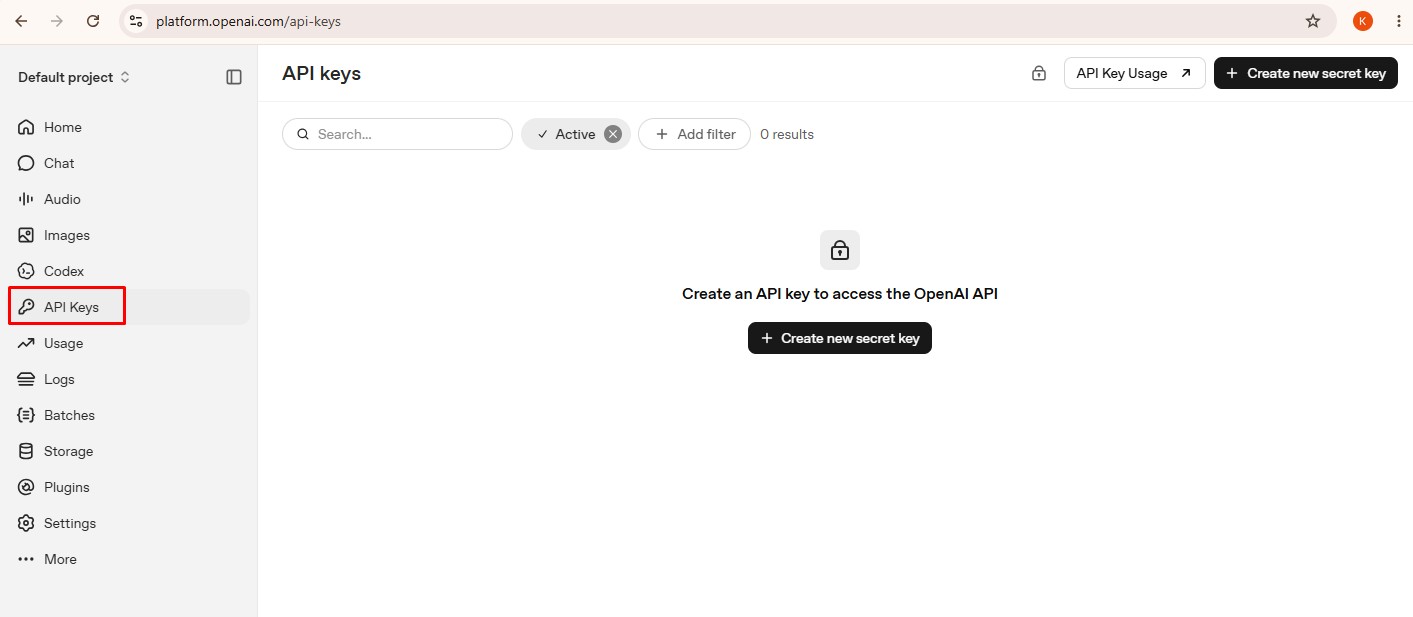 3. Click Create new secret key.
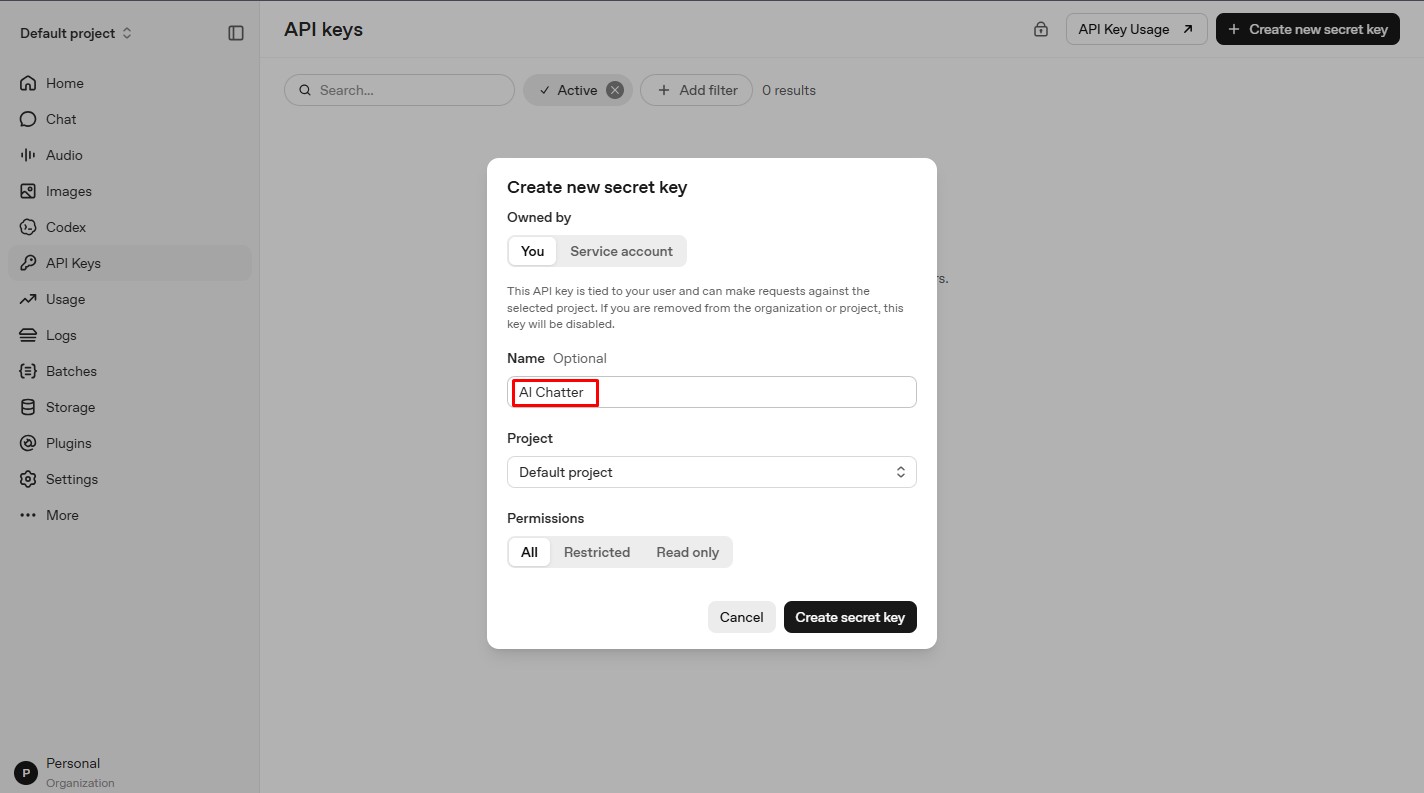
  4. Enter a name for the API key, for example AI Chatter, and create the key.
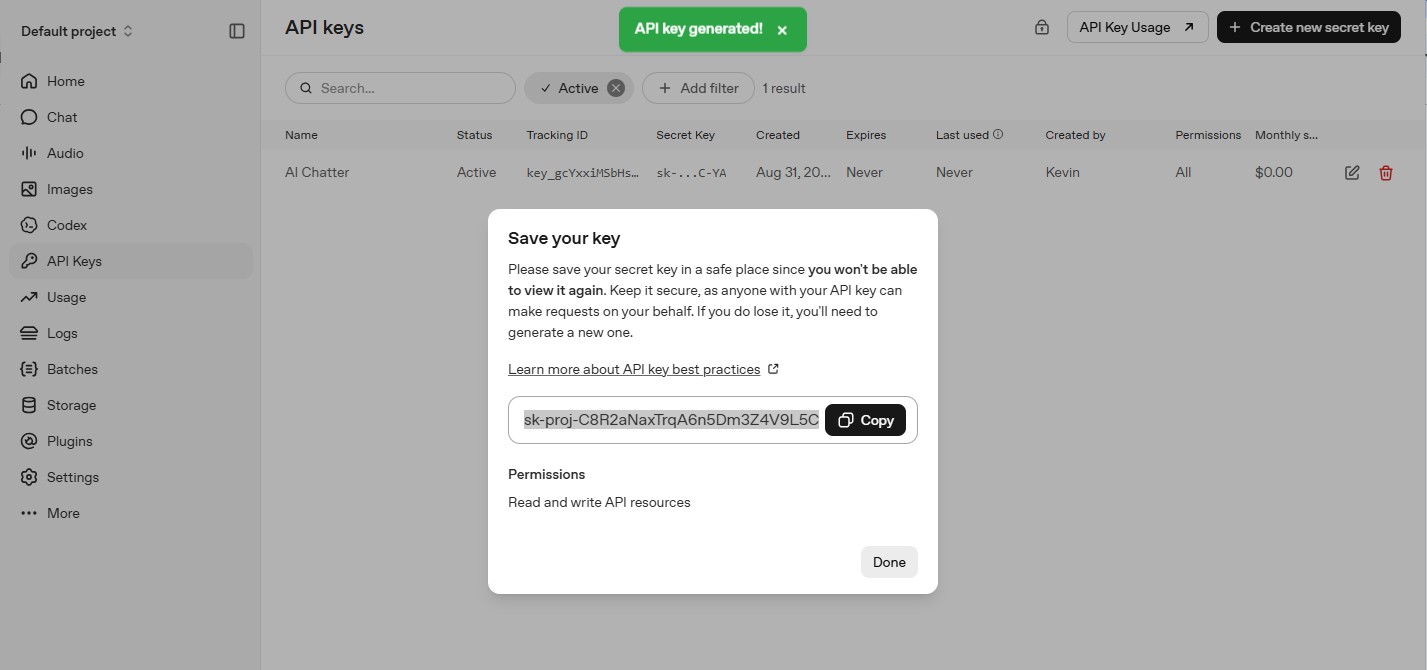
 5. Copy the generated API key and paste it into the API Key field in CRM.
 6. Click Save to complete the AI Chatter configuration.
Note: Copy and securely store the API key when it is created. Do not share the complete API key with others.Get Gemini API KeyGemini Free Plan – Request Limits (Usage Caps)
| Limit Type | Free Plan Limitation |
|---|---|
| Number of Questions per Day | Allowed, but with a daily cap (exact number not disclosed; estimated 30–50 prompts per day). |
| Speed Limit | Slower responses during busy hours or if limit is close. |
| File Uploads | Not supported at all in the free plan. |
| Characters per Request | May limit long questions or messages (usually around 4,000–8,000 characters max). |
| Chat Length | Only remembers limited part of the conversation (no long memory). |
| Image Uploads | Limited support (sometimes allowed on mobile, not fully functional). |
1. Go to the official Google AI Studio website, Google AI Studio
2. Click Create API Key, select a project, and confirm.
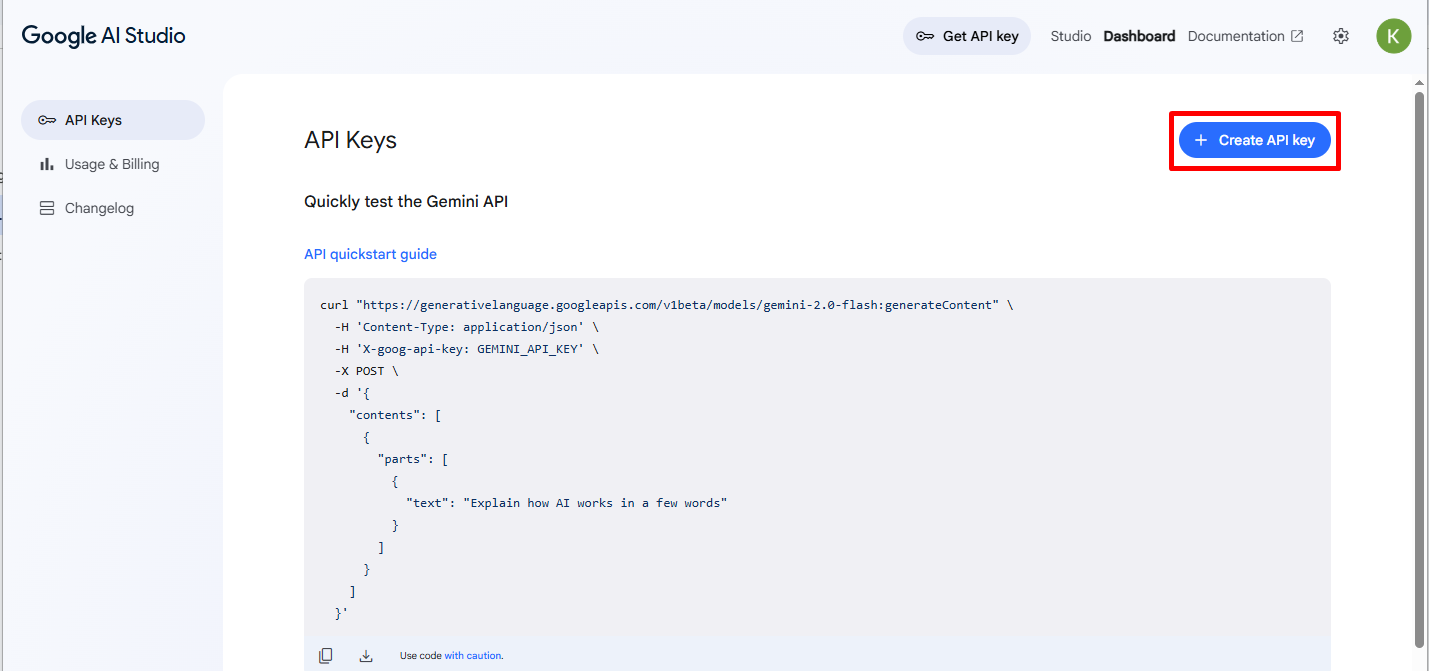
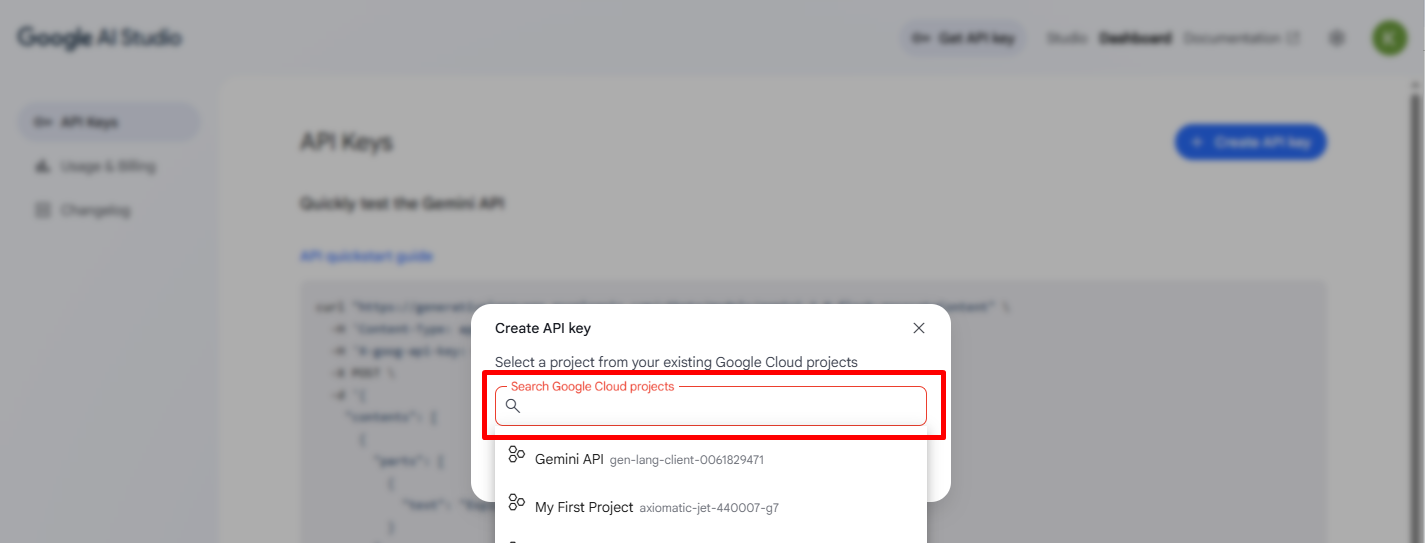
3. Click on “Create API Key for existing Project”.
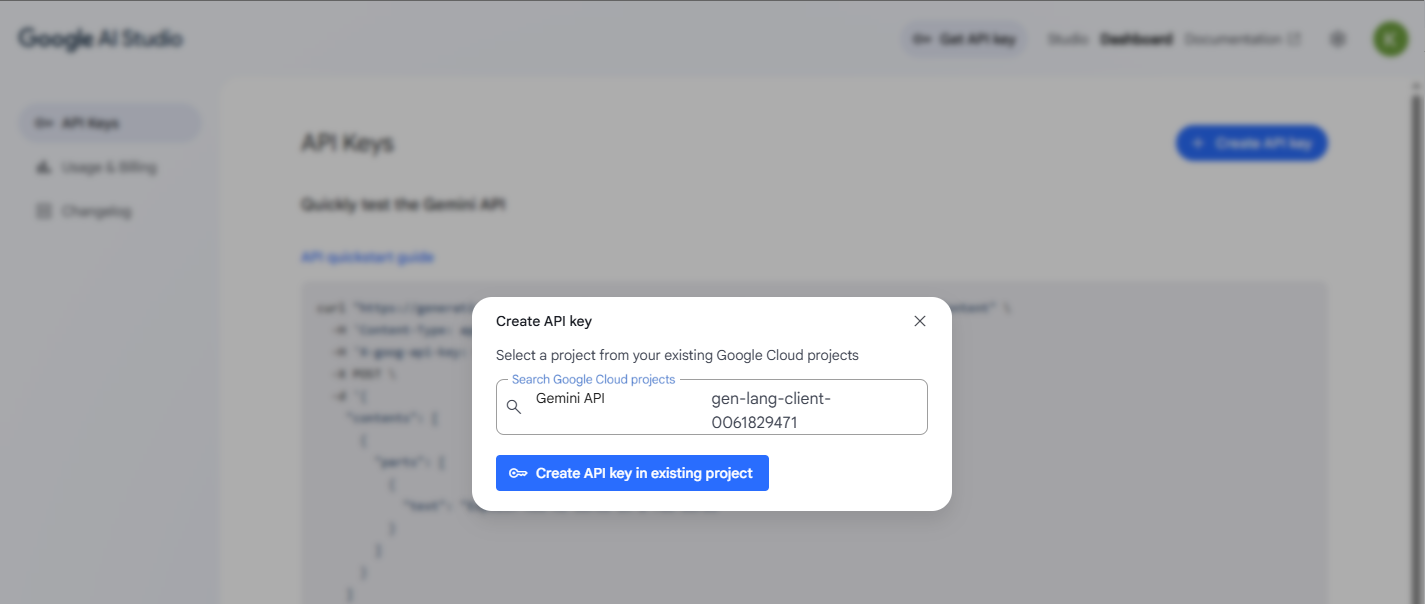
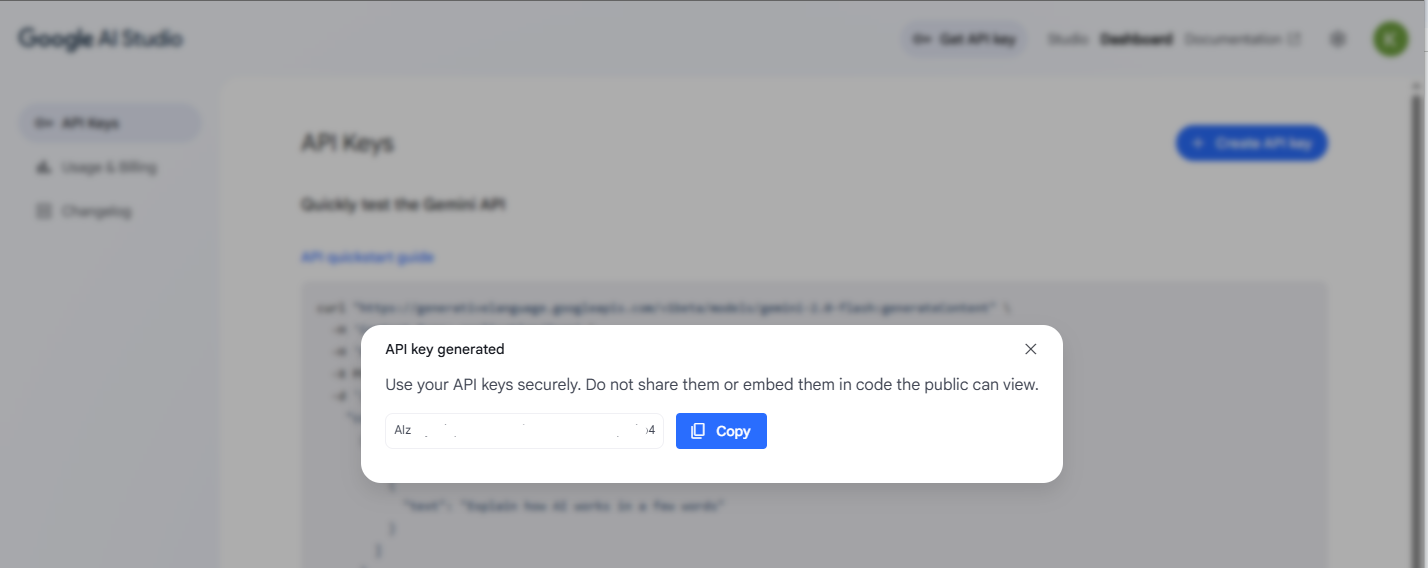
4. Copy the API key and paste it into CRM.
5. Click Submit License.Get OpenRouter API KeyTo use OpenRouter as the AI Provider in AI Chatter, create an OpenRouter API key and enter it in the API Key field of the AI Chatter Configuration.
1. Go to the official OpenRouter website, OpenRouter.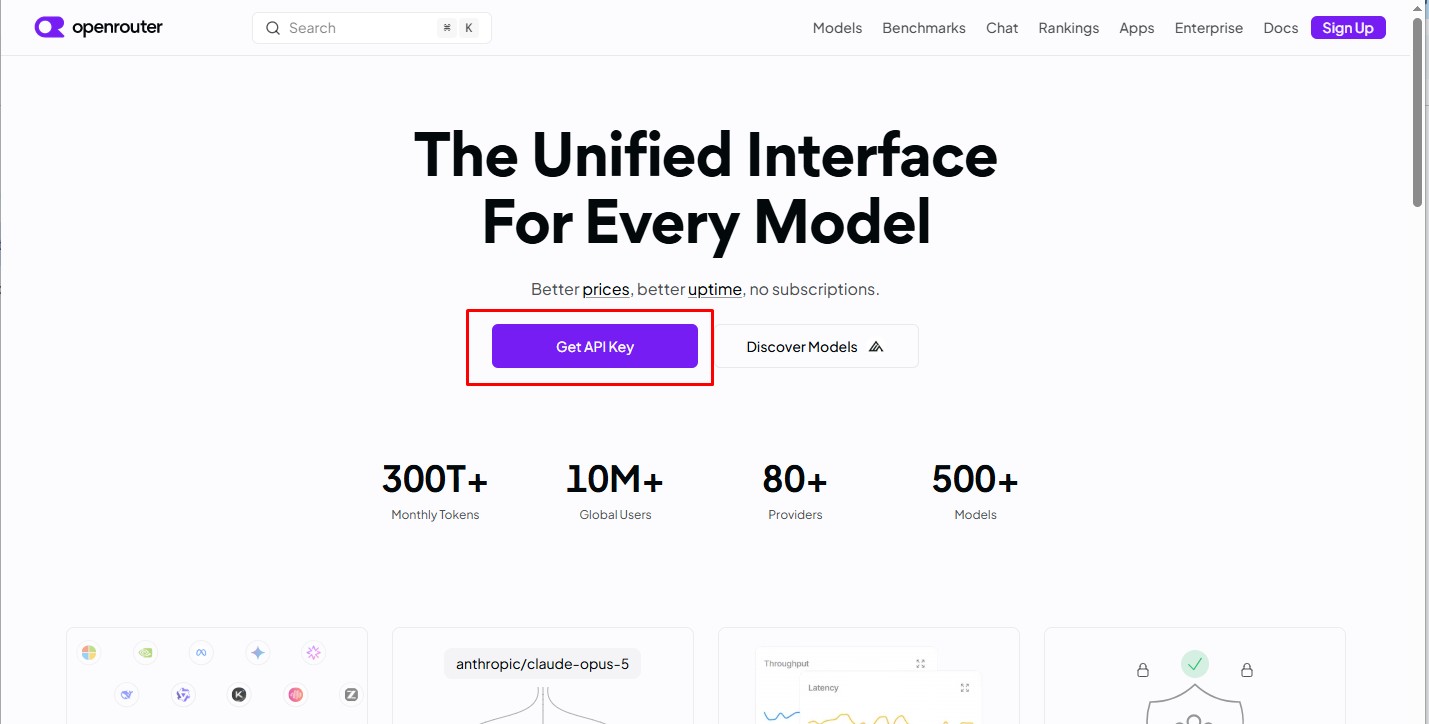 2. Sign in to your OpenRouter account and open the API Keys section.
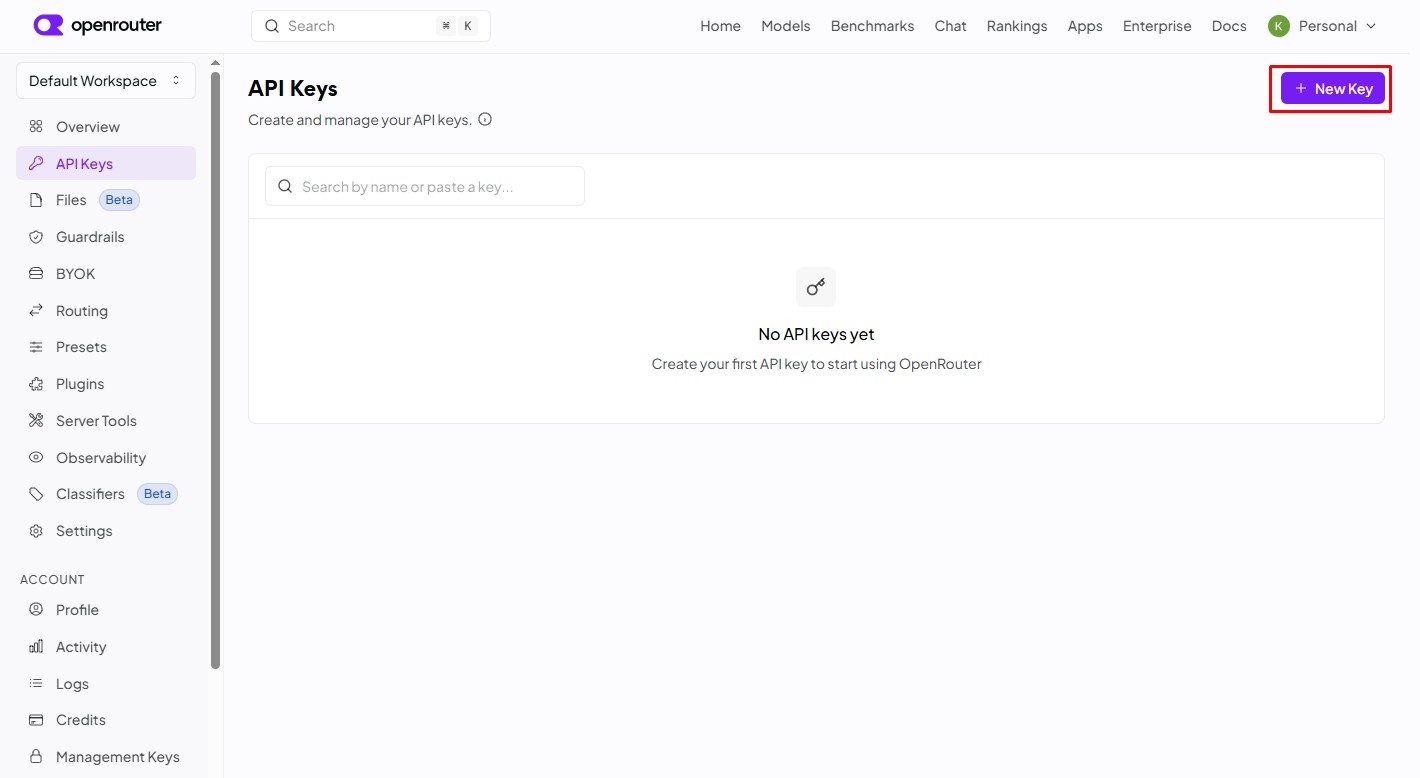
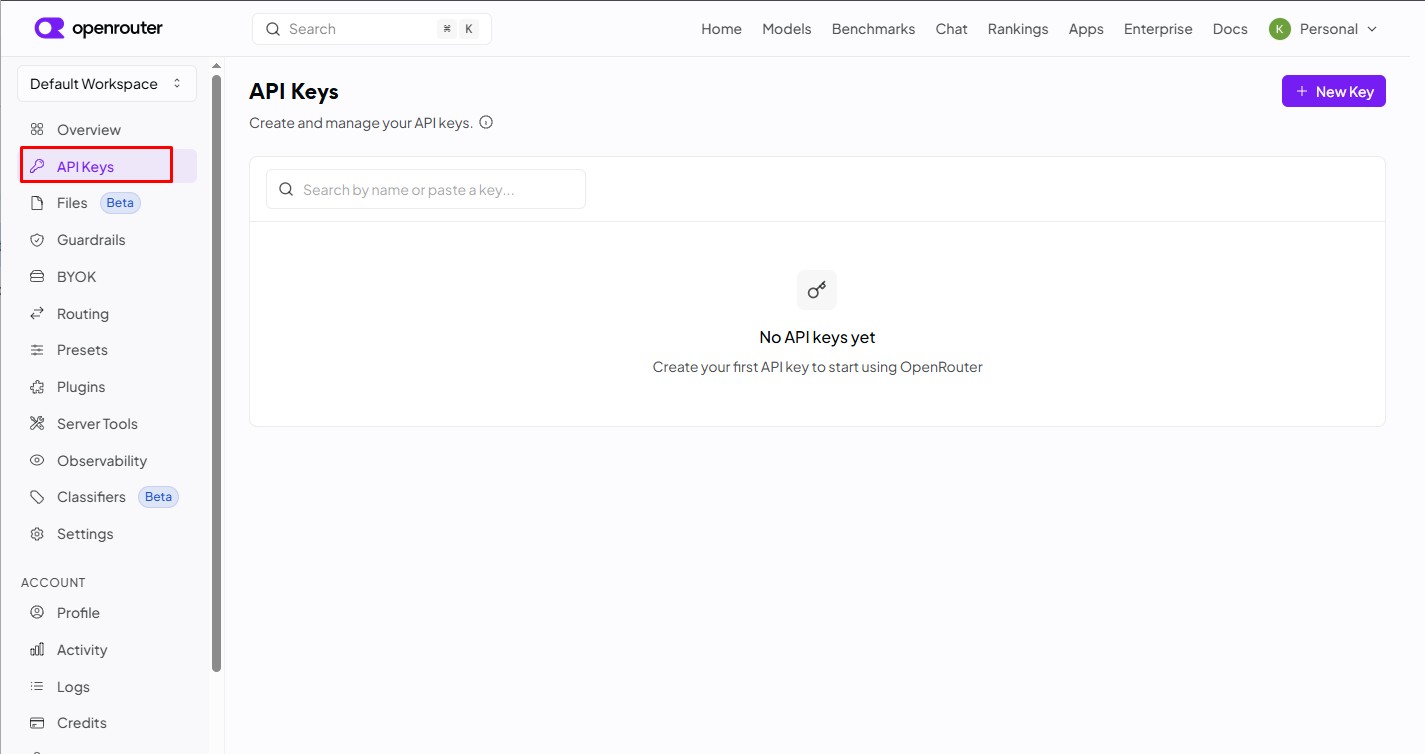 3. Click Create API Key.
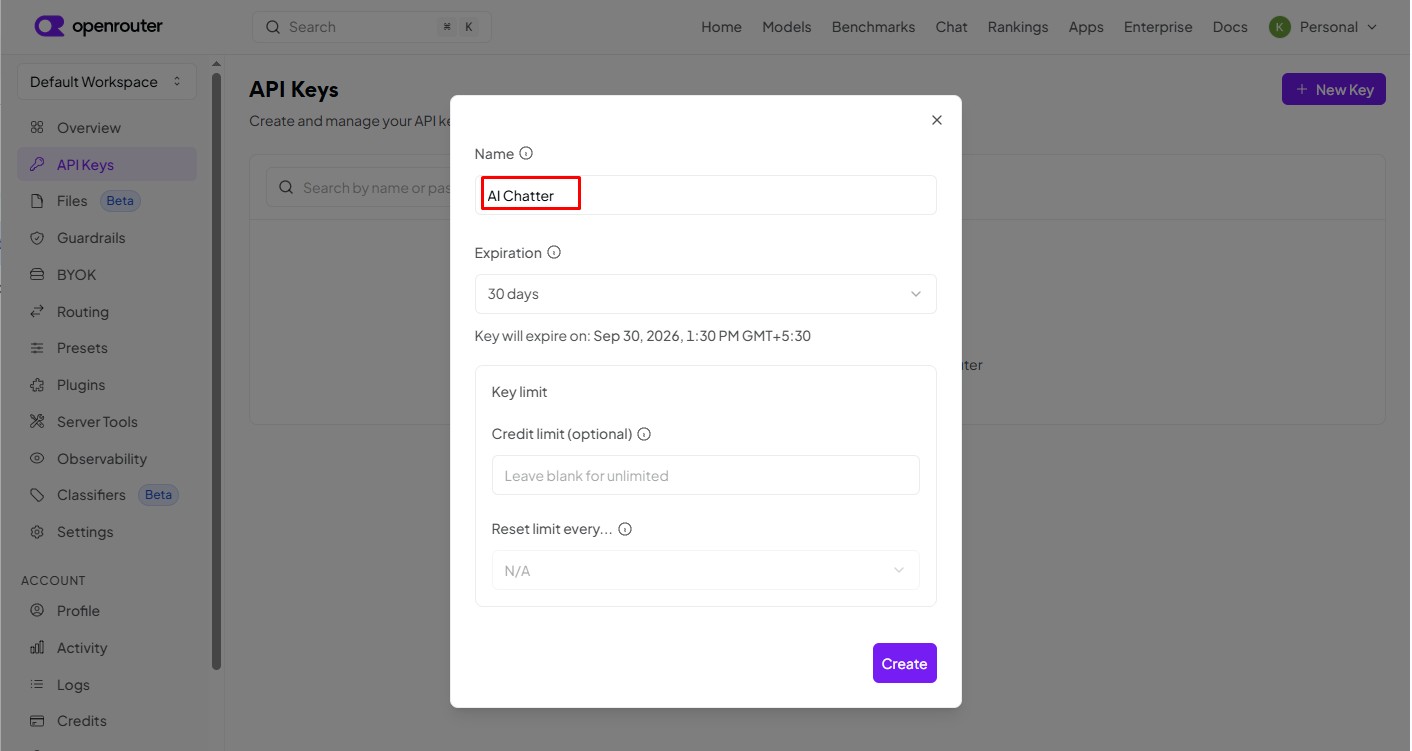
 4. Enter a name for the API key, for example AI Chatter, and create the key.
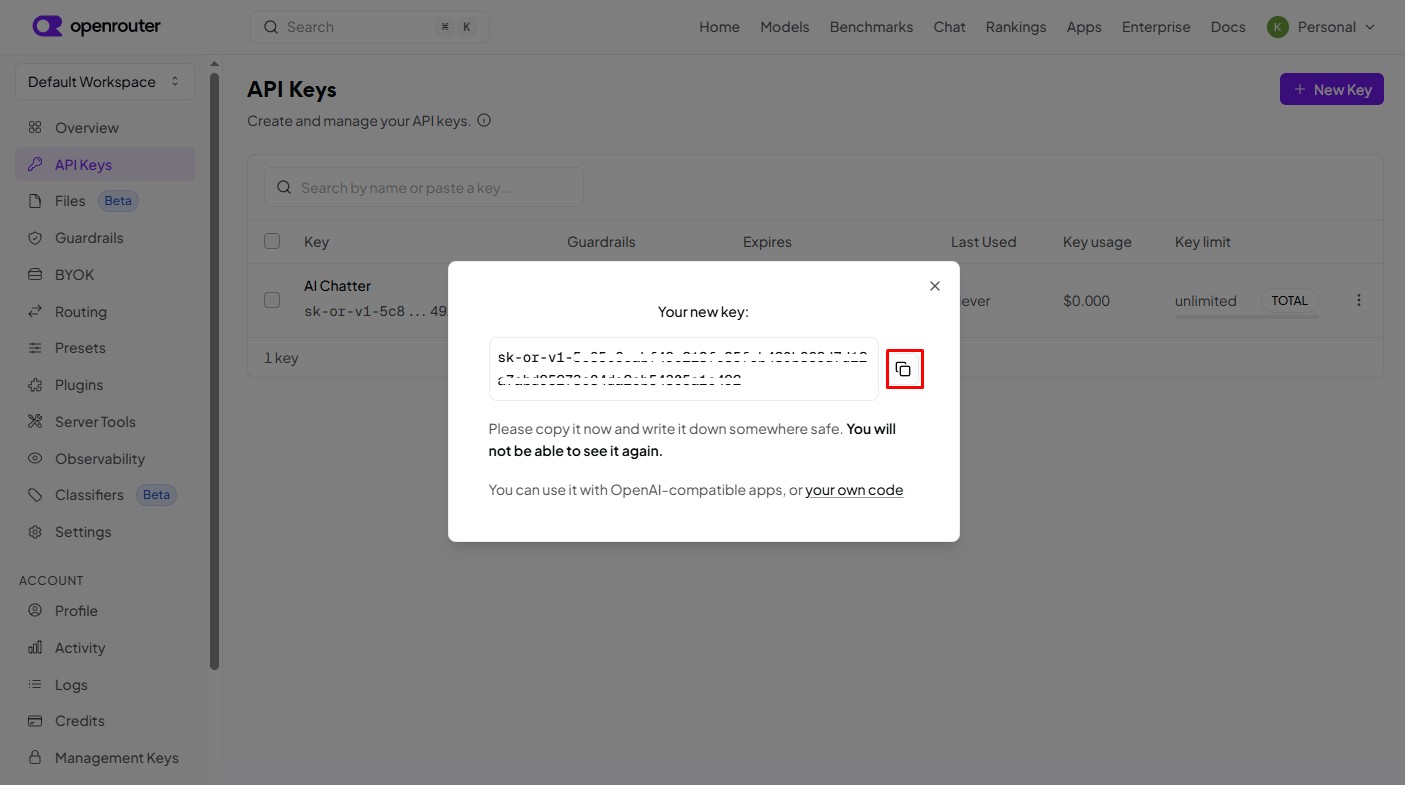
 5. Copy the generated API key and paste it into the API Key field in CRM.
 6. Click Save to complete the AI Chatter configuration.
Note: OpenRouter API keys generally start with sk-or-v1-. Keep the API key confidential and do not share it publicly.