Overview of “WhatsApp Float App”WhatsApp Float App turns a WhatsApp message into a Vtiger Calendar event or task with two taps, then pushes it to your CRM automatically. A floating bubble sits over WhatsApp; tap it, pick the message, confirm the date, and the record lands in Vtiger Calendar under the admin who approved the phone.
Before you start, have:
| Item | Detail |
|---|---|
| Vtiger CRM | Version 7.1 to 8.x, with admin login |
| Extension file | WAMobileCompatibilityApp.zip (version 1.7.0 or later) |
| Licence key | From CRMTiger, for product WhatsAppFloatApp |
| Android phone | Android 8 or later, WhatsApp installed and logged in |
| App file | WhatsApp Float App (Vtiger) APK |
flowchart LR
A[Install ZIP in Vtiger] –> B[Activate licence]
B –> C[Install app on phone]
C –> D[Pair the phone: scan QR]
D –> E[Admin approves in Vtiger]
E –> F[Grant permissions]
F –> G[Float App to Vtiger Calendar]
Each arrow is one part of this guide, in order.
Install the extension in VtigerAn admin installs WhatsAppFloatApp.zip once per CRM, then activates the licence; phones cannot connect until the licence is active.
Install the ZIP
- Log in to Vtiger as an admin.
- Open Settings → Module Management → Modules.
- Click Import Module, accept the disclaimer, choose WAMobileCompatibilityApp.zip, and click Import.
- When Vtiger shows the module name and version, click Import Now.
- Updating an existing install? Find WhatsAppFloatApp in the module list and use Update with the new ZIP instead.
- Press Ctrl+F5 once so the browser loads the new styles.
The extension adds WhatsApp Event Sync under Settings → Other Settings. Until a licence is active, the page shows an amber License not active banner. Activate the licenceClick Activate license (or Manage license at top right).
Paste your licence key and click Activate license.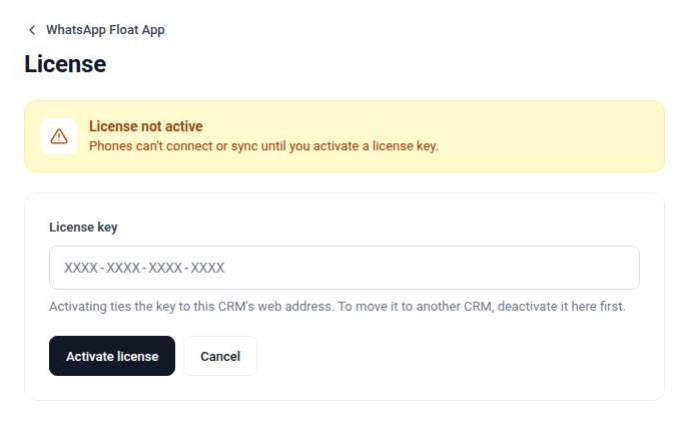
A green License active banner with the renewal date confirms it. The key is tied to this CRM’s web address; to move it to another CRM, click Deactivate license here first. Deactivating signs out every connected phone: each one must scan a new QR code and be approved again once a licence is active.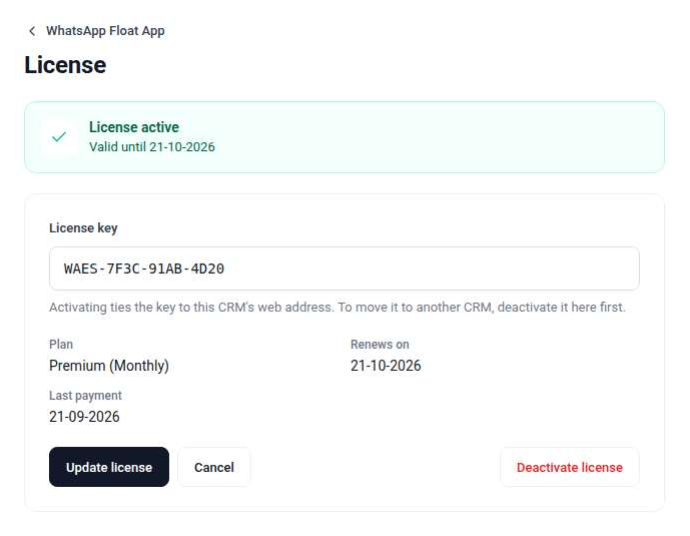 Install the app on the phoneThe app installs from an APK file, not the Play Store, so Android asks you to allow it once.
- Copy the APK to the phone (WhatsApp it to yourself, Google Drive, or a USB cable).
- Open the file from Files or Downloads.
- If Android says installs from this source are blocked, tap Settings, turn on Allow from this source, then go back.
- Tap Install, then Open.
From a computer with a USB cable and developer mode on, one command does the same: adb install -r app-debug.apk
The app opens on the Connect to Vtiger screen, not the Dashboard. Only Scan QR code works until the phone is paired with a CRM that has an active licence.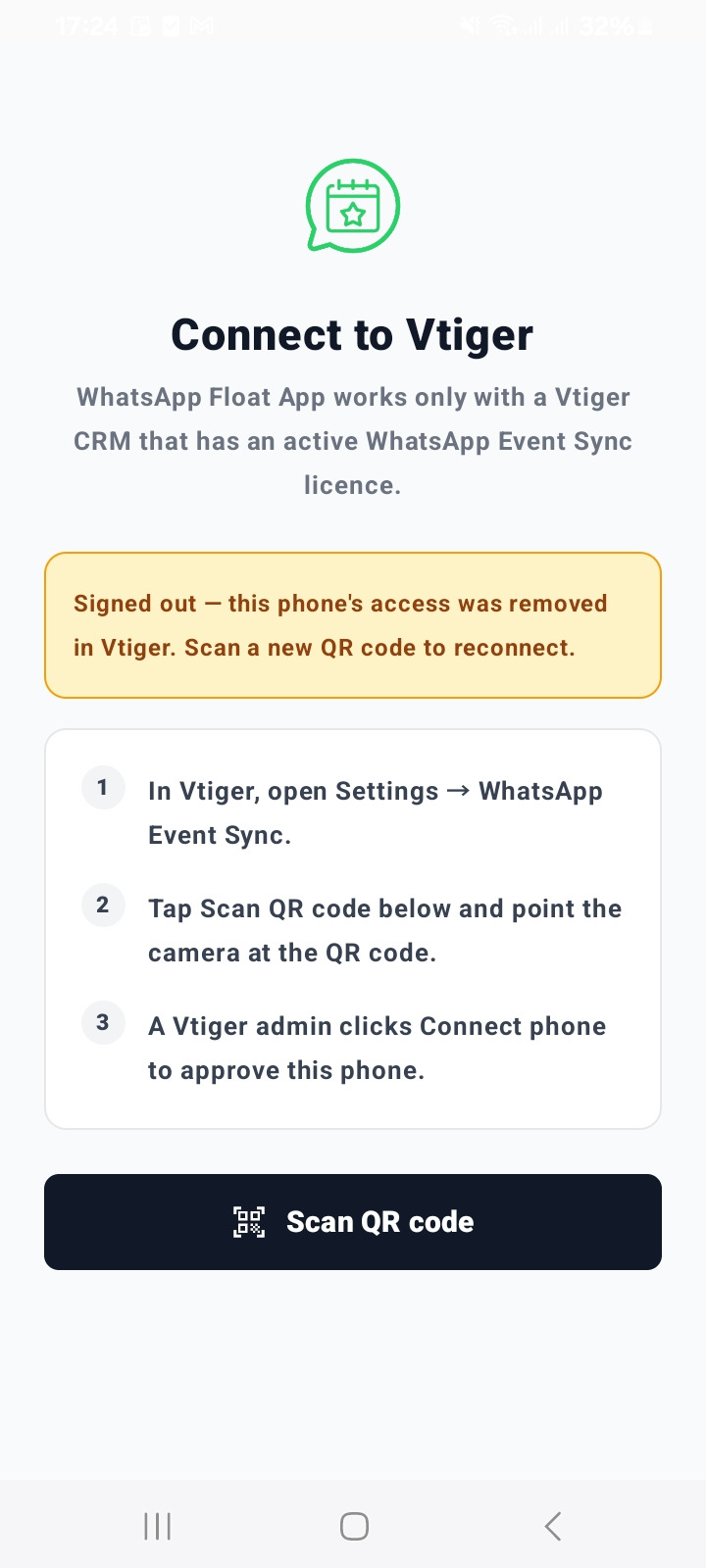
The app shows as WhatsApp Float App (Vtiger) in the app drawer and in Android settings.Pair the phone with VtigerPairing takes one QR scan on the phone and one click in Vtiger. You need the phone and a computer with Vtiger open side by side.In Vtiger: show the QR codeOpen Settings → Other Settings → WhatsApp Float App. With the licence active, the Connect a phone card shows a QR code. Each code works once and expires after 5 minutes; click New QR code for a fresh one.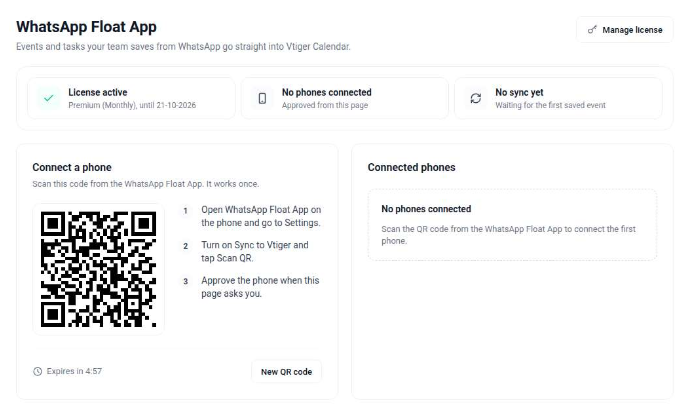 On the phone: scan it
- Open the app. It shows the Connect to Vtiger screen.
- Tap Scan QR code, then Allow camera and While using the app.
- Point the camera at the QR code on the Vtiger screen.
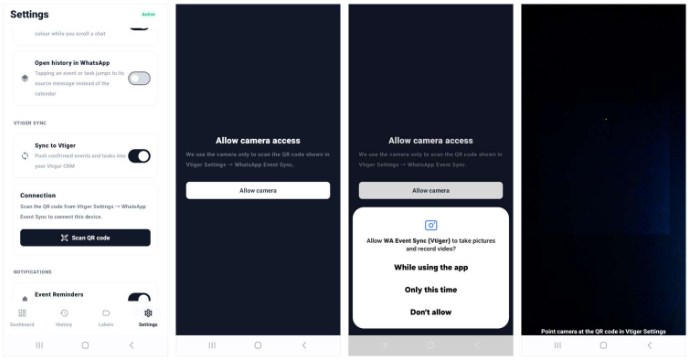
The phone shows Waiting for approval in Vtiger. Vtiger asks Connect this phone? with the phone model — an admin clicks Connect phone to approve it.In Vtiger: approve the phoneWithin a few seconds, Vtiger asks Connect this phone? with the phone model. Check the model is yours and click Connect phone.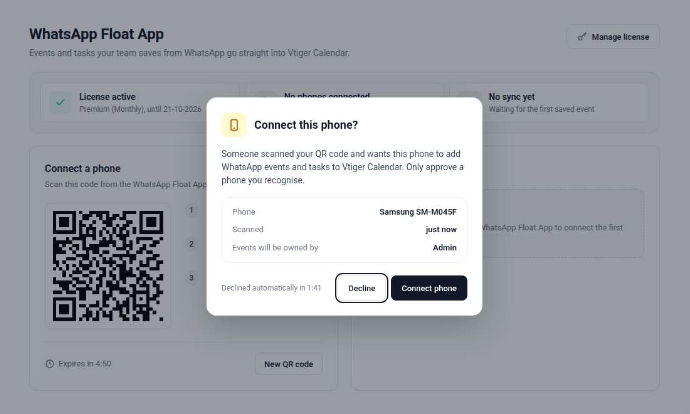
Approve within 2 minutes; after that the request is declined automatically and you scan a new code. Events from this phone are owned by the admin who clicked Connect phone.
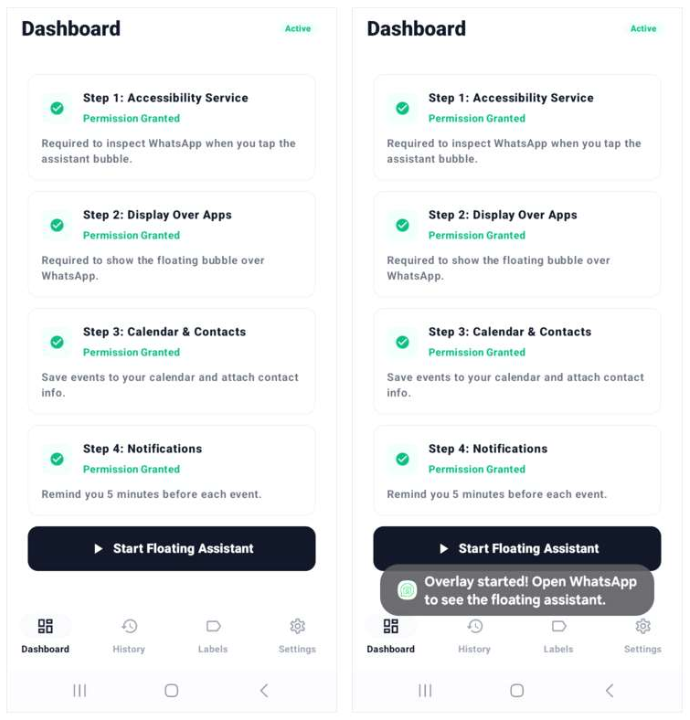
When it works, the phone shows Connected to your CRM name, and Vtiger lists it under Connected phones. To remove a phone later, click Disconnect next to it. 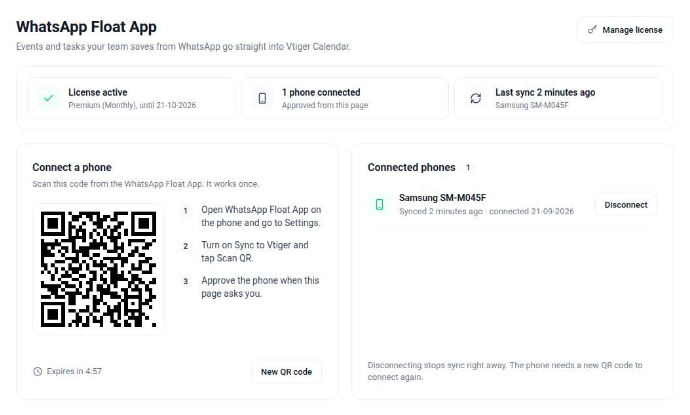 Grant permissionsWith the phone connected, the Dashboard is unlocked. It lists four steps under Setup permissions; each Grant Permission button opens the right Android screen. When all four turn green, the badge at top right changes from Setup to Active. Screens below are from a Samsung phone on Android 14; other brands use similar wording
| Step | Why the app needs it |
|---|---|
| Accessibility Service | Reads the open WhatsApp chat, only when you tap the bubble |
| Display over apps | Shows the floating bubble on top of WhatsApp |
| Calendar & Contacts | Saves events to the phone calendar and attaches the contact |
| Notifications | Reminds you before each event or task |
Accessibility Service
- Tap Grant Permission on Step 1. Android opens Accessibility.
- Tap Installed apps (on some phones: Downloaded apps).
- Tap Tap WA Event Sync (Vtiger) and turn the switch On.
- Android warns that the app gets full control. Tap Allow.
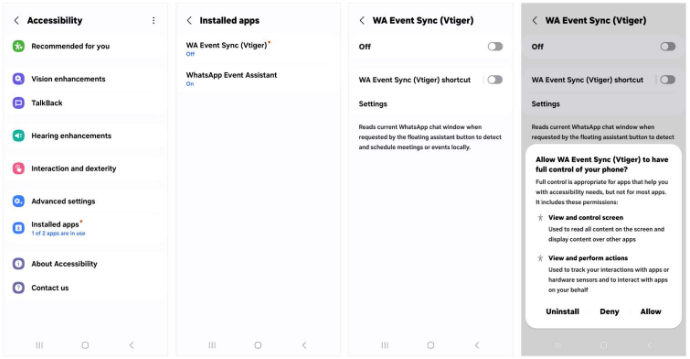 The app reads the screen only when you tap its bubble inside WhatsApp. It never sends messages.Display over apps
- Go back to the app. Step 1 now shows Permission Granted.
- Tap Grant Permission on Step 2. Android opens Appear on top.
- Scroll to WA Event Sync (Vtiger) and turn its switch on.
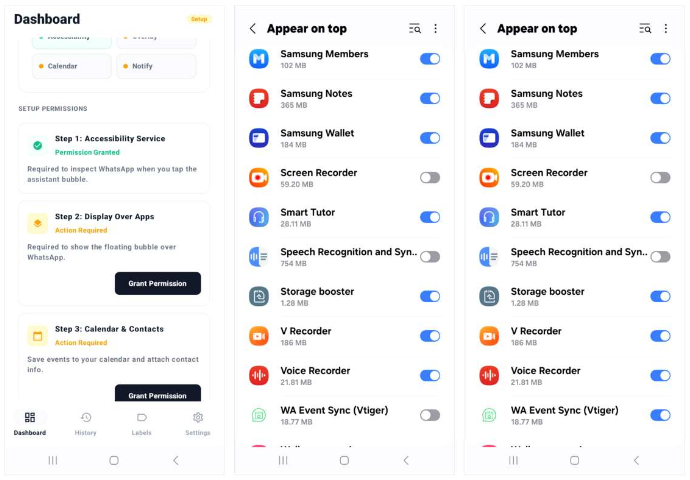 Calendar, contacts, notifications
- Go back to the app and tap Grant Permission on Step 3.
- Tap Allow for calendar, then Allow for contacts.
- Tap Grant Permission on Step 4, then Allow for notifications.
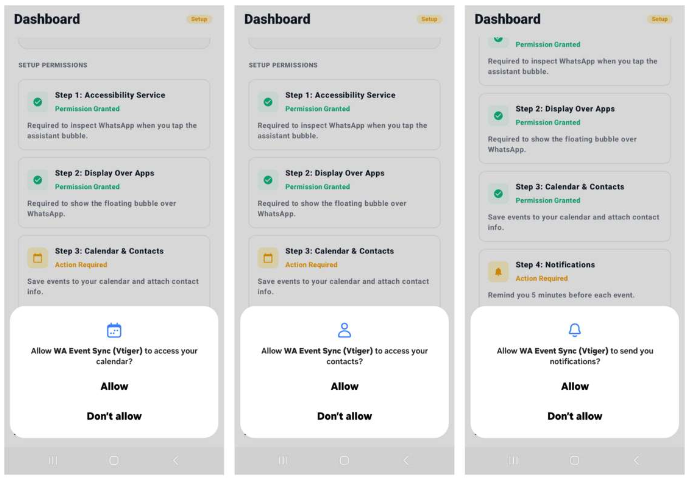 Start the bubbleWith all four steps green, tap Start Floating Assistant. The message Overlay started! Open WhatsApp to see the floating assistant confirms it is running.