Overview
WhatsApp Group Bulk Messages is a Chrome extension that sends one text or photo message to many WhatsApp groups and individual chats, from your own WhatsApp Web session. It opens as a side panel next to WhatsApp Web, so you never leave your chats.
With it you can:
- Scan all your groups and individual chats in one click
- Select chats by search, one by one, or with Select all
- Save selections as reusable lists
- Send a photo with a caption, or a formatted text message
- Add a fixed or random delay between chats and skip duplicates
- Send now or schedule for a later date and time
- Follow live progress and keep a full campaign history
Before you start, you need:
- Google Chrome on a desktop or laptop computer
- A WhatsApp account signed in at web.whatsapp.com in that Chrome
- The WhatsApp Web tab kept open while messages are sending
The screenshots in this guide use sample chats. Your own chats will appear instead.
Install the extension
Installing takes about a minute: add it from the Chrome Web Store, pin it, refresh WhatsApp Web, then open the side panel.
Step 1 — Add to Chrome
Open the WhatsApp Group Bulk Messages listing on the Chrome Web Store and click Add to Chrome. 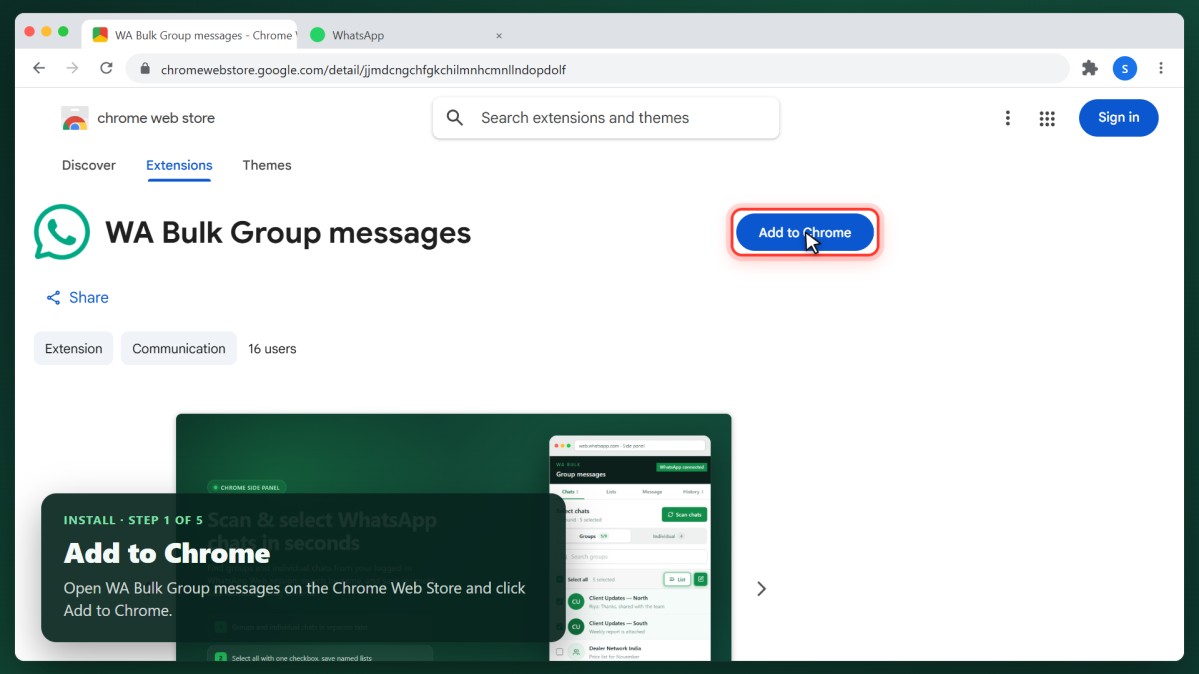 Step 2 — Confirm with Add extension
Chrome lists what the extension can access: your data on web.whatsapp.com and on the billing server, and your browsing history (Chrome’s wording for using tabs). Click Add extension.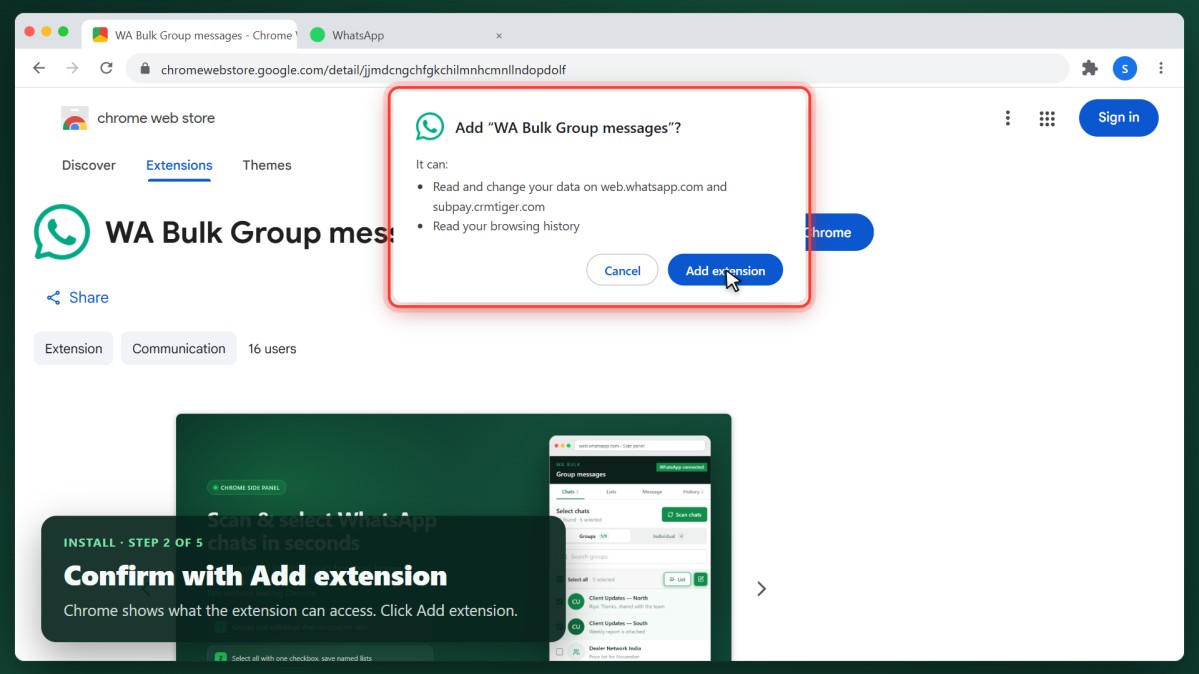 Step 3 — Pin the extension
Click the puzzle icon at the right of Chrome’s toolbar, then the pin next to WhatsApp Group Bulk Messages. Its icon now stays in the toolbar, one click away. 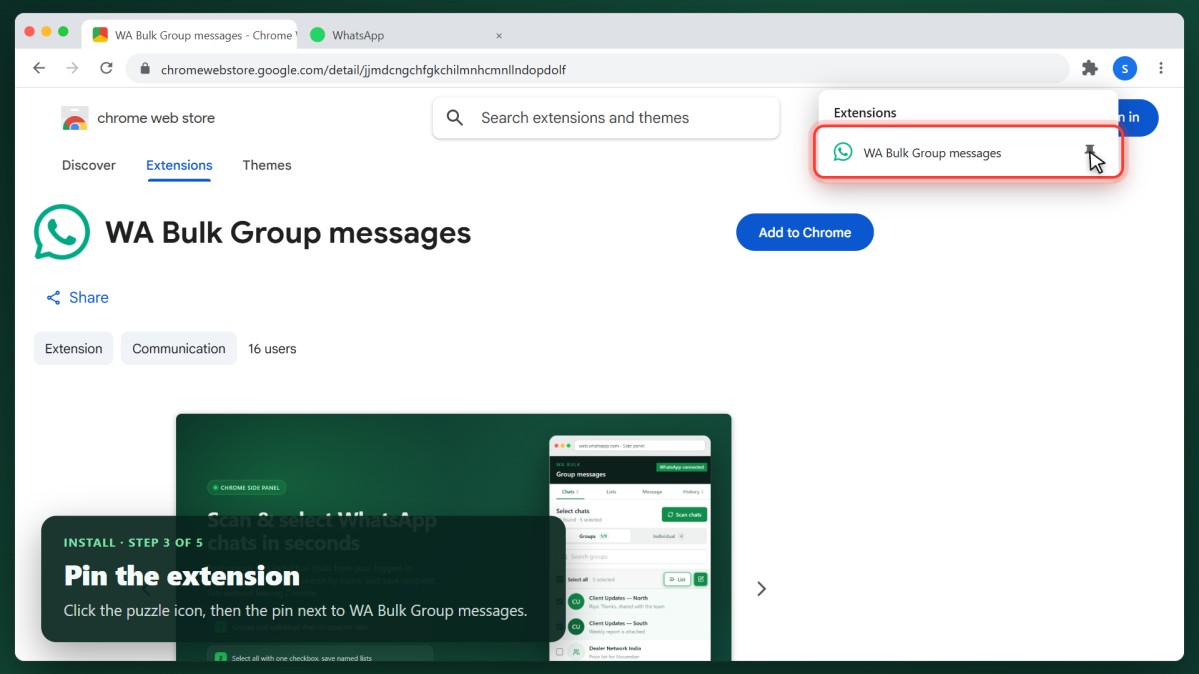 Step 4 — Refresh WhatsApp Web
On first install the extension opens web.whatsapp.com for you. If WhatsApp Web was already open, switch to that tab and click reload once, so the extension can connect. Sign in with the QR code if asked. 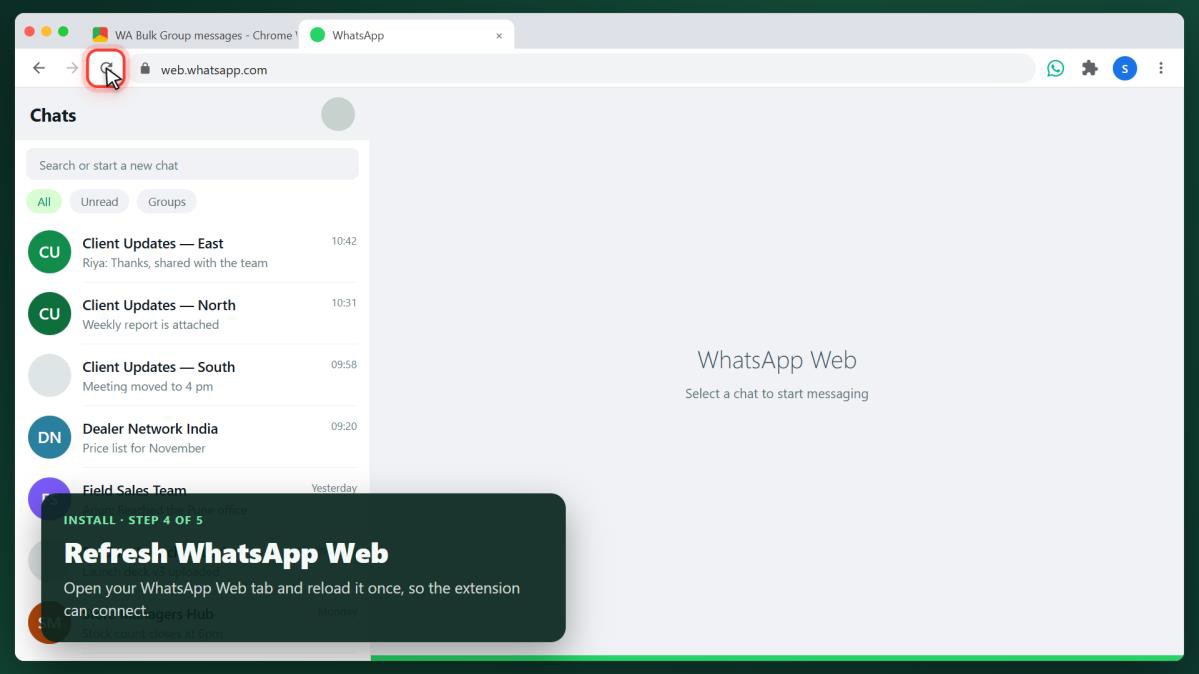 Step 5 — Open the side panel
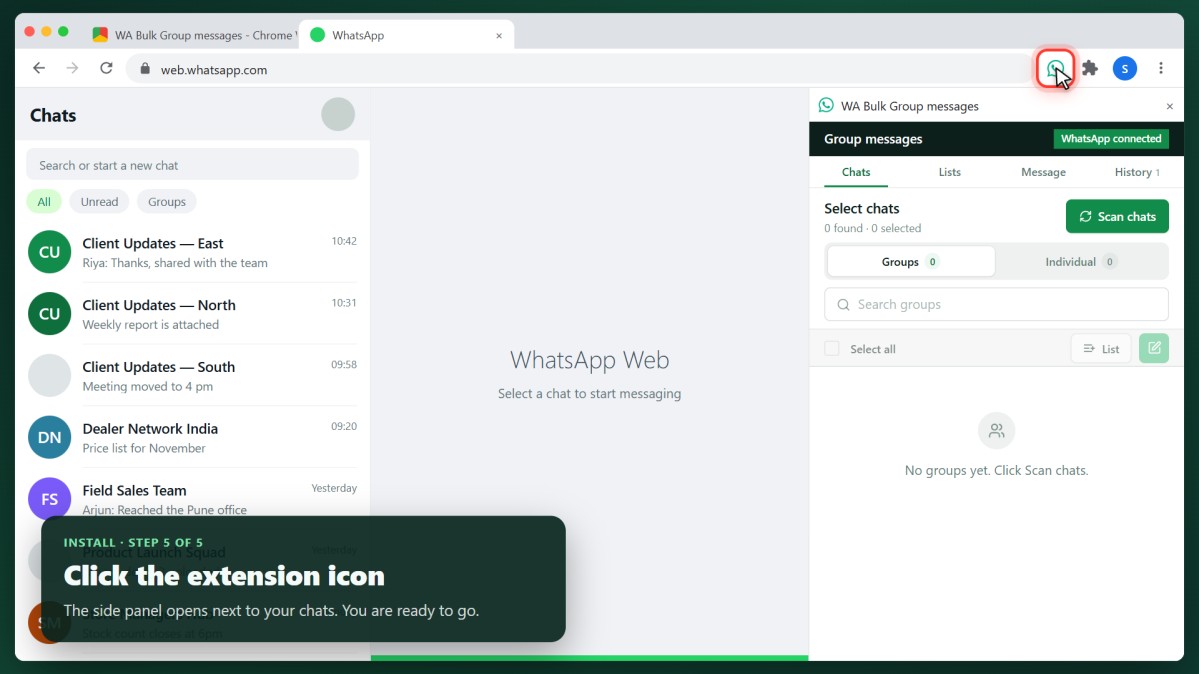
Click the extension icon in the toolbar. The side panel opens to the right of your chats. The badge at the top shows WhatsApp connected when everything is ready.