
Outgoing Server using OAuth for vTiger
Overview:
The Office365 OAuth Outgoing Mail feature allows users to authenticate using Microsoft OAuth 2.0 and send emails directly through the Microsoft Graph API instead of using a traditional SMTP username/password.
This provides a more secure and modern email-sending experience aligned with Microsoft 365’s security standards.
The feature supports token-based authentication, background token refresh, secure credential handling, and deeper integration with Outlook mail accounts.
Features
1. Secure Login with Office365 (OAuth 2.0)
- Users can log in using their Microsoft 365 account without entering or saving passwords.
- Authentication is fully handled by Microsoft’s secure OAuth system.
2. Email Sending via Microsoft Graph API
- Emails are sent using the Microsoft Graph API instead of SMTP.
- This ensures higher reliability, faster delivery, and compliance with Microsoft’s modern authentication requirements.
3. Automatic Token Refresh
- Access tokens are refreshed automatically in the background.
- Users do not need to log in again unless their session expires or permissions change.
4. Secure Token Storage
- Tokens are stored securely in the CRM database.
- No password is saved, ensuring maximum security and compliance.
5. Individual User Authentication Support
- Each user can authenticate independently with their own Office365 account.
- Emails sent manually or via workflow will use the authenticated user’s account.
6. Easy Re-Login and Disconnect Options
- Users can disconnect their Office365 account anytime.
- Re-authentication can be done with a single click.
Note :
This Office365 OAuth feature is designed only for email sending:
- From default and custom entity modules inside Vtiger
- Through the Send Email pop-up
- Through Workflows that support Office365 authentication
- Through any modules that use Vtiger’s standard mailer
This feature will not work with:
- Any third-party extensions
- Custom plugins that bypass Vtiger’s default mailer system
Steps For Installing Outgoing SMTP Plugin :
Notes: Before installing the Outgoing SMTP Plugin, please take your vTigerCRM and Database Backup first.
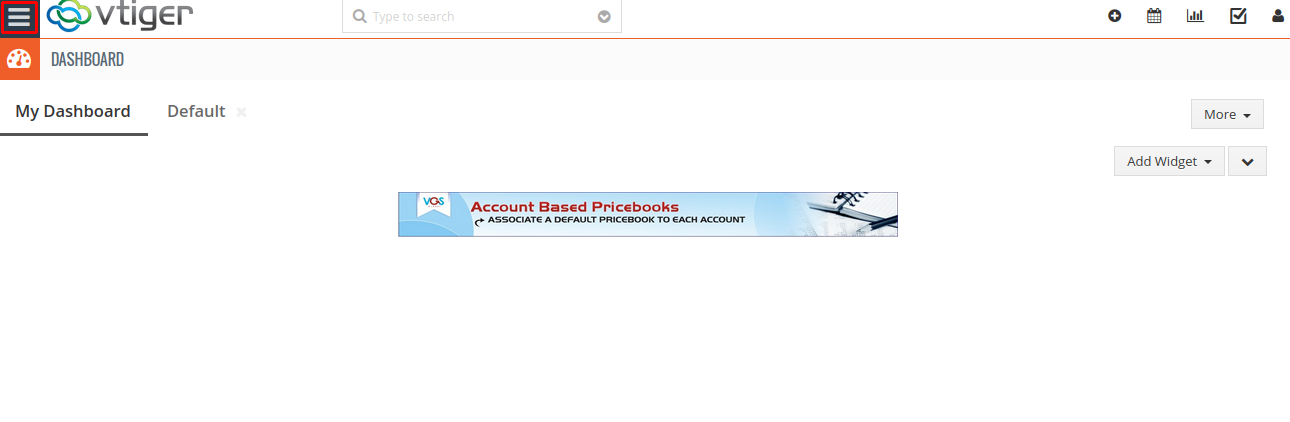
1. Go to the Dashboard page, Click on the Menu as shown in the screenshot below.
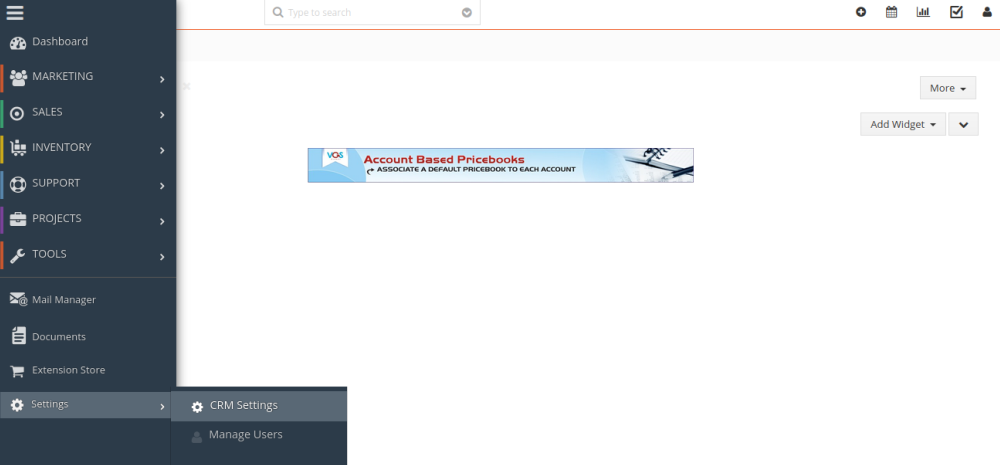
 2. To open the “Settings” Page, Click on the CRMSettings as shown in the screenshot below.
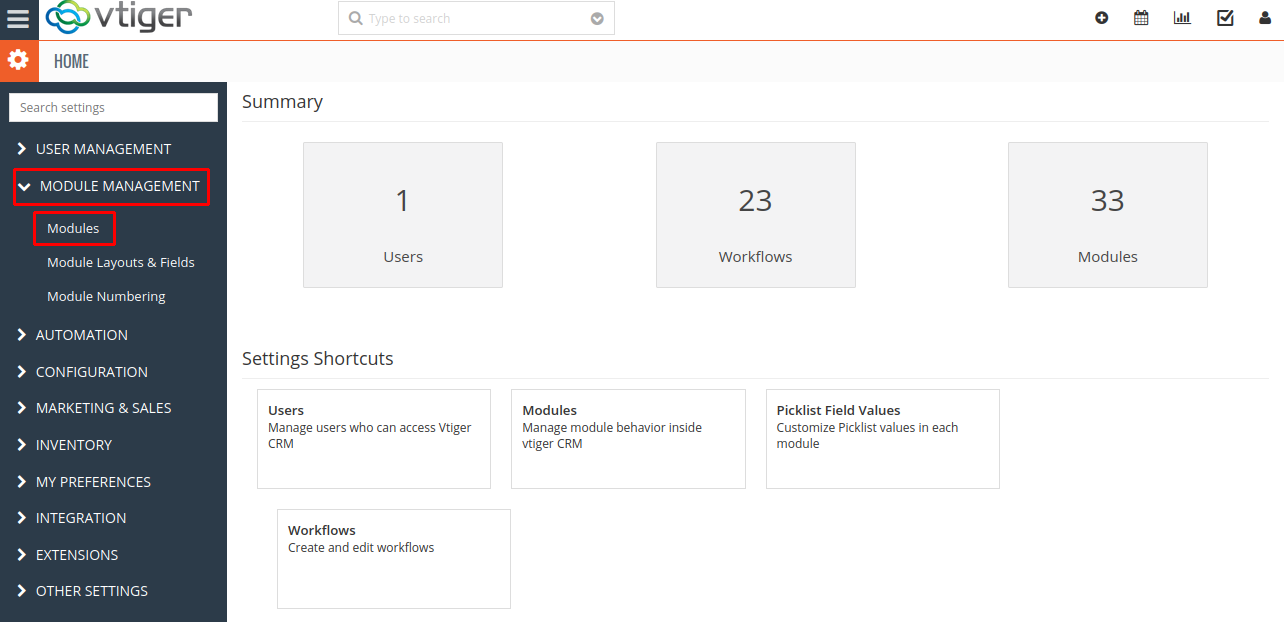
 3. In the CRMSettings, Open Module Management Menu, Click the Modules link as shown in the screenshot below.
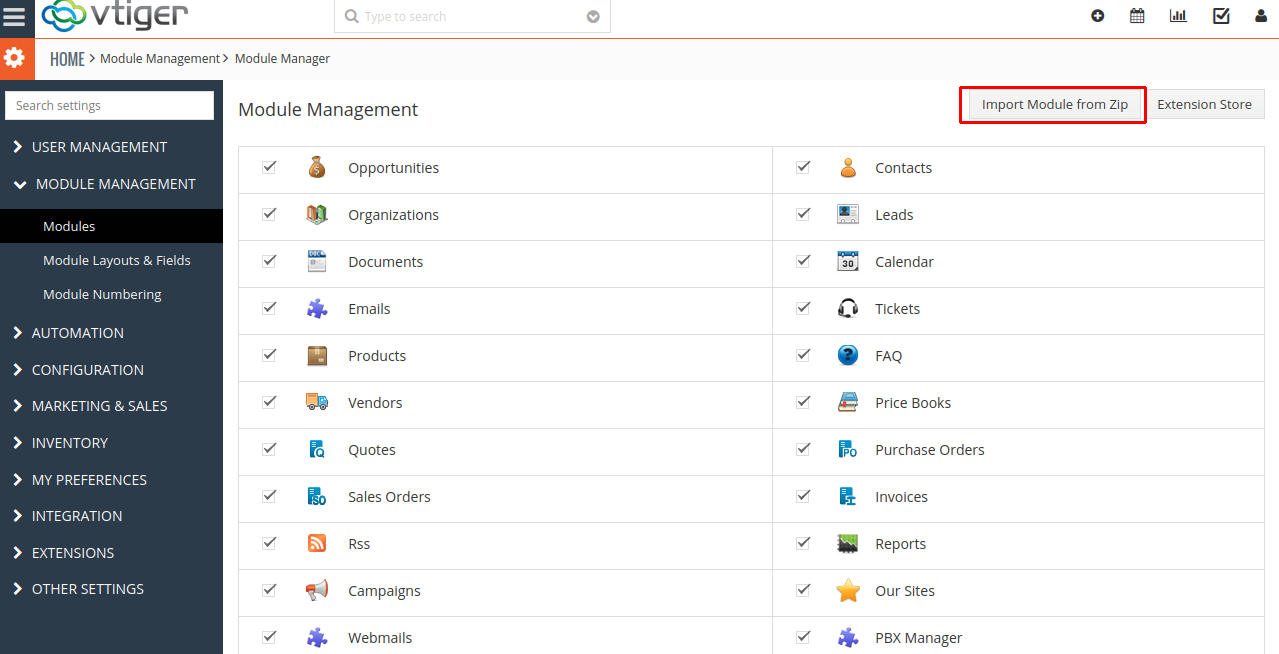
 4. In the Module Manager Page → Click on the Import Module From Zip Button
 5. In the Module Manager Page → Check the Checkbox Button for Terms and Conditions.
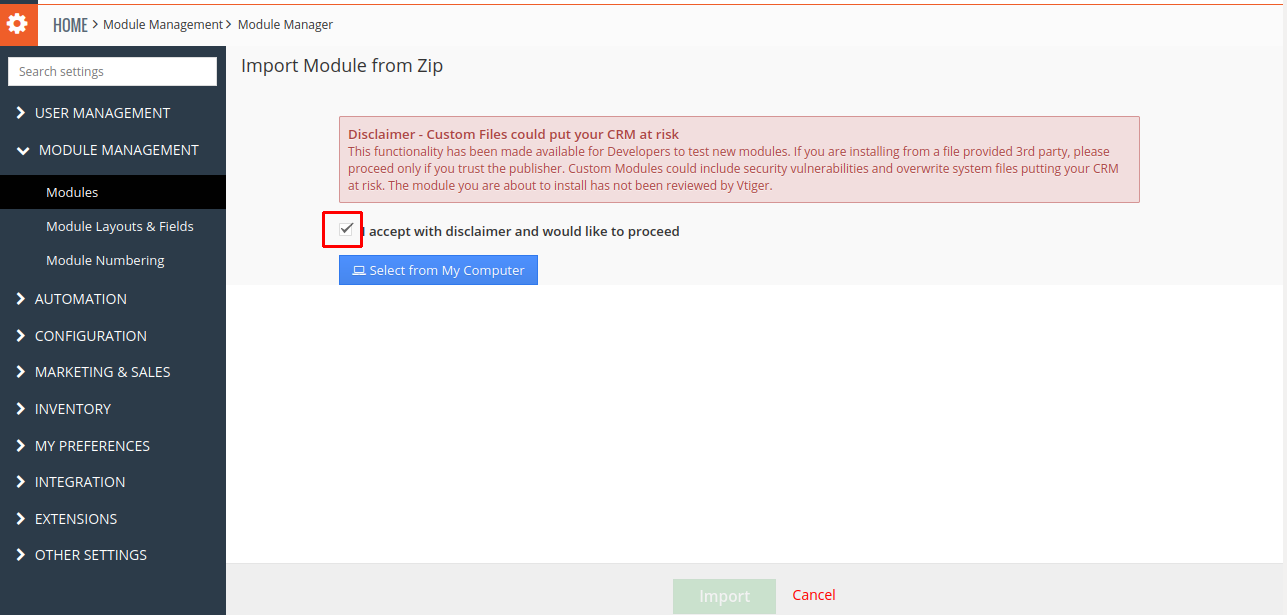 6. In the Module Manager Page → Click on the Select From My Computer Button to select zip file → Click on Select From My Computer Button to upload the Outgoing SMTP Plugin(zip file).
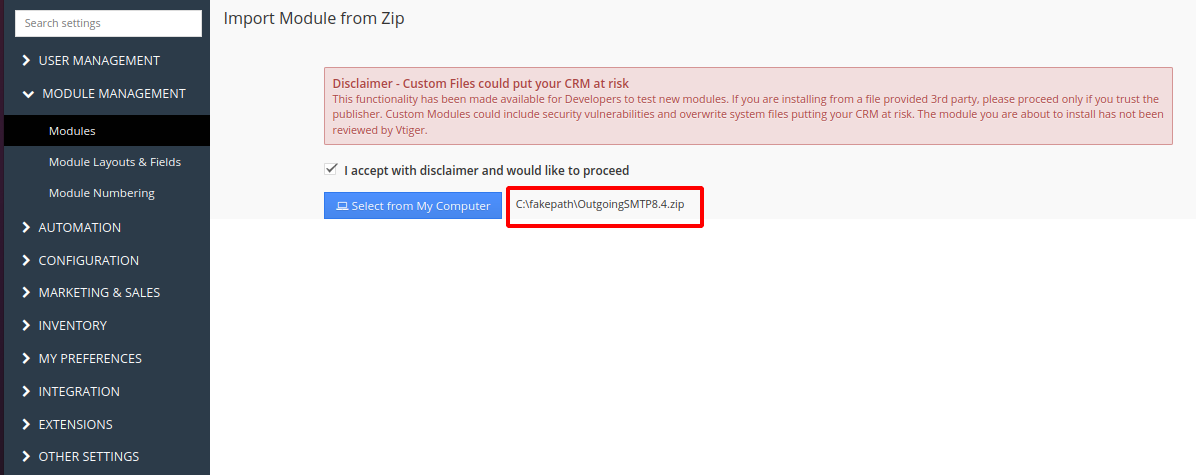 7. On the Module Manager page → Click on the Import Button to install Outgoing SMTP Plugin.
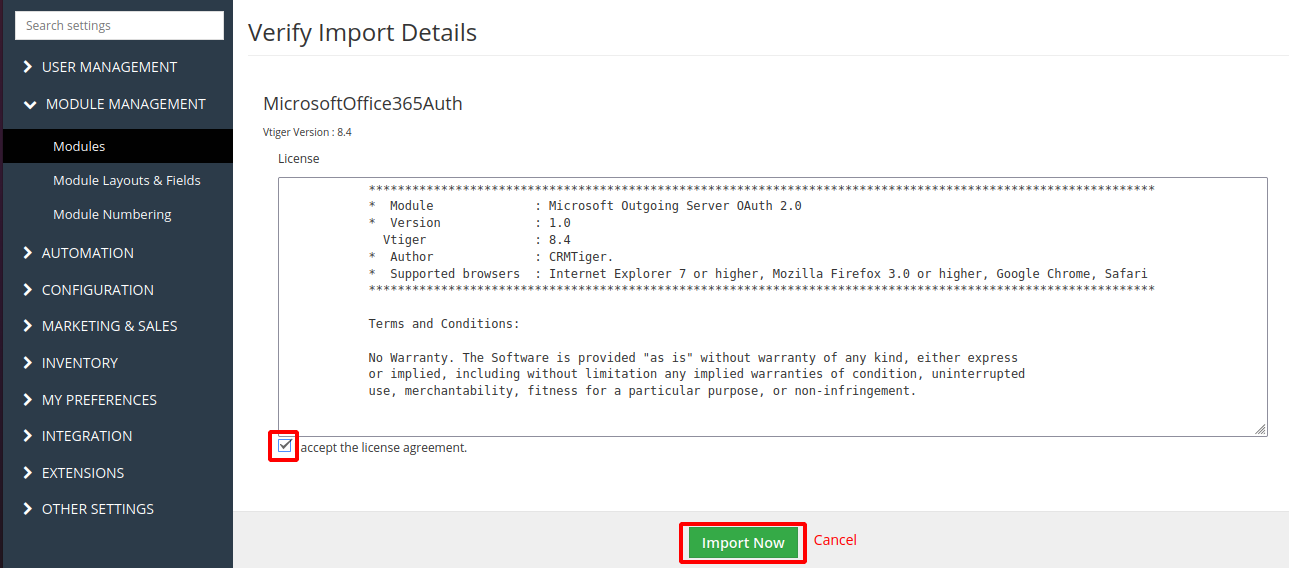
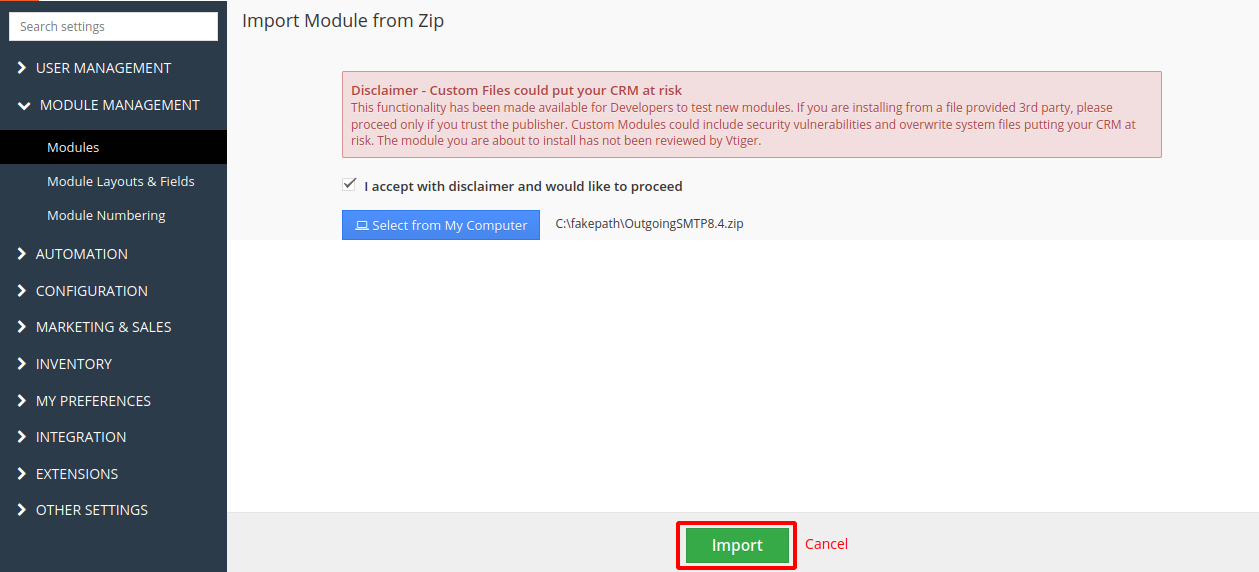 8. To accept the Terms and Conditions, check the Checkbox Button → Click on the Import Now Button.
 Please review the following topic for more information about integration.
- How to Install Outgoing Server using OAuth for vTiger?
- How to Use Outgoing Server using OAuth for vTiger?