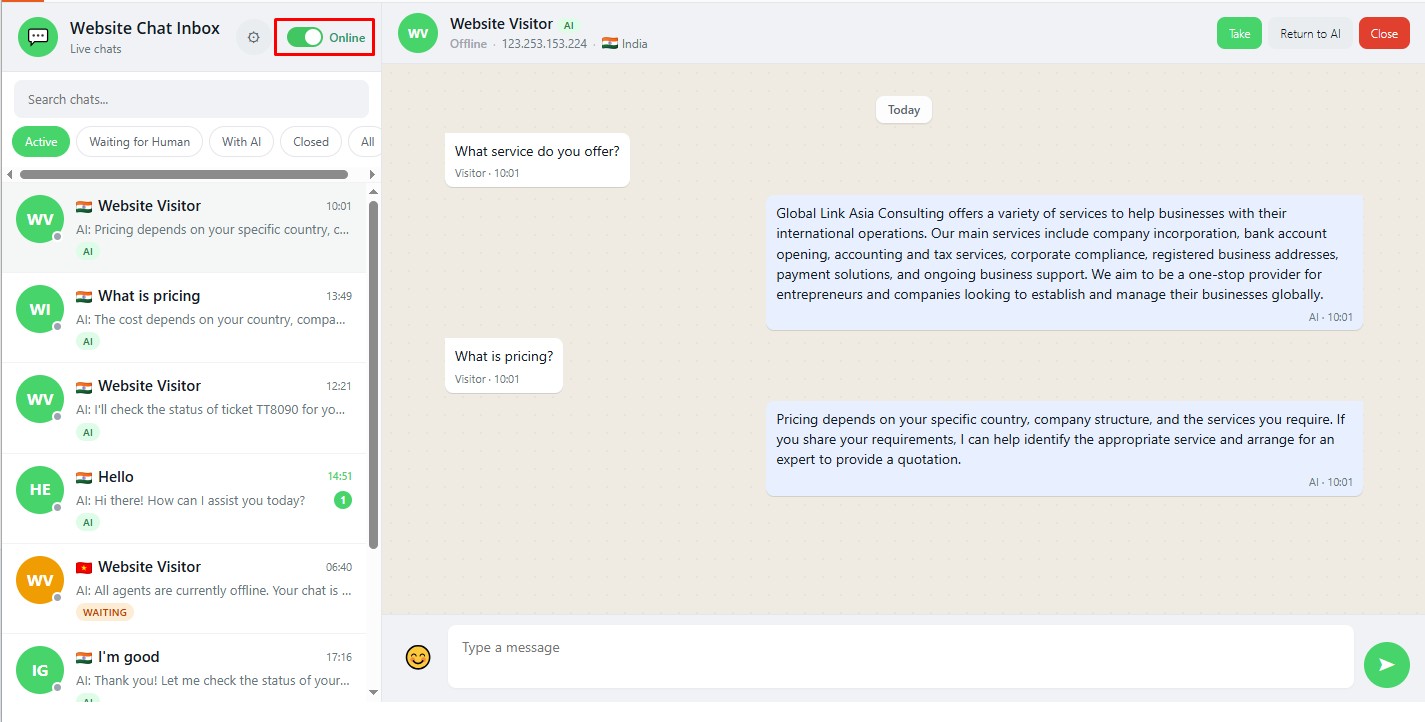
The Live Website AI Agent allows website visitors to interact with an AI-powered assistant in real time. The AI Agent can answer questions using the configured Knowledge Base, perform supported CRM actions, and transfer conversations to a human agent when required.Open the Website AI AgentNavigate to: Home → Other Settings → Website AI Agent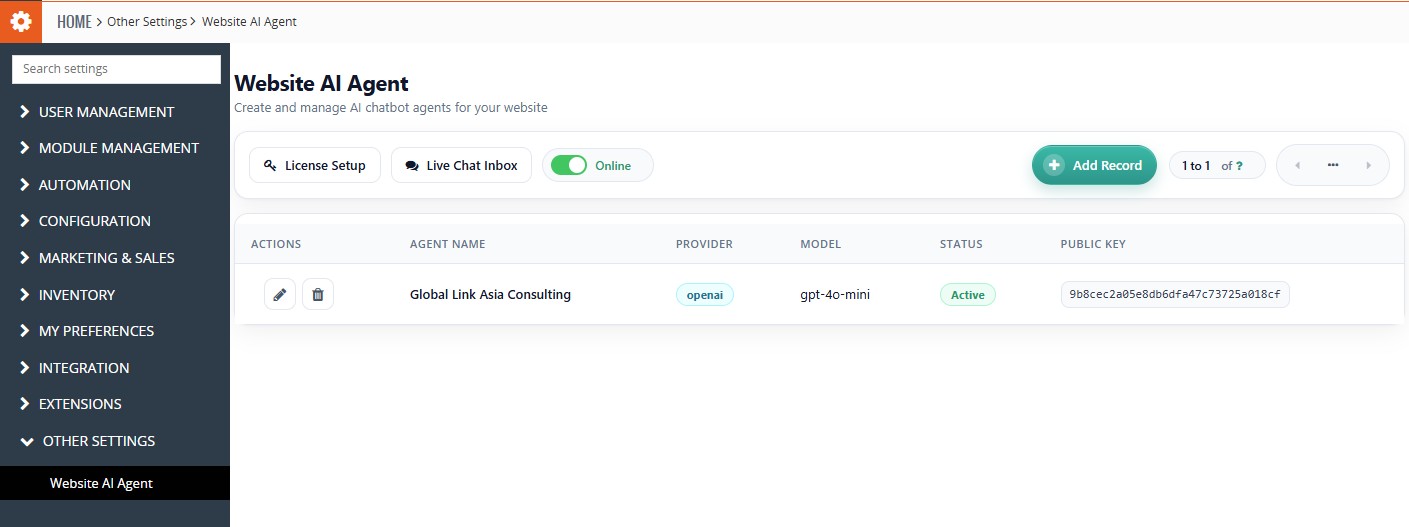 The Website AI Agent page displays the configured AI Agents and provides access to the Live Chat Inbox.
 Website AI Agent main page showing the Live Chat Inbox, Online/Offline toggle, and configured AI Agent.
The Website Chat window in CRM allows users to view and manage visitor conversations. It provides controls to Take over an AI conversation, Return to AI mode, and Close the conversation, along with access to the complete chat history. Open the Website ChatOnce the Website AI Agent is configured and enabled, the AI Assistant chat icon appears on the configured website, usually at the bottom-right corner.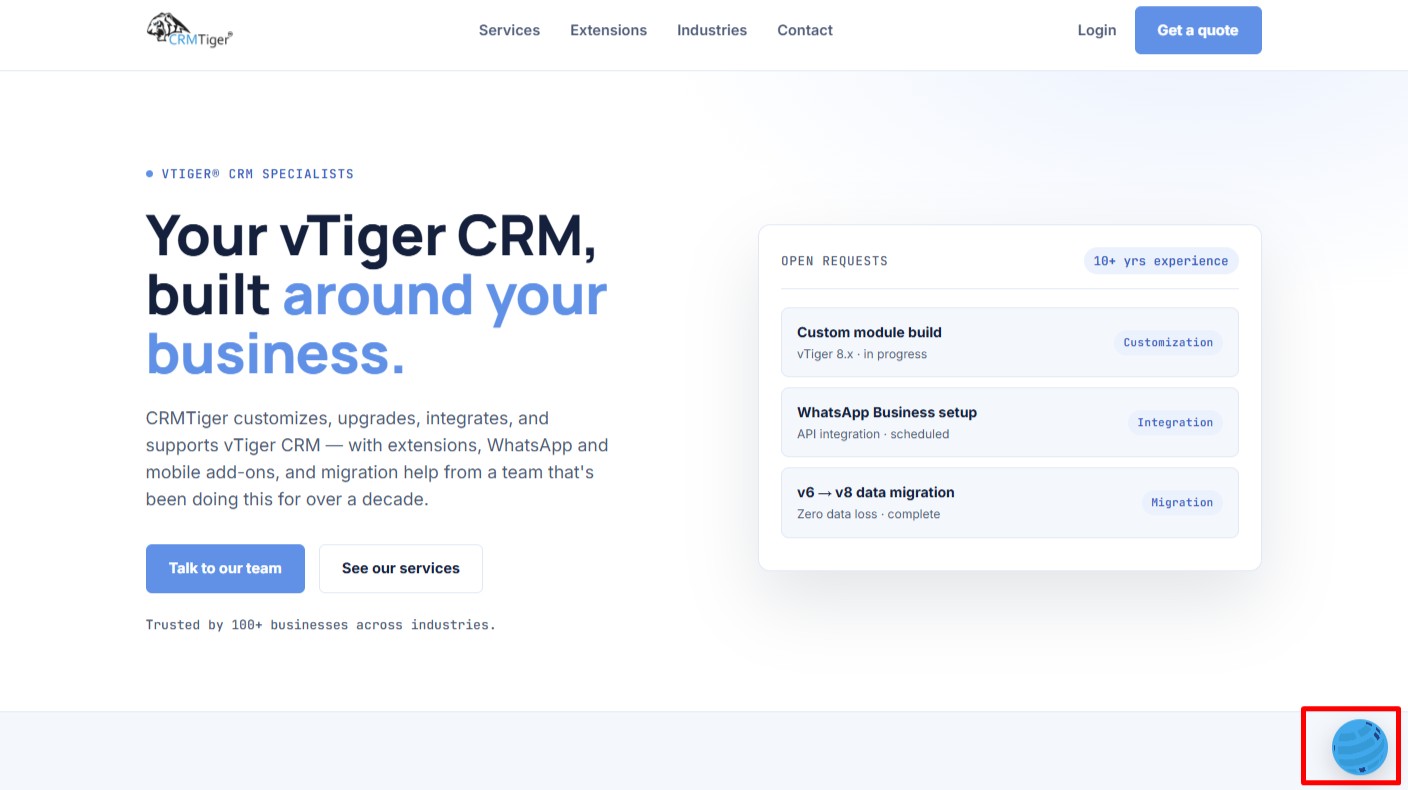 Click the chat icon to open the Website Chat and view the configured Welcome Message.
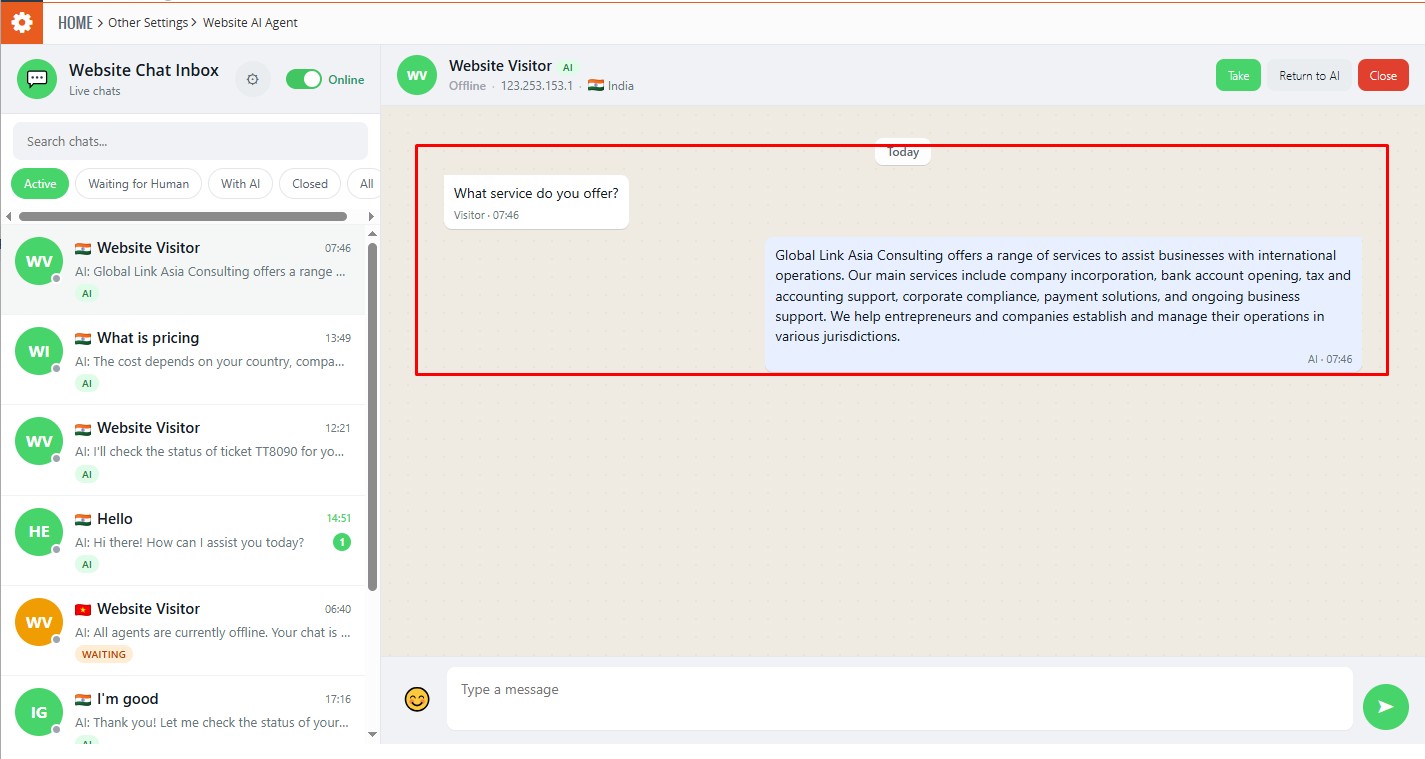
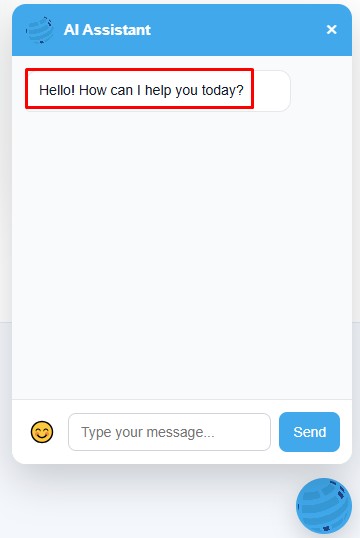 Get Information from the AI AgentVisitors can ask questions about the business, products, services, or other information available in the configured Knowledge Base.
Example:
Visitor: What service do you offer?
The AI Agent provides a response using the available business information.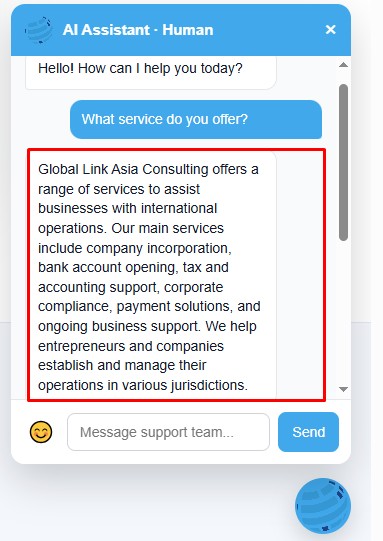 Search for Existing Ticket InformationIf the Search Ticket action is enabled, visitors can use the Website AI Agent to retrieve information about an existing CRM ticket using the ticket number or the email address associated with the ticket.
Example Workflow
- Open the Website AI Agent on the website.
- Enter a request such as “I am looking for ticket information.”
- The AI Agent asks for the ticket number or the email address used when creating the ticket.
- Provide the required information. For example, enter the email address associated with the ticket.
- The AI Agent searches the CRM for the matching ticket.
- The AI Agent displays the available ticket details, such as Ticket Number, Title, Status, Priority, and Last Updated date/time.
Request Ticket InformationVisitor requesting ticket information and providing the required details.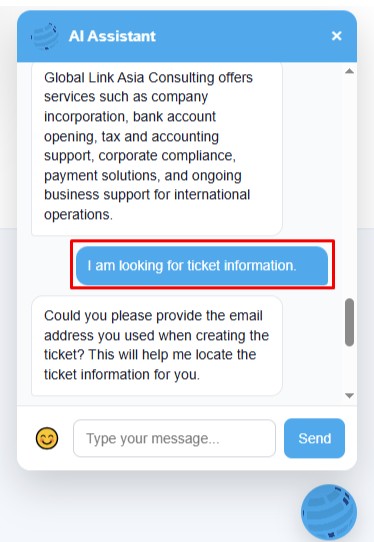 View Ticket InformationAI Agent searching for and displaying the details of ticket TT8090.
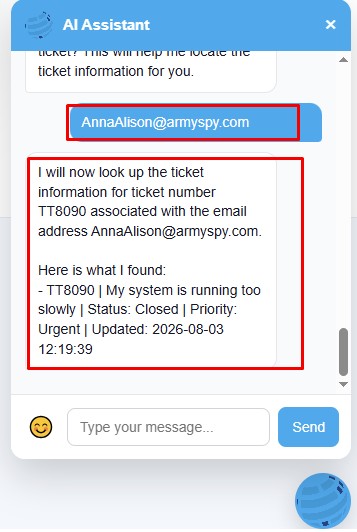 Result:
TT8090 | My system is running too slowly | Status: Closed | Priority: Urgent | Updated: 2026-08-03 12:19:39
This allows visitors to check the status and other available details of an existing ticket without requiring a human agent.Manage Visitor Conversations from Website Chat InboxClick Live Chat Inbox from the Website AI Agent page to view and manage website visitor conversations.
The Website Chat Inbox allows users to view and manage visitor conversations in one place.
Managing Conversations:
- Click Live Chat Inbox from the Website AI Agent page.
- The system redirects to the Website Chat Inbox.
- Use Search chats to find a specific visitor conversation.
- Filter conversations by status:
- Active
- Waiting for Human
- With AI
- Closed
- All
- Select a conversation to view the complete chat history.
- Use the available actions to Take, Return to AI, or Close the conversation.
Take Over a Conversation from AIA human agent can take over a conversation when personal assistance is required.
Click Take to take over the conversation from the AI Agent.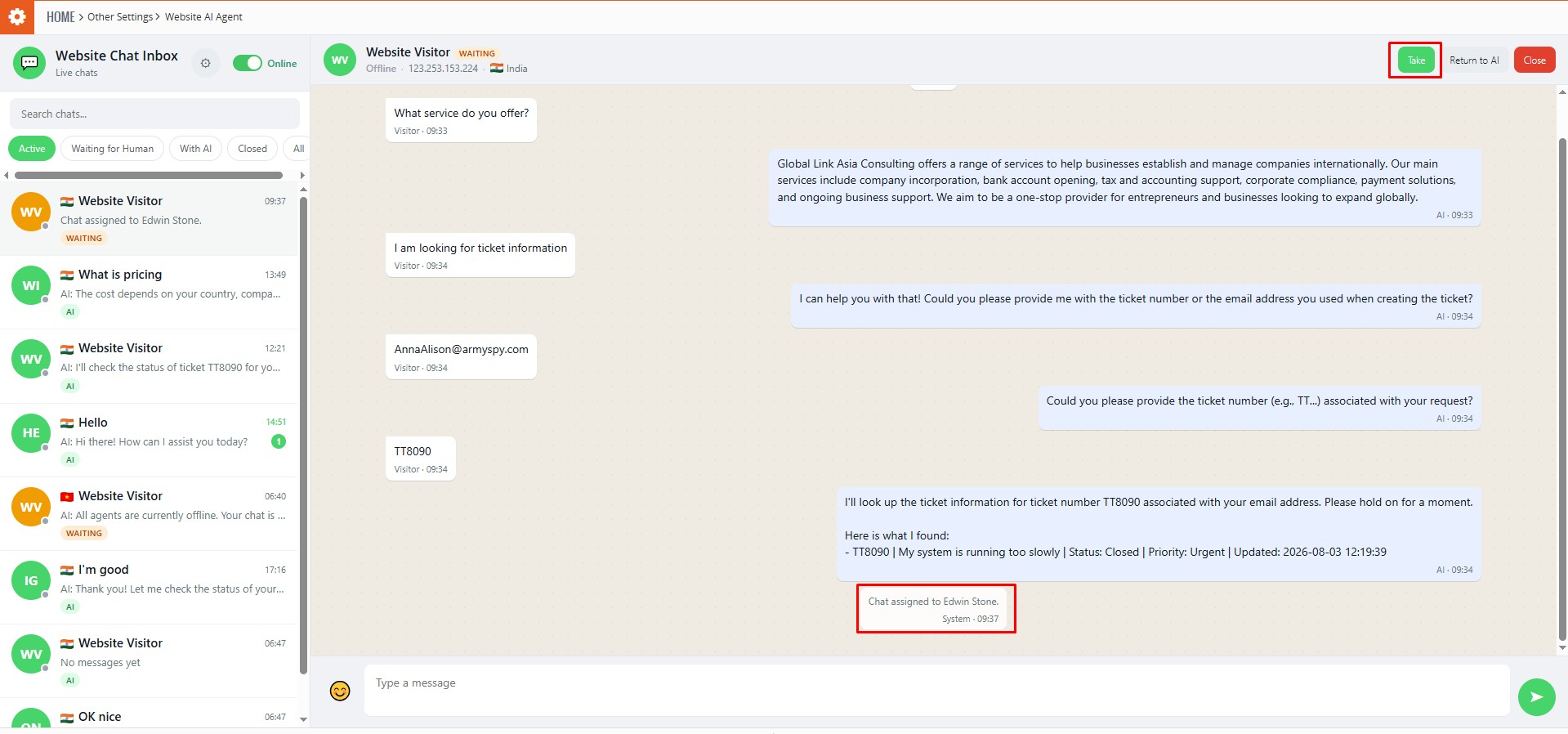 The conversation is assigned to the human agent and switches to human-agent mode, allowing the agent to respond directly to the visitor.
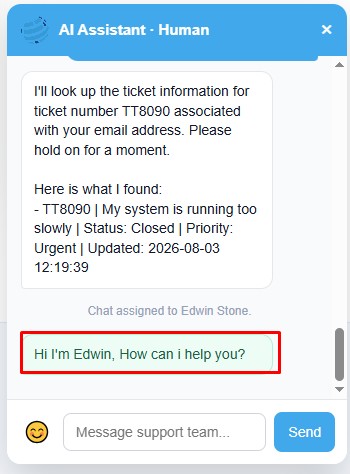
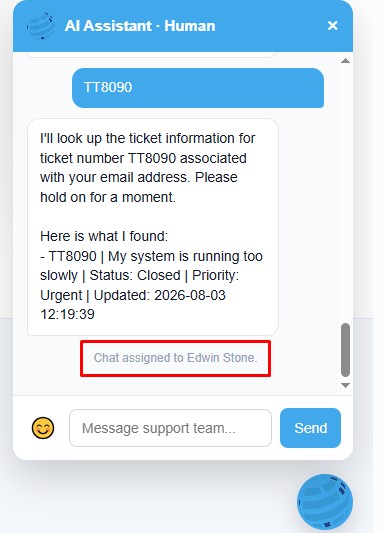 Continue the Conversation as a Human AgentAfter taking over the conversation, the chat changes to human-agent mode.
The conversation is assigned to the human agent, allowing the agent to respond directly to the visitor.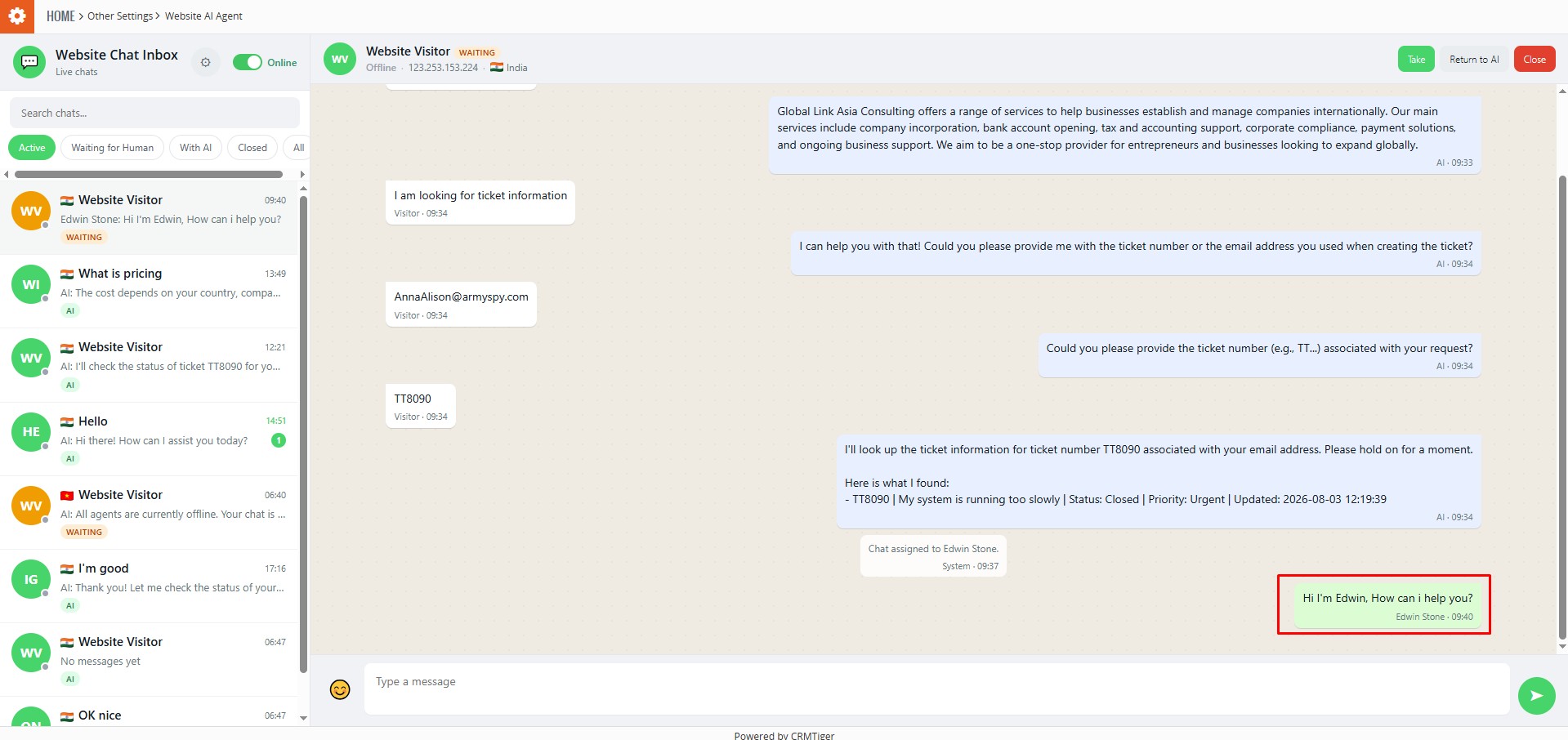 Website chat showing “AI Assistant – Human” with the message box available to the agent.
 Return the Conversation to AIAfter the human agent has completed the required assistance, the conversation can be returned to the AI Agent.
Click Return to AI to transfer the conversation from the human agent back to the AI Assistant.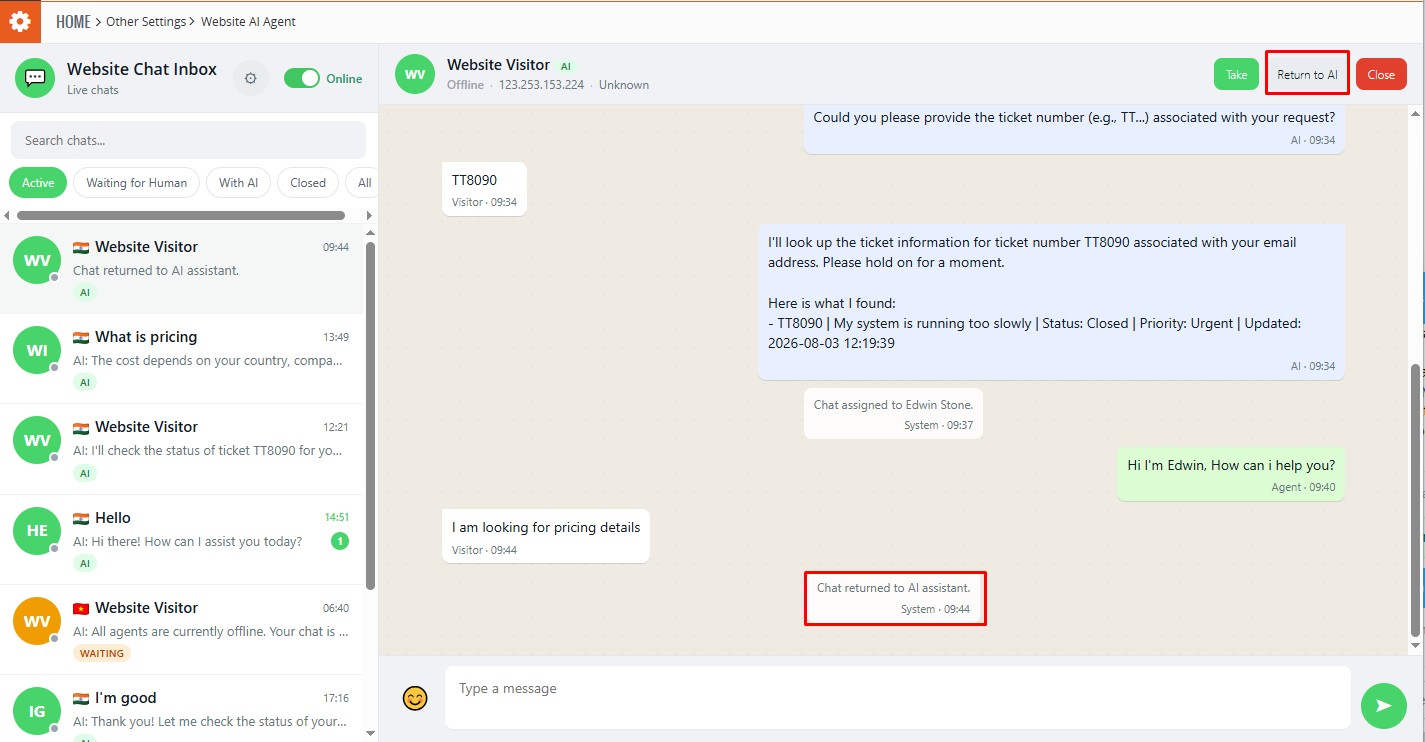 Website Chat Inbox showing the Return to AI button and “Chat returned to AI assistant.” message.
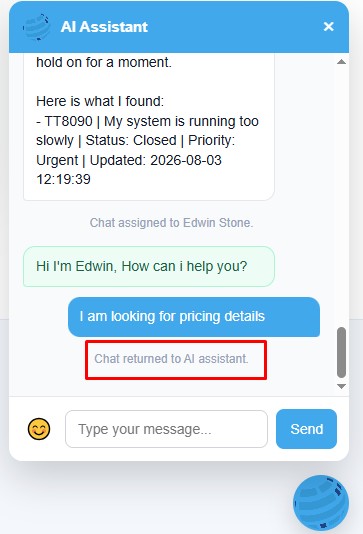 Close a ConversationUse Close Conversation to end the current visitor chat when the conversation is completed or no further assistance is required.
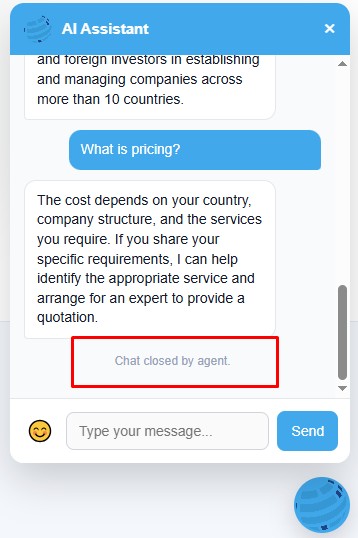
Click Close to end the active visitor conversation.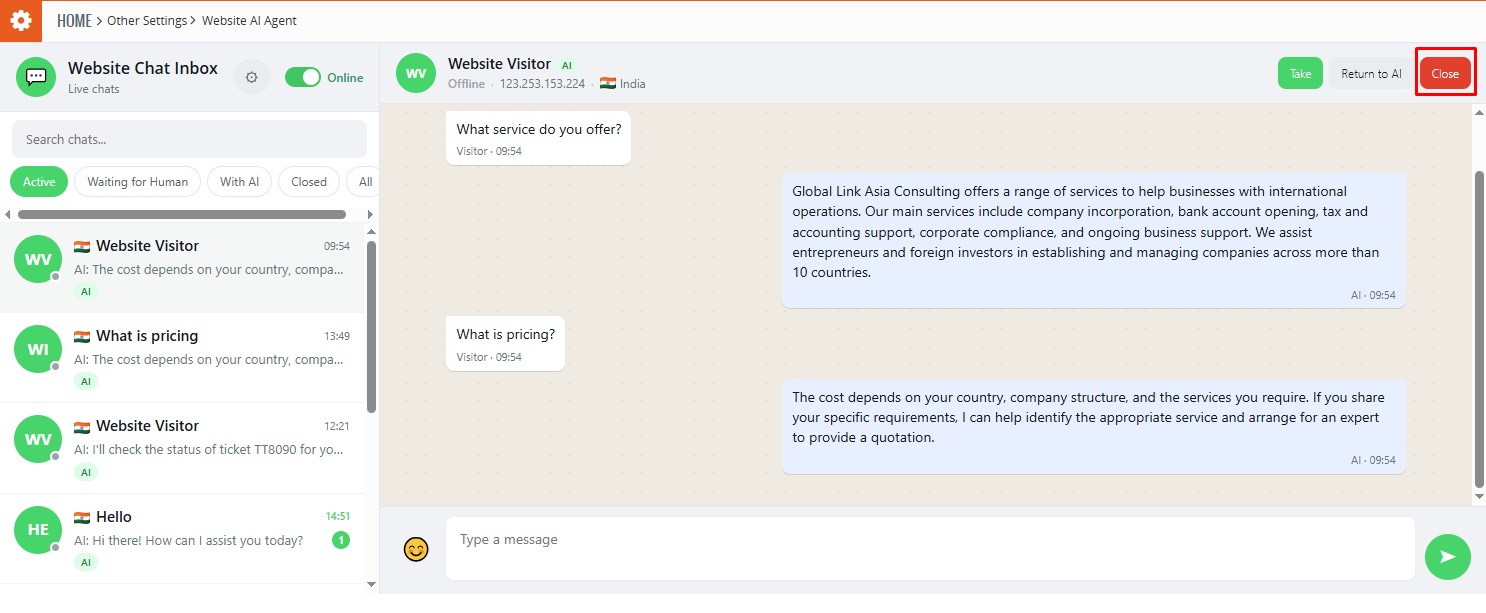 The chat status changes to Closed, and the system displays “Chat closed by agent.”
 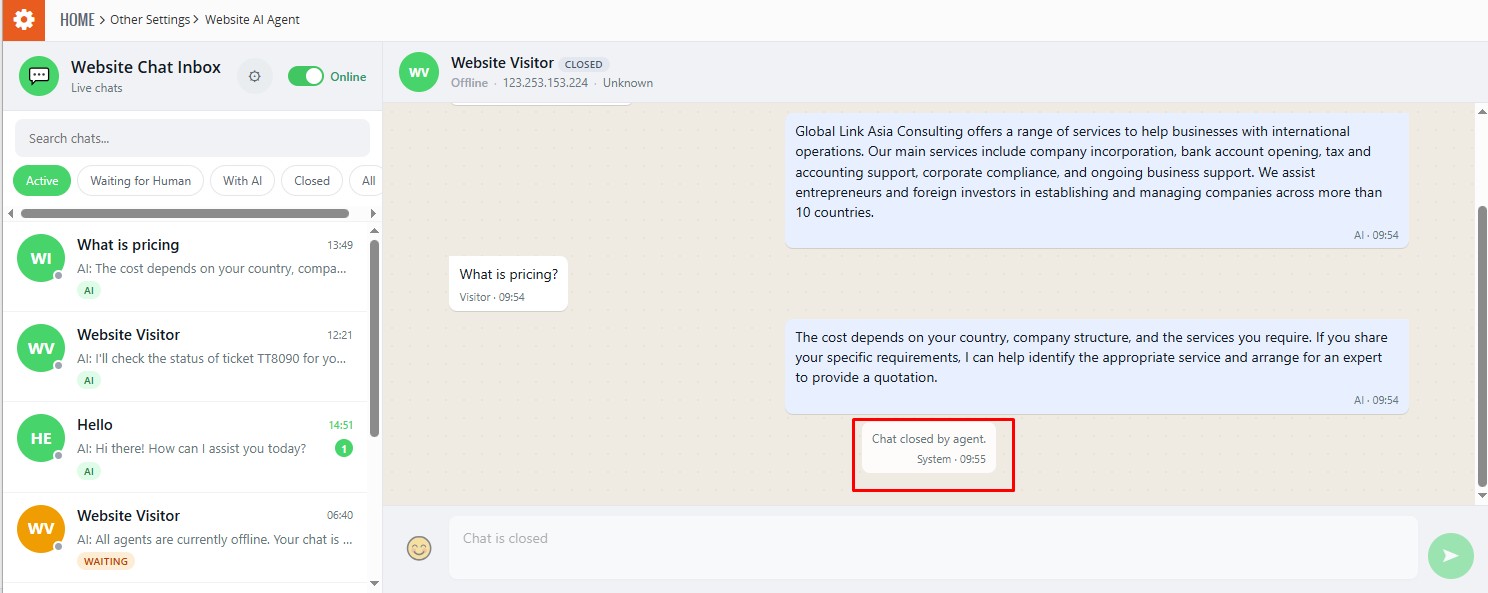 The visitor sees “Chat closed by agent.”, confirming that the conversation has been ended.
  Online / Offline StatusThe Online/Offline toggle controls whether the Website Chat Inbox is available to receive live chat assignments.
- Online: The chat system is available to receive conversations.
- Offline: The system does not receive new round-robin chat assignments.