
How to Access WhatsApp Business in the CRMtiger Mobile App
The WhatsApp Business feature in the CRMtiger mobile application allows users to access and manage WhatsApp conversations directly from the mobile app. Users can view customer chats, send messages, and manage communication from anywhere using their mobile devices.
Before accessing WhatsApp Business in the mobile application, the WhatsApp Business account must first be connected and configured in the CRM system. The administrator needs to connect the WhatsApp Business number and complete the required integration setup within the CRM.
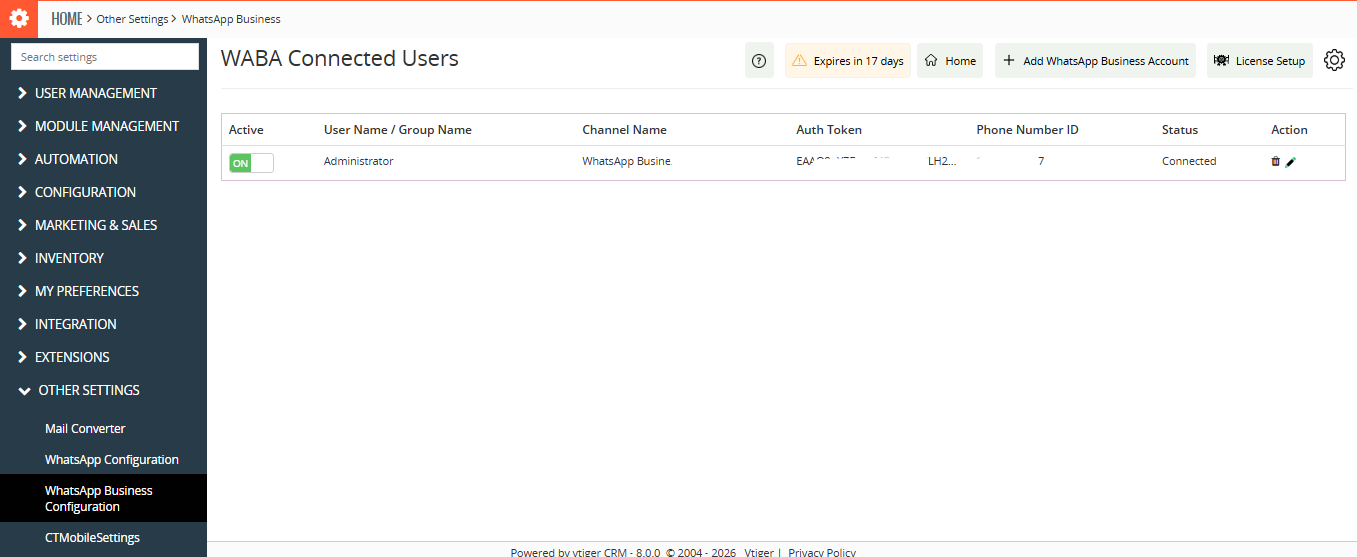 After completing the WhatsApp Business setup, the administrator must provide WhatsApp Business access permissions to the required CRM users.
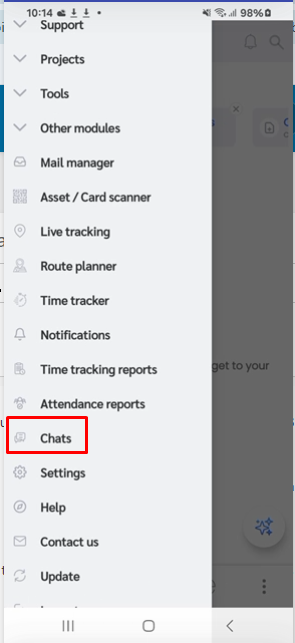
Once the access is provided successfully, the user can open the CRMtiger mobile application and navigate to the side panel menu.
From the side panel, the user needs to open the Chats section to access WhatsApp Business conversations.
How to Use WhatsApp Business in the CRMtiger Mobile App
The WhatsApp Business feature in the CRMtiger mobile application allows users to manage customer communication directly from the mobile app. Users can access WhatsApp Business chats, initiate new conversations, send approved templates, and continue customer communication from anywhere.
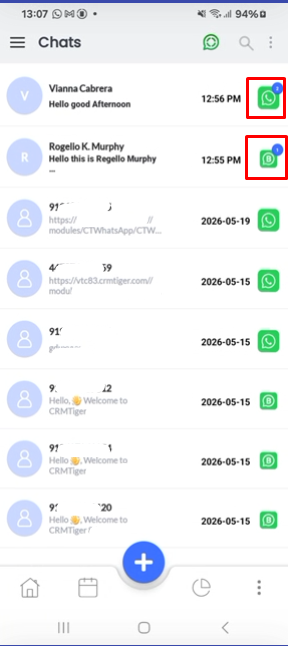
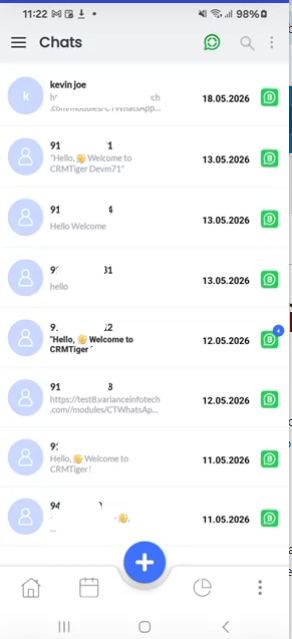 Inside the Chats section, If both WhatsApp Business and WhatsApp Integration numbers are connected in the CRM, all conversations will appear together in the same Chats section. Users can identify the chat type based on the icon displayed beside each conversation.
How to Initiate a New WhatsApp Business Chat
To initiate a new WhatsApp Business conversation, click on the Plus (+) Icon available in the Chats section.
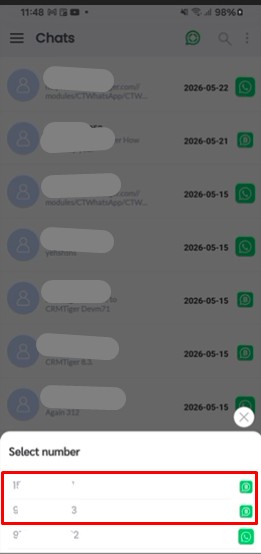
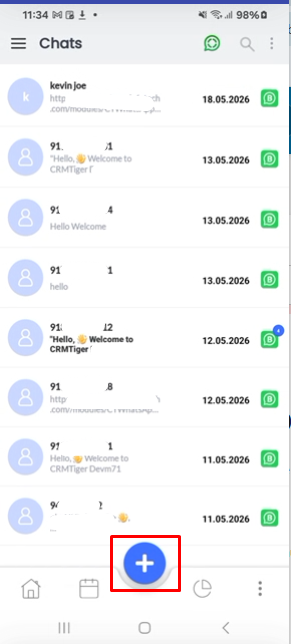 After clicking on the plus icon, the system displays all connected and accessible WhatsApp numbers configured in the CRM, including both WhatsApp Business and WhatsApp Integration numbers.
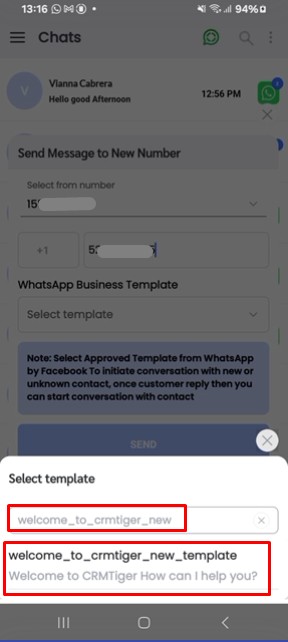
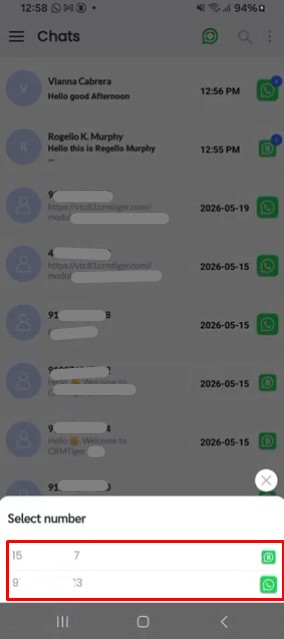 When the user selects a WhatsApp Business number, a pop-up window appears, allowing the user to select the country and enter the recipient mobile number.
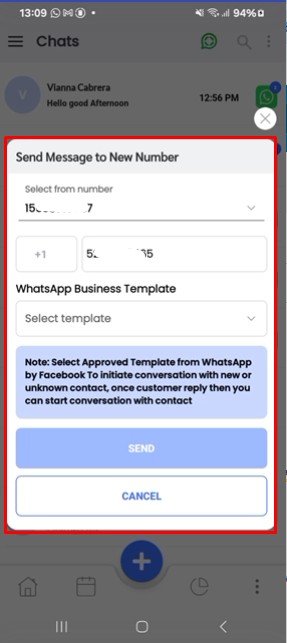 After entering the recipient number, the user can click on the Select Template option to view all Meta-approved WhatsApp templates configured for the selected WhatsApp Business account.
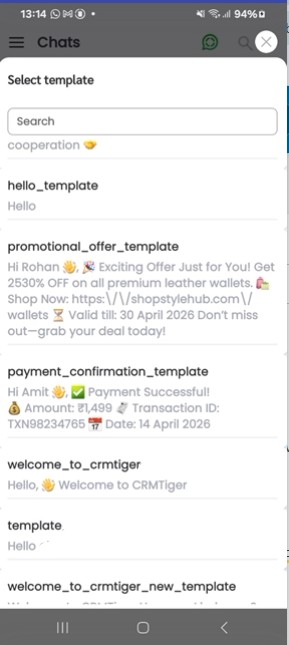 The user can search for the required template by template name or manually select the template from the available list. After selecting the template, click on the Send button to send the message successfully.
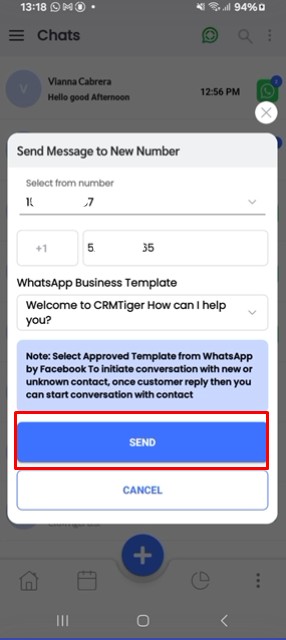
Once the message is sent successfully, the application automatically redirects the user to the WhatsApp chat window where the complete conversation can be viewed and continued.
WhatsApp 24-Hour Conversation Window in the CRMtiger Mobile App
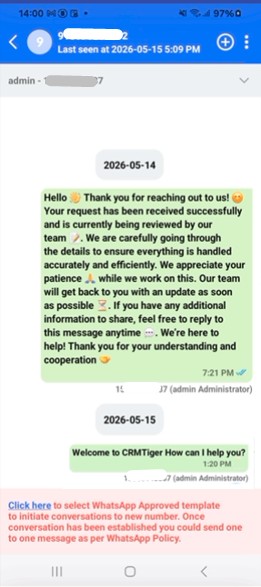
For a new WhatsApp Business conversation, or if the previous customer conversation was inactive for more than 24 hours, the system displays the 24-Hour Conversation Window notification in the chat window.
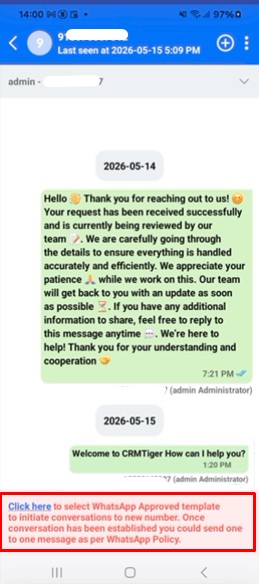 During this period, the user is required to send a Meta-approved WhatsApp Business template message to initiate or reopen the conversation with the customer.
The 24-hour conversation window notification remains visible until the customer replies to the message. Once a customer response is received successfully, the notification is automatically removed and the user can continue sending normal WhatsApp messages within the active conversation window.
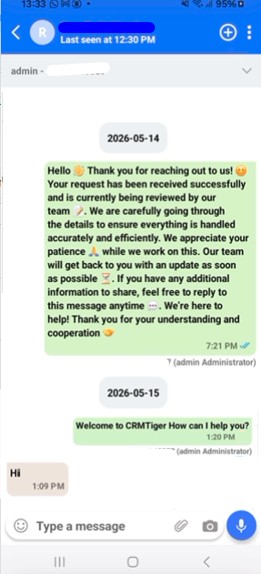 This functionality helps users identify whether the customer conversation is active or whether a WhatsApp Business template message is required to continue communication according to WhatsApp Business policies.
WhatsApp Business Chat Window Features in the CRMtiger Mobile App
The WhatsApp Business chat window in the CRMtiger mobile application provides multiple communication and CRM management features that help users manage customer conversations efficiently from a single screen.
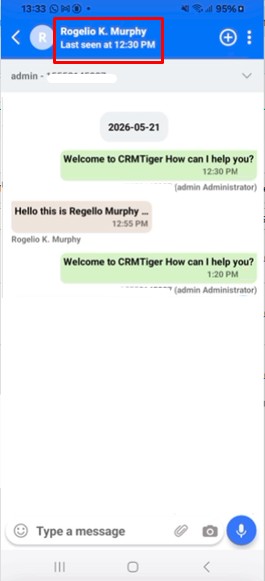
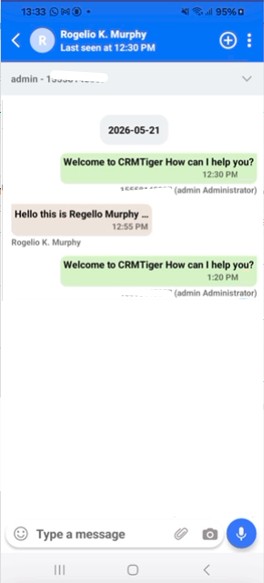 At the top of the chat window, the user can view the customer name or mobile number. If the record is already saved in the CRM, clicking on the Record Name redirects the user to the detailed CRM record page where all related information can be viewed.
 If the record is not saved in the CRM, the user can click on the Plus (+) Icon displayed beside the record name or mobile number. The system then displays module options allowing the user to save the record in the required CRM module such as Leads, Contacts, or Organizations.
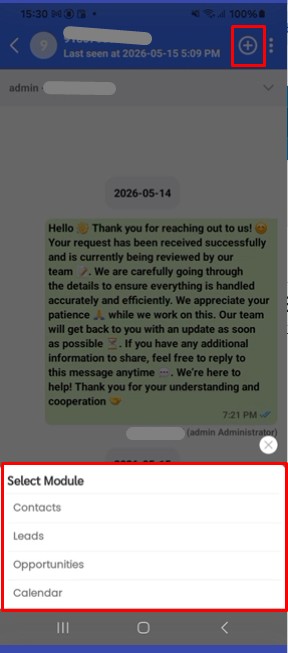 If the record is already saved in the CRM, the plus icon displays related module options so the user can save or associate additional information accordingly.
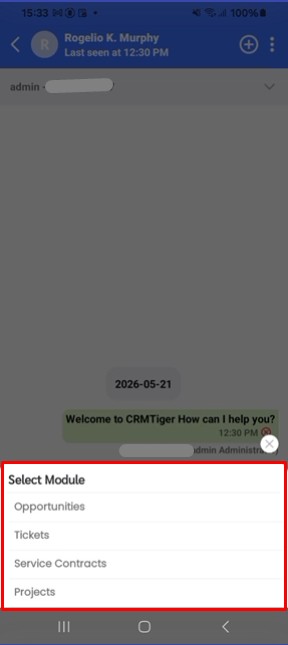 The chat window also contains a Three Dots Menu that provides additional chat management options for the selected conversation.
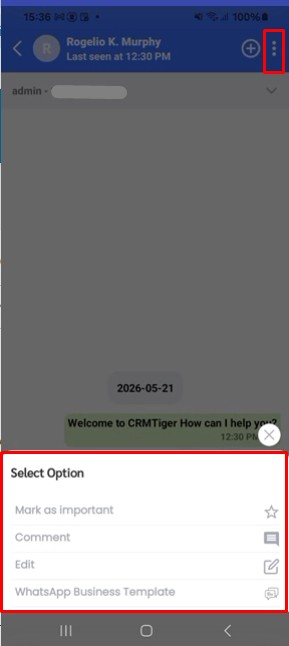 Using this menu, the user can perform the following actions:
- Mark as Important – Allows the user to mark the conversation as important for quick identification.
- Comment – Allows the user to add comments or notes related to the chat.
- Edit Record – Allows the user to update the related CRM record information directly from the chat window.
- Send WhatsApp Business Template – Allows the user to send Meta-approved WhatsApp Business templates directly from the existing chat window.
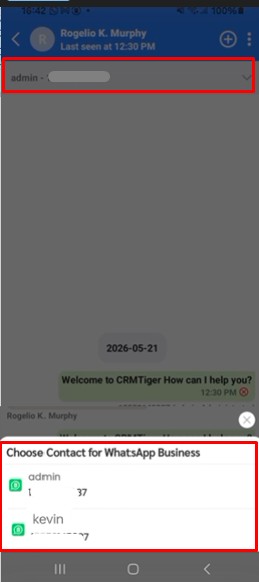
If the user has access to multiple WhatsApp Business numbers, the system displays a Picklist Option allowing the user to select the required WhatsApp Business number for sending messages from the listing page to initiate a new chat and from the chat window.
At the bottom of the chat window, the message panel provides multiple communication options for sending different types of content.
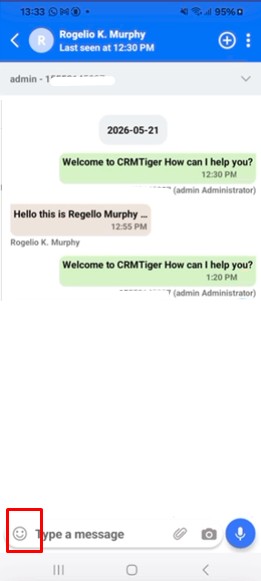
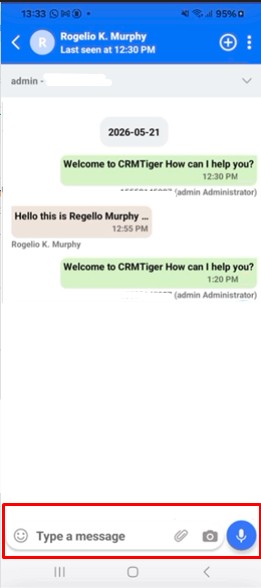 The user can use the Emoji Option to insert emojis into the message while typing.
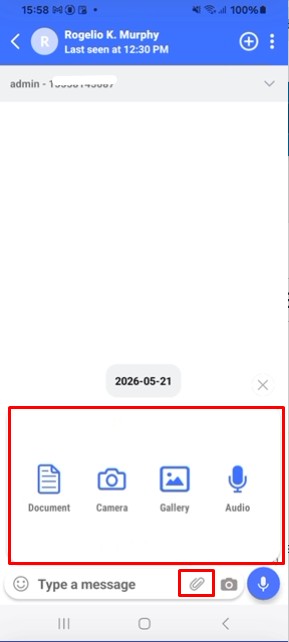
 The Attachment Option allows the user to send files such as documents, images, audio files, and other supported attachments directly through WhatsApp Business.
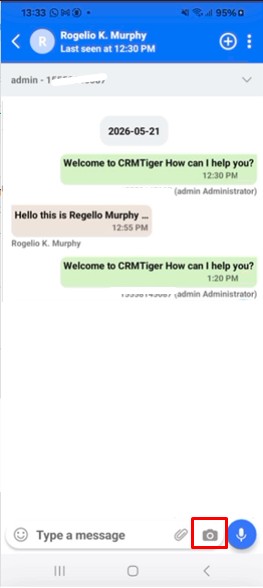
 The Camera Option allows the user to capture an image instantly using the mobile camera and send it immediately within the chat conversation.
 The Audio Option allows the user to record voice messages or audio clips directly from the mobile application and send them within the chat.
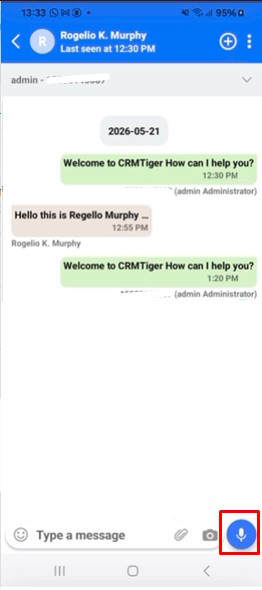 These features help users manage customer communication, CRM records, and media sharing efficiently from the WhatsApp Business chat window within the CRMtiger mobile application.