
How to Access AI Chatter?AI Chatter is available from the top navigation bar of the vTiger CRM Dashboard.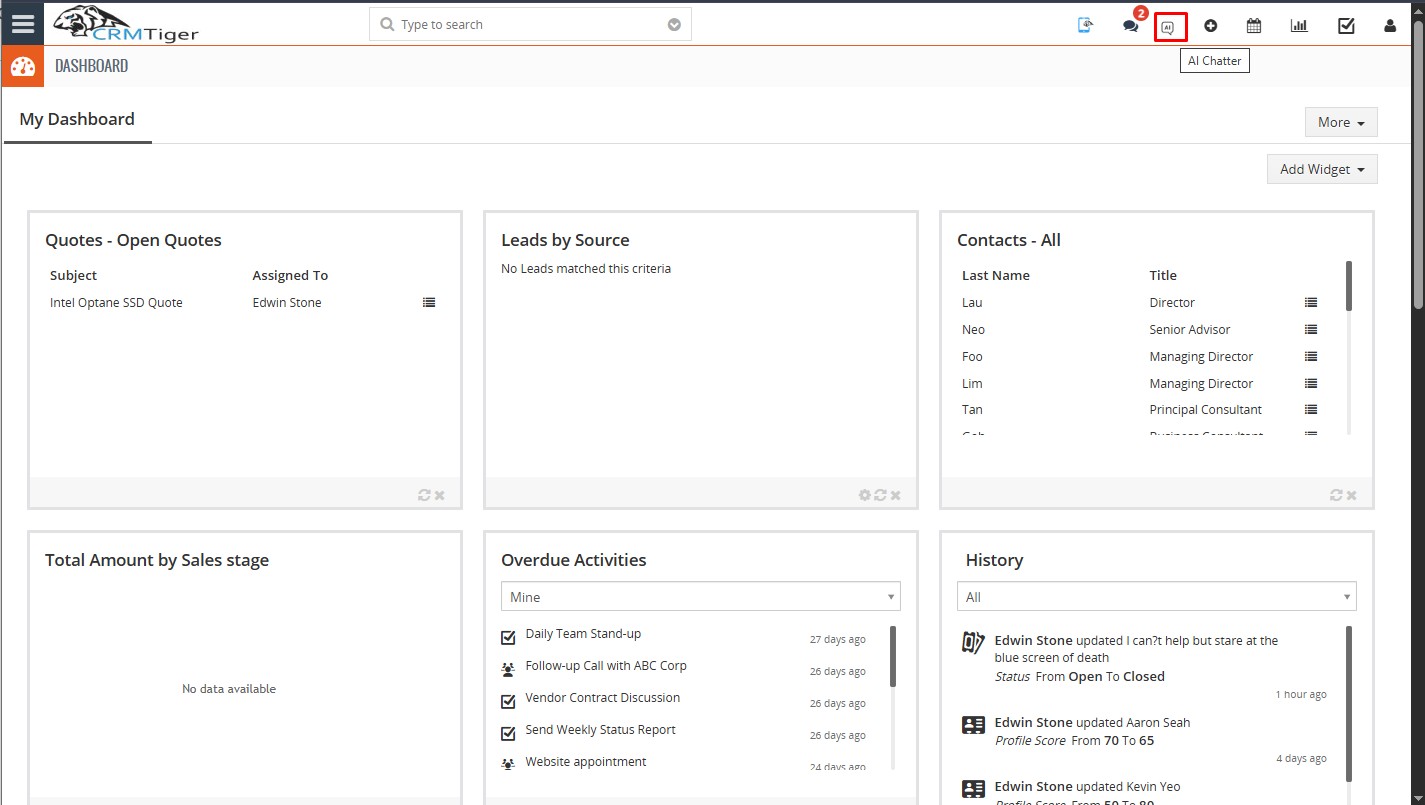 Steps:
- Log in to vTiger CRM.
- Open the Dashboard.
- Locate the AI Chatter icon in the top navigation bar.
- Click the AI Chatter icon.
- The AI Chatter window will open.
The AI Chatter window contains a chat area and an input field where users can enter their questions.How to use the AI Chatter effectively?AI Chatter allows users to retrieve CRM information and generate visual reports by entering requests in natural language. Simply type the required request in the AI Chatter input box and press Enter.
AI Chatter accepts natural-language questions. The supplied example asks: “Please give me an open ticket”. The assistant then displays the matching open ticket records.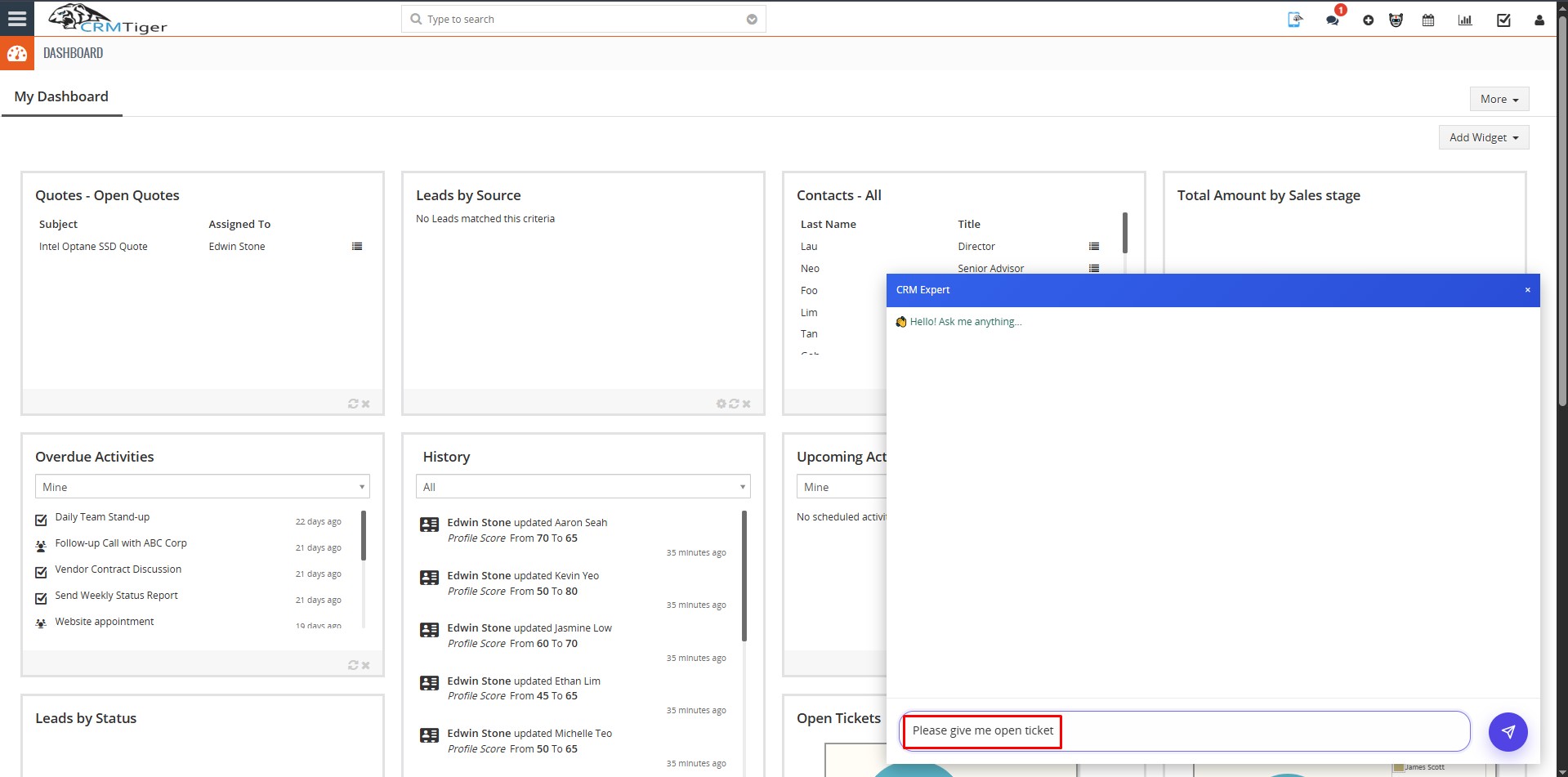 Example Workflow: Viewing Tickets by Status
- Click inside the AI Chatter input field.
- Enter a question such as “Please give me an open ticket”.
- Click the Send button.
- Review the ticket results returned by AI Chatter.
Viewing Ticket ResultsWhen the request is processed, AI Chatter displays the matching ticket information in a table. The supplied example shows open HelpDesk tickets with key ticket attributes.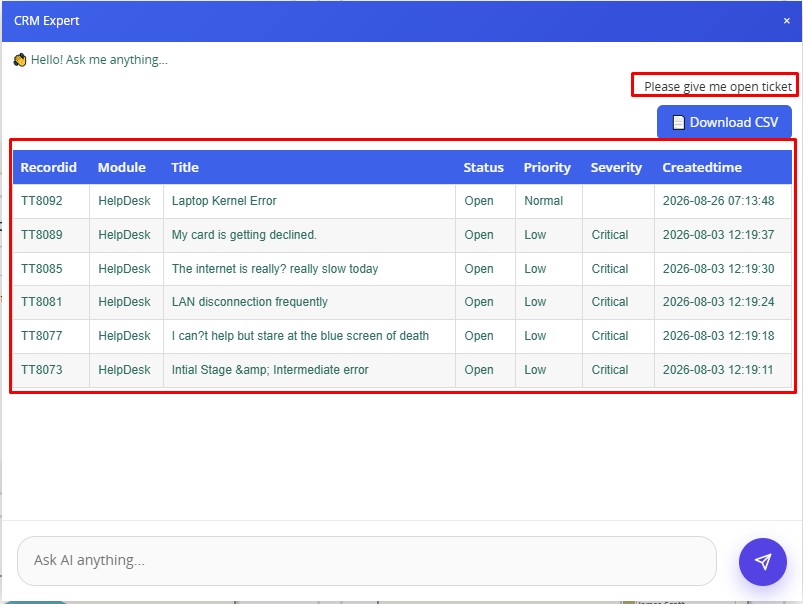 The displayed result includes fields such as:
- Record ID – the ticket identifier.
- Module – the CRM module associated with the record.
- Title – the ticket subject or issue title.
- Status – the current ticket status, such as Open.
- Priority – the ticket priority.
- Severity – the severity level of the issue.
- Created Time – when the ticket was created.
Download Results as CSVSteps
- Submit your question in AI Chatter.
- Review the returned records.
- Click Download CSV to export the displayed results.
Usage Tips
- Ask questions in clear and simple language.
- Specify the type of CRM information you need.
- Use terms such as open tickets, contacts, leads, or other relevant CRM information.
- Review the returned records before using the information.
- Use Download CSV when you need the displayed results for further review or reporting.
Example Workflow: Viewing Invoice Status in a Bar Chart
- Click inside the AI Chatter input field.
- Enter a question such as “Invoice by status in bar chart”.
- Click the Send button.
- Review the invoice status chart returned by AI Chatter.
Viewing Invoice ResultsWhen the request is processed, AI Chatter retrieves the invoice information and displays it as a bar chart, grouped according to the invoice status.
The supplied example shows invoice records grouped by statuses such as Paid, AutoCreated, Created, and Sent.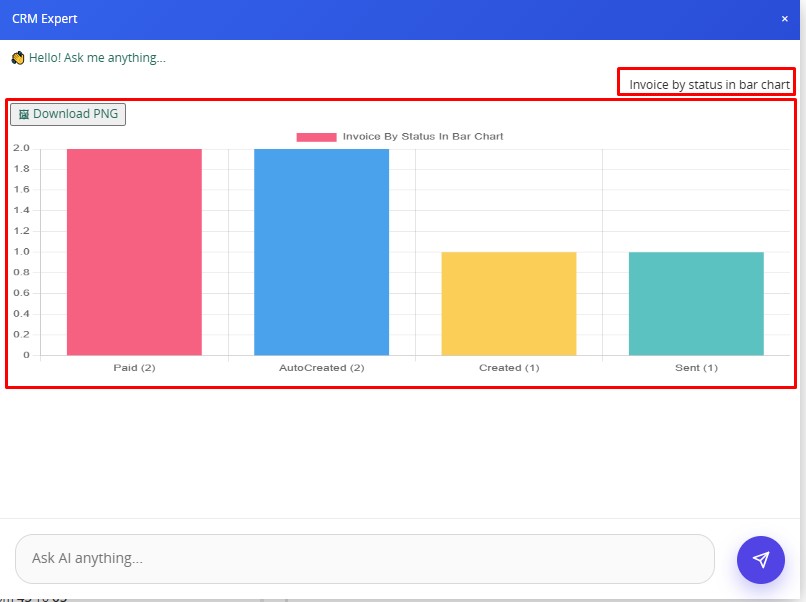 The displayed chart includes:
- Invoice Status – the status/category of the invoice.
- Count/Value – the corresponding number or value of invoices for each status.
- Bar Representation – each invoice status is represented by a bar for easy comparison.
Download Chart as PNGSteps
- Submit “Invoice by status in bar chart” in AI Chatter.
- Review the generated invoice status chart.
- Click Download PNG to export the displayed chart as an image.
Usage Tips
- Ask questions in clear and simple language.
- Specify the CRM information you want to analyze.
- Mention the preferred visualization when required, such as bar chart, pie chart, or other supported chart formats.
- For example, use “Invoice by status in bar chart” to view invoices grouped by their status.
- Review the generated chart before using the information for reporting or analysis.
- Use Download PNG when you need to save or share the generated chart.