
Daily useOnce paired, every event or task you save from WhatsApp goes to the phone calendar and to Vtiger Calendar, with no extra step.
- Open a WhatsApp chat. The floating bubble sits on the edge of the screen.
- Tap the bubble. The app reads the chat and finds the date and time in the message.
- ⦁ Choose Create Event or Create Task.
- Check the title, date and time. If the time is unclear, pick AM or PM.
- Under Vtiger Calendar, set the activity type, status and location if needed. These lists come from your CRM.
- Tap CREATE EVENT or CREATE TASK.
Saved items appear in the app’s History tab and, a moment later, in Vtiger Calendar. With no internet, they wait in a queue and sync when the phone is back online.To keep a message for later without creating anything, long-press it in WhatsApp; the bubble becomes a label button. Labelled messages appear in the Labels tab.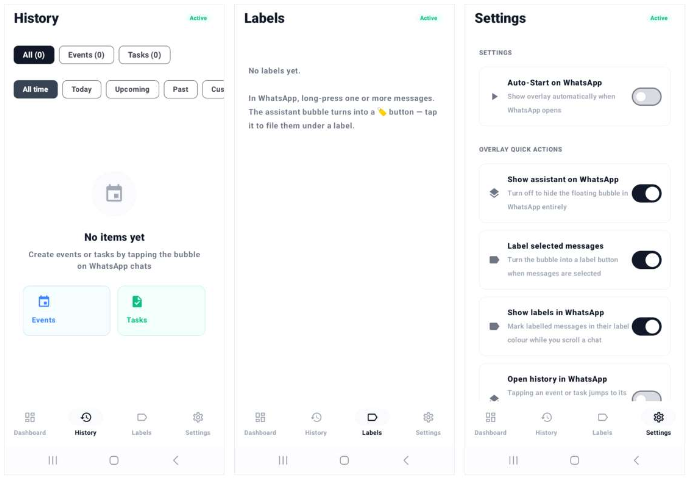 Useful switches in Settings:
| Switch | What it does |
|---|---|
| Auto-Start on WhatsApp | Shows the bubble automatically whenever WhatsApp opens |
| Show assistant on WhatsApp | Hides the bubble completely when off |
| Open history in WhatsApp | Tapping a History item jumps to its WhatsApp message instead of the calendar |
| Sync to Vtiger | Pauses sync when off; the phone stays paired |
| Remind me | Reminder time: on time, 5, 10 or 15 minutes before |
Troubleshooting
| Problem | Fix |
|---|---|
| Bubble does not appear on WhatsApp | Check that all four Dashboard steps are green, then tap Start Floating Assistant. Some phones turn accessibility off after an update or battery optimisation; turn it back on in Step 1. |
| Tapping the bubble finds nothing | Open the chat fully (not the chat list) and tap again. After a WhatsApp update, tell your admin; the app may need an update. |
| App shows the Connect to Vtiger screen again | The CRM licence is inactive or expired, so the app signs the phone out and asks for a new QR scan. An admin opens WhatsApp Event Sync → Manage license and activates or updates the key; the phone then pairs again from Part 3. |
| Scan says Not approved in time | The admin did not click Connect phone within 2 minutes. Click New QR code in Vtiger and scan again. |
| QR code rejected | Each code works once and lasts 5 minutes. Click New QR code |
| Bubble disappears and Connect to Vtiger takes over | The phone was disconnected in Vtiger or the licence lapsed, and the bubble stops itself. Saved items stay queued; scan a new QR code and have an admin approve the phone again. |
| Events not showing in Vtiger | Check Sync to Vtiger is on and the phone has internet. Vtiger’s Connected phones list shows the last sync time |
| WhatsApp Event Sync page looks unstyled after an update | Press Ctrl+F5 in the browser |
To move to a new phone, click Disconnect on the old phone in Vtiger, then pair the new phone from Part 3.