
Scan and select chats The Chats tab is where you load your chats and choose who receives the message.
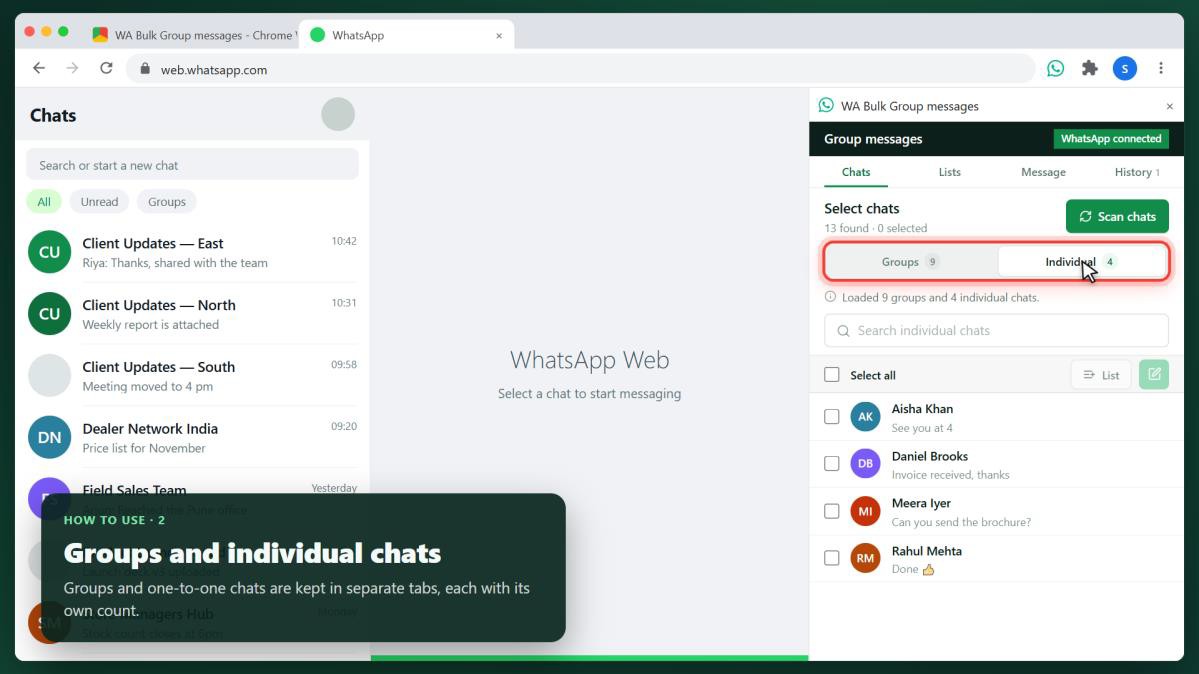
Scan chats Click Scan chats. The extension scrolls WhatsApp Web’s chat list and loads every group and individual chat; a note then shows how many it found, for example “Loaded 9 groups and 4 individual chats”. Scan again whenever you join, leave or delete chats — each scan replaces the old list, so deleted chats disappear. 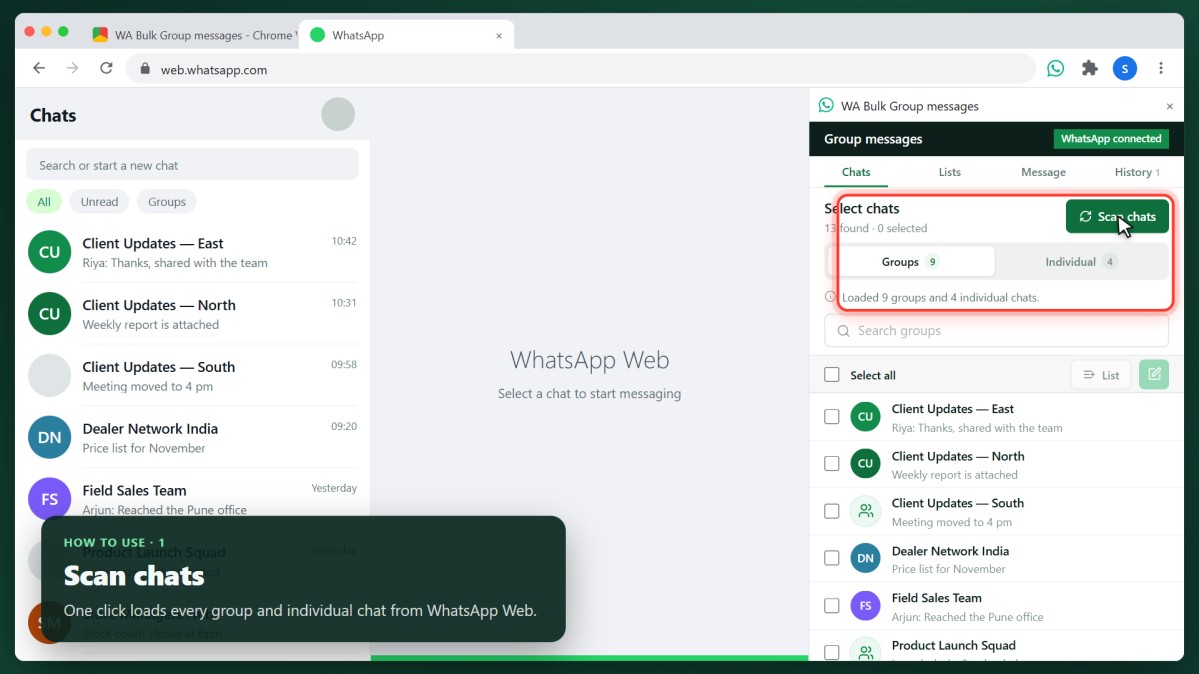 Groups and individual chats Groups and one-to-one chats are kept in separate tabs. Each tab shows its count, and once you select chats it shows selected / total (for example 5/9).
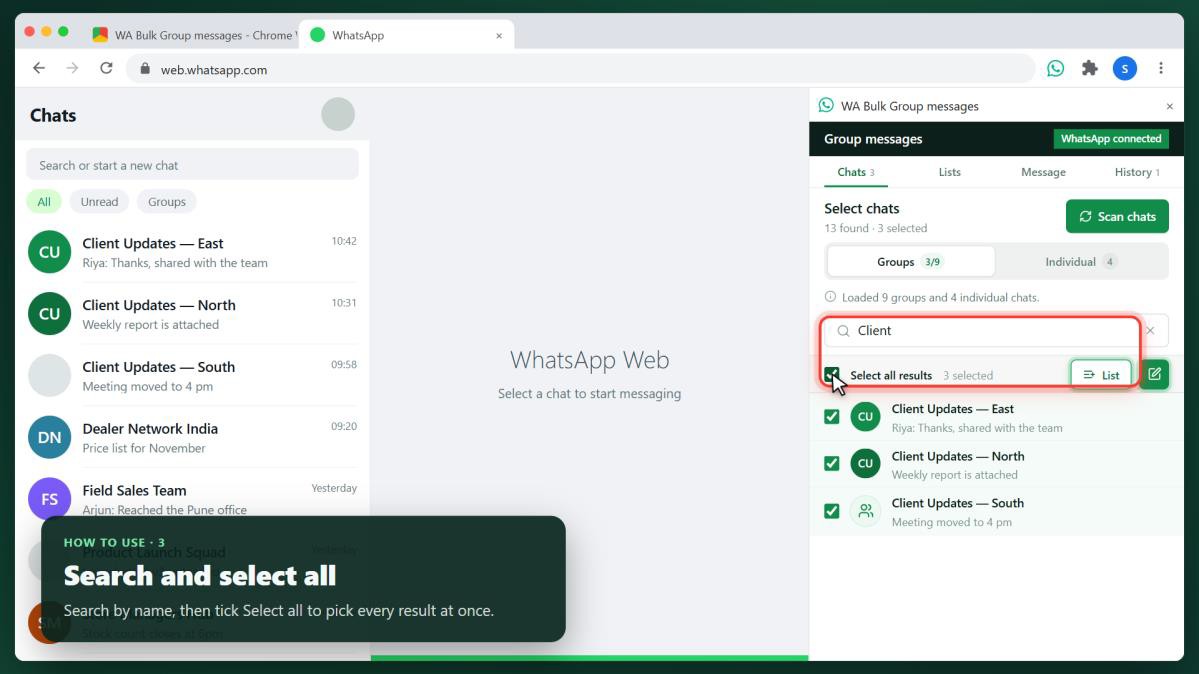
 Search and select all Type in the search box to filter the current tab by name. Tick Select all to select every chat in the tab, or every search result while searching. If only some are selected, the box shows a dash; untick it to clear them.
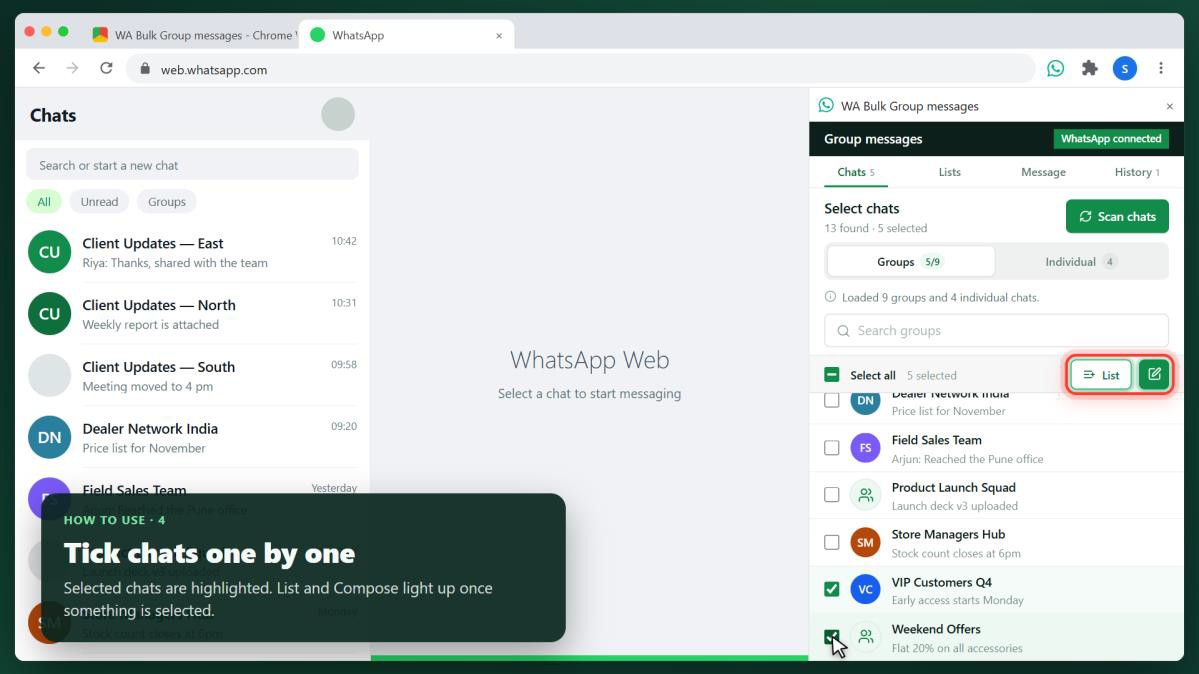
 Tick chats one by one Tick the checkbox on any chat to add or remove it. Selected chats are tinted green, and the List and Compose buttons light up once at least one chat is selected.
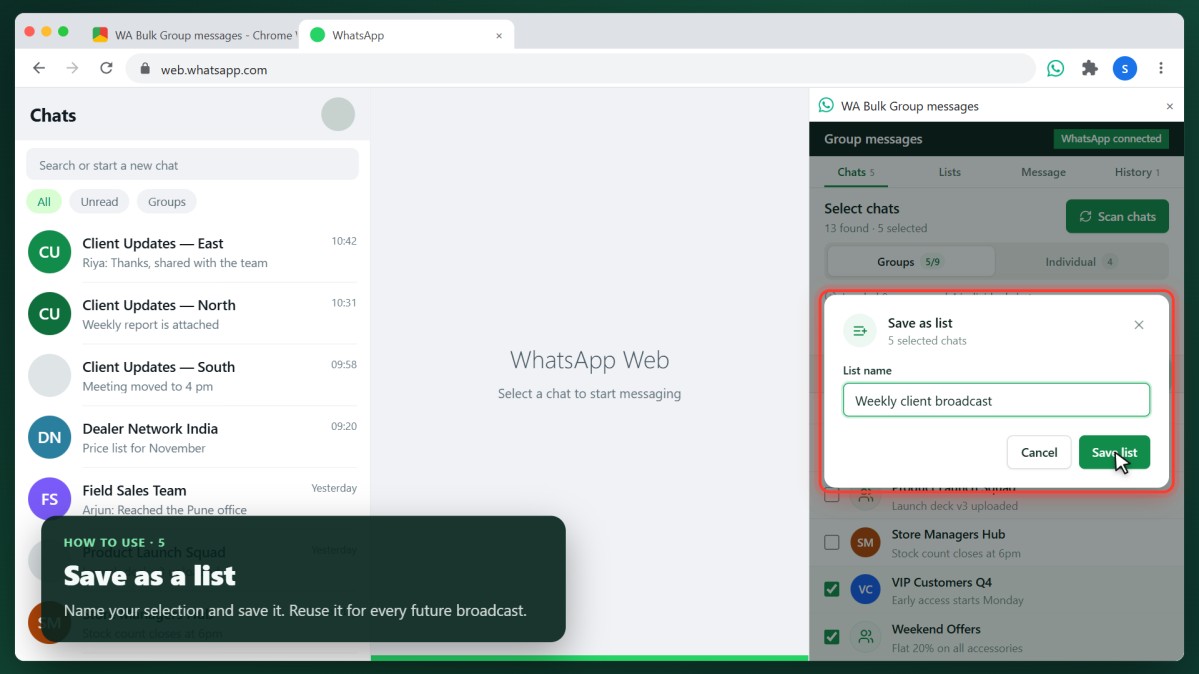
 Saved lists Save a selection once and reuse it for every future broadcast. Save as a list With chats selected, click List + in the Chats tab. Type a name, for example “Weekly client broadcast”, and click Save list. The panel then opens the Lists tab with your new list at the top.
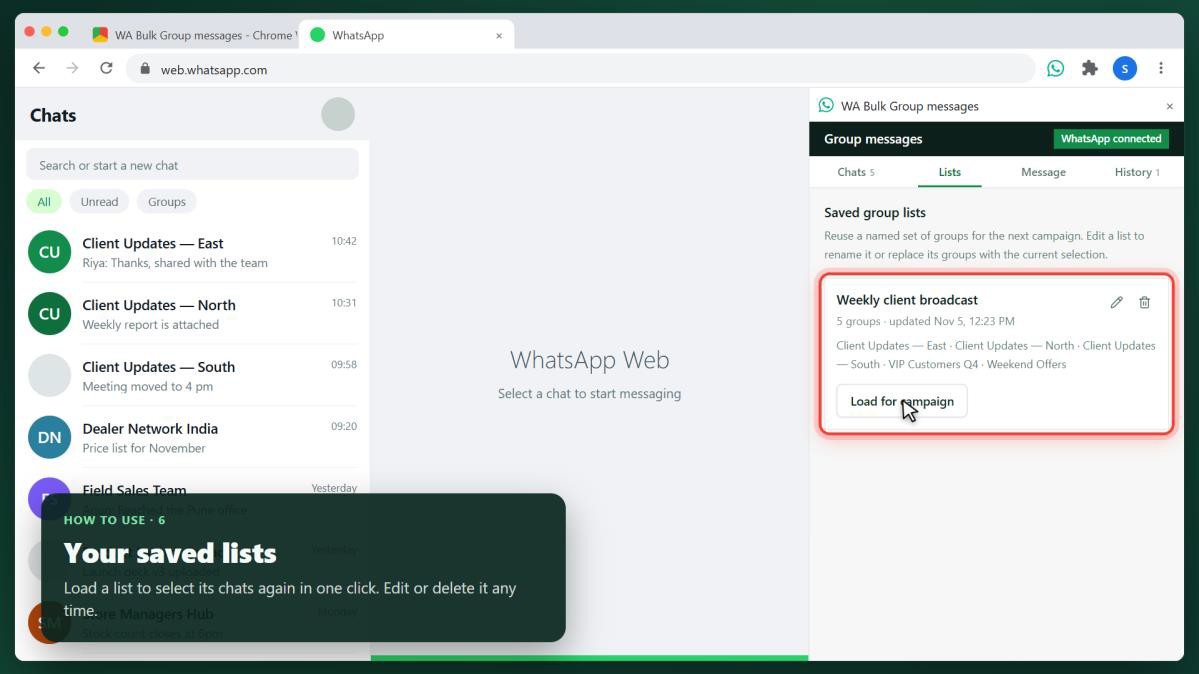
 Use a saved list In the Lists tab, click Load for campaign to select that list’s chats again in one click. Use the pencil icon to rename a list or replace its chats with your current selection, and the bin icon to delete it.
 Write the message Click the green Compose button in the Chats tab, or open the Message tab. The selected chats appear under Recipients; click Edit selection to change them.
Add a photo and caption Click Add image and choose a JPEG, PNG or WebP photo (up to 25 MB). It is sent as a photo, not a document; photos larger than 2048 px are resized automatically. With a photo attached, the text box becomes the Caption and is optional. Use Replace or × to change or remove the photo. Without a photo, the text box is a normal text message. 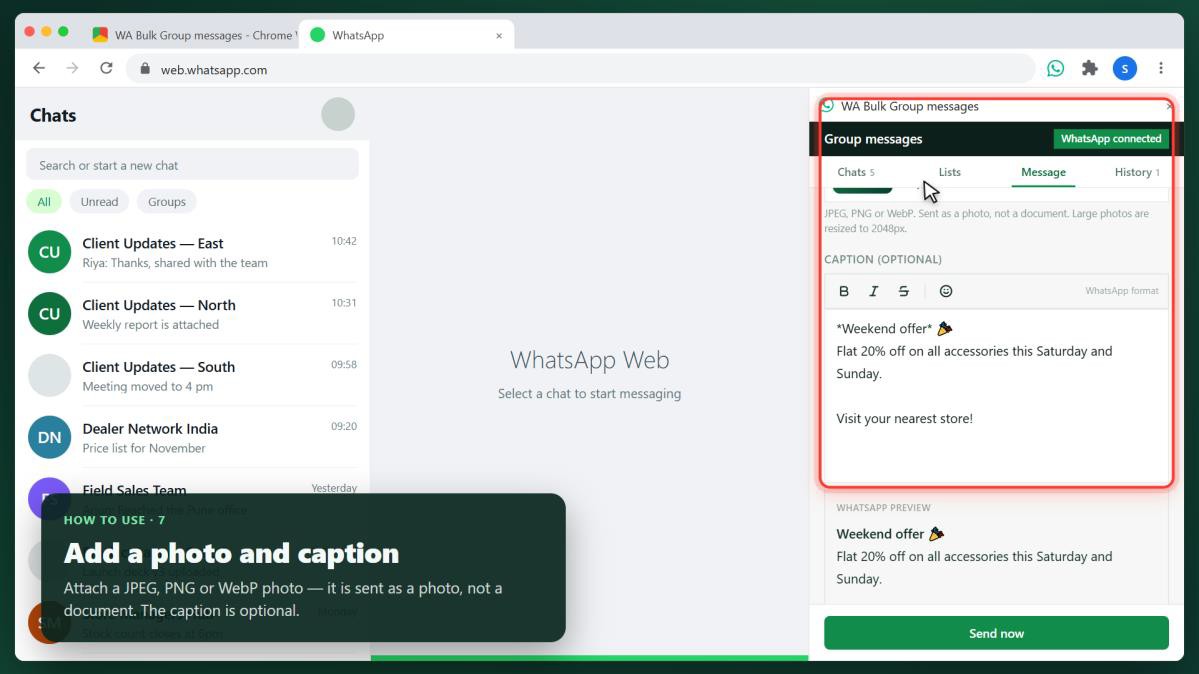 WhatsApp formatting and preview Use the toolbar for bold, italic, strikethrough and emoji; the shortcuts Ctrl+B and Ctrl+I also work. They insert WhatsApp’s own markers (*bold*, _italic_, ~strike~). The WhatsApp preview below the box shows exactly how the message will look, with the character count.
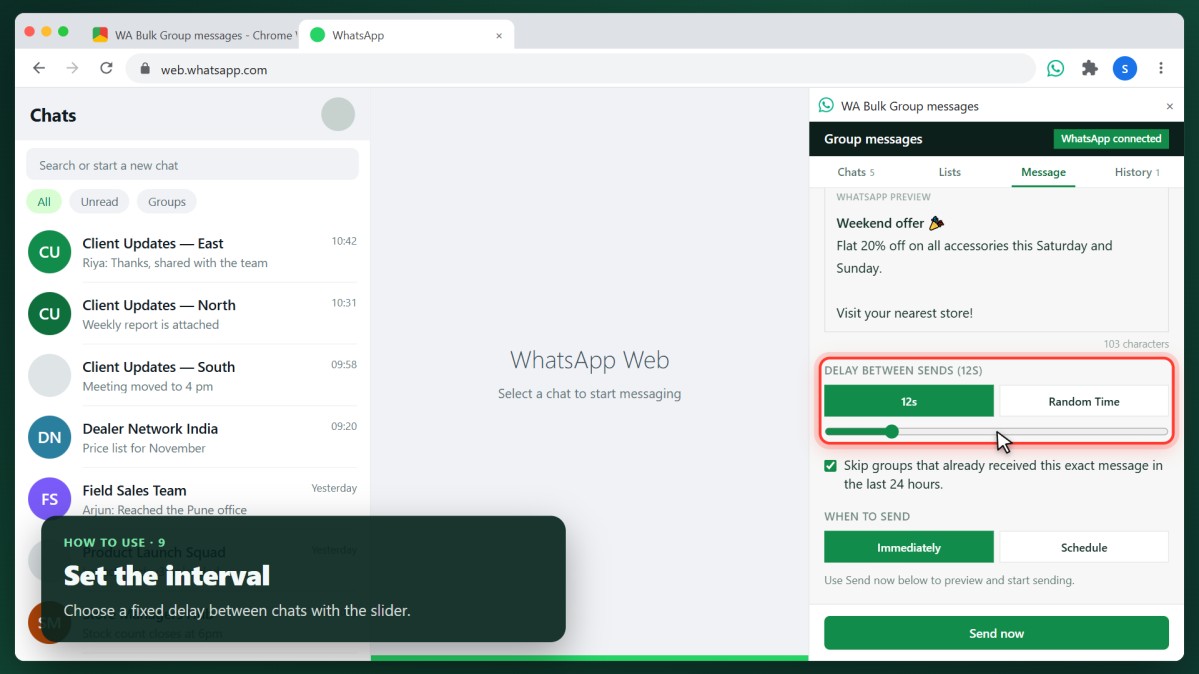
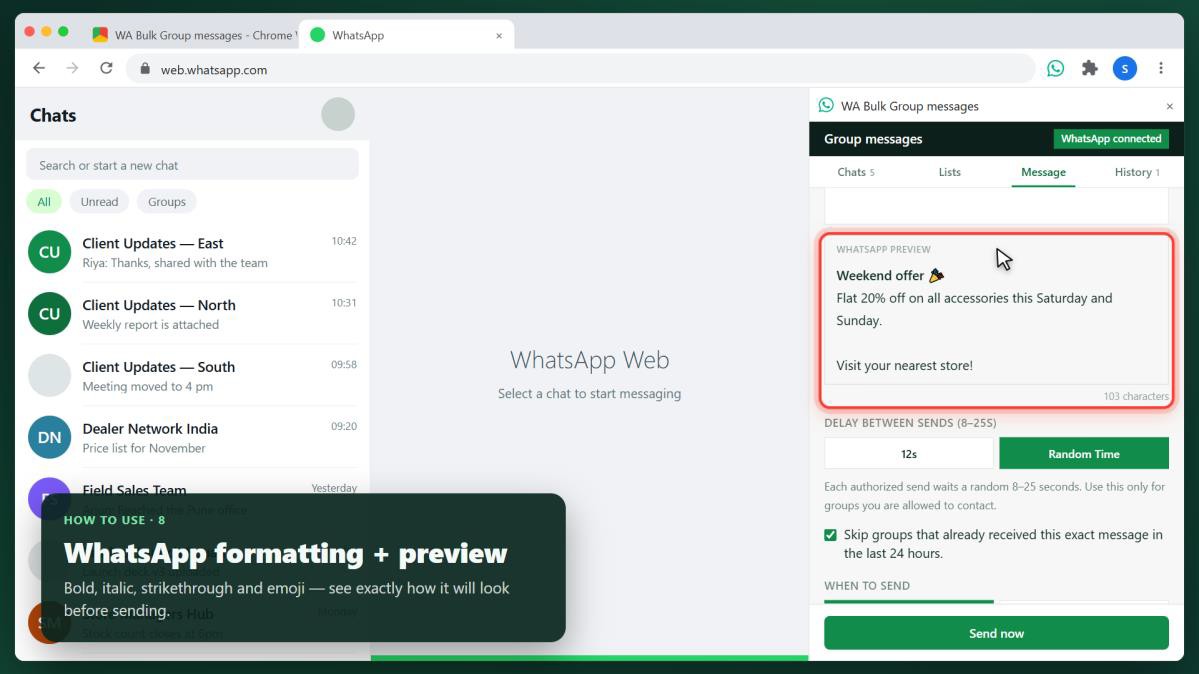 Send safely: interval and duplicates Messages go out one chat at a time, with a pause between chats. These settings are remembered for your next campaign. Fixed interval Under Delay between sends, click the seconds button (for example 12s) and drag the slider to set the same pause between every chat, up to 30 seconds.
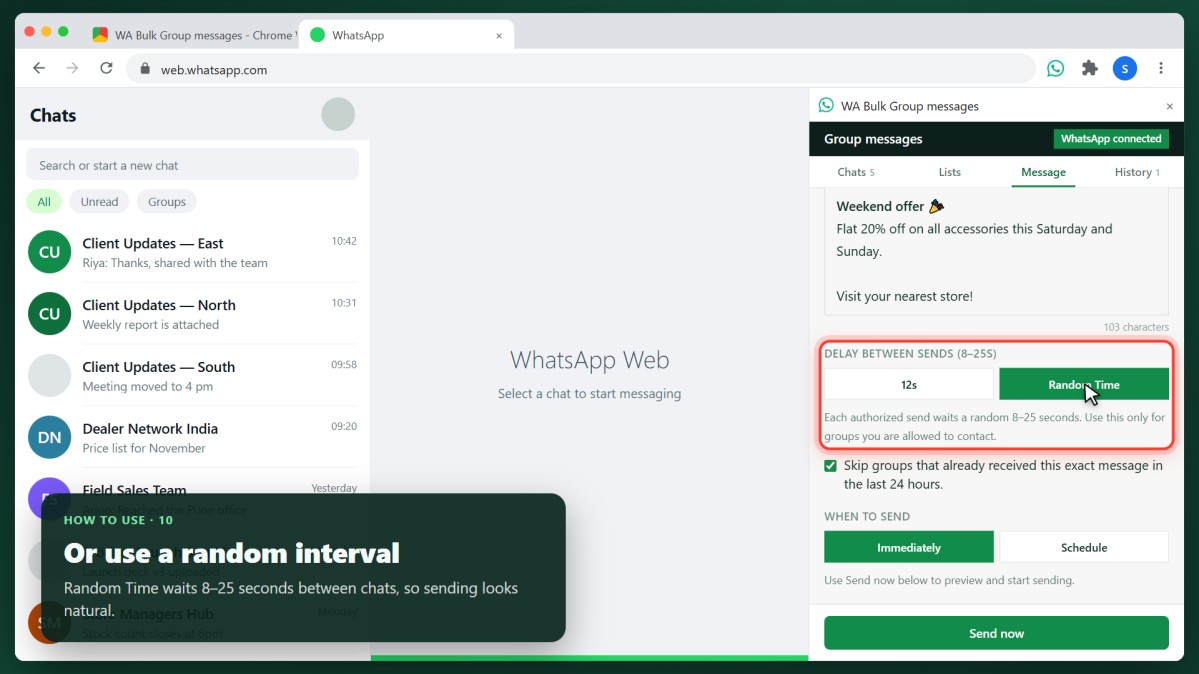
 Random interval Click Random Time to wait a random 8–25 seconds between chats. Varied gaps look more natural than a fixed rhythm and are recommended for larger sends.
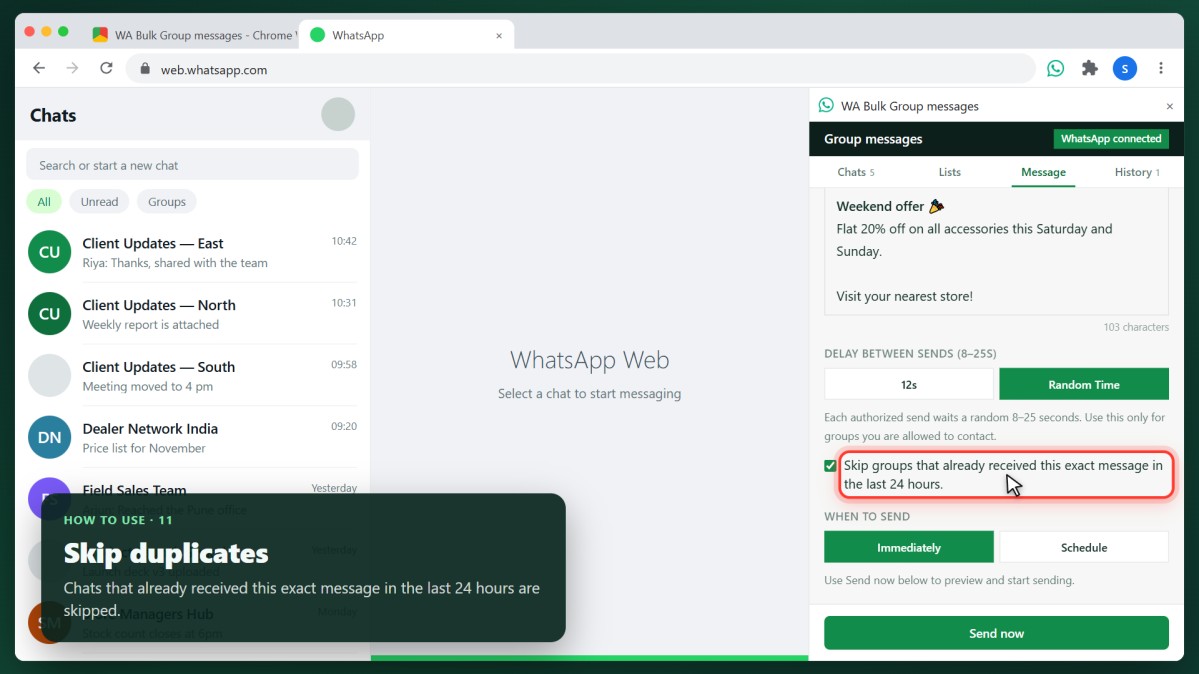
 Skip duplicates Leave Skip groups that already received this exact message in the last 24 hours ticked to avoid sending the same message (or the same photo and caption) to a chat twice. Skipped chats are counted as skipped in History.
 Send now and track results
Preview and confirm Under When to send, keep Immediately selected and click Send now. A preview shows the photo, the message as WhatsApp will display it, the list of chats and the delay. Click Send messages to start, or Cancel to go back. Live progress While sending, the top of the Message tab shows Campaign running with the number of chats processed and a progress bar. Click Pause to hold and Resume to continue, or Stop to end the campaign; chats not yet sent are then marked “Stopped by user”. Keep the WhatsApp Web tab open — ideally in front — until it finishes. Campaign history The History tab lists every campaign, newest first, with its date, message, photo name and counts. Click Reuse groups and message to load the same chats and message into a new campaign.
Each chat in a campaign ends with one of these results:
| Result | Meaning |
|---|---|
| Sent | The message was delivered to the chat from your WhatsApp. |
| Skipped — duplicate | The chat already got this exact message in the last 24 hours. |
| Skipped — can’t send here | WhatsApp does not allow you to send in that chat, for example, an admin-only group. The reason is listed in orange. |
| Failed | The chat could not be opened or the send did not complete. The reason is listed in red. |
Schedule a send Schedule a campaign to start on its own at a chosen date and time. Pick the date and time Under When to send, click Schedule, then set Date and time. The time must be at least a few minutes ahead. Chrome and the WhatsApp Web tab must be open at that time; if the WhatsApp Web tab is not open when it starts, the send is marked as missed in History. If the computer was asleep, it starts as soon as Chrome is awake again. Confirm the schedule Click Preview schedule. The preview shows the scheduled time, the photo, message and chats. Click Schedule send to save it. Manage scheduled sends Scheduled campaigns wait at the top of History, marked Scheduled with their time. Click Send now to start one straight away, or Cancel to remove it. If your trial or subscription has ended by the scheduled time, the campaign does not run and is marked “Your plan has expired”. Free trial and subscription Every WhatsApp number gets one 7-day free trial with full access; after that, the Pro Monthly plan is $5 per month, billed by Stripe.
- Starting the trial: The trial starts automatically the first time the side panel sees you signed in to WhatsApp Web. Until then, the panel shows “Sign in to WhatsApp Web to start”.
- During the trial: A green bar at the top of the panel shows the days left and a link to subscribe.
- When the trial ends: The panel shows “Free trial ended” and the subscribe button. Your lists, chats and history are kept. Scheduled sends do not run, and a running campaign stops with “Your plan has expired”.
- Subscribing: Click Subscribe — $5/month and pay on the Stripe page. The panel unlocks by itself within a few seconds; if not, click I’ve paid — refresh access.
- Renewal: The subscription renews automatically each month and campaigns are never interrupted by a renewal. If you cancel, access continues until the end of the paid month.
- Reinstalling: The trial and subscription belong to your WhatsApp number, so reinstalling the extension keeps a paid plan and does not restart the trial.
Troubleshooting and FAQ
| Problem | What to do |
|---|---|
| Badge says Not connected | Open web.whatsapp.com in the same Chrome window, sign in, reload the tab once, then reopen the side panel. |
| Some chats are missing after a scan | Wait until WhatsApp Web has fully loaded its chat list, then click Scan chats again. Archived chats are not scanned. |
| A chat shows “Could not open” | It may have been deleted, archived or renamed in WhatsApp. Scan chats again, then retry. |
| A group is skipped with “Only admins can send messages” | The group admin allows only admins to post. The extension skips it straight away and continues with the next chat. |
| A deleted chat still appears | Scan again — each scan replaces the list, so chats that no longer exist disappear. |
| Sending is slow or pauses | Keep the WhatsApp Web tab open and in front; Chrome slows down background tabs. Very large photos also take longer to upload. |
| Only a few chats fit on screen | On short screens the panel switches to a compact layout automatically; you can also widen the side panel by dragging its left edge. |
| The panel shows “Free trial ended” | Subscribe from the panel; see Free trial and subscription. |
Can I send documents or videos? No — photos (JPEG, PNG, WebP) and text only.
How many chats can I send to? There is no fixed limit; large sends simply take longer because of the delay between chats. Each chat is retried automatically when nothing was sent, and never sent twice. Privacy and good practice
- Messages are sent only from your own logged-in WhatsApp Web session. The extension never sees your WhatsApp password or login.
- Your chats, lists, messages, photos and history are stored on your computer in Chrome’s storage and are not uploaded to our servers.
- Only message people and groups who expect to hear from you, and follow WhatsApp’s Terms of Service. Unsolicited bulk messages can get a WhatsApp account restricted.
- Use the random interval and skip duplicates for larger sends.
WhatsApp Group Bulk Messages is an independent tool and is not affiliated with, endorsed by or sponsored by WhatsApp or Meta.