
This guide will help you install the required extension and update your CRMTiger Mobile App to the latest version 1.4.2. Follow the steps below carefully.
Important: This guide applies to CRMTiger Mobile App users on vTiger CRM 7.x and 8.x.
For vTiger CRM 6.x, please start directly from Step 3. Steps 1 and 2 are not applicable.
Step 1: Install vTiger Extension
Download the appropriate ZIP package based on your vTiger CRM version.
| Features version 1.4.1 | vTiger Version 7.x | vTiger Version 8.0,8.1,8.2 | vTiger Version 8.3 |
|---|---|---|---|
| CTMobileSettings | Download | Download | Download |
Follow these steps to install the extension:
- Follow below steps to Install Extension in CRM based on Version
- Login using Admin Credential
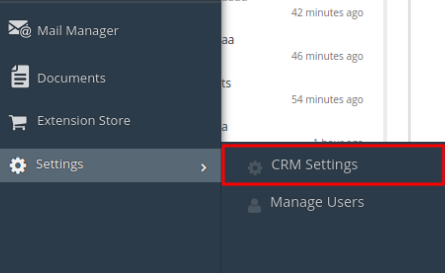
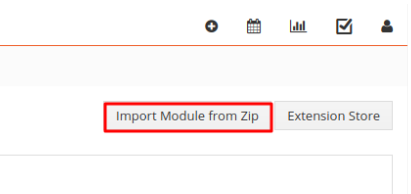
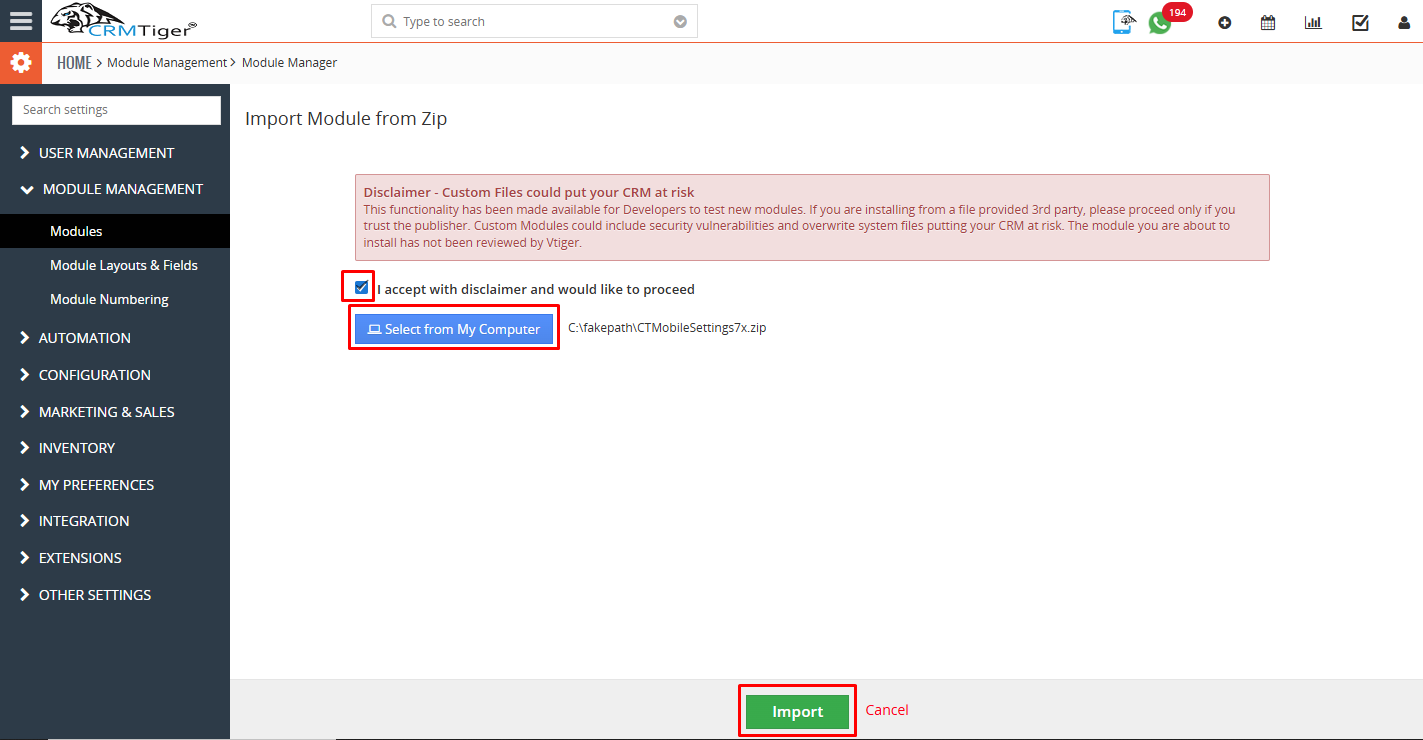
- Menu > Settings > CRM Settings > Module Management > Modules > Import Module
from Zip > Select zip file & check checkbox > Click Import > Accept the license Agreement > Import Now
Step 2: Open CRMTiger App Dashboard
After installing the zip:
- Login to CRM.
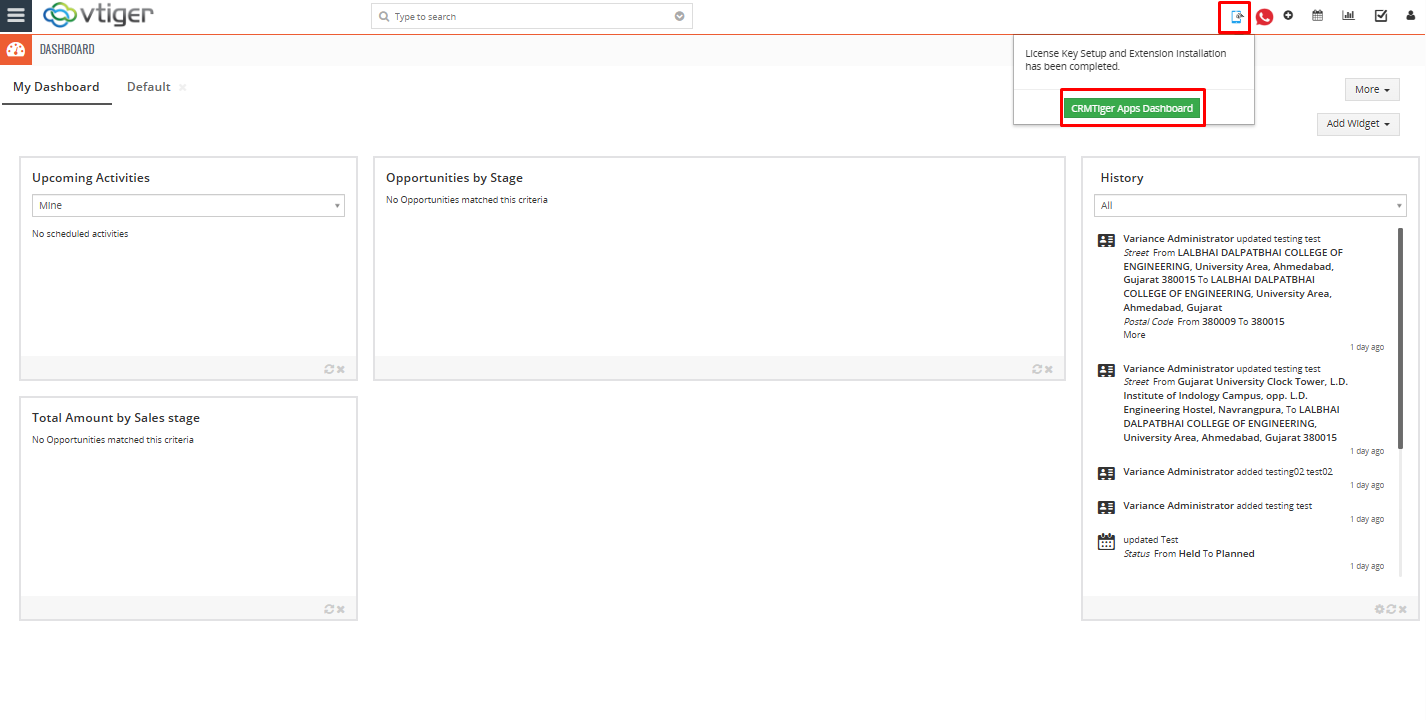
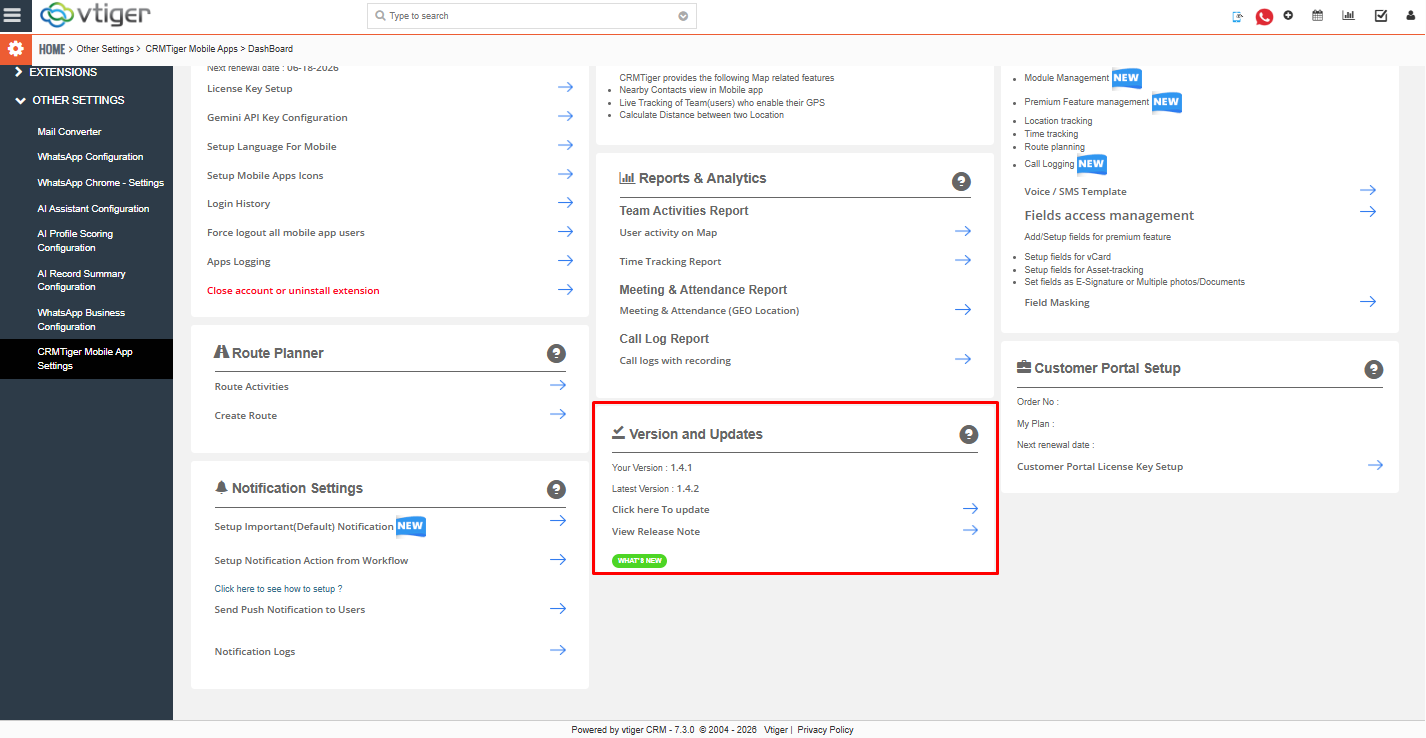
- Open the CRMTiger App Dashboard.
Navigate using:
Home → Other Settings → CRMTiger Mobile Apps → Dashboard
You can also open it directly from the dashboard shortcut.
Refer to the screenshot below:
Step 3: Start Version Update Process
Inside the dashboard:
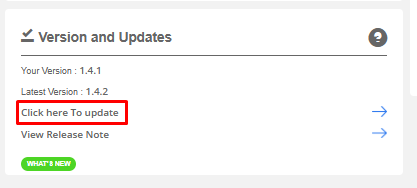
- Open the Versions and Updates section.
- Click Click Here to Update.
A popup window will appear.
Step 4: Install Update ZIP Files
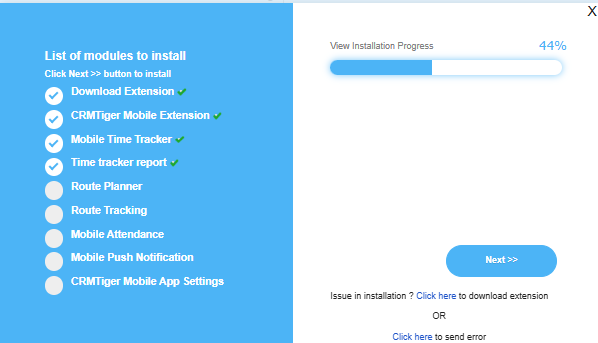
Once the popup opens:
- Click Next.
- Install all ZIP files one by one exactly as shown in the update screen.
- Wait for each installation to complete successfully before moving to the next ZIP.
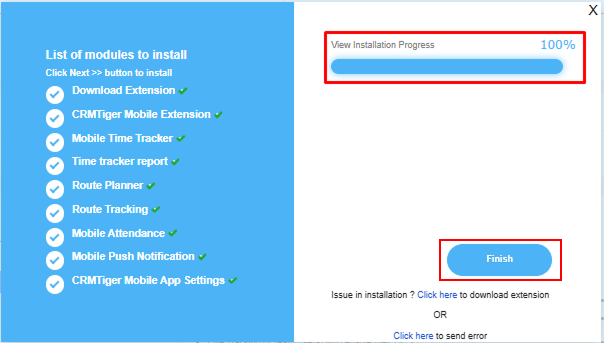
- Repeat until all ZIP files are installed.
After all installations are completed:
Click Finish.
Step 5: Perform Hard Refresh
After clicking Finish:
Perform a hard refresh in your browser.
Windows:
Ctrl + Shift + R
Mac:
Cmd + Shift + R
This ensures the latest scripts and files are loaded.
Step 6: Verify Updated Version
Go back to the Versions and Updates section and verify the installed version.
You should now see:
Your Version: 1.4.2
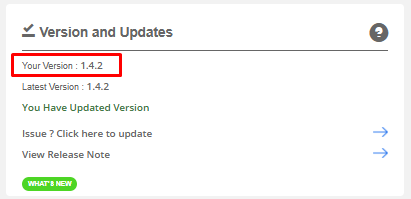 Congratulations — your CRMTiger Mobile App has been successfully updated.
You are now ready to use the latest version.
Troubleshooting Tips
If the update does not reflect:
- Clear browser cache.
- Perform another hard refresh.
- Logout and login again.
- Verify all ZIP files were installed successfully.
- Ensure installation was completed using Admin credentials.
After performing all the above steps, if the version is still not updated in your CRM, please manually download all the ZIP files one by one from the link below, install them, and then verify the version again. Click Here
For any issues or support, please contact the CRMTiger support team. support@crmtiger.com