Notes : Before installing Power Layout Plugin, please use your vTigerCRM and Database Backup first.
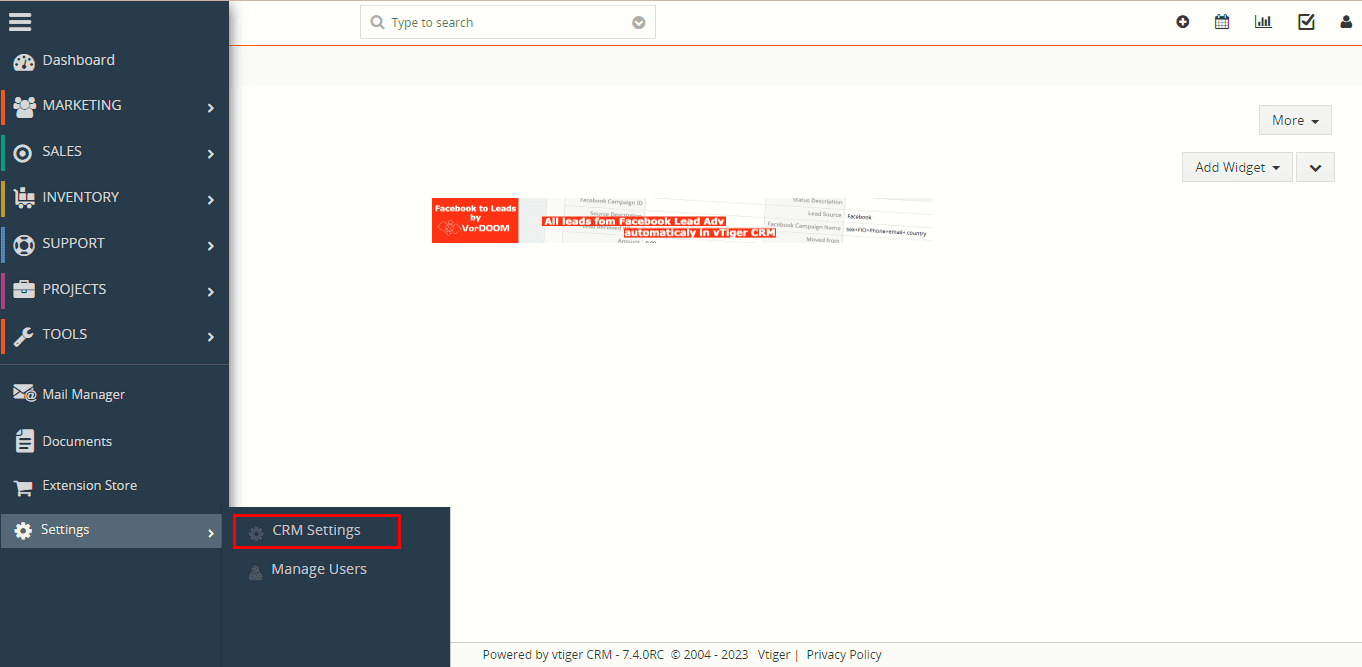
1. Go to the Dashboard page, Click on the Menu as shown in the screenshot below.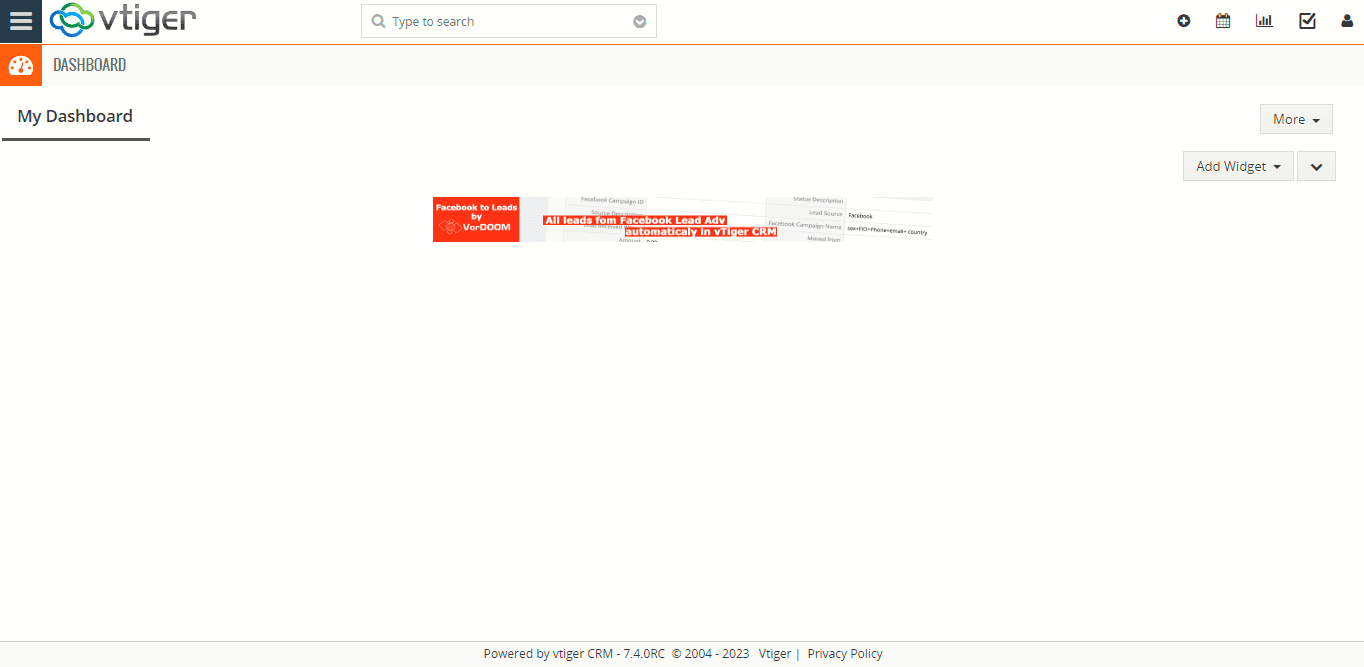 2. To open the “Settings” Page, Click on the CRM Settings as shown in the screenshot below.
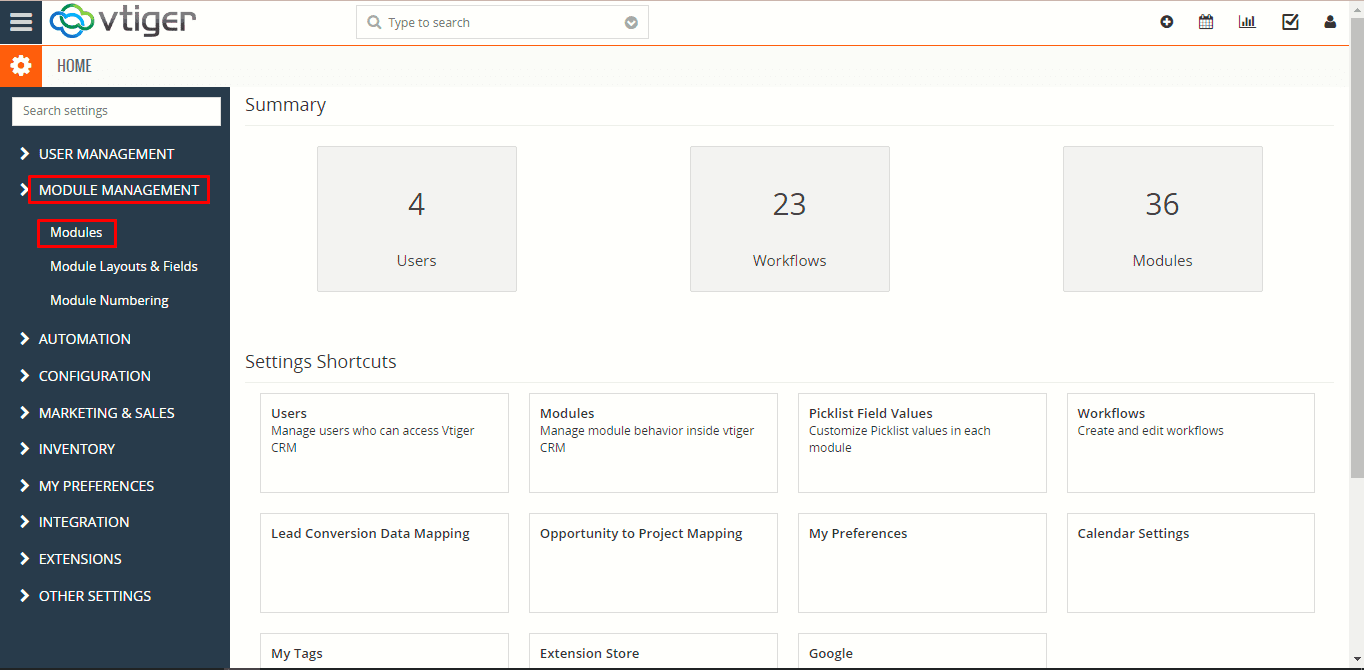
 3. In the CRM Settings, Open Module Management Menu, Click the Modules link as shown in the screenshot below.
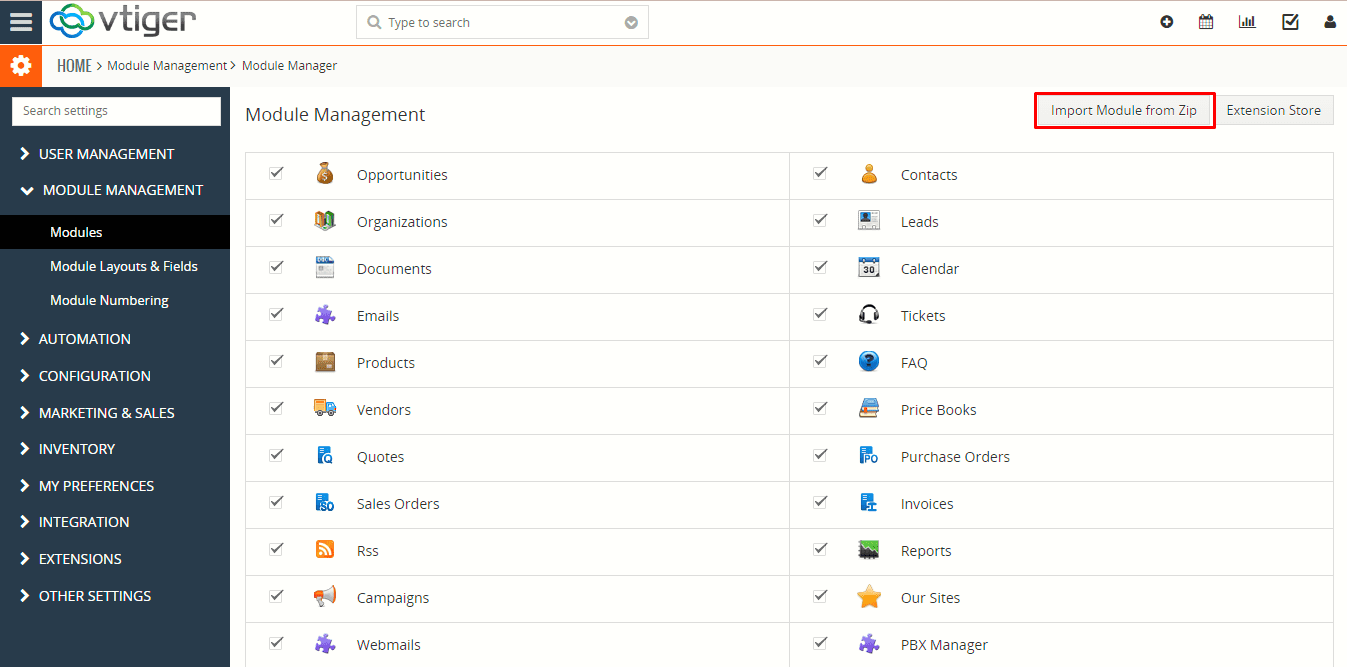
  4. In the Module Manager Page → Click on the Import Module From Zip Button.
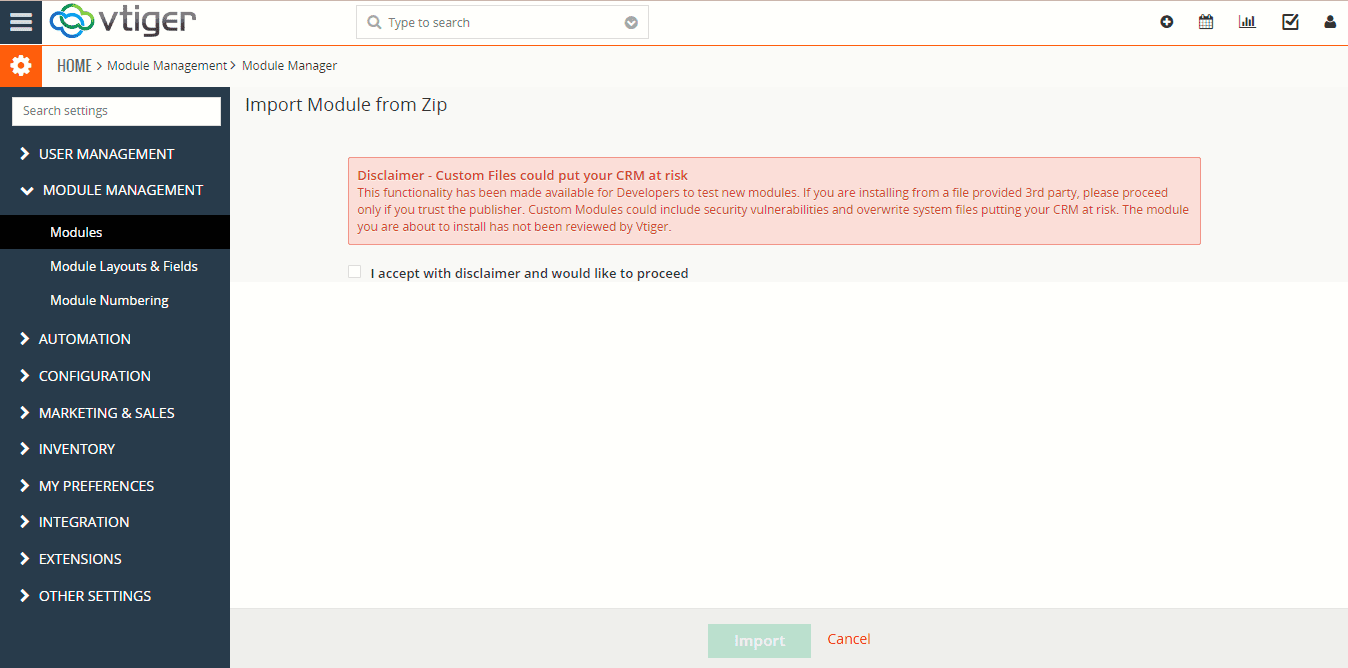
 5. In the Module Manager Page → Check the Checkbox Button for Terms and Conditions.
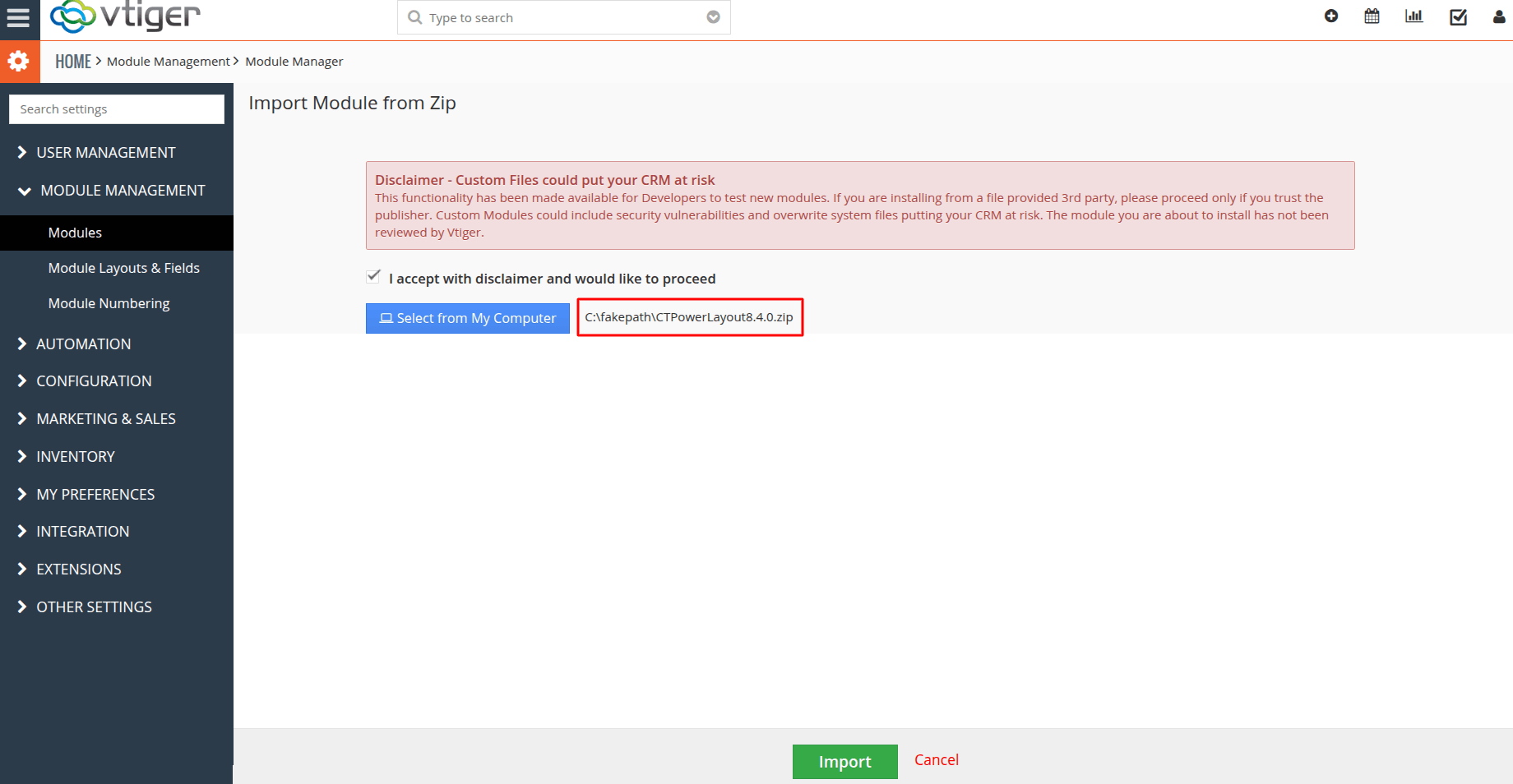
 6. In the Module Manager Page → Click on the Select From My Computer Button to select zip file → Click on the Select From My Computer Button to upload the Power Layout Plugin(zip file).
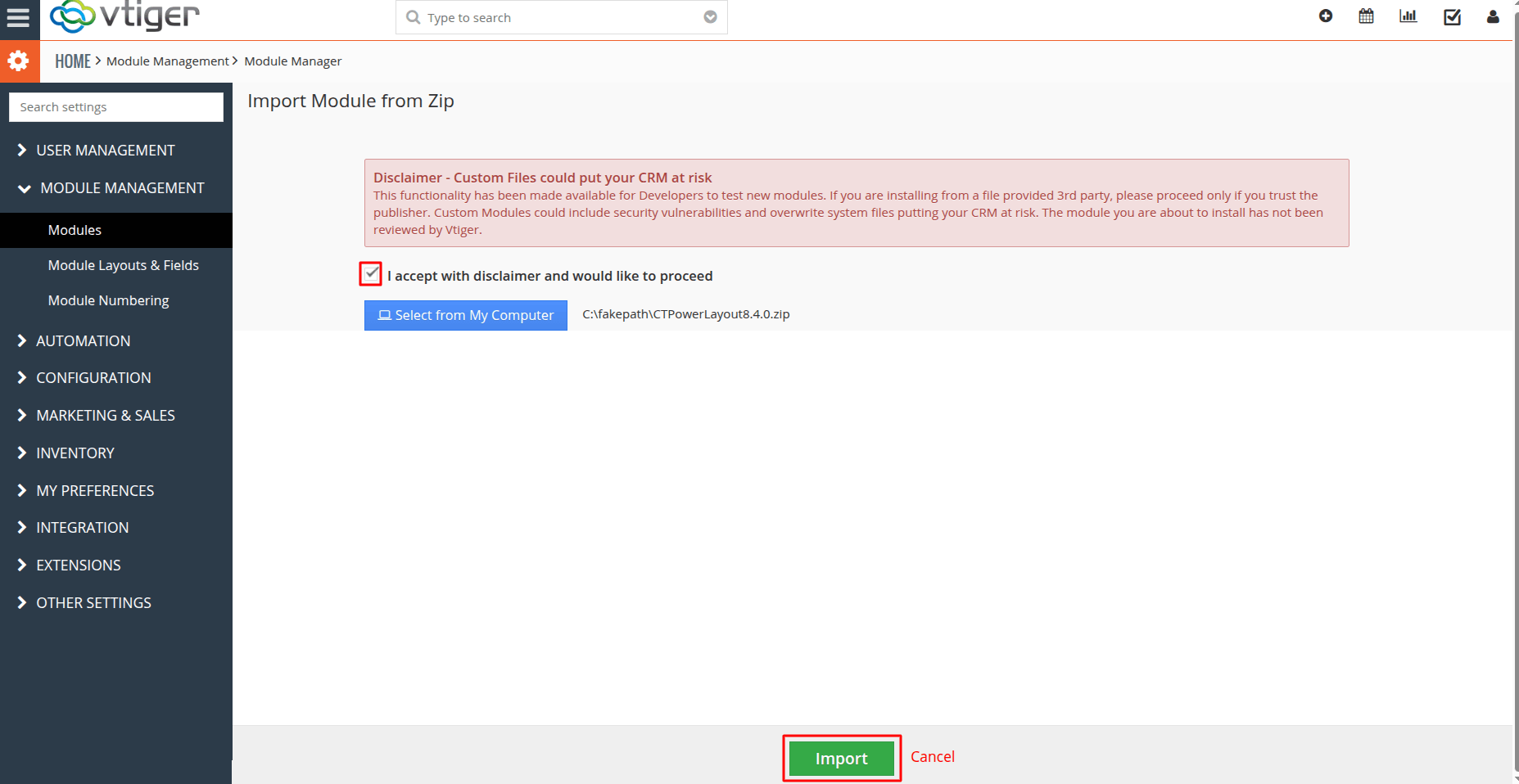
 7. On the Module Manager page → Click on the Import Button to install Power Layout Plugin.
 8. To accept the Terms and Conditions, Check the Checkbox Button → Click on the Import Now Button.
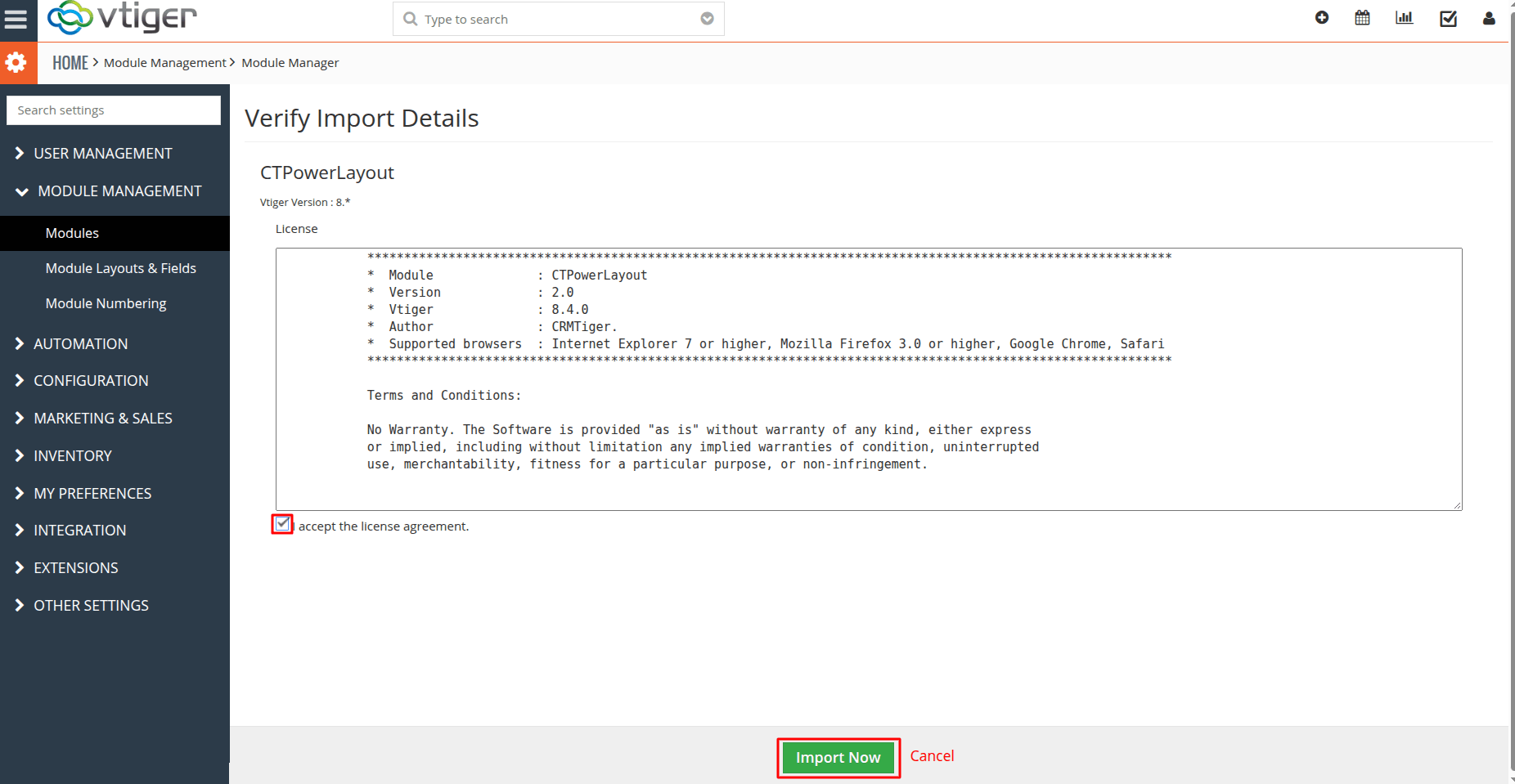 9. After Successful Installation → It redirects you to Module Manager and Now You can see Power Layout Plugin is installed.
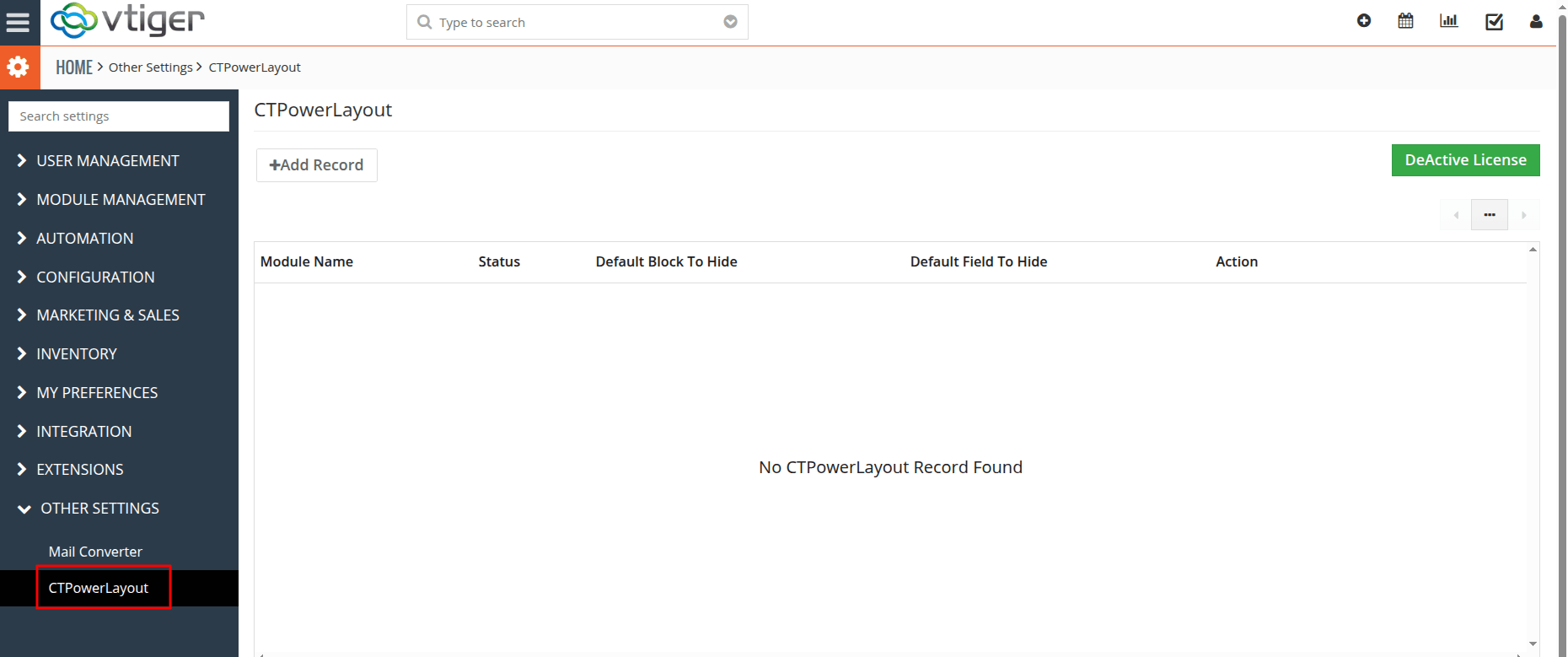
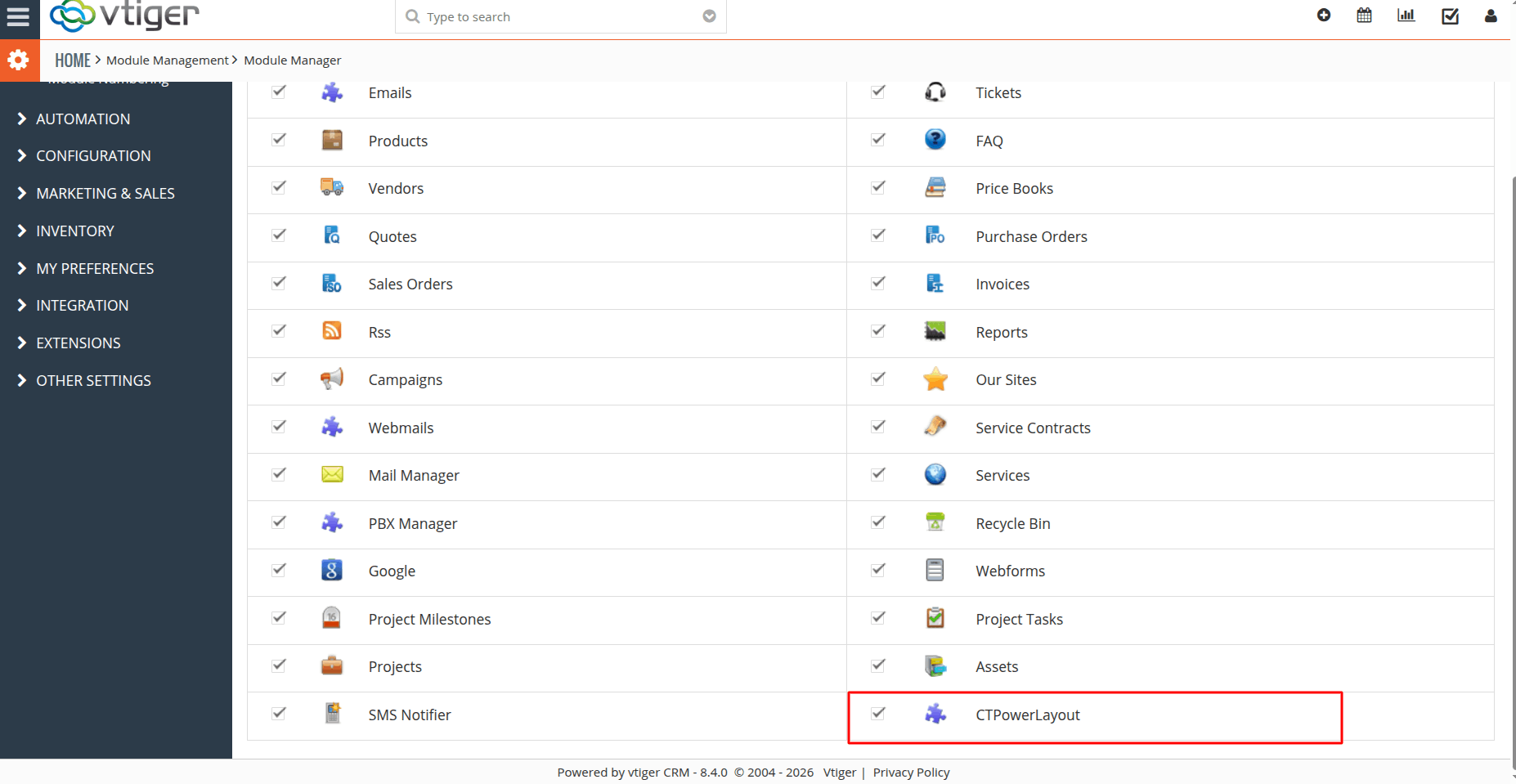 10. After Successful Installation you can see the link “Power Layout” on the Settings ->Other Settings as shown in the below screenshot.