
Overview The Power Layout Extension allows administrators to customize CRM layouts based on specific requirements. It provides flexible controls for fields and blocks, including visibility, mandatory status, read-only access, and automatic field value population.
Using Power Layout, administrators can configure these behaviors either by default or based on specific conditions.
Features The Power Layout Extension provides the following features:
Default Hide/Show Blocks or FieldsConfigure blocks or fields to be hidden by default when creating a new record, without applying any conditions.
Conditional Hide/ShowHide or show specific blocks or fields when configured conditions are satisfied.
Conditional Mandatory FieldsAutomatically make specific fields mandatory when the configured conditions are satisfied.
Conditional Read-Only FieldsMake specific fields read-only when the configured conditions are satisfied.
Conditional Auto-Populate FieldsAutomatically populate field values when the configured conditions are satisfied.
Steps to Configure Power LayoutStep 1: Install Power Layout
First, install the Power Layout extension from the CRM Module Manager.
Go to:
CRM Settings → Module Manager
Install Power Layout in the same way as any other CRM extension.
Once the installation is completed, a new Power Layout option will be available under the CRM Settings menu. 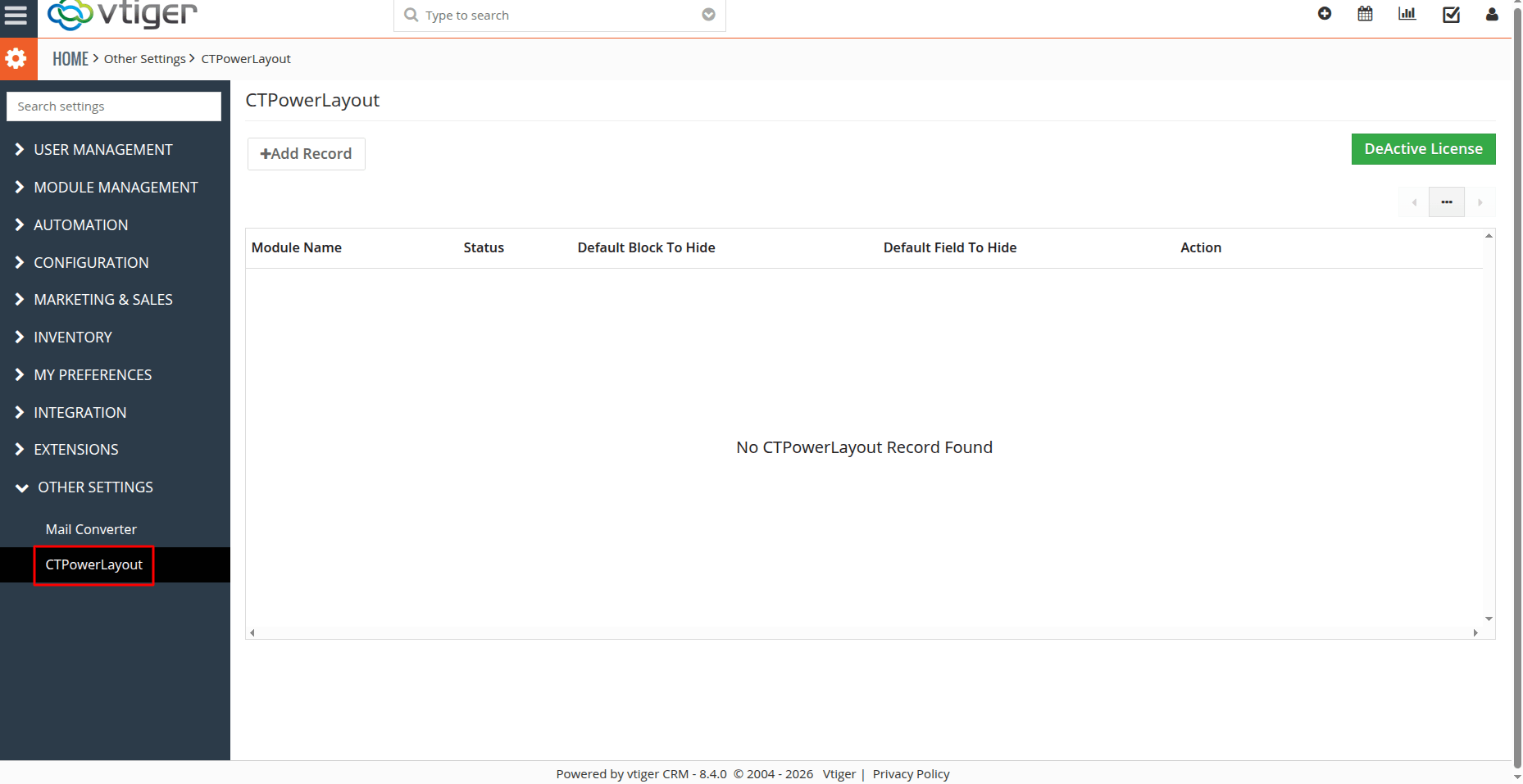 Step 2: Open Power Layout Settings
Open:
CRM Settings → Power Layout
The Power Layout configuration page will be displayed.
On this page, you will find the Add Record button.
Click Add Record to create a new Power Layout configuration. 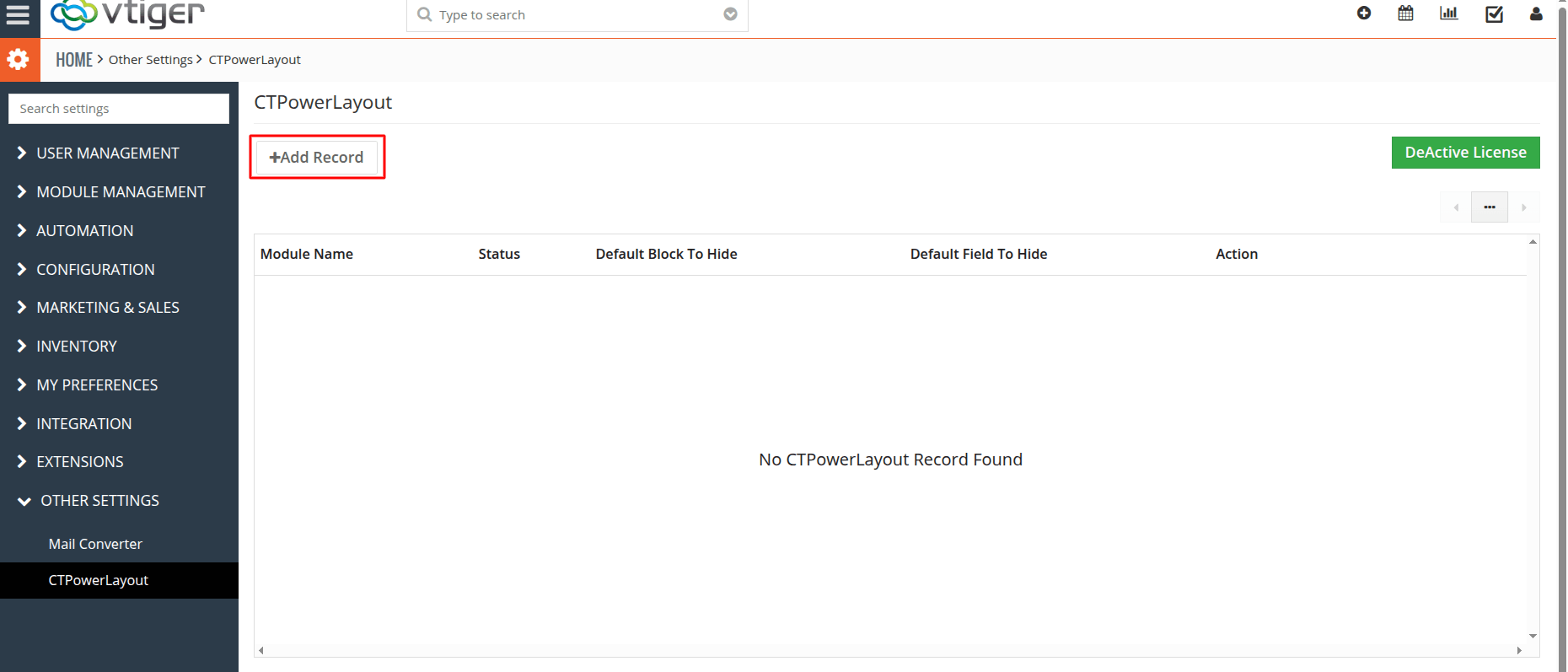 Step 1 – Basic ConfigurationAfter clicking Add Record, the Power Layout configuration page will open.
In Step 1, you can configure the basic settings for the module.
The following options are available:
Select ModuleSelect the CRM module for which you want to configure the Power Layout rules.
For example:
- Contacts
- Organizations
- Leads
- Quotes
- Sales Order
- Invoices
StatusUse the Status option to enable or disable the configuration.
- Active – The configuration will be applied to the selected module.
- Inactive – The configuration will not be applied.
Default Block HideUse Default Block Hide to hide a selected block automatically when creating a new record.
When this option is configured, the selected block will be hidden by default without requiring any condition.
Default Field HideSelect the fields that should be hidden by default when creating a new record.
After configuring the required module, status, block, and fields, click Next to continue. 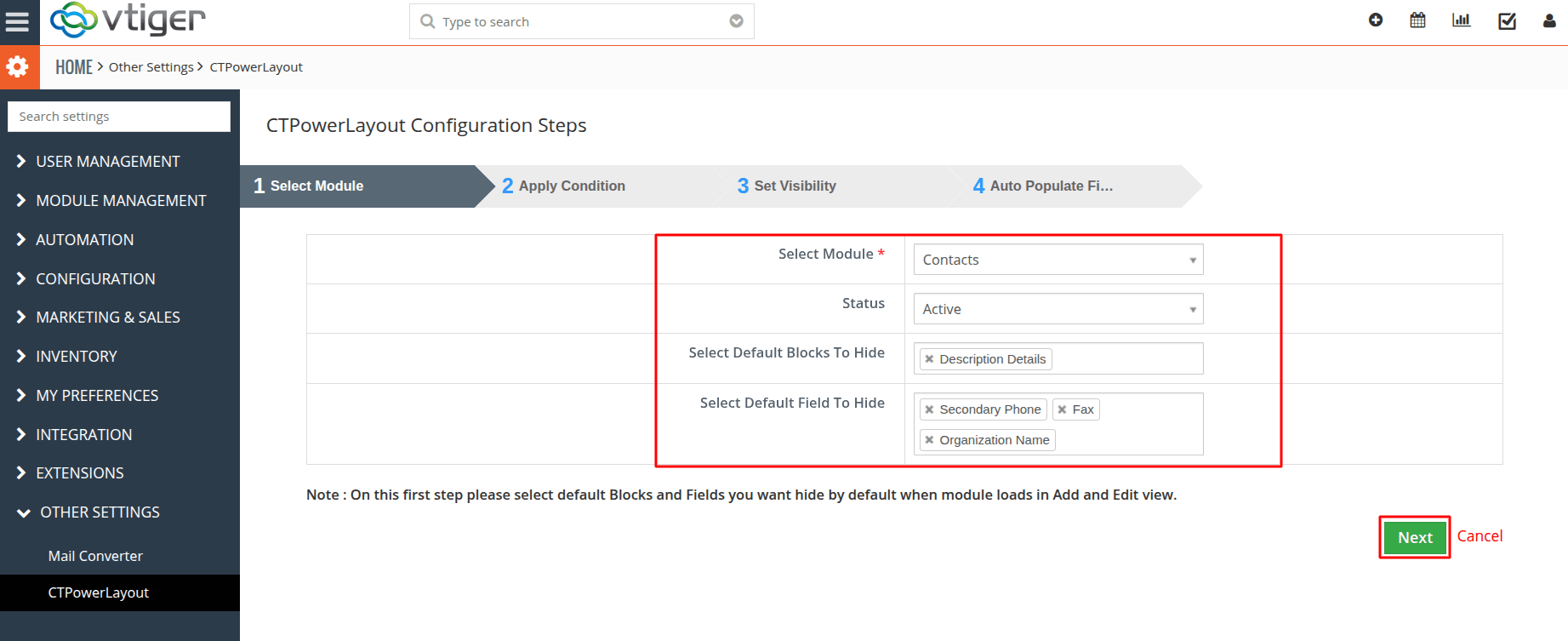 Step 2 – Configure Conditions After clicking Next, Step 2 will be displayed.
In this step, you can configure the conditions that determine when the Power Layout rules should be applied.
The conditions configured in Step 2 will be used in the next step to control:
- Block visibility
- Field visibility
- Mandatory fields
- Read-only fields
- Auto-populated fields
For example, you can configure a condition based on a field value such as:
Lead Source = Employee 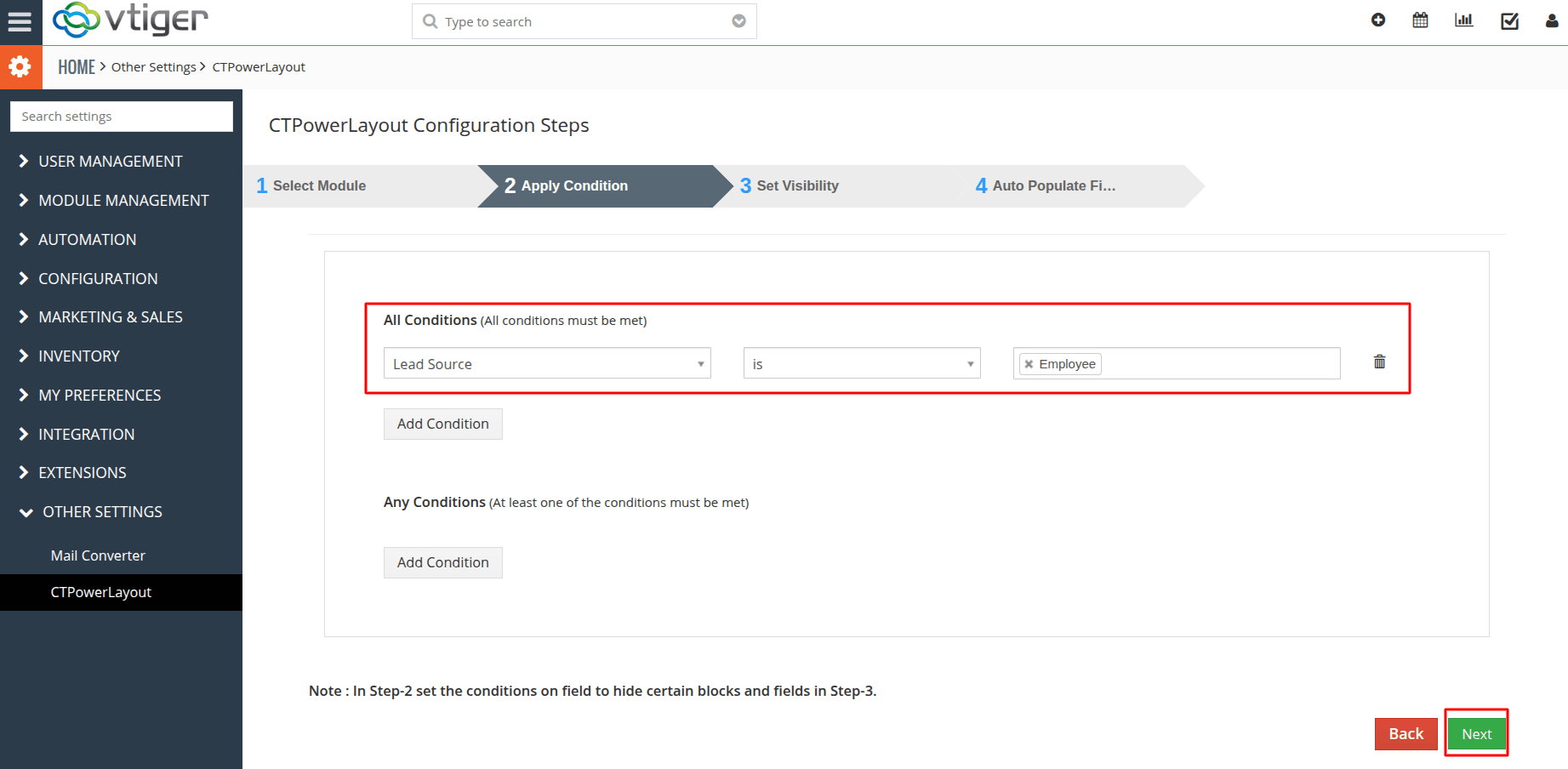 When this condition is satisfied, the actions configured in Step 3 will be applied.
Configure the required condition and click Next to continue. 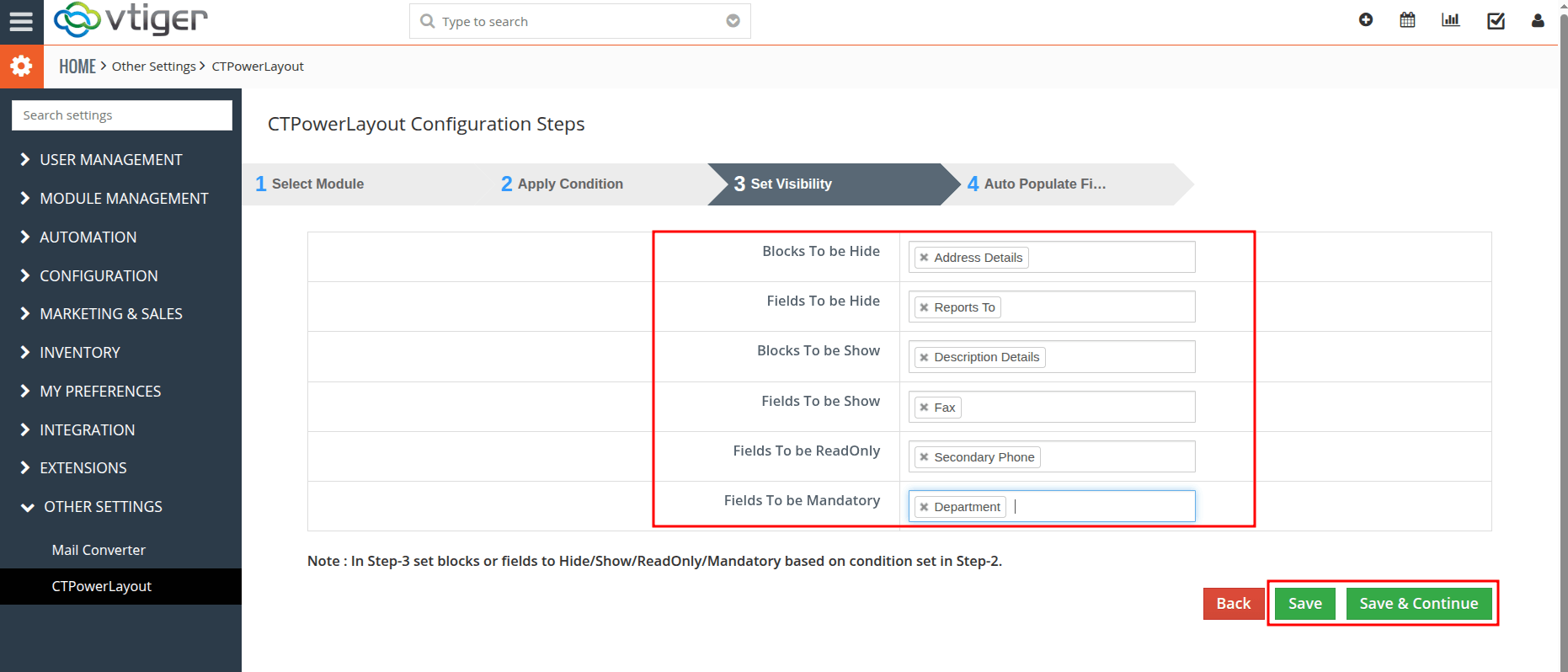 Step 3 – Configure Layout Actions After clicking Next, Step 3 will be displayed.
In this step, you can configure the actions that should be performed when the conditions configured in Step 2 are satisfied.
You can configure the following actions:
Hide Block
Select the block that should be hidden when the configured condition is satisfied.
Show Block
Select the block that should be hidden when the configured condition is satisfied.
Hide Field
Select the fields that should be hidden when the configured condition is satisfied.
Show Field
Select the fields that should be displayed when the configured condition is satisfied.
Mandatory Field
Select the fields that should become mandatory when the configured condition is satisfied.
Read-Only Field
Select the fields that should become read-only when the configured condition is satisfied.
Configure the required actions according to your requirements.
Once the configuration is complete:
- Click Save if you do not need to configure auto-populated fields.
- Click Save & Continue if you want to configure automatic field values.
Step 4 – Configure Auto-Populate Fields If you click Save & Continue in Step 4 will be displayed.
In this step, you can configure fields that should be automatically populated when the configured conditions are satisfied.
Select the required field and specify the value that should be automatically populated.
For example:
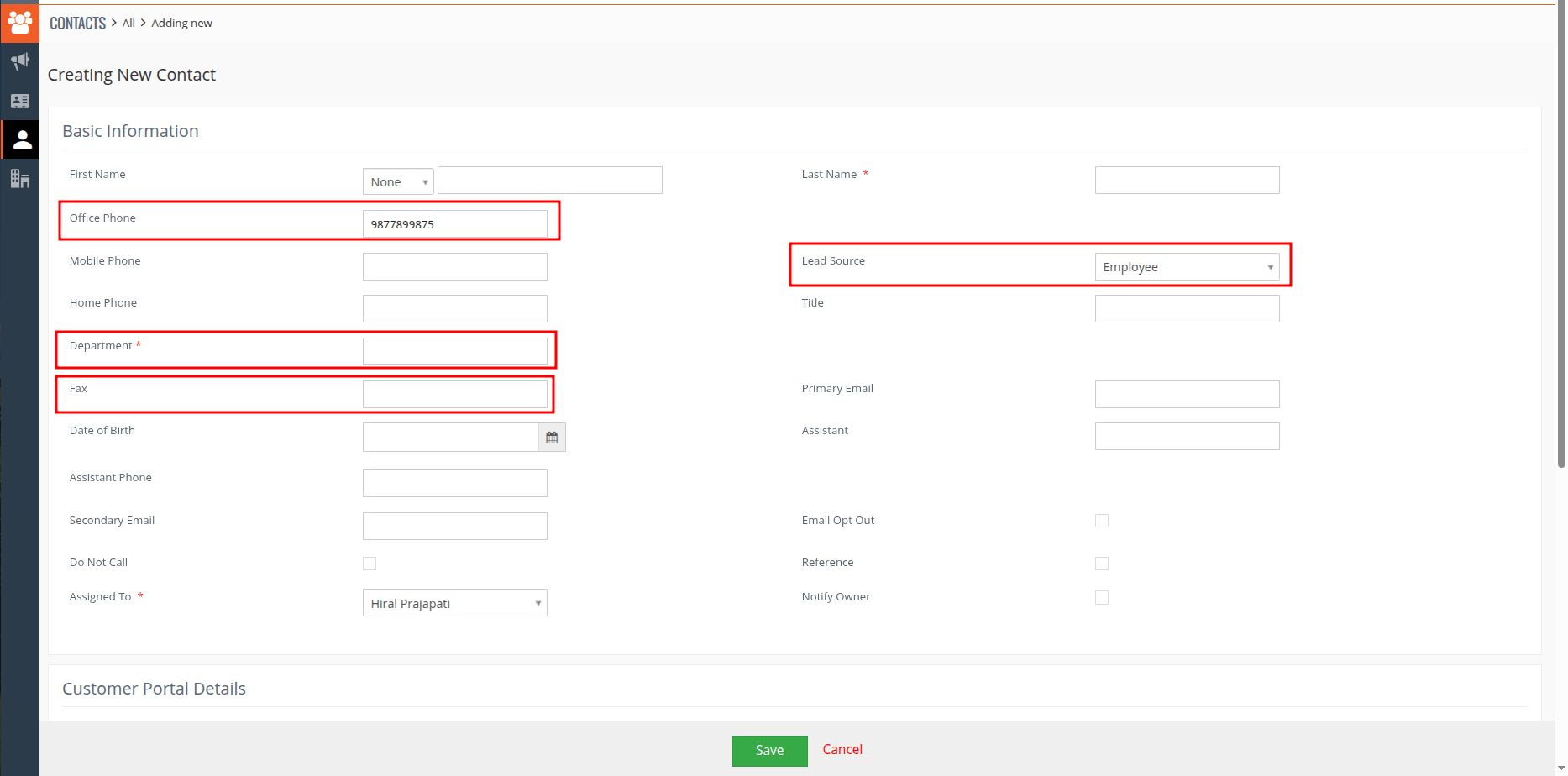
If Lead Source = Employee , automatically set Office Phone = 987789****
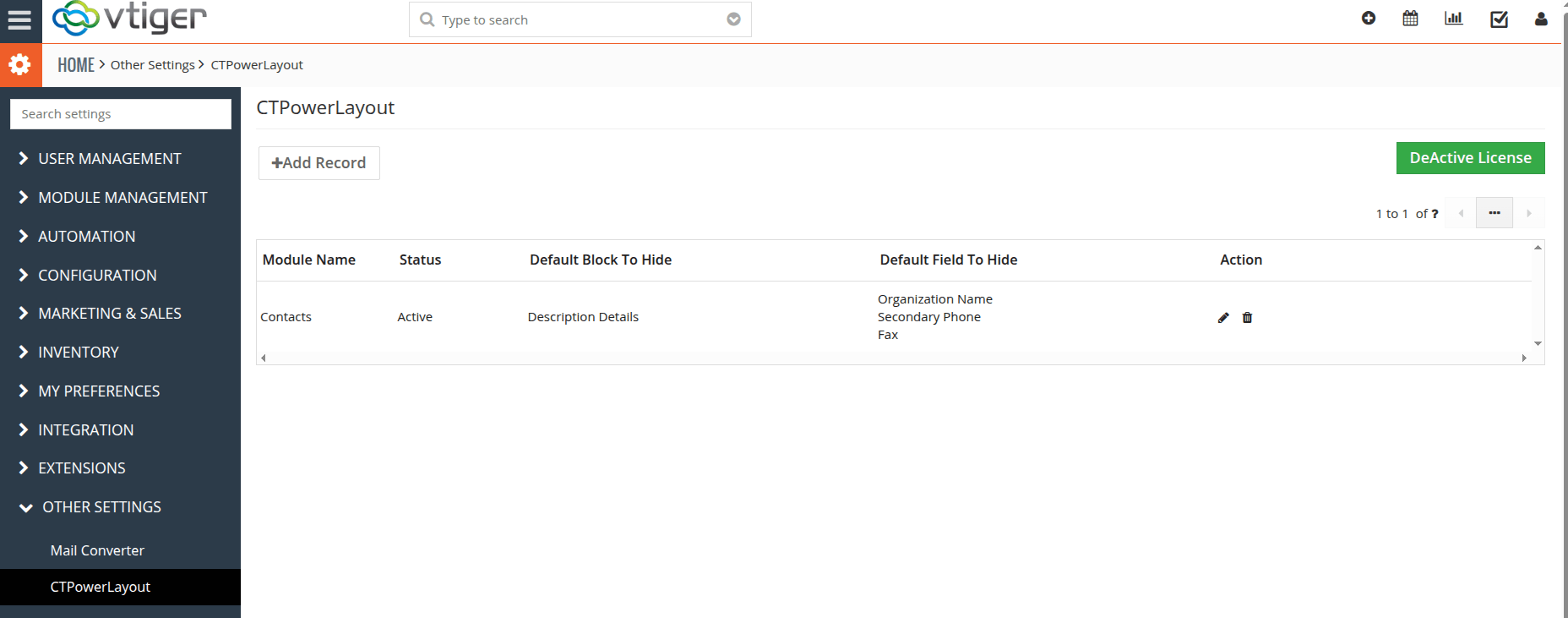
Configure all required auto-populate fields and click Save. 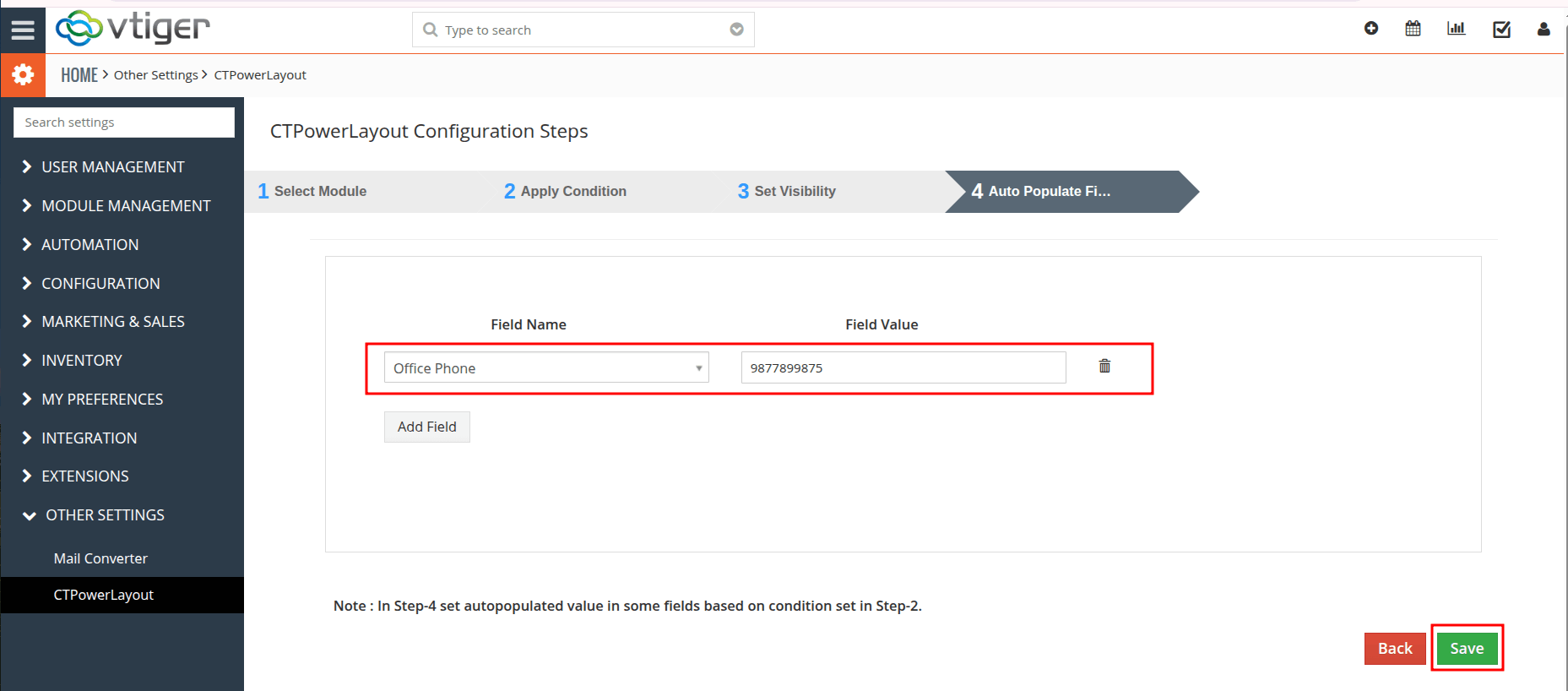 After saving, you will be redirected to the Power Layout list view.
  Verify the Power Layout Configuration After saving the configuration, open the configured CRM module.
For example:
Contacts → Create New Record
The configured default hide/show rules will be applied when the new record page is loaded.
Verify Default Hide ConfigurationThe blocks and fields configured under Default Block Hide and Default Field Hide will be hidden automatically when the new record page opens. 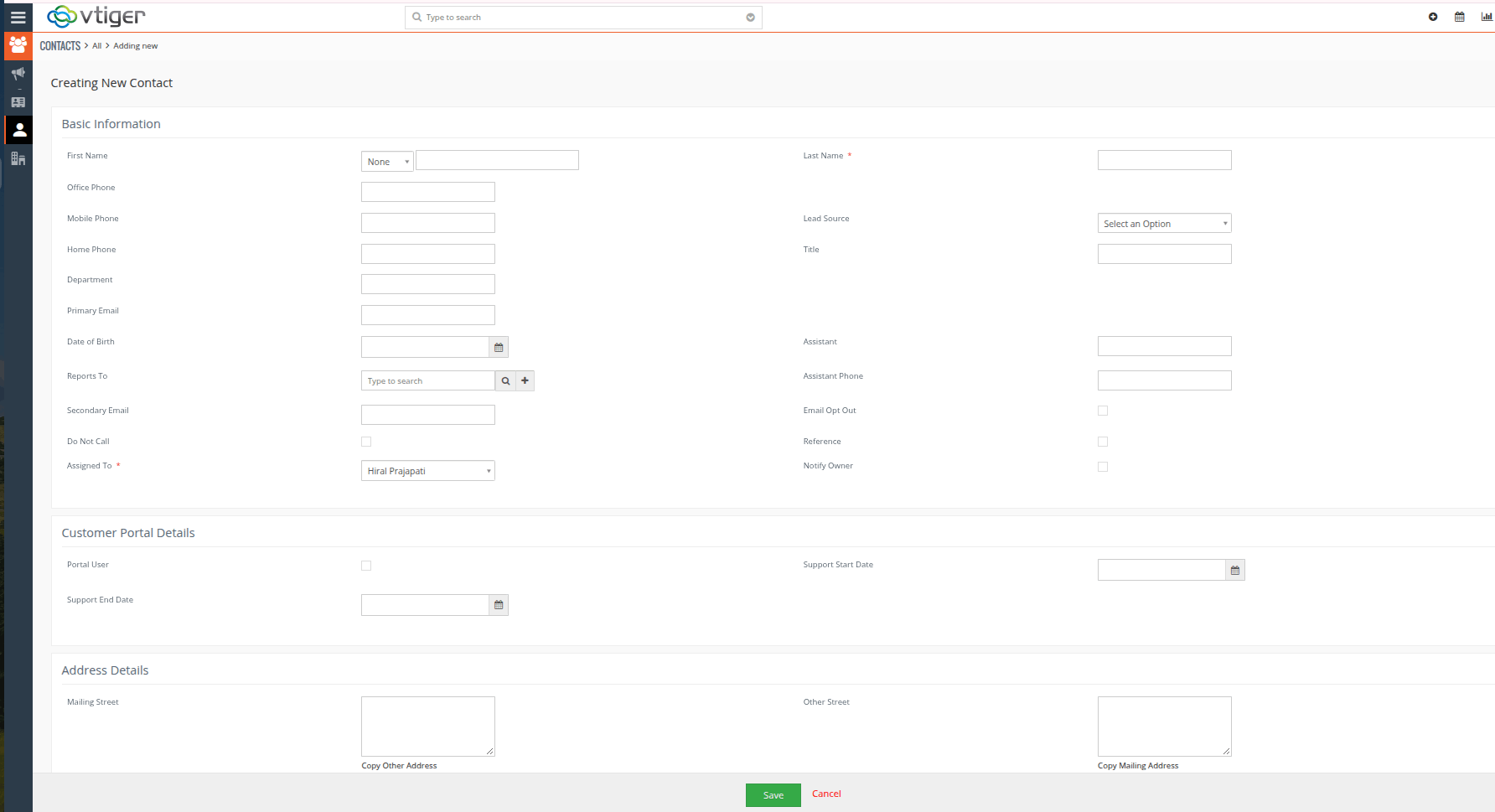
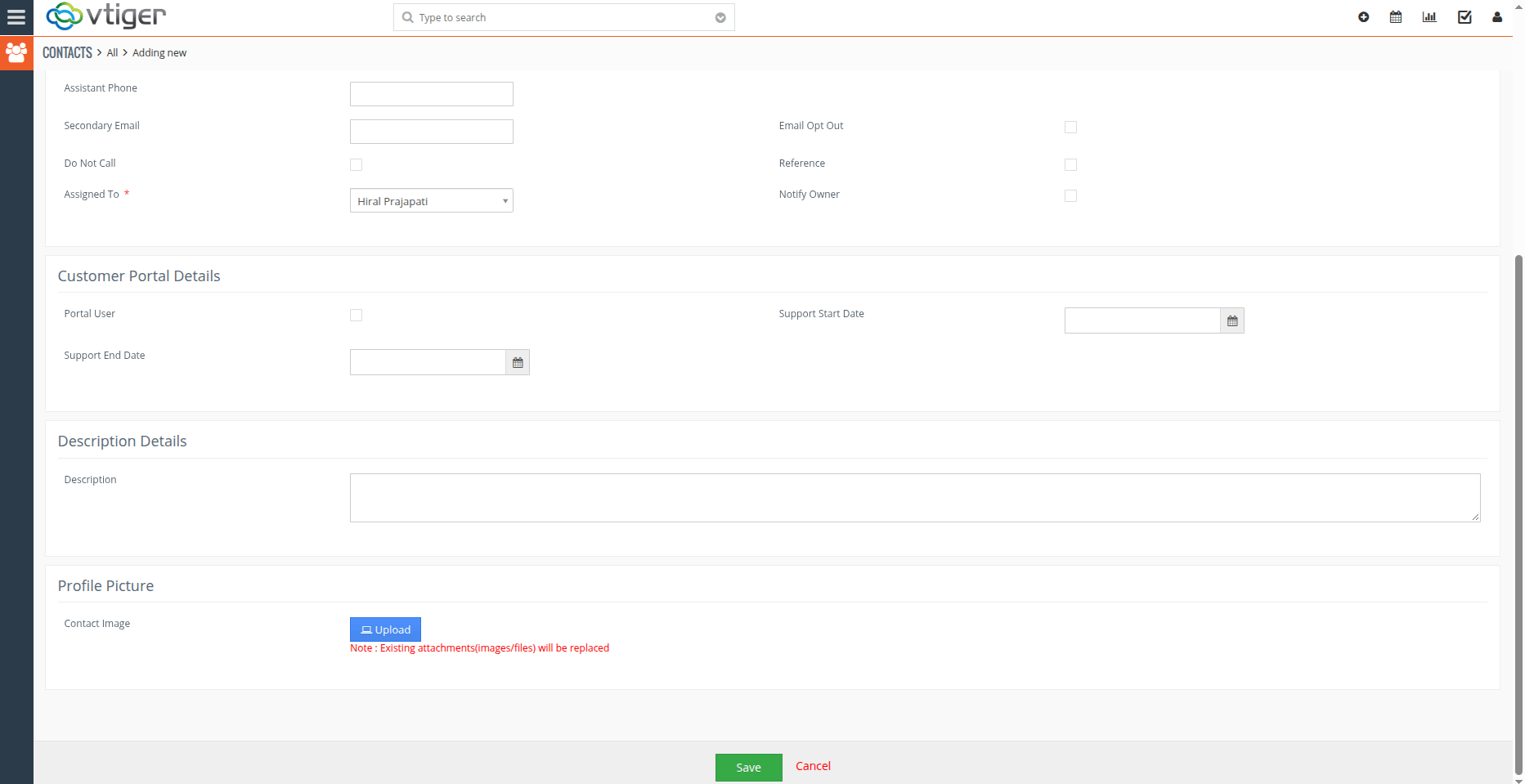
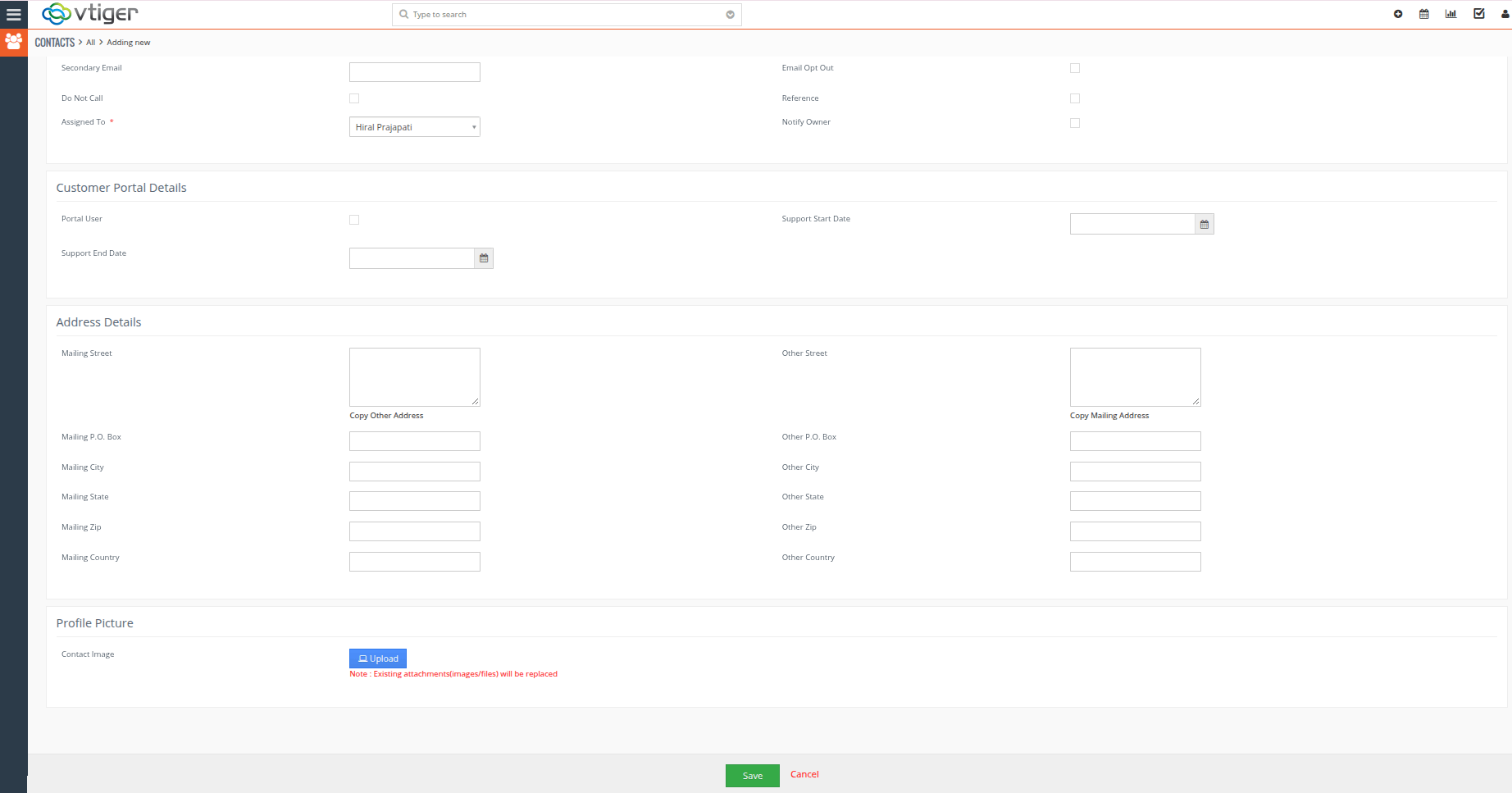 Verify Conditional Configuration Next, enter or select the values required to satisfy the condition configured in Step 2.
For example, if the configured condition is:
Lead Source = Employee
Once the condition is satisfied, the actions configured in Step 3 will automatically be applied.
Depending on your configuration, the system can:
- Hide blocks
- Show blocks
- Hide fields
- Show fields
- Make fields mandatory
- Make fields read-only
- Automatically populate field values
 Detail View The Power Layout configuration is also applied to the Detail View of the configured module.
All configured rules will work when viewing an existing record in Detail View, including:
- Hide or show blocks
- Hide or show fields
- Make fields read-only
- Apply configured field visibility rules based on conditions
- Apply configured auto-populated values where applicable
The configured rules are automatically applied when you open a record in Detail View, based on the conditions defined in the Power Layout configuration. 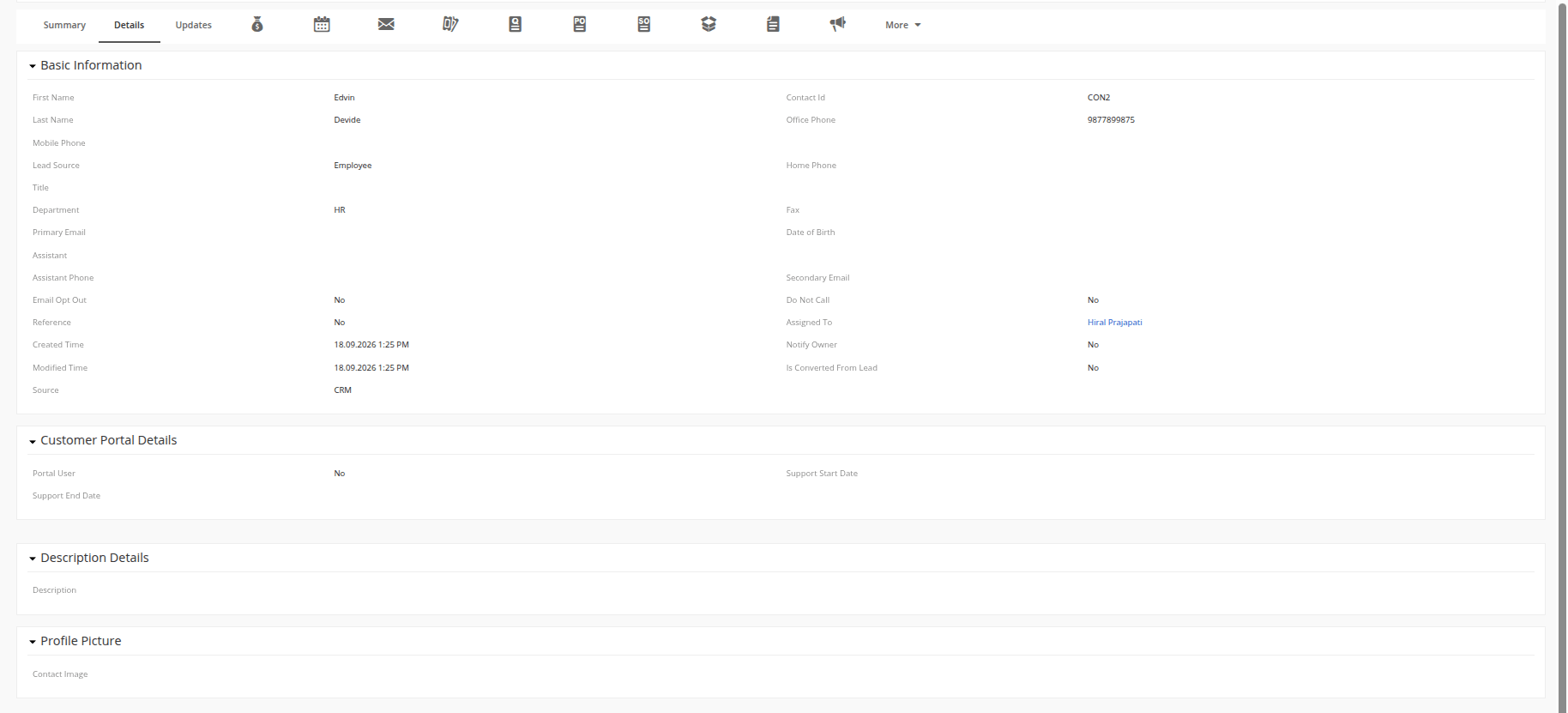 Summary Power Layout provides administrators with a flexible way to control CRM layouts without modifying the standard module layout.
Administrators can configure:
- Default hidden blocks and fields
- Conditional block and field visibility
- Conditional mandatory fields
- Conditional read-only fields
- Conditional auto-population of field values
Once configured, the rules are automatically applied when users create or edit records in the selected module.